
IOMO FCA-5000 Manual de usuario

1omo
empeo
CERTIFIED
FCA-5000
The FCA-5000 is a 7-inch Touch Screen Facial Recognition Terminal
With Waterproof Function For Outdoor Use powered by the latest CPU
for running the facial recognition algorithm. It is designed to boost
performance in all aspects and deal with all kinds of scenarios .
FOLLOW US
www.iomotech.com •
FCA-5000 User Manual
P a g e | 4
Document Conventions
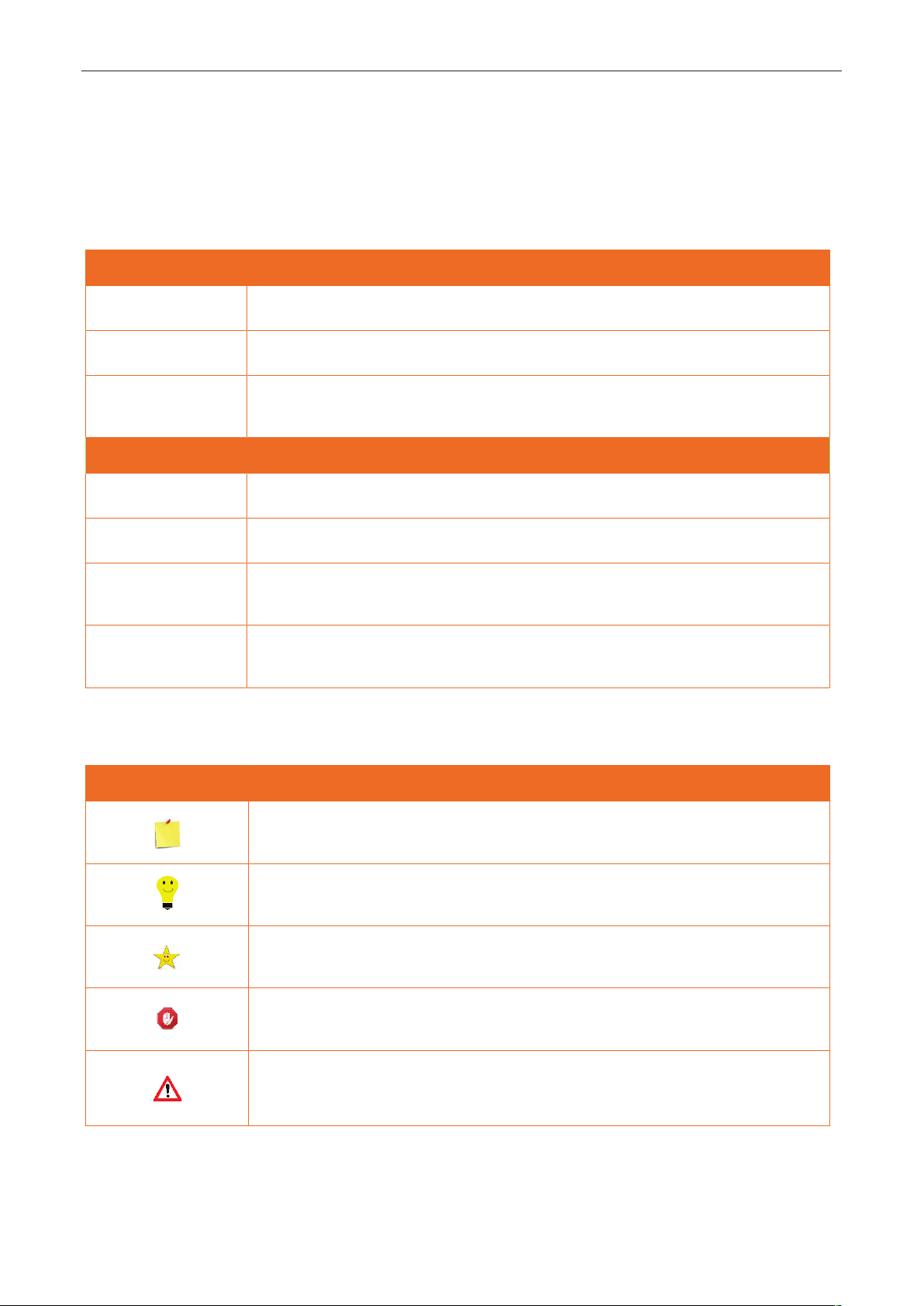
Conventions used in this manual are listed below:
GUI Conventions
For Software
Convention Description
Bold font Used to identify software interface names e.g., OK, Conrm, Cancel.
>Multi-level menus are separated by these brackets. For example, File > Create >
Folder.
For Device
Convention Description
< > Button or key names for devices. For example, press <OK>.
[ ] Window names, menu items, data table, and eld names are inside square
brackets. For example, pop up the [New User] window.
/Multi-level menus are separated by forwarding slashes. For example,
[File/Create/Folder].
Symbols
Convention Description
This represents a note that needs to pay more attention to.
The general information which helps in performing the operations faster.
The information which is signicant.
Care taken to avoid danger or mistakes.
The statement or event that warns of something or that serves as a cautionary
example.

FCA-5000 User Manual
Page | 5
Table of Contents
1SAFETY MEASURES ......................................................................................................................... 7
2OVERVIEW...................................................................................................................................... 10
3INSTRUCTION FOR USE ................................................................................................................. 11
STANDING POSITION, POSTURE AND FACIAL EXPRESSION ............................................................................................................... 113.1
FACE REGISTRATION ............................................................................................................................................................................. 123.2
STANDBY INTERFACE ............................................................................................................................................................................ 133.3
VIRTUAL KEYBOARD ............................................................................................................................................................................. 143.4
VERIFICATION MODE ............................................................................................................................................................................ 153.5
3.5.1 FACIAL VERIFICATION ........................................................................................................................................................................ 15
3.5.2 MULTI-FACE VERIFICATION .............................................................................................................................................................. 18
3.5.3PASSWORD VERIFICATION ............................................................................................................................................................... 21
4MAIN MENU ................................................................................................................................... 23
5USER MANAGEMENT..................................................................................................................... 24
USER REGISTRATION .................................................................................................................................................................... 245.1
5.1.1 USER ID AND NAME ............................................................................................................................................................................ 24
5.1.2 USER ROLE ............................................................................................................................................................................................. 25
5.1.3 FACE ........................................................................................................................................................................................................ 25
5.1.4 PASSWORD ............................................................................................................................................................................................ 26
5.1.5 PROFILE PHOTO ................................................................................................................................................................................... 27
5.1.6 ACCESS CONTROL ROLE .................................................................................................................................................................... 27
SEARCH USER........................................................................................................................................................................................ 285.2
EDIT USER ............................................................................................................................................................................................. 285.3
DELETE USER ........................................................................................................................................................................................ 295.4
DISPLAY STYLE ..................................................................................................................................................................................... 305.5
6USER ROLE ..................................................................................................................................... 31
7COMMUNICATION SETTINGS ....................................................................................................... 33
NETWORK SETTINGS ............................................................................................................................................................................. 337.1
SERIAL COMM ....................................................................................................................................................................................... 347.2
PC CONNECTION .................................................................................................................................................................................. 357.3
WIRELESS NETWORK ............................................................................................................................................................................ 357.4
CLOUD SERVER SETTING ...................................................................................................................................................................... 387.5
WIEGAND SETUP .................................................................................................................................................................................. 387.6
7.6.1 WIEGAND INPUT .................................................................................................................................................................................. 39
7.6.2 WIEGAND OUTPUT.............................................................................................................................................................................. 41
NETWORK DIAGNOSIS .......................................................................................................................................................................... 427.7
8SYSTEM SETTINGS......................................................................................................................... 43
DATE AND TIME .................................................................................................................................................................................... 438.1
ACCESS LOGS SETTING ........................................................................................................................................................................ 448.2

FCA-5000 User Manual
Page | 6
FACE PARAMETERS ............................................................................................................................................................................... 468.3
FACTORY RESET .................................................................................................................................................................................... 508.4
DEVICE TYPE SETTING .......................................................................................................................................................................... 508.5
DETECTION MANAGEMENT ................................................................................................................................................................. 508.6
9PERSONALIZE SETTINGS............................................................................................................... 52
INTERFACE SETTINGS ............................................................................................................................................................................ 529.1
VOICE SETTINGS.................................................................................................................................................................................... 539.2
BELL SCHEDULES .................................................................................................................................................................................. 539.3
PUNCH STATES OPTIONS ..................................................................................................................................................................... 559.4
SHORTCUT KEY MAPPINGS .................................................................................................................................................................. 559.5
10 DATA MANAGEMENT.................................................................................................................... 58
DELETE DATA ....................................................................................................................................................................................... 5810.1
11 ACCESS CONTROL ......................................................................................................................... 60
ACCESS CONTROL OPTIONS ................................................................................................................................................................ 6111.1
TIME RULE SETTING .............................................................................................................................................................................. 6211.2
HOLIDAYS ............................................................................................................................................................................................. 6411.3
COMBINED VERIFICATION .................................................................................................................................................................... 6511.4
ANTI-PASSBACK SETUP ........................................................................................................................................................................ 6611.5
DURESS OPTIONS ................................................................................................................................................................................. 6711.6
12 ATTENDANCE SEARCH.................................................................................................................. 68
13 PRINT SETTINGS ............................................................................................................................ 70
PRINT DATA FIELD SETTINGS............................................................................................................................................................... 7013.1
PRINT OPTIONS SETTINGS.................................................................................................................................................................... 7113.2
14 AUTOTEST...................................................................................................................................... 72
15 SYSTEM INFORMATION ................................................................................................................ 73
APPENDIX 1 ............................................................................................................................................... 77
REQUIREMENTS OF LIVE COLLECTION AND REGISTRATION OF VISIBLE LIGHT FACE IMAGES................................................................... 77
REQUIREMENTS FOR VISIBLE LIGHT DIGITAL FACE IMAGE DATA ............................................................................................................... 78
APPENDIX 2 ............................................................................................................................................... 79
PRIVACY POLICY ............................................................................................................................................................................................ 79
ECO-FRIENDLY OPERATION ........................................................................................................................................................................... 81

FCA-5000 User Manual
Page | 7
1Safety Measures
The below instructions intend to ensure that the user can use the product correctly to avoid danger
or property loss. The following precautions are to keep users safe and prevent any damage. Please
read carefully before installation.
Noncompliance with instructions could lead to product damage or physical injury (may even
cause death).
1. Read, follow, and retain instructions - All safety and operational instructions must be properly
read and followed before bringing the device into service.
2. Do not ignore warnings - Adhere to all warnings on the unit and in the operating instructions.
3. Accessories - Use only manufacturer-recommended or product-sold accessories. Please do not use
any other components other than manufacturer suggested materials.
4. Precautions for the installation – Do not place this device on an unstable stand or frame. It may
fall and cause serious injury to persons and damage to the device.
5. Service - Do not try to service this unit yourself. Opening or removing covers may expose you to
hazardous voltages or other hazards.
6. Damage requiring service - Disconnect the system from the Mains AC or DC power source and
refer service personnel under the following conditions:
•When cord or connection control is affected.
•When the liquid spilled, or an item dropped into the system.
•If exposed to water or due to inclement weather (rain, snow, and more).
•If exposed to water or due to inclement weather (rain, snow, and more).
Just change controls defined in operating instructions. Improper adjustment of the controls may
result in damage and involve a qualified technician to return the device to normal operation.
And do not connect multiple devices to one power adapter as adapter overload can cause over-heat
or fire hazard.
7. Replacement parts - When replacement parts are needed, service technicians must only use
replacement parts provided by the supplier. Unauthorized substitutes can result in a burn, shock, or
other hazards.
8. Safety check - On completion of service or repair work on the unit, ask the service technician to
perform safety checks to ensure proper operation of the device.
9. Power sources - Operate the system only from the label's power source form. If the sort of AC
adapter to use is unclear, call your dealer.

FCA-5000 User Manual
Page | 8
10. Lightning - Can install external lightning conductors to protect against electrical storms. It stops
power-ups from destroying the system.
Recommended installing the devices in areas with limited access.
Electrical Safety
Before connecting an external cable to the device, complete grounding properly, and set up
surge protection; otherwise, static electricity will damage the mainboard.
Make sure that the power has been disconnected before you wire, install, or dismantle the
device.
Ensure that the signal connected to the device is a weak-current (switch) signal; otherwise,
components of the device will get damaged.
Ensure that the standard voltage applicable in your country or region is applied. If you are not
sure about the endorsed standard voltage, please consult your local electric power company.
Power mismatch may cause a short circuit or device damage.
In the case of power supply damage, return the device to the professional technical personnel
or your dealer for handling.
To avoid interference, keep the device far from high electromagnetic radiation devices, such as
generators (including electric generators), radios, televisions, (especially CRT) monitors, or
speakers.
Operation Safety
If smoke, odour, or noise rise from the device, turn off the power at once and unplug the power
cable, and then please contact the service centre.
Transportation and other unpredictable causes may damage the device’s hardware. Check
whether the device has any intense damage before installation.
If the device has major defects that you cannot solve, contact your dealer as soon as possible.
Dust, moisture, and abrupt temperature changes can affect the device's service life. You are
advised not to keep the device under such conditions.
Do not keep the device in a place that vibrates. Handle the device with care. Do not place heavy
objects on top of the device.
Do not apply rosin, alcohol, benzene, pesticides, and other volatile substances that may
damage the device enclosure. Clean the device accessories with a piece of soft cloth or a small
amount of cleaning agent.
If you have any technical questions regarding usage, contact certified or experienced technical
personnel.

FCA-5000 User Manual
Page | 9
Note
Make sure whether the positive polarity and negative polarity of the DC 12V AC adapter is
connected correctly. A reverse connection may damage the device. It is not advisable to connect
the AC 24V AC adapter to the DC 12V input port.
Make sure to connect the wires following the positive polarity and negative polarity shown on the
device's nameplate.
The warranty service does not cover accidental damage, damage caused by mis-operation, and
damage due to independent installation or repair of the product by the user.

FCA-5000 User Manual
Page | 10
2Overview
FCA-5000 uses the latest Computer Vision Technology. It supports facial verification with large capacity
and quick recognition and also improves security performance in all aspects.
It accepts touchless recognition technology and new functions namely Masked Individual
Identification which eliminates hygiene concerns effectively. It is also equipped with the ultimate
Anti-Spoofing algorithm for facial recognition against almost all types of fake photos and videos attack.
The terminal with mask detection is a perfect device to help reduce the spread of germs and help
prevent infections at each access point of any premises and public areas such as hospitals, factories,
schools, commercial buildings, stations during the recent global public health issue with its fast and
accurate masked individual identification functions during facial verification.
Features
•Visible Light Facial Recognition.
•Better hygiene with touchless biometric authentication and masked individual identification.
•Anti-spoofing algorithm against printed photo attack (laser, color and B/W photos), videos attack
and 3D mask attack.
•Multiple Verification Methods: Password / Face.
•Multi-face Verification.
Other Specifications
•Mask detection.

FCA-5000 User Manual
Page | 11
3Instruction for Use
Before getting into the device features and functions, it is recommended to be familiar with the
below fundamentals.
Standing Position, Posture and Facial Expression3.1
Recommended Standing Posture and Facial Expression
NOTE: Please keep your facial expression and standing posture natural while enrolment or verification.
Standing Posture
Facial Expression

FCA-5000 User Manual
Page | 12
3.2 Face Registration
Try to keep the face in the centre of the screen during registration. Please face towards the camera
and stay still during face registration. The screen should look like this:
Correct face registration and authentication method
Recommendation for registering a face
When registering a face, maintain a distance of 40cm to 80cm between the device and the face.
Be careful to keep your facial expression natural and not to change. (smiling, drawn face, wink,
etc.)
If you do not follow the instructions on the screen, the face registration may take a longer time or
may fail.
Be careful not to cover the eyes or eyebrows.
Do not wear hats, masks, sunglasses, or eyeglasses.
Be careful not to display two faces on the screen. Register one person at a time.
It is recommended for a user wearing glasses to register both faces with and without glasses.
Tabla de contenidos


