
INTEZZE HUB Manual de usuario

USER MANUAL
HUB
Bluetooth receiver / transmitter

EN
Package Contents
TOSLINK
optical cable
AUX cable
3.5 mm jack
RCA adapter
for 3.5 mm jack
Micro USB
charging
cable
Adhesive
gel strip
Manual
EN
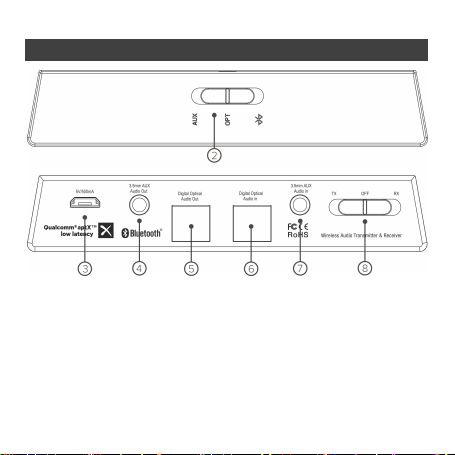
Product Description
1) LED indicator light can be found on the top of the device (not shown)
2) Signal source switch/pairing mode activation
3) Charging via micro-USB cable
4) AUX audio output, 3.5 mm jack
5) To link digital optical audio output
6) To link digital optical input
7) Analogue input, 3.5 mm jack
8) Off switch, Bluetooth transmitter/receiver mode switch

EN
Modes
TX Mode – Bluetooth transmitter
Connect the Intezze HUB to a device that is not equipped with a Bluetooth
interface (TV, PC). The HUB then allows you to send the audio signal from these
devices wirelessly to BT headphones/BT speakers and other devices.
RX Mode – Bluetooth receiver
Connect the Intezze HUB to a device that is not able to receive a Bluetooth signal
wirelessly. You can then send music from your phone/tablet to the Intezze HUB,
which transmits it via a cable (analogue/digital) to your home audio system or
speakers.
Switching On and Mode Selection
Using the adhesive gel strip, you can attach the Intezze HUB to a
table/monitor/TV as required.
1) Use the provided micro-USB cable to connect the HUB to a powered USB
connector (on a TV, make sure the USB output is powered) or preferably to
a charger.
2) Use the switch on the back to select the desired TX/RX mode. The LED
indicator light on the top will start flashing twice in quick succession.
3) To switch off the device, move the same switch to the central OFF position.

EN
Connection in TX – Transmitter Mode
Connection to TV/computer
In transmitter mode, it is necessary to connect the HUB to an audio signal source
(computer, TV, MP3 player, etc.). Use one of the available options:
a) Using the optical cable. Digital optical output is available on newer TVs.
Connect it to the Digital Optical Audio IN on the HUB.
Alternatively, you may need to select digital PCM output in the TV settings.
b) Using the RCA cable. Analogue connection is available on most TVs. Use
the supplied AUX jack cable together with the RCA adapter and connect the
RCA audio output of the TV to the 3.5 mm AUX Audio IN on the HUB.
c) Using the AUX 3.5 mm jack cable. Use this cable to connect the HUB to the
headphone output of the TV. Use the 3.5 mm AUX Audio IN again on the
HUB.
Pairing in TX – Transmitter Mode
Pairing with BT headphones/BT speakers
1) Connect the product to the TV or other signal source by following the
instructions in the previous chapter.
2) Slide the switch on the back to the TX position.
3) On the front panel, hold the slide switch to the far right (BT) until the LED
indicator light alternately flashes red and blue. Pairing mode is now active.

EN
4) Switch the headphones to pairing mode as well so that they can be paired
with the HUB. When pairing is complete, the LED indicator light stops
flashing and turns blue (OPT)/green (AUX). Pairing mode automatically
turns off after 30 seconds.
5) Make sure that the input used on the back of the HUB corresponds to the
selected option on the front (analogue AUX or digital OPT).
Multi-point pairing with two devices simultaneously
The product can stream audio to two devices simultaneously. Once one device is
connected, it is possible to pair the other device with the HUB.
1) Pair and connect the first pair of headphones first by following the
instructions in the previous chapter.
2) Hold the switch on the front to the far right to activate pairing mode on the
HUB (the LED indicator light flashes red and blue again).
3) Switch the other pair of headphones to pairing mode so that they can be
connected to the HUB. The sound will then be transmitted to both
headphones simultaneously.
Intezze HUB always selects the best available codec supported by the
headphones (ideally aptX Low Latency). If at least one pair of headphones
supports this codec, it will be used automatically for both currently connected
devices.

EN
Connection in RX – Receiver Mode
Connection to the audio system/active speakers
In Bluetooth receiver mode, only output that can transmit a signal to the
connected device is used on the back of the HUB. There are 3 options to connect
the device:
a) Using the optical cable. Some audio systems/active speakers are equipped
with a digital optical input. Connect it to the Digital Optical Audio OUT on
the HUB.
b) Using the RCA cable. Analogue connection is available on most audio
devices. Use the supplied AUX jack cable together with the RCA adapter
and connect the RCA audio input on the home system to the 3.5 mm AUX
Audio OUT output on the HUB.
c) Using the AUX 3.5 mm jack cable. If your home appliance is equipped with
a 3.5 mm jack audio input (headphone output cannot be used), use the
AUX jack connecting audio cable - 3.5 mm jack included in the package.
Pairing in RX – Receiver Mode
Pairing with a phone/tablet
1) First, complete the connection to the home audio device by following the
instructions in the previous chapter.
2) Slide the switch on the back to the RX position.

EN
3) On the front panel, hold the slide switch to the far right (BT) until the LED
indicator light alternately flashes red and blue (active pairing mode).
4) Turn on Bluetooth on the phone/tablet and search for "Intezze HUB" on
the available BT devices. Select this item and confirm pairing. The LED
indicator light stops flashing and turns blue (OPT) or green (AUX).
5) Make sure that the output used on the back of the HUB corresponds to the
selected option on the front (analogue AUX or digital OPT).
Reconnecting to the device
Previously paired devices will reconnect to the HUB automatically once turned
back on. It is not necessary to pair again!
We recommend always switching on the HUB device first and then the device to
be reconnected to it. This makes it easier for the HUB to accept its connection
attempt and thus avoid complications with reconnection.

EN
Adjusting the volume
The Intezze HUB is only a passive receiver/transmitter and therefore cannot
adjust the volume. This must be adjusted directly on the signal source (TV) or on
the headphones or speakers.
RESET function
1) Connect the HUB to the power supply using a micro-USB cable and turn it
on with the switch on the back (RX or TX mode).
2) Hold the slide switch on the front panel to the far right until the red-blue
flashing of the LED indicator light stops for a moment and resumes (hold
for up to 13 seconds). You can then release the switch.
3) The device is now in pairing mode again, and all previously paired devices
have been cleared from the memory.
LED indicator lights
STATUS LED indicator lights
Off LED light off
On – optics blue light flashing twice in quick succession
On – AUX green light flashing in quick succession
Pairing blue and red light flashing
Paired – optics blue light on
Paired – AUX green light on

EN
Troubleshooting
The HUB is connected to a device, but the LED indicator light is off:
•Make sure the power supply is connected to both the device and the
power outlet. Check that the USB output (on the TV) has power.
The HUB cannot be paired with headphones/other devices:
•Make sure that the correct mode on the rear panel (TX/RX) has been
selected. In TX mode, check that both the HUB and the paired device
(headphones) are in pairing mode at the same time. In RX mode, make sure
Bluetooth is active on your phone.
The headphones are connected but no audio is heard:
•Check that TX mode is active and that the TV is connected to the correct
HUB input on the rear panel. Check the switch on the front panel is set
correctly (AUX/OPT). Make sure that volume is sufficiently high on the
TV/other source. If an optical cable is used for the connection, disconnect
other analogue AUX cables.
The phone is connected to the HUB, but no audio is heard from the speakers:
•Check that RX mode is selected correctly on the rear panel and that you
have properly connected the audio system to the HUB. The correct
connection type (AUX/OPT) must be selected on the front panel. Check the
volume setting on your phone. If an optical cable is used for the
connection, disconnect other analogue AUX cables.
Tabla de contenidos
Idiomas:


