
Ingenico AXIUM EX8000 Manual de usuario
WWW.ingenico.com
28-32,Boulevard de Grenelle, 75015 PARIS - FRANCE/ (T)+33(0)1 58 01 80 00 / (F)+33 (0)1 58 01 91 35
Ingenico-SA au capital de 47 656 332 / 317 218 758 RCS Nanterre
User Guide
Model:AXIUM EX8000

2/ 25
Contents
1. Introduction ..................................................................................................................... 3
2. Presentation..................................................................................................................... 4
2.1 Content of the box.................................................................................................... 4
2.2 Overview of AXIUM EX8000..................................................................................... 5
2.3 Keypad Functions...................................................................................................... 7
2.4 Touch Panel ............................................................................................................... 7
3. Use of the terminal .......................................................................................................... 8
3.1 Power on/Power off the terminal ............................................................................ 8
3.2 Reading cards............................................................................................................ 9
3.3 Usage of Front scanner........................................................................................... 10
3.4 USB type-C............................................................................................................... 10
4. Installation...................................................................................................................... 11
4.1 Recommendations.................................................................................................. 11
4.2 Installing modules ................................................................................................... 11
4.3 Battery ..................................................................................................................... 13
4.4 Visual Impaired Accessory ...................................................................................... 14
5. Recommendations......................................................................................................... 15
5.1 Safety....................................................................................................................... 15
5.2 Security of your terminal ........................................................................................ 18
5.3 Fixed installation ..................................................................................................... 19
5.4 Cleaning the terminal.............................................................................................. 20
5.5 Transport and storage ............................................................................................ 20
6. Standard ......................................................................................................................... 20
7. Troubleshooting............................................................................................................. 24
3/ 25
1. Introduction
We hope that you will be fully satisfied with your new AXIUM EX8000 terminal.
Read thisguide to understand and make the best use of your terminal. It presents you the
necessary information about use,installation,maintenance,safety and security
recommendations.
WARRANTY/SECURITY/GARANTIE/SÉCURITÉ
Use only the power supply included with the product to ensure best performance and
safety. Maintenance should only be provided by ingenico authorized technician.
Failure to comply with these instructions will void the manufacturer’s responsibility.
Afin d’assurer les meilleures performances et votre sécurité, utiliser seulement le bloc
d’alimentation livré par le fabricant avec le produit. La maintenance doit être réalisée seulement
par un technicien agréé et autorisé par Ingenico.
Le non-respect de ces instructions dégage la responsabilité du fabricant.
This symbol indicates an important Warning.
Ce symbole indique un avertissement important.
This symbol indicates a piece of advice.
4/ 25
2. Presentation
2.1 Content of the box
AXIUM EX8000 terminal
Power adapter
Abattery pack
This user guide
WARNING/ATTENTION
The power supply unit provided with your equipment is specially designed for ingenico
AXIUM EX8000 terminal. Do not use any other power supply. The use of a power supply
with apparently similar voltage/current characteristics may damage your terminal.
Le bloc d’alimentation fournit avec votre équipement est spécialement conçu pour les terminaux
de paiment Ingenico. Ne pas utiliser d’autres sources d’alimentation. L’utilisation d’une
alimentation électrique ayant des tensions et courant similaires peut endommager votre
équipement.
ADVICE
Keep the package. It must be re-used whenever the terminal is shipped.
5/ 25
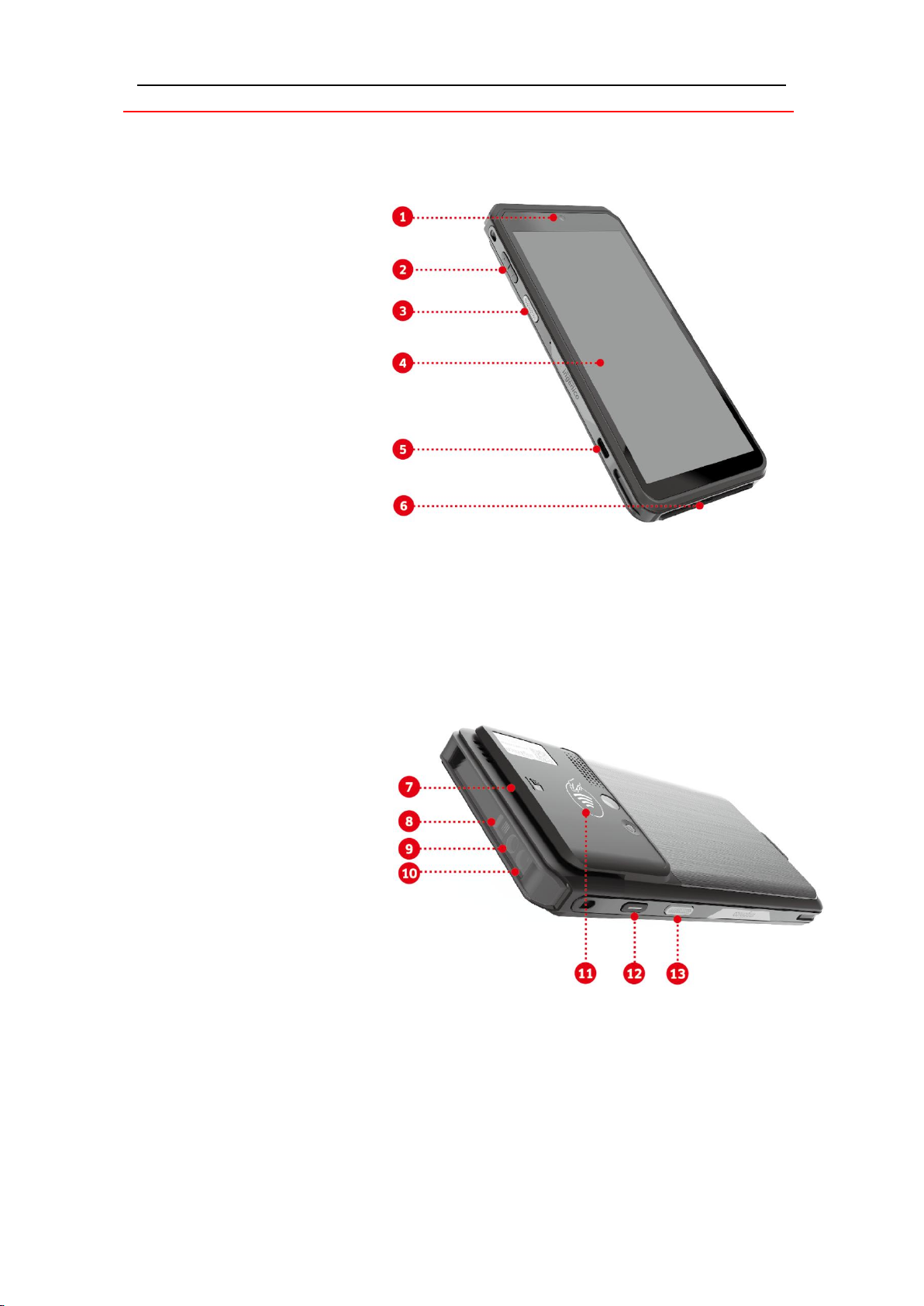
2.2Overview of AXIUM EX8000
1. Front camera
2. Volume Keys
3. Scan Key
4. LCD and touch screen
5.USB Type-C connector
6.Smart card reader
7. Magnetic card reader
8. Illuminate lamp of front
scanner
9. Front scanner
10.Indicate LED of front
scanner
11.Contactless landing zone
12. Power Key
13. Scan Key
6/ 25
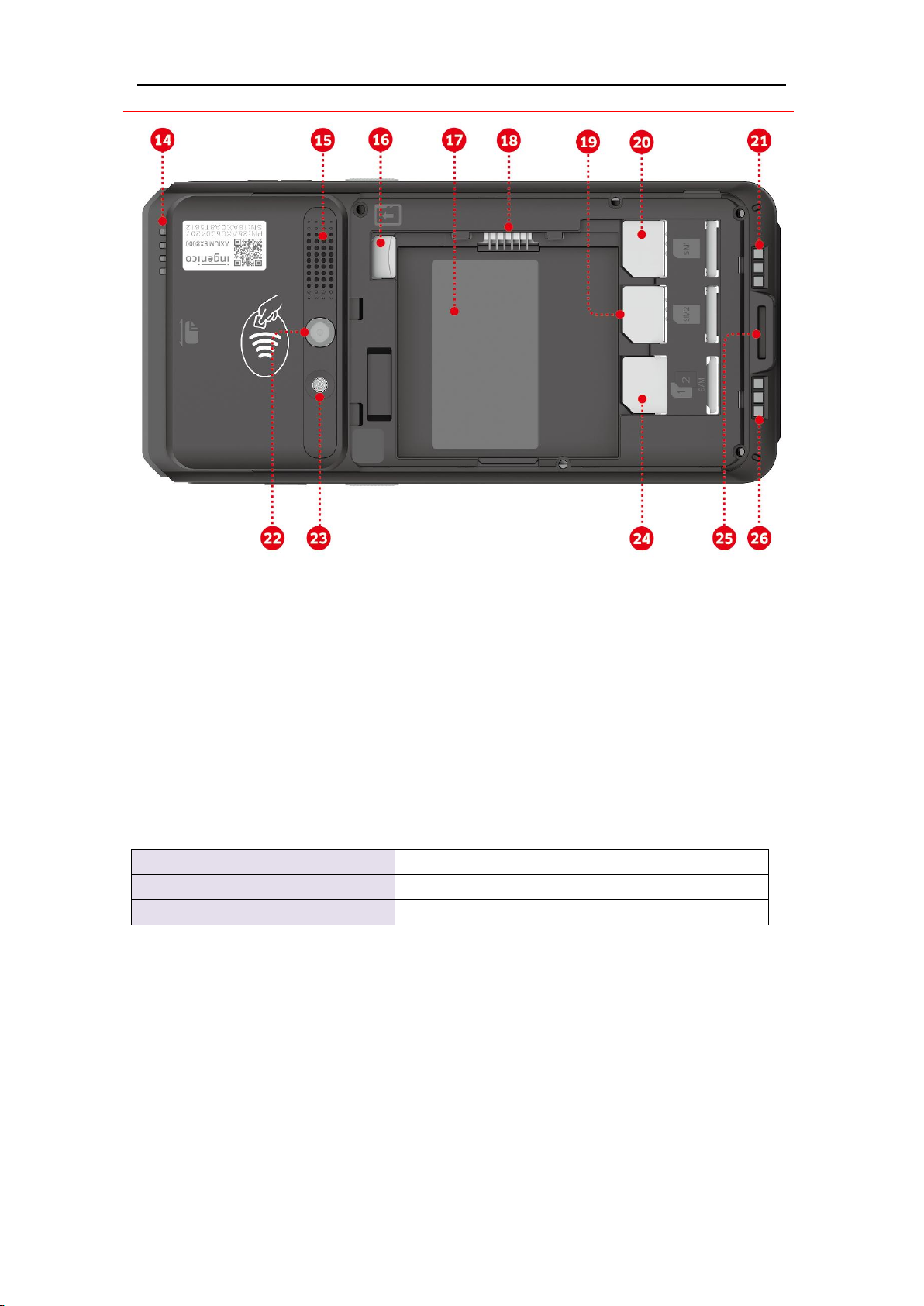
14. LEDs for Contactless Card 15. Speaker
16. Micro SD slot 17. Battery compartment
18. Battery socket19. SIM 2 card slot
20. SIM 1 card slot21. Base Charging interface-
22. Rear camera23.Flash
24.SAM cards slots25.Lanyard hole
26. Base Charging interface+
Weight
290g (including battery)
Dimension (L x W x H)
170 X 80.6 X 19mm
Electrical mains network
100-240VAC/50-60Hz Class II

7/ 25
2.3Keypad Functions
The terminal has three physical keys on the left side of the terminal, a scan key and two
volume keys.
The terminal has two physical keys on the right side of the terminal, a power button and a
scan.
The terminal has a 5.99 inchscreen,there are three virtual keys at the bottom of the
screen,Menu,Homeand Back keys.
.
2.4Touch Panel
The AXIUM EX8000 is equipped with touch panel that allows you capture functions and
menus by your finger or use a stylus.
Back
Menu
Home
Powerbutton
Scan Key
Volume
Keysbutton
Scan Key
8/ 25
3. Use of the terminal
3.1 Power on/Power off the terminal
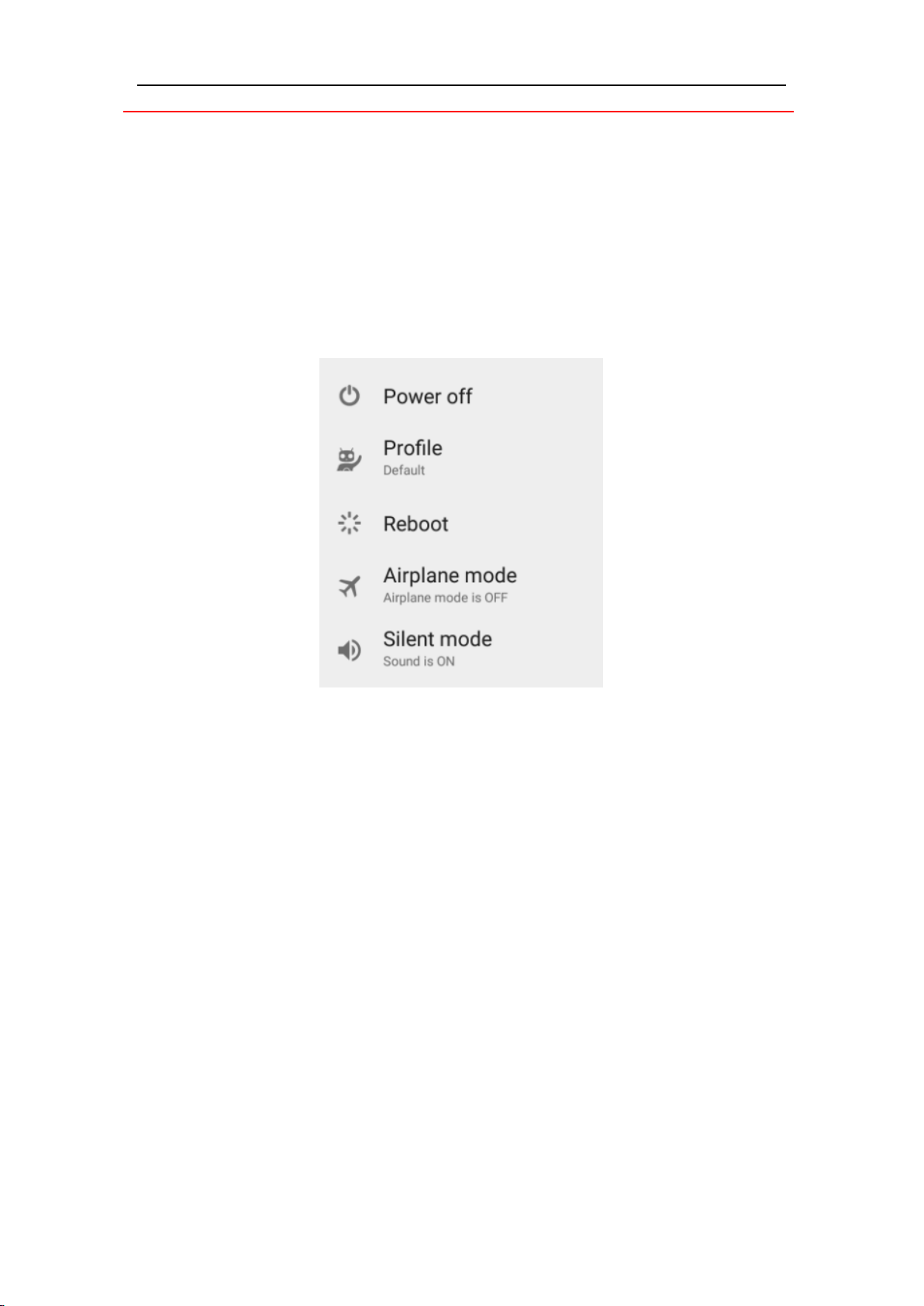
To power on: Make sure the terminal battery is correctly installed and Press <Power>
button for about 1s until the display is turned up.
To power off: Press <Power> button for more than 2s until the display show the following
figure, then press <Power off>.
If the battery is empty, the terminal automatically shuts off.
Abnormal power off:
When the device works abnormally, for example, it is crashed and no actions menu
popped out while pressing the power button, pleaselong-press the power button for 8s,
the device will be automatically powered off.
Screen saver mode:
Short-press the power button for about 0.5s, the terminal display will be turned on or off.

9/ 25
3.2Reading cards
Magnetic stripe card
The card can be read bi-directionally, with the
stripe facing the terminal.
Use a regular movement in order to ensure a
reliable card reading.
Contactless card
Bring the card firmly up to the active zone.
Keep the card close to the reader during the
transaction.
On the back,LEDs are displayed to indicate
transaction processing.
Smart card
Insert the card horizontally with the metal
chip facing upward and leave in position
throughout the transaction.
10 / 25
3.3Usage of Front scanner
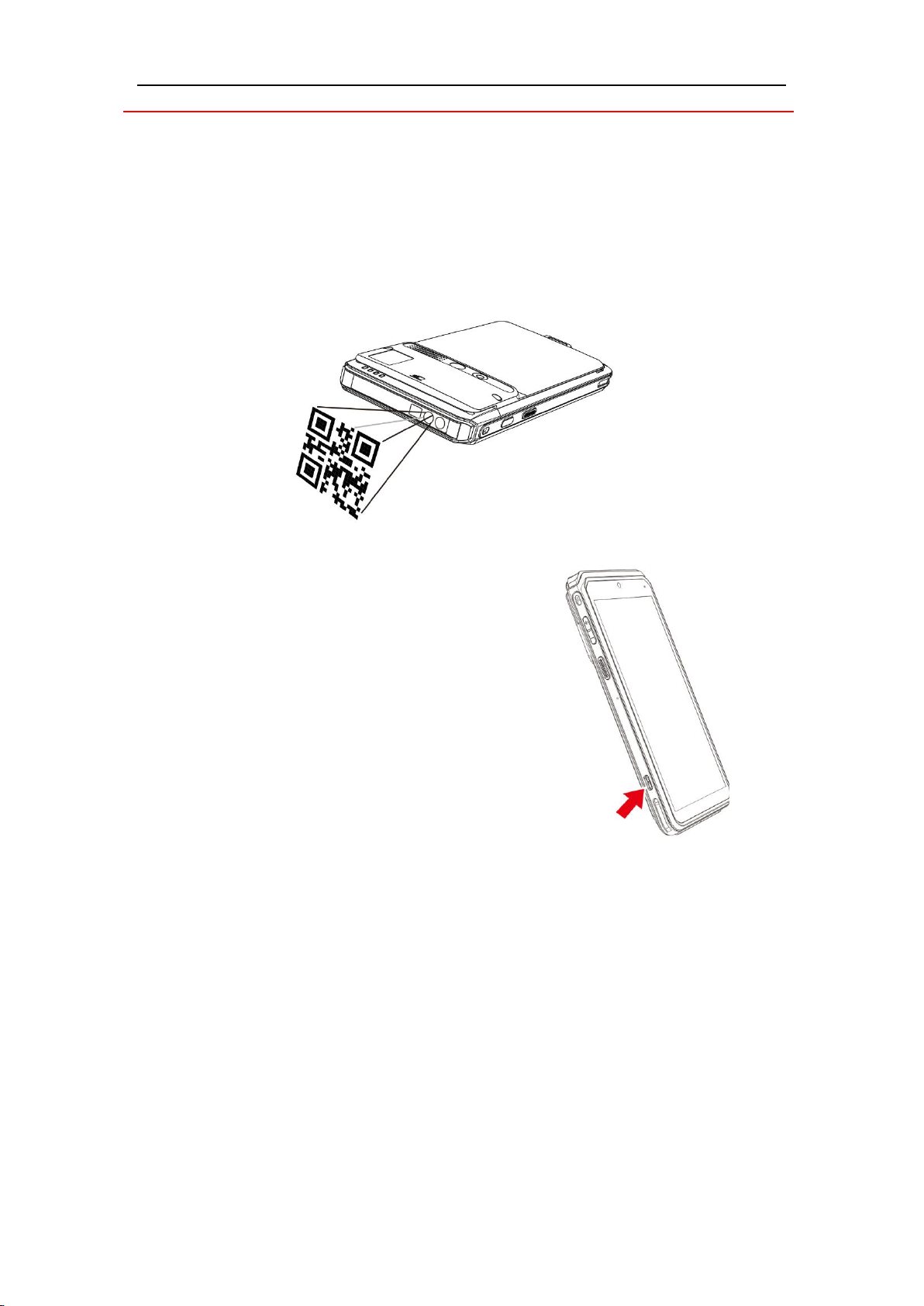
Press the scan button to start scanning.
After starting the barcode scanning, a red laser beam will be emitted from the
window in front of the terminal.
Align the red light beam with the bar code you want to scan
When the scan is successful, the terminal will automatically turn off the beam and
sound a beep.
3.4USB type-C
There is a USB type-C connector on the left side of the
terminal.
The connector manages Host and Slave connections.
The connector integrates Audio Jack solution.
Otros manuales para AXIUM EX8000
2
Tabla de contenidos
Otros manuales de Teléfono móvil de Ingenico


