
Infinite Peripherals Infinea BluePad 2.0 Manual de usuario

Infinea® BluePad 2.0
User Manual
For Apple®/ Android®/ Windows®8

Infinea BluePad 2.0 User Manual
2
Contact Information
Mobility Sales/ Technical Support Center
Innite Peripherals, Inc.
17681 Mitchell N
Irvine, CA 92614
Toll-Free: (866) 278-7860
Ofce: (949) 222-0300
Website: ipcmobile.com
Headquarters/ Main Warehouse
Innite Peripherals, Inc.
2312 Touhy Avenue
Elk Grove Village, IL 60007
Toll-Free: (800) 278-7860
Ofce: (847) 818-1260
Fax: (847) 818-1287
Compatible Devices
Legal Notice
“Made for iPhone” means that an electronic accessory has been designed to connect specically to an Apple mobile device and has been
certied by the developer to meet Apple performance standards. Apple is not responsible for the operation of this device or its compliance
with safety and regulatory standards.
• iPod, iPhone, iPad
• Android O/S 2.1 and higher
• Window Phone 8
Trademarks
Innite Peripherals, Mobilize Your Enterprise, Linea Pro, Innea, Innea Tab, and Innea Omni are trademarks of Innite Peripherals, Inc.
All other trademarks are the property of their respective owners.

Infinea BluePad 2.0 User Manual
3
Table of Contents
Compatible Devices 2
Trademarks 2
Overview 4
Features 4
Accessories 4
Develop Applications 4
Technical Specifications 5
Before Using Your Infinea BluePad 2.0 6
Getting Started 6
Product Description 7
Developing Applications 8
Turn On the BluePad 2.0 8
Charge the Infinea BluePad 2.0 8
Set-up Service Mode 9
Service Mode Options 9
Application Download Mode 9
Installing SIM/SAM Cards 10
Touchscreen Display 10
Magnetic Card Reader 11
Smartcard Reader 11
Contactless Credit or Debit Cards 11
Pairing BluePad 2.0 12
Scan to Pair BluePad 2.0 12
Troubleshooting 13
Blank Display 13
Keyboard Not Responding 13
Failure to Process Transactions 13
Warranty 13
Disclaimer 13
Symbols 14
Product Returns and Servicing 14
Federal Communications Commission 14

Infinea BluePad 2.0 User Manual
4
Visit our website, https://ipcmobile.com or contact your
Innite Peripherals account representative for additional
information about our current and future product
accessories.
Overview
The Innea BluePad 2.0 is a hand-held PIN pad with an integrated smart card reader, near-eld communication (NFC) contactless card
reader, and magnetic stripe card reader. This low-energy Bluetooth interface simplies the pairing process to any smart phone by scanning
to pair. The optional Wi-Fi or 3G connectivity enables the unit as a standalone terminal. In addition, a tamper detection circuitry resists
unauthorized intrusions and supports a broad spectrum of hardware and software security features.
Features
Battery
• Rechargeable Lithium-ion polymer battery
• USB communication cable is included
Magnetic Card Reader
• 3-track read-head
• ISO 7810 / 7811 / 7813
Bluetooth
• 3.0
• Serial Port Proles (SPP)
Accessories
(Optional) Smart Card Reader
EMV Level 1 and Level 2
Keypad
• On/Off
• Up/down arrows
• Red X to close
• Right arrow
• Green check mark
Develop Applications
Software is not provided with your Innea BluePad
2.0. Please contact Innite Peripherals for Third-Party
software solutions. Integrating the Innea BluePad 2.0 into
your software application requires the use of the Innite
Peripherals Universal SDK. The SDK incorporates an API
specically for developing applications to read smart cards
and perform other functionality with the Innea BluePad 2.0.
For additional details about the Innite Peripheral Universal
SDK, refer to the SDKs documentation. For the latest Innite
Peripheral Universal SDK, visit our developer portal, https://
developer.ipcmobile.com.

Infinea BluePad 2.0 User Manual
5
Technical Specifications
Mechanical
Compatibility Any iPod, iPhone, iPad mobile device
Android, Window Phone 8
Weight without mobile device 180g (6.35oz)
Dimensions 133mm x 71mm x 1835mm (5.24” x 2.80” x 72.2”)
Display • LCD
• Capacitive touchscreen for signatures
• 65K colours
• 2.4”/40 x 320 pixels resolution
• 10 numeric keys
• 5 functional keys
Buttons • On/Off
• Up/Down arrows
• Red X
• Right arrow
• Green check mark
Electrical
Battery Capacity 3.7 1180mAH
Smart Card Reader Level 1 and Level 2 certified
Magnetic Card Reader • 3-track, bi-directional reading
• ISO 7810, 7811, 7813
Contactless Card Reader EMV Level 1 certified
Connectivity • Wi-Fi module 802.11 b/g/n
• Wireless mobile GSM (900 / 1800 MHZ / UMT (900 / 2100 MHZ)
• Tray for Nano SIM / SAM cards
Power Input DC 5V through USB-C, charging station, or docking station
Port USB-C
Certifications
CE, FCC, EMV Level 1, Level 2, Contactless, PCI, PTS 4.x SRED
Environment
Temperature Operation -10 C to +40 C (14 F to 104 F)
Storage -15 C to +50 C (5 F to 122 F)
Relative Humidity Operation/Storage 5% to 90%

Infinea BluePad 2.0 User Manual
6
Innea BluePad 2.0 (1) USB Type–C Cable (1)
Note
Box contents and SKUs vary based on your order conguration.
Getting Started
What to do Where to find the information
The BluePad 2.0 is shipped with 30% of full charge approximately.
Ensure the battery is fully charged before first use.
Charging the Battery
Software is required on your mobile device for operation of the smartcard
reader, touchscreen signatures, and LEDs.
Developing Applications
Processing Transactions with payment cards. • Smartcard Reader
• Contactless Card Reader
• Magnetic Stripe Reader
Before Using Your Infinea BluePad 2.0
Remove the BluePad 2.0 and any included accessories from the shipping carton, and then verify the contents against your packing list.
Important
Retain all the packing materials, invoice, and bill of lading. These items may be required if you need to return the unit for servicing later.
Inspect the packaging and contents carefully for any signs of damage, and verify the packaging is intact. If there are sign of damage, do not
attempt to use the unit. Notify your account executive or contact Innite Peripherals Support: https://ipcmobile.com/support
Infinea BluePad 2.0 User Manual
7
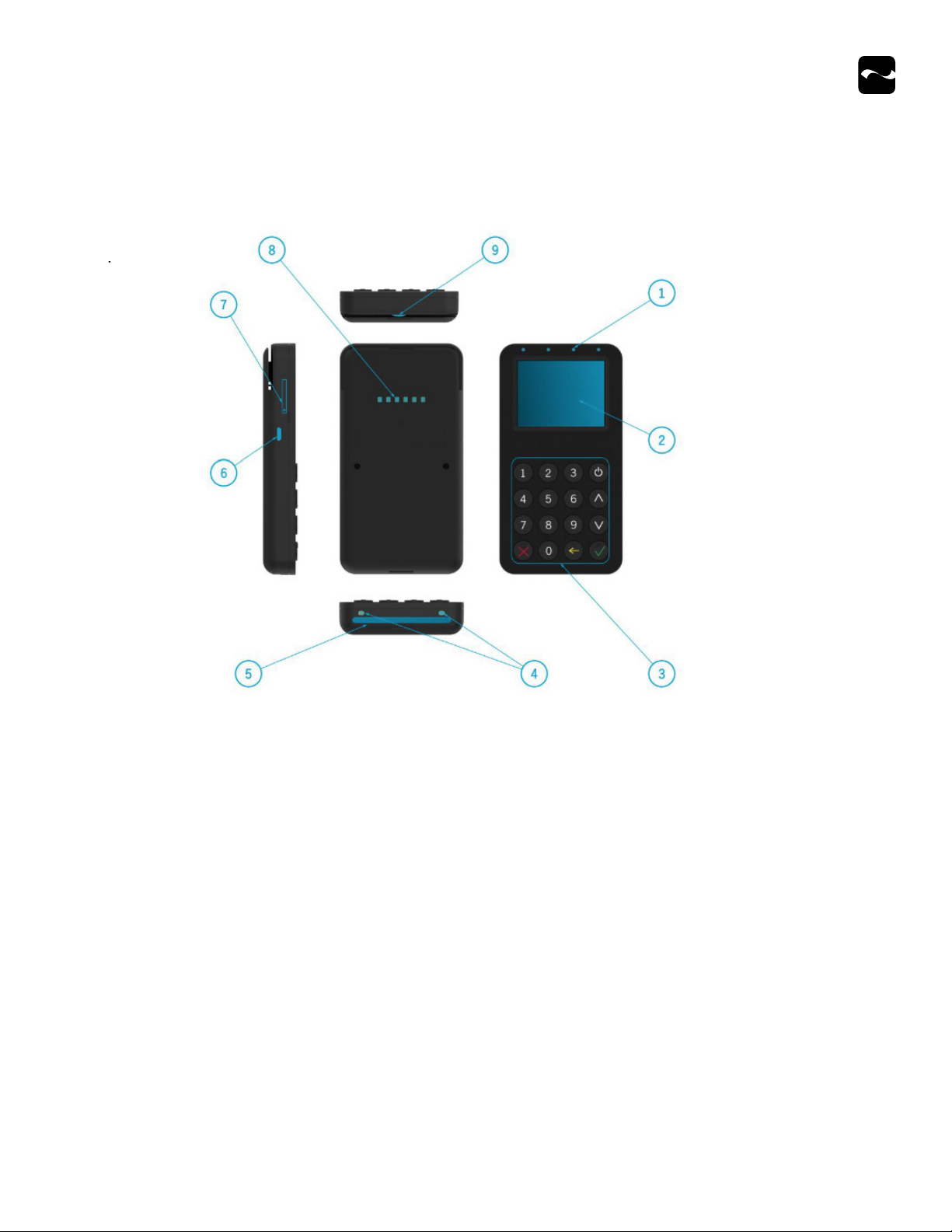
Product Description
This illustrates the key features of the BluePad 2.0.
1. Contactless LED status indicators
2. LCD display touchscreen
3. Keypad
4. Charging pads
5. Chip card reader
6. USB-C connector
7. SIM/SAM card tray
8. Docking station charging pads/UART communications
9. Magnetic stripe reader

Infinea BluePad 2.0 User Manual
8
Developing Applications
Software is not provided with your BluePad 2.0. Contact
Innite Peripherals for Third Party software solutions.
Integrating the Innea BluePad 2.0 with a mobile device
requires the Innite Peripherals Universal Software
Development Kit (SDK). This SDK incorporates an API for
developing applications for specic functionality specically
for the BluePad 2.0.
For additional details on using the SDK, refer to the
documentation and information at
https://developer.ipcmobile.com
Charge the Infinea BluePad 2.0
Before rst use, the Lithium Ion rechargeable battery must be
charged for at least four hours and 30 minutes.
Note
To prevent electrical damage to the unit, only use the included
USB cable and power adapter.
1. Press the On/Off button.
2. Plug the USB-C connector into an AC wall adapter.
3. Conrm the battery status. See below.
Battery Status Display Indicators
These indicate the battery status on the BluePad 2.0 menu.
Display Description
Battery is discharged.
Battery is fully charged.
USB cable plug for external power.
Flashing indicates battery is charging
from the USB cable or power supply.
USB connection.
Bluetooth connection is active.
Note
Contact Innite Peripherals before attempting to open your
BluePad 2.0 as disassembling a SRED encrypted unit renders
it unusable and impacts your warranty.
For help, contact https://ipcmobile.com/support.
Turn On the BluePad 2.0
1. To turn on the BluePad 2.0, press the Power button on the top,
right corner of the keypad.
2. Once powered on, the name and version of the secure boot
loader and the rmware are displayed.
Note
To prevent the risk of shock or damage, do not use the
BluePad 2.0 near water or with wet hands.

Infinea BluePad 2.0 User Manual
9
Set-up Service Mode
Service technicians can access service mode to add or delete
data encryption algorithm (DEA) keys. In addition, the
keyboard, magnetic strip reader, smartcard reader, and display
may be tested.
1. To enter service mode, press the Down button and On button at
the same time.
2. When the display is visible, you will see the secure boot loader/
rmware name and version.
3. To navigate the options, use these keys.
* Up – moves up one position in the list.
* Down – moves down one position in the list.
* OK – select the active option.
* C – return to the previous level or exit.
Service Mode Options
Option Description
Info version Displays serial number and versions of the program
modules.
Info
hardware
Information about the status of the hardware:
battery voltage, external power supply used, and
battery charging.
Info keys Version of the Acquire Initial Key (AIK) key version.
Test Display To perform a display test:
• Press OK once on a blank screen.
• Press OK again to show the check mate
background.
• Press the Up and Down buttons to change the
contrast.
• Press C to exit.
Test
keyboard
To remove a key symbol from the display, press the
specic key for the symbol to remove it.
Test MSR To show data, swipe a magnetic strip card correctly.
Test SCR To Return to Answer to Reset (ATR), insert a
smartcard, and press RESET.
Keys
download
To exchange secure information through the RS-232
interface using proprietary communication protocol
securely, download AIK with the PIN pad to set Keys
Download Mode.
Application Download Mode
The BluePad memory may be corrupted if the application
download process is interrupted before completion. The
application integrity checking fails during boot up.
Note
If this occurs, you must repeat the application download
process.
1. Press and hold the Up button and the On button at the same
time.
2. When you hear a sound, the BluePad is in the application
download mode and the name and version of the Secure Boot
Loader is displayed.
3. Verify the message
* MODE: FW/APR
4. The progress percentage complete is displayed once the
download begins.
5. Once completed successfully, do one of the following:
* Press C
* Press the Off button

Infinea BluePad 2.0 User Manual
10
Installing SIM/SAM Cards
The SIM/SAM tray only supports Nano SIM cards, which all
iOS device models after iPhone 5 use. These cards are smaller
and thinner than the micro SIM standard and mini SIM cards.
1. Insert a paper clip into the opening beside the tray on the left-
hand side.
2. Slide open the tray.
3. Place the card into the tray.
4. Close the tray gently.
Touchscreen Display
To use the touchscreen display, ensure the software is loaded.
Refer to Developing Applications for details or visit our
Development Portal at https://developer.ipcmobile.com
Once the touchscreen is installed, customers can use
a ngertip to write their signatures after verifying the
transaction is complete.
Otros manuales para Infinea BluePad 2.0
1
Tabla de contenidos
Otros manuales de Lector de tarjetas de Infinite Peripherals


