iMege G2212E Manual de usuario

G2212E
User’s Manual
V1.11a

1
Table of Contents
Important Notices – Read Before Use ............................................................................2
Overview.........................................................................................................................2
Package Contents ............................................................................................................3
Installation.......................................................................................................................4
Hardware Installation.......................................................................................................................................................4
Assigning IP Address to the device .................................................................................................................................4
Discovering devices in Windows Network...................................................................................................................... 5
ActiveX add-on Installation.............................................................................................................................................6
Accessing the camera......................................................................................................8
Viewing the live video.....................................................................................................................................................8
The live view page.........................................................................................................................................................10
Video & Audio..............................................................................................................14
Network Configuration .................................................................................................21
Event management........................................................................................................25
Configuration of Event Handling...................................................................................................................................25
Examples of Event Handling ......................................................................................................................................... 31
System options ..............................................................................................................35
Connectors.....................................................................................................................39
I/O connectors – Pin definitions.....................................................................................................................................39
Schematic diagram of Digital I/O..................................................................................................................................40
Troubleshooting ............................................................................................................41
Check firmware version.................................................................................................................................................41
Upgrade device firmware...............................................................................................................................................41
Recover device settings..................................................................................................................................................42
LED Indicators............................................................................................................................................................... 43
Technical Specifications ...............................................................................................44

2
Important Notices
– Read Before Use
This instruction manual is intended for administrators and users of the iMege G2212E IP Camera, including
instructions for using and managing the camera on your network. The use of video surveillance devices can
be prohibited by laws that vary from country to country. It is the user’s responsibility to ensure that the
operation of such devices is legal before installing this unit for surveillance purposes.
Heed all warnings
Before installing the IP Camera, please read and follow all the safety and operating instructions to avoid any
damages caused by faulty assembly and installation. The user must adhere to all the warnings on the product
and in this manual.
Liability
Every reasonable care has been taken in the preparation of this instruction manual. Ingrasys can not be held
responsible for any technical or typographical errors and reserves the right to make alterations to the product
and manuals without prior notice. Ingrasys makes no warranty of any kind with regard to the material
contained within this manual, including, but not limited to, the implied warranties of merchantability and fitness
for a particular purpose. The user should verify the relevant information is current and complete before placing
orders. All products are sold subject to Ingrasys’ terms and conditions of sale at the time of order
acknowledgement.
Ingrasys shall not be liable nor responsible for the applications and resale of its products or bundled software
with statements different from or beyond the specification/parameters stated by Ingrasys. Ingrasys is under no
obligation to provide any further technical support service or product/software alteration beyond Ingrasys’
representation.
Trademarks
All names used in this manual and products are probably registered trademarks of respective companies.
iMege is a registered trademark of Ingrasys Technology Inc. All rights reserved.
CE/FCC Statement (EMC)
This equipment has been tested and found to comply with the limits for a Class A digital device, pursuant to
Part 15 of the FCC Rules which are designed to provide reasonable protection against such interference
when the equipment is operated in a commercial environment. If the equipment is not installed and used in
accordance with the instruction, it generates, uses, and can radiate radio frequency energy which may cause
harmful interference to radio communications. Operation of this equipment in a residential area is likely to
cause interference, in which case the user at his/her own expense will be required to take whatever measures
may be required to correct the interference.
Overview
iMege G2212E is a Full HD, bullet type IP camera integrated a megapixel image sensor and designed with
enhanced low-light performance that is ideal for outdoor applications.
The camera capable of weather-proof IP66 rated housing, built-in 15M IR illuminators and day & night IR cut
filter to provide a superior nighttime image. G2212E is also embedded with 802.3af compliant PoE, ePTZ and
all-in-one mechanism for easy installation.

3
Package Contents
G2212E Quick Installation Guide
Camera Stand Product CD
Warranty Card Power Adapter (Optional)

4
Installation
Hardware Installation
1. Connect the camera to a network switch / hub with an Ethernet cable.
2. Connect the power jack to the camera, and connect the adapter to a power outlet.
3. For PoE camera model, connect the camera to a PoE switch with an Ethernet cable; no need to
connect the power adapter to the camera.
Assigning IP Address to the device
The iMege device discovery tool is a utility provided for searching iMege network video devices in a network.
It can also manage the IP assignment for multiple devices. This is useful when bulk network setting of the
network devices is required.
When IP camera is correctly installed in a network, it can be searched by the tool. The steps of applying this
search tool are as below.
1. Launch iMege Discovery Tool (iMegeDiscover.exe). The tool will start searching and then displaying
the cameras on the Device List after they are found.
2. Check the box to select a camera device from the list. The following operations will be applied on it.

5
3. The selected camera may have been assigned a valid IP address via DHCP server. It can also be
manually given an IP address. To do so, click on “Set IP” button. In the pop-up “Set IP” window, input
the IP, Subnet Mask and Gateway. Input account info if camera is password protected.
4. Click on the “Browse” button. This will launch an IE browser and link to the camera web page
immediately.
Discovering devices in Windows Network
If the IP camera is installed in a network with DHCP and UPnP services, after obtaining an IP address from
DHCP server, it can then be discovered in “Windows Network” of a client PC, see figure below. The reason for
being automatically discovered is that the IP camera’s UPnP is default enabled (see Network
Network
Connectivity).
NOTE
The term “Windows Network” in given figure above is used in Windows Vista / 7. It can be referred to
Windows XP’s “My Network Places” which possesses the same capability of discovering UPnP
devices.

6
To identify the camera from the listed devices in “Network”, utilize the UPnP name (e.g. iMege) and the
device’s MAC address. This MAC address can be found on the label, see figure below.
Right-click on the device and select “Properties”, the pop-up window shows all the information related to the
device, including the web access info. Use the web address to connect to the IP camera. Or simply double-
click on the selected device, which gets immediately access to the camera webpage.
ActiveX add-on Installation
The access to the camera webpage for the first time will be prompted to install the ActiveX. This installation is
essential for viewing live video via IE browser. To allow the installation, click on the message bar and select
“Install This Add-on for All Users on This Computer….”.

7
Continue the following instructions until the ActiveX is completely installed. The IE browser can then display
the live video of the IP camera as below figure.
NOTE
If, however, there is not any prompted message or ActiveX can not be installed at all, change the IE
security level and settings. In IE Internet Options Security Custom level, make sure the
“Download signed ActiveX controls” setting is “Enable” or “Prompt” selected.

8
Accessing the camera
Viewing the live video
With correct installations and IP settings, the camera device can be approached via network. There are three
ways to view the live video from the camera,
1. IE Browser
Launch IE browser and input the IP address of the camera, or click on “Browse” button on
iMege Discovery Tool. The web page with video will then be shown as below.
2. RTSP Player
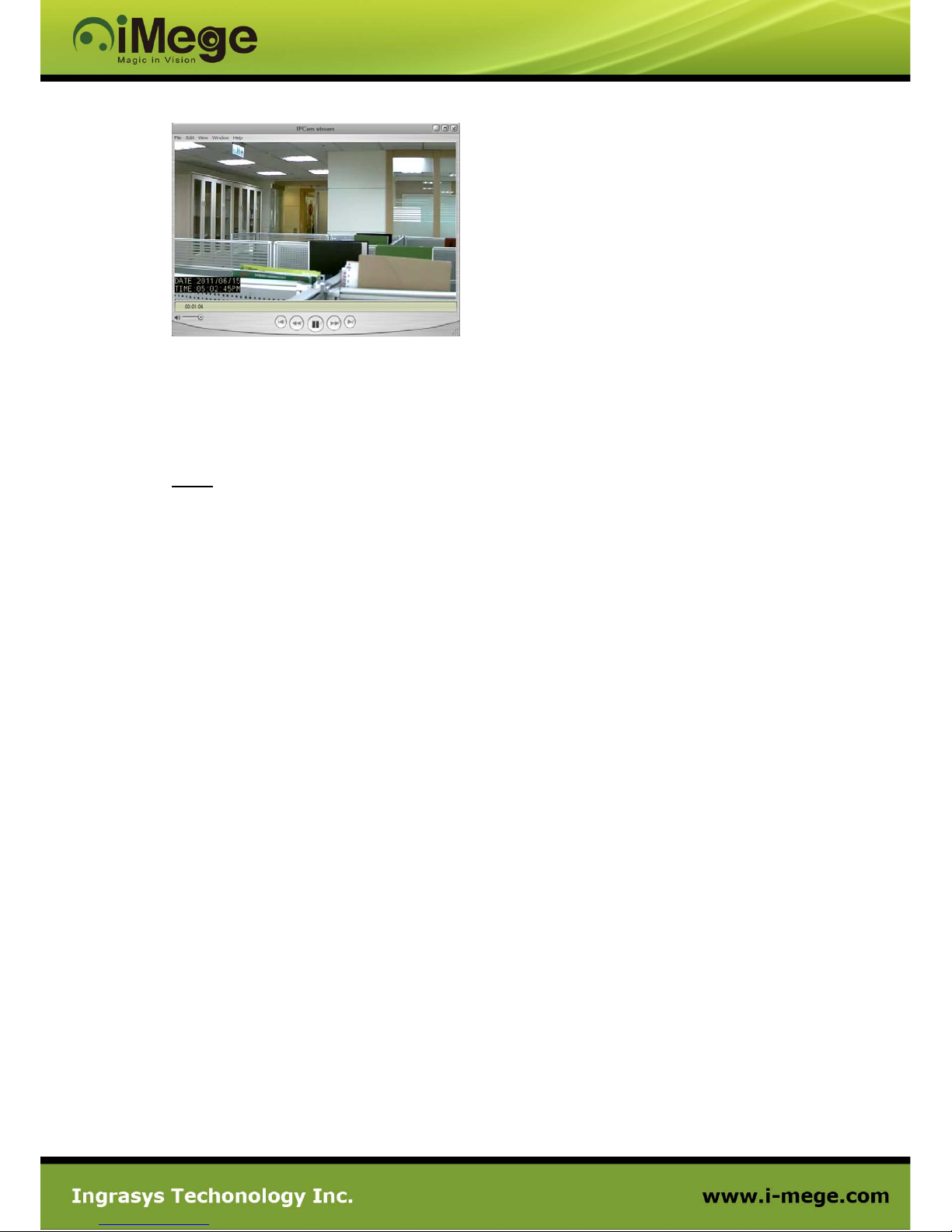
The live video of the camera can be played with a RTSP player, such as VLC or QuickTime. A URL
command, like rtsp://Camera IP/stream1 will be required. The example given below is that the live
video is displayed with QuickTime player.

9
3. NVR / CMS Software
Some software (NVR / CMS) vendors may have announced the integration with this camera model. In
this case, the software is able to retrieve the video from the camera for both live displaying and
recording. For detailed support information and operation, please contact the software vendors for
further instructions.
NOTE
The camera supports three simultaneous video streaming (see Video & Audio
Video Setting). To
gain access to the camera for each video stream, the RTSP path will be required. The default paths
for the 3 streams are “stream1”, “stream2”, and “stream3”. The URL would be like below.
Stream1: rtsp://Camera_IP/stream1
Stream2: rtsp://Camera_IP/stream2
Stream3: rtsp://Camera_IP/stream3
Tabla de contenidos
Otros manuales de Cámara de seguridad de iMege