Grohe Sense Manual de usuario

USER GUIDE
GROHE SENSE GUARD
GROHE SENSE
GROHE SENSE APP
Version 1, June 2020.
Latest version available at help.grohe-sense.com.

5. GROHE SENSE IN DETAIL 50-53
5.1. Hardware 50
5.2. Control via the app and device preferences 52
6. GROHE SENSE WARNINGS AND HOW TO REACT 53-57
6.1. Floodingnotication 53
6.2. Noticationsrelatedtohumidityandtemperature 54
6.2.1.High/Lowhumidity 54
6.2.2. High / Low temperature and frost risk 55
6.3. Noticationsrelatedtodataandbattery 56
6.3.1. Data transfer not possible 56
6.3.2.Batterylow&Batteryempty 56
7. GROHE SENSE APP OTHER FEATURES:
INBOX, ACCOUNT AND HOUSES, PREFERENCES 57-59
7.1. Inbox 57
7.2. Account and houses 58
7.3. Preferences 59
8. WI-FI NETWORK CHANGES, SMARTPHONE CHANGES
AND WHAT TO DO 60
8.1. New Wi-Fi router, name, password 60
8.2. New smartphone 60
9. ADDITIONAL HELP AND DOCUMENT VALIDITY 61
9.1. Additional help 61
9.2. Validityofthisdocument 61
CONTENT
1. INTRODUCTION 4
2. GETTING STARTED 6-33
2.1. Setupyouraccount 6
2.1.1. Download GROHE Sense app 6
2.1.2. Create a new user account 8
2.2. ConnectthedevicestoyourWi-Finetwork 10
2.2.1. Connect GROHE Sense Guard 10
2.2.2.ConnectGROHESense 14
2.2.3. What to do if the devices don’t connect 18
2.3. GettoknowGROHESenseapp,denethepreferences
ofthedevicesandyouraccount 22
2.3.1. Get to know the main features of GROHE Sense app 22
2.3.2.GROHESenseGuard&GROHESense:Denethedevice
preferencestotyourhouse 24
2.3.3.GROHESenseGuard:Firmwareupdate 26
2.3.4.GROHESenseGuard:Denewaterandenergycoststo
receive realistic estimates 28
2.3.5.Setalinktoyourinsurancecompany 30
2.3.6.Deneyouremergencycontacts 32
3. GROHE SENSE GUARD IN DETAIL 34-40
3.1. Hardware 34
3.2. Firmware 38
3.3. Control via the app and device preferences 38
4. GROHE SENSE GUARD WARNINGS AND HOW TO REACT 41-49
4.1. Noticationsrelatedtowaterleakandwatershut-o 41
4.1.1.Extremelyhighowrate 42
4.1.2.Maximumvolumereached 43
4.1.3.Unusuallyhighwaterconsumption 44
4.1.4. WaterdetectedbyGROHESense 45
4.1.5.Pressuredropsdetected 46
4.1.6.Watersystemchecknotpossible 47
4.2. Watersupplyfrostwarning 48
4.3. Noticationsrelatedtodataandrmware 48
4.3.1.Datatransfernotpossible 48
4.3.2.Firmwareupdateavailable 49
2 3
GROHE SENSE USER GUIDECONTENT

GROHE SENSE – THE SMART WATER SENSOR
GROHE Sense water sensor detects the presence of water, tracks temperature and
humidityandalertsyouautomaticallywhenanissueisdetected.Itcanalsotrigger
GROHESenseGuardtoautomaticallyshutwatero.
GROHE SENSE APP – PERSONAL WATER MANAGEMENT APP
GROHESenseappisyourcontroltoolforallGROHESensewatersecuritydevices.
The app shows the latest status and measurements of the devices, delivers alarms
andwarnings,letsyouchangethesettingsofthedevicesandmanageyouraccount
preferences.
1. INTRODUCTION
CongratulationsonyournewGROHESensewatersecuritysystem!Nowyourhouseis
equippedwithareliablesolutionforeveryday,whereyounolongerhavetoworryabout
water damage.
Thesystemconsistsoftwosmartdevices,GROHESenseandGROHESenseGuard,and
asmartphoneappGROHESense.Eachofthedevicescanbeusedindividually,ifmore
devicesareinstalledinproperty,theyallworktogethertoprovideahigherlevelofwater
security.
GROHE SENSE GUARD – THE SMART WATER CONTROLLER
GROHESenseGuardwatercontrollerisinstalledonthemainswaterpipe.Itliterallysees
allthewaterpassingby,checksforunusualwateruseandtrackswaterconsumption.
Whenitdetectsaleak,itcanshutothewatersupplyautomaticallytoreduceconse-
quentialdamage.Itdetectsevenverysmallleaks,sothatyoucantakeaction,beforethe
leak becomes bigger.
4 5
GROHE SENSE USER GUIDE1. INTRODUCTION

2. GETTING STARTED
2.1. SET UP YOUR ACCOUNT
2.1.1. DOWNLOAD GROHE SENSE APP
Todownloadtheapp,opentheGooglePlayStoreorAppleAppStoreonyour
smartphone and search for “GROHE Sense”, or scan the QR code below.
• GROHESenseappiscompatiblewithoperatingsystemversionsAndroid6.0+,
AppleiOS10+.
• During the installation process, the requested permissions need to be granted to
theapptofunctioncorrectly,especiallythepermissiontosendpushnotications
toalertyouincaseofdetectedleaks.
• It is possible to download and run the app on a tablet, but for the best user
experience we recommend the use on smartphones.
6 7
GROHE SENSE USER GUIDE
6 7
2. GETTING STARTED

1 32
2.1.2. CREATE A NEW USER ACCOUNT
Tocreateanewuseraccount,opentheGROHESenseappandfollowthesesteps:
1.Ontheintroductoryscreen,tapthe“Signup”buttontostart.
2. Fill in the registration form and tap the “Sign up” button.
3.Gotoyoure-mailaccounttoopentheautomatice-mailsenttoyou.Activateyour
accountbyclickingonthelink“Conrme-mailaddress”.
FromnowonyouruseraccountisreadyandyoucanlogintotheGROHESenseapp.
Makesuretorememberyoure-mailaddressandpassword.
CAN I CONNECT THE DEVICES TO MULTIPLE ACCOUNTS?
CAN I USE MY ACCOUNT ON MULTIPLE SMARTPHONES?
GROHESenseandGROHESenseGuardcanbelinkedonlytooneaccountintheapp.
Ifyouwouldliketoaccesstheaccountonmultipledevices,thisispossible–youcanbe
logged into the GROHE Sense app with the same account on multiple smartphones in
parallel.Sameinformationwilldisplayonallphones–dataisstoredintheGROHESense
Cloud,notonyourmobiledevice.
NOTE:
• The password needs to be at least
10 characters in length and contain
one small and one capital letter, one
number, one special character.
• The activation link in the e-mail is
validfor24hours.Afterexpiration
ofthistimeperiod,youcantrigger
anewactivationlink.Forthis,you
needtotrylogginginwithyour
chosen account credentials in the
GROHE Sense app.
8 9
GROHE SENSE USER GUIDE
8 9
2. GETTING STARTED

543
1 2
2.2. CONNECT THE DEVICES TO YOUR WI-FI NETWORK
2.2.1. CONNECT GROHE SENSE GUARD
ToconnectGROHESenseGuardtoyourhome’sWi-Finetwork,followthesestepsinthe
GROHESenseapp:
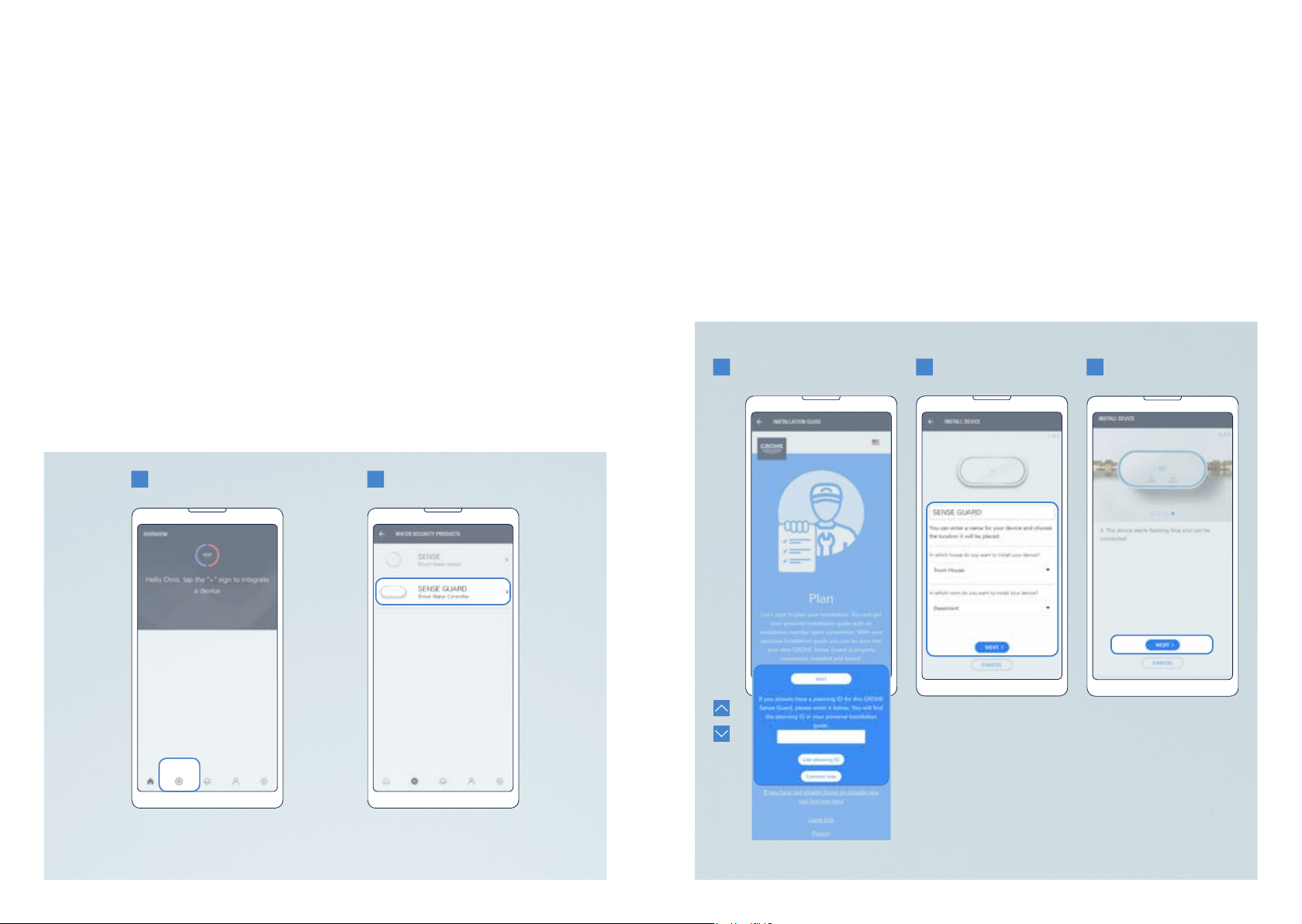
1. Tapthe(+)buttoninthebottompartofthescreentostartaddinganewdevice.
2. Selectthedevicetype:GROHESenseGuard.
3. Selectoneofthe3optionssuitabletoyourcase:
• Recommended:Starttheplanningphaseoftheinstallationguidebytappingthe
button “Next”.
• If planning is already done:ContinuewithyourpersonalplanningIDfromthe
personalinstallationguidebytappingthebutton“UseplanningID”.
• For experts only: ContinuewithoutaplanningIDbytappingthebutton
“Connect now”.
4. Enteranameforyourdevice,andassignittoahouseandaroominthehouse.
Ifyouhaven’tcreatedahouseoraroomyet,youwillbeautomaticallyrequested.
Tap the button “Next”.
5. ActivateyourdeviceforWi-Fiintegrationaccordingtotheinstructionson
the screen.
• Plug in GROHE Sense Guard, wait a moment, and then press the “CONNECTION”
button.Thedevicestartsashingblueandtheconnectionbuttonlightchangesfrom
orange to blue. The device remains available for Wi-Fi connection for 10 minutes.
• Ifyourdevicedoesnotstartashingblue,itisnotreadyforWi-Fiintegration.
Trytoresetthedevice.
10 11
GROHE SENSE USER GUIDE
10 11
2. GETTING STARTED

6Android
.1 .2
6Apple iOS
7
.3 8
6. Gotoyourphone’sWi-Fisettings.
• Androidusers:tapthebutton“Opensettings”inthecentralareaofthescreen.
If this doesn´t work, follow the instructions for Apple iOS.
• AppleiOSusers:gotoyourphonesettingsandopentheWi-Fisettingsinthe
followingsteps:
• 6.1. Open the home screen.
• 6.2. Open the settings.
• 6.3. Click on Wi-Fi.
7. ConnectyourphonetothedeviceviaWi-Fi.Thenetworknameandpasswordcan
befoundonastickeronthedevice(bythepowercable),andalsoonthecover
page of the product manual.
• Ifyourdevicedoesnotappearhere,trytoresetthedevice.
8. ReturntotheGROHESenseappandenterthecredentialsofyourhome’sWi-Fi
networktoconnectyourdevice.
• If no Wi-Fi networks are shown, this might indicate a device malfunction. In this
case contact the GROHE customer support.
Youwillreceiveanoticationwhenyourdeviceissuccessfullyconnected.Itmighttake
a short time for the device to appear on the overview screen.
Ifyouneedtoresetthedevice,seesection3.1.onhowtoreset.
12 13
GROHE SENSE USER GUIDE
12 13
2. GETTING STARTED

1 2 3 45
2.2.2. CONNECT GROHE SENSE
ToconnectGROHESensetoyourhome’sWi-Finetwork,followthesestepsinthe
GROHESenseapp:
1. Tapthe(+)buttoninthebottompartofthescreentostartaddinganewdevice.
2. Selectthedevicetype:GROHESense.
3. Enteranameforyourdevice,andassignittoahouseandaroominthehouse.
Ifyouhaven’tcreatedahouseoraroomyet,youwillbeautomaticallyrequested.
Tap the button “Next”.
4. Deneyourdevicepreferencesandtapthebutton“Next”.Youcaneditthese
preferencesalsoatanytimelaterafteryouhavesuccessfullyconnectedthedevice.
5. ActivateyourdeviceforWi-Fiintegrationaccordingtotheinstructionsonthescreen.
• Insertthebatteries.GROHESensestartsashingblueandremainsavailablefor
Wi-Ficonnectionfor5minutes.Ifyoudonotconnectthedevicein5minutes,take
outall3batteries,wait30seconds,insertthebatteriesagainandyourGROHE
Sense is available for Wi-Fi connection for 5 minutes again.
• Ifyourdevicedoesnotstartashingblue,itisnotreadyforWi-Fiintegration.Tryto
reset the device.
14 15
GROHE SENSE USER GUIDE
14 15
2. GETTING STARTED

7 8
6Android
.1 .2
6Apple iOS
.3
6. Gotoyourphone’sWi-Fisettings.
• Androidusers:tapthebutton“Opensettings”inthecentralareaofthescreen.If
this doesn´t work, follow the instructions for Apple iOS.
• AppleiOSusers:gotoyourphonesettingsandopentheWi-Fisettingsinthe
followingsteps:
• 6.1. Open the home screen.
• 6.2. Open the settings.
• 6.3. Click on Wi-Fi.
7. ConnectyourphonetothedeviceviaWi-Fi.Thenetworknameandpasswordcan
befoundonastickeronthedevice(ontheunderside).
• Ifyourdevicedoesnotappearhere,trytoresetthedevice.
8. ReturntotheGROHESenseappandenterthecredentialsofyourhome’sWi-Fi
networktoconnectyour.
• If no Wi-Fi networks are shown, this might indicate a device malfunction. In this
case contact the GROHE customer support.
Youwillreceiveanoticationwhenyourdeviceissuccessfullyconnected.Itmighttake
a short time for the device to appear on the overview screen.
Ifyouneedtoresetthedevice,seesection5.1.onhowtoreset.
16 17
GROHE SENSE USER GUIDE
16 17
2. GETTING STARTED

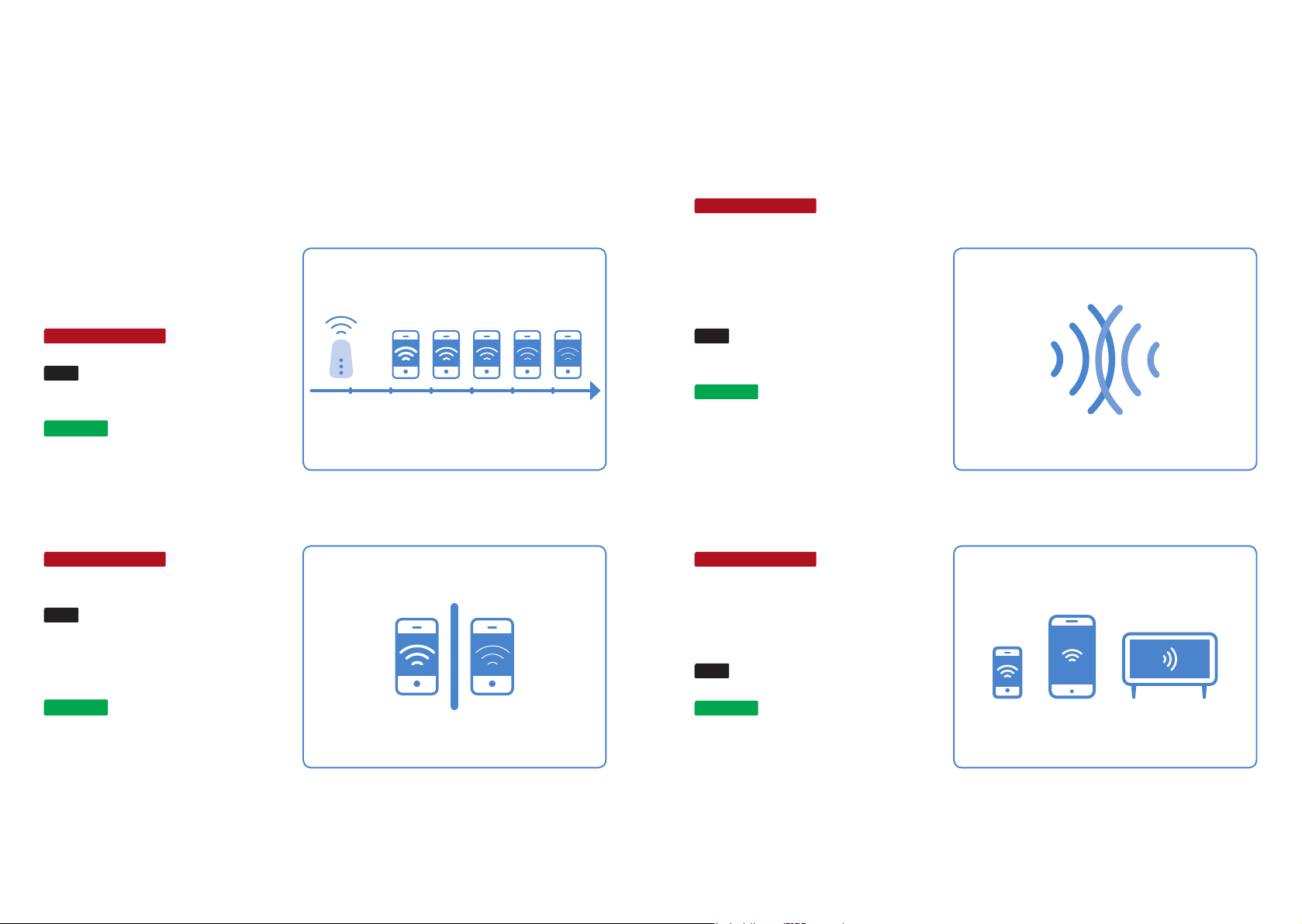
OVERLAPPING WI-FI NETWORKS
POTENTIALPROBLEM: Multiplewireless
networks are overlapping in one area.
Everyrouterautomaticallyselects
and uses a channel. The channels
arenumbered1to11.Indensely
populated areas, networks that are
usingthesamechannelmayoverlap.
TEST: The Wi-Fi testing app will show
youwhichchannelsareusedmost
heavily.
SOLUTION: Manuallychangethe
channelthatyourrouteruses.Select
achannelthatisnottooheavily
used.Tomakethischange,readyour
router’s manual.
TOO MANY DEVICES
POTENTIALPROBLEM: There are too
manydevicesusingthesamewireless
network. This can slow down the
wirelessnetwork’sperformance–
particularlyifusersareconstantly
downloading or streaming videos.
TEST: TheWi-Fitestingappshowsyou
howfastyourwirelessnetworkis.
SOLUTION: Install a router with a
highercapacity.
2.2.3. WHAT TO DO IF THE DEVICES DON’T CONNECT
STEP 1: CHECK WHETHER YOU HAVE SUFFICIENT
WIRELESS NETWORK COVERAGE
Theremaybeaproblemwithyourwirelessnetworkcoverage.Seebelowforsome
potentialcausesandsolutions.Anappfortestingyourwirelessnetworkmaybeauseful
waytoidentifyanyproblems(e.g.Android:Wi-Fianalyzer,iOS:Wi-FiSweetSpots).
DISTANCE
POTENTIALPROBLEM: The device is too
far from the router.
TEST: Checktheperformanceofyour
wirelessnetworkasyoumovefurther
awayfromyourrouter.
SOLUTION:Tosolvethisproblem,you
can either install a repeater or a new
routeroeringenhancedperformance.
OBSTRUCTIONS
POTENTIALPROBLEM: Obstructions such
as thick walls or closed doors weaken
the wireless network signal.
TEST: Testtheperformanceofyour
wireless network on one side of the
wall or with closed doors and compare
it with the performance on the other
side of the wall or with open doors.
SOLUTION:You can use powerline
adapters, which transmit the wireless
network’s signal along the building’s
existing electrical wiring.
18 19
GROHE SENSE USER GUIDE
18 19
2. GETTING STARTED
Este manual sirve para los siguientes modelos
1
Tabla de contenidos
Otros manuales de Controladores de Grohe