
GRN Saber Manual de usuario
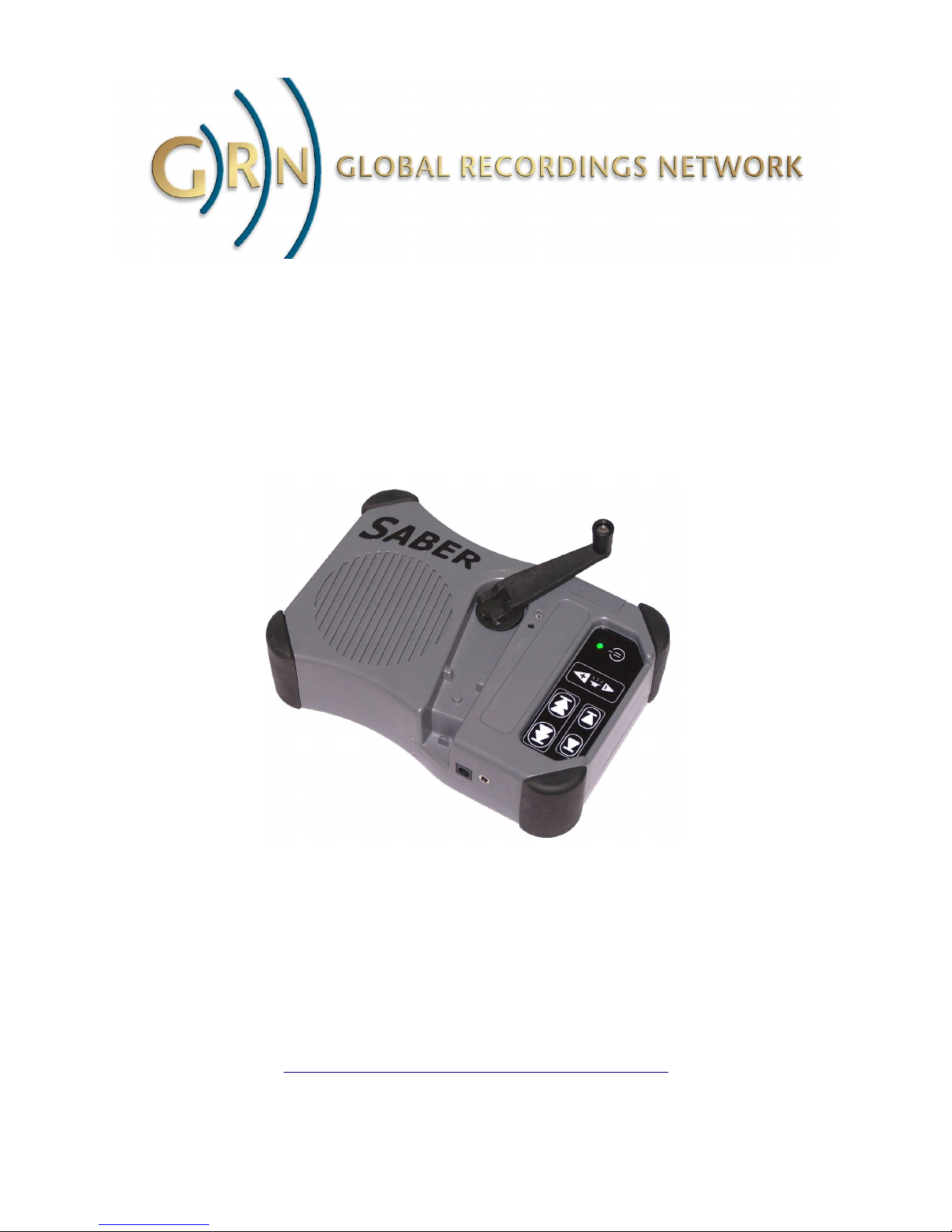
Saber
Hand Wind Audio Player
User Guide
24 February 2010
http://globalrecordings.net/saber

Saber Hand Wind Audio Player - User Guide
Table of Contents
1.Introduction.......................................................................................................................................3
1.1 Before You Start.........................................................................................................................3
1.2 ther information available.......................................................................................................3
1.3 Contact Details...........................................................................................................................3
2. perating the Saber...........................................................................................................................4
2.1 The Keypad...............................................................................................................................4
2.2 Indicator lights...........................................................................................................................5
2.3 The Internal Battery...................................................................................................................5
2.4 Caring for the Internal Battery...................................................................................................5
2.4.1 Before First Use: Fully charge the batteries.......................................................................5
2.4.2 Every Time: Ensure the batteries have charge...................................................................6
2.4.3 Every Month: Fully charge the batteries............................................................................6
2.5 Power Saving Functions............................................................................................................6
2.5.1 Volume reduction...............................................................................................................6
2.5.2 Auto shut down..................................................................................................................6
2.6 SD Memory Cards.....................................................................................................................6
3. ptional Accessories.........................................................................................................................7
4.Managing Audio Content..................................................................................................................9
4.1 File Structure..............................................................................................................................9
4.1.1 The Playlist.........................................................................................................................9
4.2 Navigation..................................................................................................................................9
4.2.1 Audio Titles........................................................................................................................9
4.2.2 Examples............................................................................................................................9
4.2.3 If you already have the recording....................................................................................10
4.2.4 Indicating the end of a folder...........................................................................................10
4.3 File Sequence...........................................................................................................................10
4.3.1 ID3 Title Tags...................................................................................................................11
4.3.2 Folder and File Names.....................................................................................................11
4.4 Loading files onto the Saber....................................................................................................11
4.4.1 Using the SaberCopy utility.............................................................................................11
4.4.2 Transferring files from computer.....................................................................................12
5.Troubleshooting...............................................................................................................................13
5.1 Player will not charge..............................................................................................................13
5.2 Files become corrupted............................................................................................................13
5.2.1 Identifying the problem....................................................................................................13
5.2.2 Fixing the problem...........................................................................................................13
5.3 Further help..............................................................................................................................14
6.Saber Specifications........................................................................................................................15
Page 2 of 15

Saber Hand Wind Audio Player - User Guide
1. Introduction
The Saber player is an MP3/WMA player with amplifier and speaker. The internal battery can be
recharged by turning the handle, or by plugging in an external power source such as a solar panel or
power pack. The player is operated from the keypad.
The Saber's on board memory contains documentation and software relating to various aspects of
the player's operation. Connect the Saber to a computer using a USB cable to view the documents
and run the utility setup program.
This User Guide describes how to operate the player, how to use the various power options, and
what to consider when loading new material onto the player.
1.1 Before You Start
It is recommended that the Saber be fully charged prior to first use.
1.2 Other information available
•Introduction to the Saber card
•SaberCopy Instructions
•Saber Maintenance Guide
The latest versions of all documents and software can be downloaded from
http://globalrecordings.net/saber.
1.3 Contact Details
Postal Address: Global Recordings Network Australia
Locked Bag 9019
Castle Hill NSW 1765
Australia
Phone: +61 2 9899 2211
Email: [email protected]
Page 3 of 15

Saber Hand Wind Audio Player - User Guide
2. Operating the Saber
2.1 The Keypa
The Saber keypad controls all functions of the device.
The buttons are raised, and of different sizes, so that the player
can be used in low light or by vision impaired users.
The buttons perform the following functions:
Power
/Pause
Before turning on the machine, first turn the handle clockwise for 30
seconds. Then press and hold this button until the green light flashes. (It
will take 6-20 seconds to power on.) Continue to turn the handle until the
machine starts to play.
To pause during play press this button once. The green light will flash
slowly. To resume play press this button once again.
To turn off the machine, press and hold this button until the green light
turns off.
Forward
File
Press once to go on to the next file, which may represent an individual
message, chapter or song.
Press and hold to go fast forward (cue).
Back
File
Press once to go back to the previous file, which may represent an
individual message, chapter or song.
Press and hold to rewind (review).
Forward
Folder
Press once to go on to the next folder, which may represent a whole
program, book or album.
Press and hold to go to the last folder.
Back
Folder
Press once to go back to the previous folder, which may represent a whole
program, book or album.
Press and hold to go to the first folder.
Volume Press the top button (+) to make the sound louder.
Press the bottom button (-) to make the sound softer.
Page 4 of 15
Back Folder
button
Power
/Pause
Forward Folder
button
Back File
button Forward File
button
Volume
Green Light

Saber Hand Wind Audio Player - User Guide
2.2 In icator lights
The Saber has two lights, one green and one red. The lights indicate the state of the player and
battery.
Indicator Meaning Action
Green light flashing quickly The player is getting starting up Wait until player starts playing
Green light on steady The player is playing normally Press buttons on keypad to pause,
skip, adjust volume or stop
Green light flashing slowly The player is paused Press Power/Pause button briefly to
resume playing
Red light on steady The player is charging Continue to charge until the red
light goes out
Red light flashing The battery is getting low Recharge the player by turning the
handle or plug in an external power
device
2.3 The Internal Battery
Fully charged, the internal battery should allow the Saber to player for 10 hours or more, although
this maximum playing time will decrease
When the built-in battery is nearly flat, the red light will start flashing.
To charge the battery
•Turn the crank handle in a clockwise direction.
•ptionally connect a 7.2V 500mA AC adapter, solar panel or battery pack. (The DC socket is
2.1mm, centre pin positive.)
When the unit is charging, the red light will be on. The unit is fully charged when the red light turns
off. Remove the power supply when fully charged.
2.4 Caring for the Internal Battery
All batteries have a limited shelf life. Follow these instructions to maximize the Saber's battery life,
and minimize the possibility of other problems.
2.4.1 Before First Use: Full charge the batteries
Batteries lose charge during shipping. Where possible, use the AC/DC Adapter or other external
power source to fully charge the batteries before using the Saber for the first time.
Page 5 of 15

Saber Hand Wind Audio Player - User Guide
2.4.2 Ever Time: Ensure the batteries have charge
Turning the Saber on with minimal charge in the batteries can corrupt the files on the player. Unless
you are running from an external power source, or you are sure the batteries are already charged,
then it is important to follow these steps whenever you use the player:
1. Wind the handle for at least 1 minute
2. Turn on the player
3. Continue to wind the handle at least until the green light stops flashing
4. During playback, wind the handle regularly to maintain charge to the battery
2.4.3 Ever Month: Full charge the batteries
After three months without use, the batteries can reach a critically low charge and may be
permanently damaged. Where possible, use an external power source to completely charge the
player each month.
Fully charging the Saber from an external power source may take up to 4 hours. (Charging from the
Solar Panel takes longer). If the Saber batteries are nearly discharged, but the recharge takes less
than 1 hour, then the batteries will not be fully charged. In this case disconnect the external power
source, turn the Saber on and play it until the batteries are fully discharged, then reconnect the
external power source to charge the player again.
2.5 Power Saving Functions
2.5.1 Volume reduction
When the battery begins to lose charge, the volume of playback is automatically reduced. This
reduces the maximum load on the battery, and significantly extends the playback time before the
machine shuts down due to low power.
2.5.2 Auto shut down
When the battery power becomes too low to continue playing, the Saber will automatically turn
itself off.
When the player has been left on pause for 30 minutes it will turn itself off.
2.6 SD Memory Car s
SD memory cards up to 2GB in size can be used in the Saber's SD memory card slot.
When a SD card is inserted into the player, the onboard internal memory will be disconnected and
not able to be used for playing.
It is recommended that SD are only inserted and withdrawn when the player is turned off.
Page 6 of 15

Saber Hand Wind Audio Player - User Guide
3. Optional Accessories
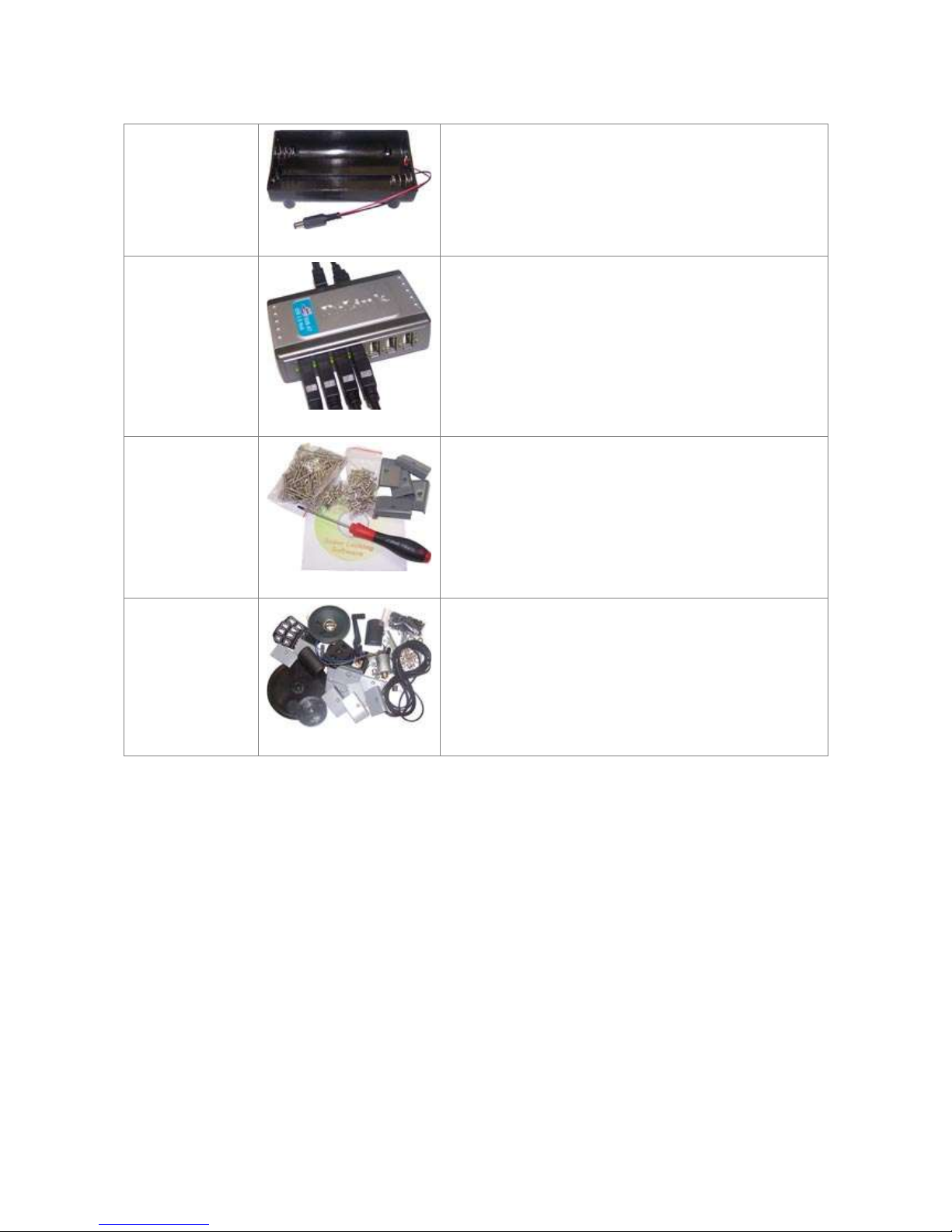
A range of accessories are available for the Saber for copying files, increasing capacity, recharging
the battery, and maintaining the players.
USB Cable Allows the contents of the Saber to be updated from
a computer.
The cable is 1m (40 inches) in length, with 5 pin
mini USB series B plug at one end, and standard
computer style flat USB type A plug at the other.
2 B SD
Memory Card
Doubles the Saber's storage capacity, and allows
content to be easily exchanged.
This is a standard SD memory card.
AC to DC
Adapter
Allows the Saber to be recharged from mains power.
Input is from 110 volts to 240 volts AC. utput is 7.2
volts DC.
Includes four interchangeable power sockets (US,
UK, European and Australian) to suit most countries
of the world.
12 Volt Adapter Allows the Saber to be powered from a 12 volt
power supply such as a car battery.
The cable has a "cigar lighter" plug at one end and
2.1mm DC power plug at the other. Also included is
a battery clamp for connecting directly to the
terminals of a car battery.
Solar Panel Allows the Saber to be recharged from sunlight, or
even strong fluorescent lights.
Coming later in 2009 is a rechargeable battery for
the solar panel, which can be charged from sunlight
during the day, and then used to recharge the Saber at
night.
Page 7 of 15
Saber Hand Wind Audio Player - User Guide
Battery Holder Allows the Saber to be recharged from batteries.
Holds 4 "D" cells. Batteries are not included.
Copy Pack This kit facilitates copying content from computer to
up to 7 Saber players at once.
Contains a 7 port USB hub, 7 USB cables, and
software.
Lock Pack Enables Saber players to be locked to prevent
alteration.
Includes tamper-proof screws (sufficient for 50
players) to hinder the opening of the case, and
special firmware to lock access to the USB port
and/or SD memory card reader.
Maintenance
Pack
Contains a range of parts sufficient to make repairs
to multiple Saber players.
Includes a quantity of replacement belts, screws, side
covers and other spare parts, plus documentation and
software.
Page 8 of 15

Saber Hand Wind Audio Player - User Guide
4. Managing Audio Content
4.1 File Structure
The Saber can play MP3 and WMA audio files.
The file system is structured in two levels: files within folders. Each folder represents an album,
book or program. Each file in a folder is one track. The Saber has buttons to go forward and
backward between tracks, and forward and backward between folders.
Content should be logically grouped into folders and tracks to enable users to quickly jump to the
desired content.
4.1.1 The Pla list
The player creates an internal playlist which it uses to manage the structure and sequence of
playback.
The playlist is created automatically when the unit is first powered on after changes are made by the
computer.
It is recommended that 20Mb of space is left available for the playlist on the internal memory and
SD cards. If there is insufficient space to create the playlist, the player will turn on, and the green
light flashes at high speed, but will then turn off.
4.2 Navigation
The Saber does not have any kind of visual display to show which folder and track is being played,
as these can be unreliable and/or unreadable to the users for which this player has been primarily
developed. Therefore it is important to have appropriate audio signals to tell the listener where they
are within the whole playlist.
4.2.1 Audio Titles
Audio titles should be included at the beginning of each program, and possibly even each track.
These audio titles would announce the name and/or number of the book, chapter or message.
Audio titles should be in the vernacular of the people who will be using the machine. ptionally
they could also be in a second language such as a local trade language.
The audio title should be the very first thing heard at the beginning of each track, even before any
introductory music. It can even be in a very short track by itself (however care must be taken, as
tracks less than 2 seconds long can cause problems on some kinds of players). Either approach
allows the user to jump to each track and immediately hear the audio title. This allows specific
programs and tracks to be located quickly.
4.2.2 Examples
Recording the Bible: Use a folder for each book, and a track for each chapter or passage. The
audio title for each folder would be the name of the book, eg "Genesis". The audio title for each
Page 9 of 15

Saber Hand Wind Audio Player - User Guide
track could be in the form "Chapter 1" or "Genesis 1" or "Genesis chapter 1".
Recording Audio Visuals: For programs such as GRN's "Good News" or "Look, Listen and Live"
series use a folder for each book, and a track for each picture. The audio title for each folder would
be the full name and number of the book, eg "Look, Listen and Live Book 1 - Beginning with God".
The audio title for each track would be the full name and number of the picture, eg "Picture 1 -
Adam and the Animals". Tracks for introductions and conclusions usually would not require
additional audio titles.
Recording a Teaching Series: Use a folder for each topic or sermon, and a track for each
individual message or point. Each folder should have an appropriate audio title. Individual tracks
may need audio titles if they are separate messages.
Whatever is the nature of material on the Saber, care should be taken if the audio titles rely on a
number system, as some users may not be able to count.
4.2.3 If ou alread have the recording
Recording audio titles can be done easily while the rest of the program is being recorded. But what
if you're using a preexisting recording that does not have suitable audio titles?
If you are working with the people group, then it may be possible to record these audio titles
separately in the same language.
If it's not possible to record specific audio titles, then another option is to add generic audio titles to
each folder and/or track. These generic titles could be in the form "Book 1", "Book 2", or "Item 1",
"Item 2", or even just numbers by themselves. Even if these audio titles are not in the vernacular
language, they may still be recognizable to people using the player.
GRN plans to release several sets of generic audio titles over time, in various forms and in a number
of major languages. GRN's SaberCopy program has the option of adding these type of generic audio
titles automatically during the copying process.
4.2.4 Indicating the end of a folder
With many kinds of material, it may also be helpful to give an audio signal for the end of a folder.
therwise the listener may have to wait until the next program begins to play before knowing when
to stop.
There are two ways to indicate the end of a folder: the first is with a clear musical finale, and the
second is with a period of silence. It is probably best to use both: a sound or music followed by
several seconds of silence.
The SaberCopy utility also has the option to add these kinds of short audio files to the end of every
folder. GRN will provide a few different files to choose from. Alternatively you can create and use
your own to suit a particular cultural context.
4.3 File Sequence
It is important that the audio files are structured in the correct order so that the Forward File, Back
File, Forward Folder and Back Folder buttons work as expected.
The playback sequence of tracks is controlled by the Title tag and short filename of each audio file.
peration of the Forward Folder and Back Folder buttons are controlled by the folder names.
Page 10 of 15
Otros manuales para Saber
2
Tabla de contenidos
Otros manuales de Reproductor de MP3 de GRN


