gofanco PRO-MatrixWall44 Manual de usuario

PRO-MatrixWall44
4x4 HDMI Matrix with Video Wall Funcon
®
Made in Taiwan
User‘s Guide

®
PRO-MatrixWall44
Congratulaons for owning a gofanco product. Our products aim to meet all your
connecvity needs wherever you go.
Have fun with our products!
Please read this manual carefully before rst use.
If you need more informaon about our products, please visit www.gofanco.com.
For technical support, please email us at support@gofanco.com.
For drivers/manuals download, please go to hp://www.gofanco.com/download.

®
PRO-MatrixWall44
Please read all of these instructions carefully before you use the device. Save
this manual for future reference.
The PRO-MatrixWall44 4x4 HDMI Matrix with Video Wall Function has been
tested for conformance to safety regulations and requirements, and has been
certied for international use. However, like all electronic equipments, the
PRO-MatrixWall44 should be used with care. Please read and follow the safety
instructions to protect yourself from possible injury and to minimize the risk of
damage to the unit.
• Follow all instructions and warnings marked on this unit.
• Do not attempt to service this unit yourself, except where explained in this
manual.
• Provide proper ventilation and air circulation and do not use near water.
• Keep objects that might damage the device and assure that the placement of
this unit is on a stable surface.
• Use only the power adapter and power cords and connection cables designed
for this unit.
• Do not use liquid or aerosol cleaners to clean this unit. Always unplug the po-
wer to the device before cleaning.
1. Safety and Notice
Table of Contents
1. Safety and Notice ..................................................................3
2. Introduction .......................................................................4
3. Features...........................................................................4
4. Specication ......................................................................5
5. Package Contents ..................................................................5
6. Hardware Installation ..............................................................6
7. Connection Diagram ...............................................................6
8. Panel Description ..................................................................7
9. Operation Approach................................................................8
10. EDID Learning ....................................................................18
11. Learning Warranty ................................................................19
3

®
PRO-MatrixWall44
• HDCP compliant
• Allows any HDMI display to view any HDMI source at any time
• Supports 7.1 channel digital audio
• Supports default HDMI EDID and display EDID learning
• The matrix master can switch any HDMI input to any output by push button,
IR remote control, RS-232 control, and Ethernet control
• Easy installation with rack-mounting and wall-mounting design
• Fast response time for channel switch
• Four HDMI outputs from 640x480 to 1920x1200
• Supports HDMI/ DVI input, from 640x480 to 1920x1080@60, interlaced or
progressive
• Resize, position, zoom, rotation, fade-in fade-out output video
• Each HDMI output has an independent controllable display area
• User-selectable output settings, up to 1920x1200
• Image parameters and layouts are automatically saved in the ash memory
and can be recalled for later use
• Several Image parameters and layouts can be saved in computers and can be
loaded for later use
• Software control through RS-232 and Ethernet
• Firmware upgradable to support new features and technology enhancements
• Supports individual propagation delay on each display to have the best vi-
sual perception
3. Features
The PRO-MatrixWall44 4x4 HDMI Matrix with Video Wall Function provides
the most exible and cost eective solution in the market. The new PRO-Ma-
trixWall44 can be used as a conventional matrix switch, routing up to 4 die-
rent HDMI video sources to any monitor independently or be used as videowall
processor, splitting a chosen image from any of the 4 sources to 4 displays. On
top of that, it can work as “combo” gear, showing any individual input source
in fullscreen on any selected display while other displays are working in video
wall mode
.
2. Introduction
4

®
PRO-MatrixWall44
5
4.Specications
Item Description
Technical
Role of usage
4x4 HDMI Matrix with Video Wall Function
HDCP compliance
Yes
Video bandwidth
Single-link 225MHz [6.75Gbps]
Video support
480i / 480p / 720p / 1080i / 1080p60 / 1920x1200@60Hz 30-bit color
Video Format Support
HDMI/DVI
Audio support
Surround sound (up to 7.1ch) or stereo digital audio
ESD protection
Human body model — ±15kV [air-gap discharge] & ±8kV [contact discharge]
Input
4x HDMI / 1x RS-232 / 1x Ethernet
Output
4x HDMI
Control
RS-232 / Ethernet / Front Panel
Input TMDS signal
1.2 Volts [peak-to-peak]
HDMI connector
Type A [19-pin female]
RS-232 connector
DE-9 [9-pin D-sub female]
RJ-45 connector
WE/SS 8P8C
Mechanical
Housing Metal enclosure
Dimensions
[L x D x H]
Model 440 x 257 x 44mm[17.3" x 10.1" x 1.7" ]
Package 526 x 318 x 156mm [1'7" x 12.5" x 6.1"]
Carton 543 x 335 x 344mm [1'8" x 13.2" x 1'1"]
Weight Model 2820g[6.2 lbs]
Package 3827g[8.5 lbs]
Fixedness 1RU rack-mounting case with ears
Power supply 12V 5A DC
Power consumption 15 Watts [max]
Operation temperature
0~40°C [32~104°F]
Storage temperature -20~60°C [-4~140°F]
Relative humidity 20~90% RH [no condensation]
5. Package Contents
• 1x PRO-MatrixWall44
• 1x DC 12V 5A
• 1x Installation software CD
• 1x Rack-mounting ear set
• 1x User Manual

®
PRO-MatrixWall44
6
6. Hardware Installation
Before Installation
• Place the product in an even and stable location.
• Do not place the product in too high temperature (over 50°C), too low temperature
(under 0°C) or high humidity.
• Use the DC power supply unit with correct specications. Improper power adapter
can cause product malfunction or re hazard.
• Do not twist or pull the cable ends by force.
Hardware Installation
PRO-MatrixWall44 as master
1. Connect all sources to HDMI Inputs on the 4x4 HDMI Matrix PRO-MatrixWall44.
2. Connect all displays to HDMI Outputs on the 4x4 HDMI Matrix PRO-Mat-
rixWall44.
3. Connect the +12V 5A DC power supply to the 4x4 HDMI Matrix PRO-Mat-
rixWall44.
7. Connection Diagram

®
PRO-MatrixWall44
8. Panel Description
Front Panel
Rear Panel
1. Control Buttons:
2. Power Status: Power indicator LED
3. LOCK LED: When user turn on the lock function, the light will shine.
4. Selected Source Status LED: When users use port channel push button,
the indicator LED will show the selected source
5. Source Select Push Button: Select input channel
Button 1 – Fast switch to 1x1
Button 2 – Fast switch to 2x2
Button 3 – Fast switch to 1x4
Button 4 – Fast switch to 4x1
Button 5 – Fast switch to Quad view mode
Button 6 – Lock the device function
Button 7 – For factory reset
6. +12V DC: 12V DC power jack
7. RS-232: RS-232 control port
8. Ethernet: Ethernet control port
9. INPUT 1-4: HDMI inputs
7
6 7 8 9
10
10. Output 1-4: HDMI outputs
1 532
4
®
PRO-MatrixWall44
8
Software Operation
9. Operation Approach
System Requirement and Precautions
1. When powering o the PRO-MatrixWall44, please stay unpowered at least 5
to 10 seconds to allow power capacitors to discharge.
2. The PRO-MatrixWall44 provides software control program which runs under
Microsoft Windows XP, 7, 8, 10 through RS-232 serial control.
3. Before launching the software, make sure you have secured the connection
between your computer COM port and the PRO-MatrixWall44.
Start the software control program
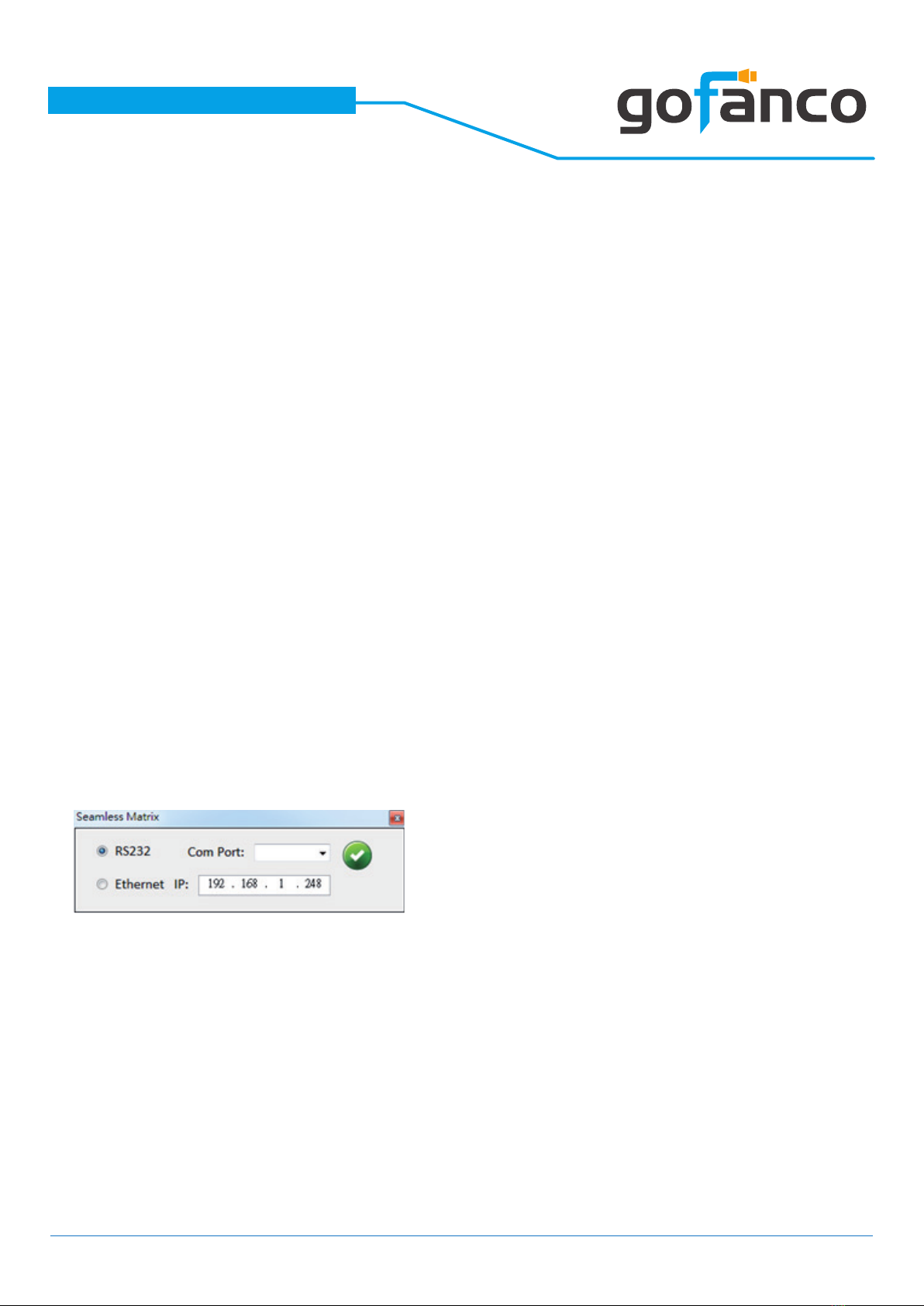
Launch the software and the following dialog will pop up. It has two ways to
control the PRO-MatrixWall44 device (under Microsoft Windows 7, please run
as administrator).
1. RS-232 Connection: Select correct COM port and click the OK button.
2. Ethernet Connection: Enter the device IP address and click the OK button.

®
PRO-MatrixWall44
9
After the software control setting is accomplished, it will enter directly to
the control interface.
12 3 4 5
6 7 8

®
PRO-MatrixWall44
10
Control Interface
1. Connection Status: Show the connect information
Show the connect information and status. If you use USB control Mode
to connect device, the graph is . For IP control, the graph of Ethernet
is .
2. Matrix
You can assign arbitrary video source and switch quad view mode here.
*When you enable the quad view function, the other matrix function is
not available.
3. TV Wall
Step 1: check input channel (video wall source), input resolution and
choose output resolution
Firstly, you should select the video source which you want to use video
wall function. The dierent colors of frame represent the dierent out-
put TVs. The information of coordinate shows the position of output TV.
When setting the dierent resolution, the coordinate of output will also
be changed.
(1)
Tabla de contenidos
Otros manuales de Conmutador de matriz de gofanco

gofanco
gofanco PRO-Matrix88 Manual de usuario

gofanco
gofanco Matrix44-HDBT Manual de usuario

gofanco
gofanco Matrix44HD2-LCD Manual de usuario

gofanco
gofanco Matrix44 Manual de usuario

gofanco
gofanco Matrix44-HDBT Manual de usuario

gofanco
gofanco 4x4 HDMI Matrix 4K Manual de usuario

gofanco
gofanco PRO-Matrix88-aud Manual de usuario

gofanco
gofanco Prophecy PRO-Matrix44-SC Manual de usuario

gofanco
gofanco Matrix44HD2-BSC Manual de usuario

gofanco
gofanco Matrix88-HDBT Manual de usuario


