
FrontRow CB200 Instrucciones de montaje

CB2000
INSTALLER GUIDE

YOU’RE ABOUT TO MAKE
LEARNING MORE ACCESSIBLE
Welcome to FrontRow — the teacher- and tech-friendly way to improve the learning environment in every classroom.
To make your installation of the FrontRow CB2000 as efficient as possible, we recommend that you first read the section
in this guide called Before You Begin, and from there proceed to Steps 1 through 6.
If you follow the steps set out in this Installer Guide and organize everything you need beforehand, you’ll find setting up
your FrontRow CB2000 touch control panel to be quite simple. Of course, if you run into any obstacles, you can always find
contact information for our technical support representatives at www.gofrontrow.com.
Thank you for choosing FrontRow! You're just steps away from a more productive classroom.

Read Me
CONTENTS
Be sure to read the helpful tip boxes found throughout this guide. Of
course, if you need further assistance, you can always call us at one of the
numbers found on the back page.
Step 1................................................................................Pages 1-6
Before You Begin
Step 2...................................................................................Page 7
Get Your Configuration Files
Step 3..................................................................................Pages 8
Set-Up
Step 4................................................................................Page 9-14
Configuring Your CB2000s
Step 5..................................................................................Page 15
Physical Installation Prep
Step 6..................................................................................Page 16
Plan your Installation
Step 7...............................................................................Page 17-19
Install your CB2000
Appendix A ..........................................................................Page 20-27
Control Logic Programming
Appendix B .........................................................................Pages 28-32
Setting Preferences
Appendix C.............................................................................Page 33
CM3000 Commands
Appendix D.............................................................................Page 34
CA1000 Commands
Appendix E .............................................................................Page 35
Pin-Out Guide
Appendix F .............................................................................Page 36
Troubleshooting

1
Make sure you’ve got everything you need to install your Frontrow CB2000s. By taking the time to prepare,
you’ll help ensure the actual set-up is as quick and problem-free as possible.
1. Visualize your goal
When your Frontrow system CB2000 is installed, it may look something like this:
Step 1: Before you begin
LAN
CB2000
Control your projector, audio
and other devices.
WP-PCAV
ezRoom
Wall Box
Computer
Document
Camera
DVD Player
Projector
Video
Audio
Control
Control

2
2. Get familiar with the button panel
Network jack AUX jack
Back of CB2000
Jumper for switching
between IR out or GPI
(on TB14 or TB6+TB8)
CB50 Volume
Control Connector
3
3. What do you want to control? How do you want to control it?
Your CB2000 can let teachers control or communicate with practically any device or person. Now is the time to
plan what you want to do.
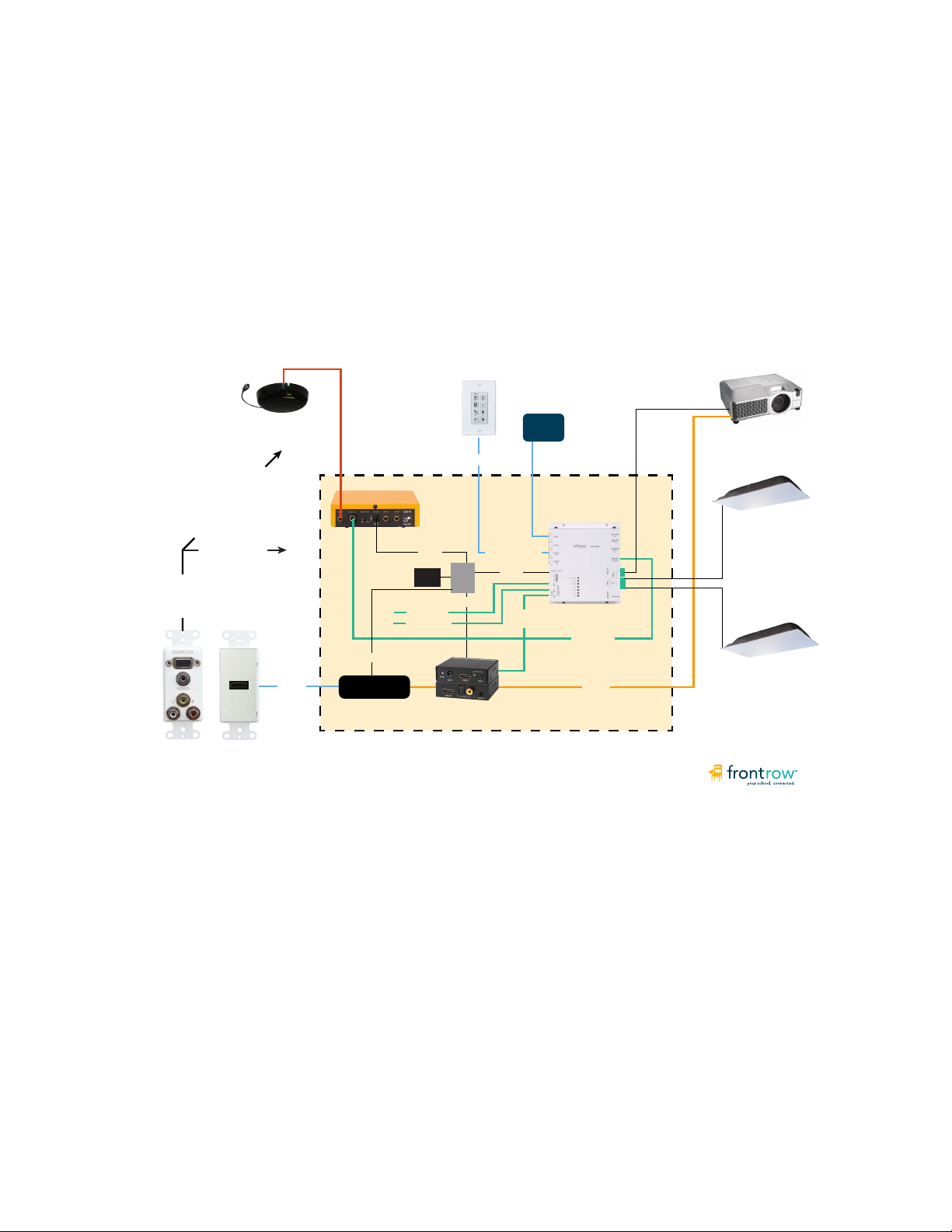
Example 1: Typical ezRoom setup with projector
In this example, the CB2000 works with other ezRoom components to turn a projector on and off, switch
inputs, handle the transport controls for a DVD player, and control audio volume from the teacher’s computer,
an MP3 player, and two FrontRow wireless microphones. If FrontRow Conductor™ is being used in the school,
the CB2000 could also initiate intercom calls and trigger alerts.
CM3000
ezRoom Wiring
Mic dome receiver
HDMI Receiver
CB2000
HDMI Audio
Extractor INSIDE OF THE ENCLOSURE
+12V
+12V
+5V
AV Cable
VGA & video to projector
Audio to ezRoom
Projector
Mic Audio
HDMI
Audio
HDMI
Serial
CAT5e
TB14
RCA Audio
PC Audio
CAT5e
LAN
Network +12V
+12VDC
Speaker
Speaker

4
Example 2: Using CB2000 as a stand-alone controller with TB14
You can also use the CB2000 as a stand-alone serial controller. In this configuration, the FrontRow TB14 adapter
included with your CB2000 standalone kit supplies power, routes commands, and feeds data back (in the case
of bidirectional serial devices). In combination with powerful tools like FrontRow Maestro™, this can allow you to
‘network’ and manage projectors that are otherwise not online. Below are the basic connections for controlling a
projector and amplifier serially, and a DVD player via infrared remote.
Serial Controlled
Amplifier
Screen or interactive
white board
CB2000
Control
Panel
TB14 Projector
Power
LAN
Cat 5 cable
Serial cable
Control + power
RS232
Speaker
Speaker
AUX
Speaker cable
RS232
NOTE: This is a schematic illustration
intended to clarify the relationship of
components to each other. The location
of jacks shown here may not reflect their
true position on specific devices.
NETWORK
AUX
Power
POWER IN
DVD
Player
IR
IR
Other cable

5
Example 3: Using CB2000 as a stand-alone controller with TB6 and TB8
You can use the CB2000 as a stand-alone serial controller with the TB6 and TB8 terminal blocks. In this configuration,
the FrontRow TB6 and TB8 adapters included with your CB2000 standalone kit supply power, routes commands, and
feeds data back (in the case of bidirectional serial devices). In combination with powerful tools like FrontRow Maestro™,
this can allow you to ‘network’ and manage projectors that are otherwise not online. Below are the basic connections
for controlling a projector and amplifier serially, and a DVD player via infrared remote.
Third party
serial
amplifier
Screen or interactive
white board
CB2000
Control
Panel
SpeakerSpeaker
Projector
Power
LAN
Cat 5 cable
Serial cable
Control + power
RS232
Speaker Speaker
AUX
Speaker cable
RS232
NOTE: This is a schematic illustration
intended to clarify the relationship of
components to each other. The location
of jacks shown here may not reflect their
true position on specific devices.
NETWORK
PWR/GND
Power
DVD
Player
IR
IR
Other cable
TB8 TB6

6
4. Gathering information
You will save a lot of time by working with the school to:
• Make a list of all rooms to be outfitted and the equipment to be controlled in each
• Set aside IP addresses for each CB2000, CM3000, and any other FrontRow components or servers
To help organize this important information, we have an ezRoom Installer Planning Template available for
you to download at www.gofrontrow.com/products/ezroom under the Resources tab. Of course, you can
also create your own. It should look something like this:

7
Your CB2000s need a script to tell them what the buttons should do, what other devices they need to communi-
cate with, and how. If your configuration — the collection of commands you want to issue from the CB2000 and the
devices you want to control — is the same in each room in your installation, then you will need only one configuration
base file which you will modify with specific IP addresses unique to each room. If the situation is different from room
to room, you will need different base files that are tailored to each configuration.
There are several ways to create your configuration files:
• Go to www.gofrontrow.com/products/ezroom and find the Base Configuration File library under the Resources
tab. Each Base Configuration File stored here includes both the user interface and control logic programming
needed for the most common applications. Note that if you are using the CB50 volume control as part of your
installation, you will need the CB2050 configuration files.
• If your configuration is uncommon enough that it’s outside the scope of the Base Configuration File library, and
you have some basic familiarity with programming, you can easily build your own user interface designs or
control logic programming. See Appendices A, B, and C for a detailed description of how to do this.
Step 2: Getting Your Configuration Files
Tabla de contenidos
Otros manuales de Panel de control de FrontRow


