foxunhd FX-MX09 Manual de usuario

Operating Instructions
www.foxunhd.com
FX-MX09
4x4 HDMI2.0 Matrix , 4k@60Hz YUV4:4:4
Dear Customer
Thank you for purchasing this product. For optimum performance and safety, please read these
instructions carefully before connecting, operating or adjusting this product. Please keep this manual for
future reference.
ABLE OF CONTENTS
1 Feature
2 Introduction
3 Specifications
4 Package Contents
5 Panel Descriptions
6 Connecting and Operating
7 Typical Application
8 Control
9 Product Service
10 Warranty

Operating Instructions
www.foxunhd.com
1 Feature
HDMI 2.0 version (Support HDMI2.0 4K50/60Hz YUV4:4:4).
Bandwidth upto 18Gbps
Support 3D.
Support HDCP 2.2 input, HDCP2.2 output.
Any one of the 4 HDMI Sources to any one of the 4 HDMI Displays
Support Panel Conctrol, Local IR, IR Routing,RS232 Control, IP Control
1U rack design, easy installment.
Power consumption:15watts
Dimension (L×W×H):440x256x42mm
Net Weight:2.4kg.
NOTICE
Our company reserve the right to make changes in the hardware, packaging and any accompanying
documentation without prior written notice.
Warning
To reduce the risk of fire, electric shock or product damage:
1. Do not expose this apparatus to
rain, moisture, dripping or splashing
and that no objects filled with
liquids, such as vases, shall be
placed on the apparatus.
6. Clean this apparatus only
with dry cloth.
2. Do not install or place this unit in
a bookcase, built-in cabinet or in
another confined space. Ensure the
unit is well ventilated.
3. To prevent risk of electric
shock or fire hazard due to
overheating, do not obstruct the
unit’s ventilation openings with
newspapers, tablecloths, curtains,
and similar items.
4. Do not install near any heat
sources such as radiators, heat
registers, stoves, or other apparatus
(including amplifiers) that produce
heat.
5. Do not place sources of naked
flames, such as lighted candles, on
the unit.
7. Unplug this apparatus
during lightning storms or
when unused for long
periods of time.
8. Protect the power cord
from being walked on or
pinched particularly at
plugs.
9. Only use attachments /
accessories specified by the
manufacturer.
10. Refer all servicing to
qualified service personnel.

Operating Instructions
www.foxunhd.com
2 INTRODUCTION
It is 4K HDMI Matrix4x4, supports HDCP2.2. It offers HD video solution for super market, shopping mall;
HDTV, STB, DVD and projector factory; data control center; conference rooms; education and training;
luxurious house; home theaters etc.
3 SPECIFICATIONS
Operating Temperature Range
-5 to +35°C(-41 to +95 °F)
Operating Humidity Range
5 to 90 % RH (no condensation)
Input Video Signal
0.5-1.0 volts p-p
Input DDC Signal
5 volts p-p (TTL)
Signaling Rate
3.0Gbit/s
Video Format Supported
4K@60Hz/4k@30Hz/1080P/1080i/720P/576P/4
80P/576i/480i
Output Video
HDMI2.0 and HDMI 1.4
Audio Format Supported
DTS-HD Master Audio、Dolby trueHD etc.
Maximum Transmission
Distance
<15m(if need,HDMI Extender is optional)
Power Consumption
15wtts (Max.)
Dimensions
L440 x W256 x H42 mm/ L17.3”xW10”xH1.65”
Mass (Main Unit)
2.4kg
Note: Specifications are subject to change without notice. Mass and dimensions are approximate.
4 PACKING CONTENTS
1Main unit. (FX-MX09)
212V DC Power Supply.
31x Remote controller.
44x IR_TX cable.
54x Wide Band IR RX Cable(38KHz~56KHz)
61x38KHz IR Ext RX cable
71xmounting kit
81xCD for control software & user manual
Notes: Please confirm if the product and the accessories and all in duded, if not please contact with
the dealers.
5 PANEL DESCRIPTION

Operating Instructions
www.foxunhd.com
Front Panel
①Power on/off.
②These LED indicates the status of each output selection.
③IR receive window.
④Input button IN1~4: choose the desired input port from ports 1~4.
⑤Output button OUT1~4: choose the desired output port from ports 1~4.
⑥Lock: Press this button, then all the button on the unit is useless, which mean all the buttons locked
⑦ALL: Press this button to set all the outputs to display with the same input. First press the“ALL”button
then press an input number to confirm the selection.
Note:The “Lock”button will light when all the buttons are locked.
Rear Panel
①LAN port
②RS232 port
③HDMI input port
④IR-RX
⑤IR-TX
⑥IR-Ext
⑦HDMI output port ⑧Power input:DC12V

Operating Instructions
www.foxunhd.com
6 CONNECT AND OPERATE
1) Connect source devices to input ports of the matrix
2) Connect HDMI output ports to TV or other HDMI sink devices
3) Optional:connect RS232 cable from PC RS232 port
4) Optional:Connect an Ethernet cable from the TCP/IP port on the matrix to a local area network.
5) Connect 12V power supply to DC power socket
6) Power on the matrix,HDMI sources and displays
Attention: Insert / Extract cables gently.
7 Typical Application

Operating Instructions
www.foxunhd.com
8 Control
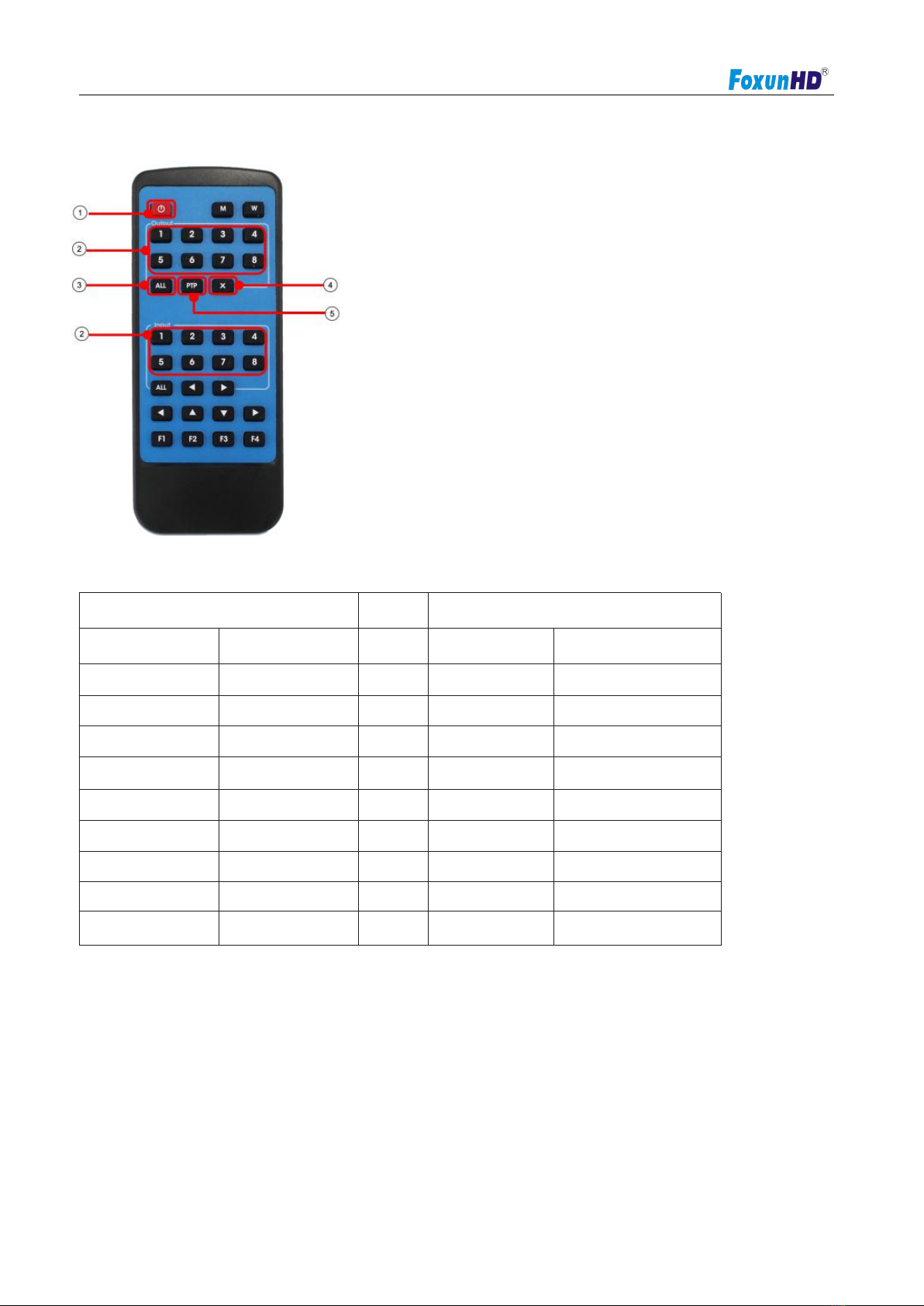
8.1 Local IR remote control.
①Standby Mode.
②OUTPUT-X select INPUT-Y:
Press OUTPUT-X (X means 1 to 8 of outputs)
Press INPUT-Y (Y means 1 to 8 of inputs)
③All outputs select INPUT-Y:
Press ALL button in zone OUTPUT
Press INPUT-Y button (Y means 1 to 8 of inputs),
then INPUT-Y switched to ALL OUTPUTS.
④Cancel Button: Cancel the switching operation
⑤PTP button: Mirror all inputs and outputs
(Ex. Input 1 to output 1, input 2 to output 2, etc):
Press PTP button in Zone OUTPUT
8.2 RS232 Pin Assignment
Matrix
Remote Control Console
PIN
Assignment
PIN
Assignment
1
NC
1
NC
2
Tx
2
Rx
3
Rx
3
Tx
4
NC
4
NC
5
GND
5
GND
6
NC
6
NC
7
NC
7
NC
8
NC
8
NC
9
NC
9
NC
Baud Rate:115200bps
Data Bits:8 bit parity:None Stop Bit:1 bit
Flow Control:None
8.3 RS 232 Control
8.3.1 Software control
Connect the 4x4 Matrix to PC with a RS232 cable, open the software on your PC. On the COM Setting
session, select the COM port according to your PC and click Connect to get connected.
On this COM setting session, you can also change the Device name, Device name support up to 16

Operating Instructions
www.foxunhd.com
characters. Save or edit your status by clicking the Edit button.
Come to Port Set session to select or switch your input sources for each output, We can read the current
status by clicking the “Status” button, or Clear our historical operating record by clicking “Clear” button. The
right down blank shows the operating history.
Picture 1
The EDID session helps us to Read and Configure EDID for each input, such as HDR, 3D, Data rates and
Audio channel.
Picture 2

Operating Instructions
www.foxunhd.com
The IP configure session helps to read and configure the IP address and MAC of the Matrix. Check DHCP
if you want the router assign an automatic IP for the Matrix.
Picture 3
The Net Config session allows us to configure the PC and Matrix in the same LAN with the IP Address and
connection.
Click “Net config”→“Connect” → “Search Device”→“Sel Device Number” →“Connect”
then you can see the device name, it means connect successfully.
Picture 4

Operating Instructions
www.foxunhd.com
Picture 5
The last session is System Config, which allows power ON/OFF or reset, default the Matrix.
Picture 6
8.4 Command Control
1) Open CommUart Assistant.
2) Comport setting:
Baud Rate:
115200 bps
Parity:
None
Data Bits:
8 bit
Stop Bits:
1 bit

Operating Instructions
www.foxunhd.com
3) Enter Port Command in Send options.
Picture 7
4) Command
Command
Function
Note
@W 04 00 01 02 03#
PTP Function
Mirror all inputs and outputs
(Ex. Input 1 to output 1, input 2 to output 2, etc)
@W 50 #
Reboot
@W 51 #
Restore Factory Setting
@W 0F 00 #
Standby
00: Standby Mode
01: Cancel “Standby Mode”
5) Select HDMI input for HDMI output
Command
Description
00
Output1
01
Output2
02
Output3
03
Output4
04
All Output
00
Input1
01
Input2
02
Input3
03
Input4
E.g: @W 00 00 #: Ouput 1 display Input1
Ouput 1 Input1
6)EDID Setting
@W XX AA BB #:
Parameter Description:
Tabla de contenidos
Otros manuales de Conmutador de matriz de foxunhd