FoMaKo KC608 Pro Manual de usuario

FoMaKo
E-mail: ivan@fomako.net
Website: www.fomako.net
Phone: 0086-18565635753
Address: 10F NiuLanQian Building,Minzhi,
longhua, shenzhen, China, 518000
Please feel free to contact us if you have any questions.
FoMaKo
PTZ Camera Controller
(KC608 Pro & KC608N)
Please Note: Both controller and camera have NDI function, then, they can use NDI control protocol.
User Manual V1.0

FoMaKo Focus Your Streaming www.fomako.net
Quick Start
Add Controller&Cameras to Your Network
Please do the connections as the following. You’d better have a router in your network,then router will
assign IP addresses for the controller and cameras automatic. If you don’t have router in your network,
controller&cameras can’t get IP address from your network.
About cameras and controller’s IP address
The first three parts of IP address must be the same for controller and cameras.
For example:
192.168.1.100 and 192.168.1.150 , the first three parts are the same. You can add the
camera to controller.
192.168.1.100 and 192.168.12.110, the first three parts are not the same.You can’t add
the camera to the controller.
You have to change camera or controller’s ip address , to make the first three parts
become the same.
FoMaKo cameras and controller are optimized, normally, you don’t need change ip
address for them.
Add Cameras to Controller
Method one: By controller’s search function
Please note: Some brands cameras don’t support search function.
Let’s use FoMaKo camera for example.
(1) Press “search” button on controller, it will show cameras' ip address on screen;
(2) Press “Enter” -> “Add to Shortcut Keys” , you can assign the cameras to
CAM1~CAM7 shortcut keys,
For example, you assigned the first camera to CAM 1, press “CAM 1” button,
now ,you can control the first camera.
(3) Add cameras one by one, you can assign 7 cameras to 7 shortcut keys.
Method Two: by camera’s IP address
(1) Press “Setting” -> Device Management ->Add a new Device:input the camera’s IP
address, Protocol: VISCA Over IP, Save
(2) Go to Settings -> Hot Key -> CAM 1-> Select from List->choose the camera’s ip

FoMaKo Focus Your Streaming www.fomako.net
address you just added->Press “enter” button to confirm ->Back.
Now, you add CAM 1 to controller successfully
Set and Call Preset Position
Press “STORE” button, the button will light up, then you can save preset position by
numbers;
Press “CALL” button, the button will light up, then you can call preset position by
numbers.
Screen Preview Function
”PVW” button control the camera’s video preview on the screen. But you need do the
settings before using it.
PVW function uses camera’s RTSP streaming function. So, you need know your
camera’s RTSP streaming URL.
Let’s use FoMaKo camera for example:
FoMaKo camera’s RTSP streaming URL is :
Main streaming: rtsp://192.168.1.100:554/live/av0
Second Streaming: rtsp://192.168.1.100:554/live/av1
Please change ip address 192.168.1.100 to your camera’s ip address.
Normally, we use second streaming for PVW function.
Settings on Controller:
(1) Long press the camera’s shortcut key, such as “CAM 1” , go to CAM 1’s settings ->
Stream URL
(2) Input camera’s RTSP streaming URL: rtsp://192.168.1.100:554/live/av1 ,
(3) Press “enter to save”
(4) Press “PVW” button, now, the camera’s preview video will shown on screen
(5) Press “PVW” button again, it will close the preview video.
Tips:
(1) When go the the controller’s settings, you can use the “Focus” button to choose the
settings. The operation will be much more faster.
(2) Save more than 10 position presets: Settings-> Keys->Preset Operation Mode ->255
reply you within 12hours

FoMaKo Focus Your Streaming www.fomako.net
- 1 -
Contents
1、Contents................................................................................................................1
2、Tips/Precautions/Affirm.................................................................................. 2
3、Feature...................................................................................................................3
4、Product diagram................................................................................................4
5、Interface pin definition................................................................................... 6
6、Power supply/IP connection/Serial connection.....................................7
7、Keyboard OSD menu settings/Keyboard input /Menu introduction........9
8、Camera assignment...................................................................................... 14
9、Edit shortcut/Interact with the camera/Camera menu control...............16
10、Camera menu control..................................................................................17
11、NDI protocol control.................................................................................... 18
12、Specifications................................................................................................ 19

FoMaKo Focus Your Streaming www.fomako.net
- 2 -
Tips
Thank you for using our products.
In order to enable you to operate this machine proficiently as soon as possible, please carefully
read the instruction manual we provide for you, from which you can obtain product safety
precautions, product introduction and product usage methods and other related knowledge.
After you have read the instruction manual, please keep it properly for future reference.
If you find any problems during the use of the product, please contact our relevant service
personnel, thank you for your cooperation.
Precautions
1.
Before connecting to the device, make sure the power supply voltage is correct. Only use the
original uncut (unspliced) power supply that came with your keyboard.
2.
If the product does not work properly, please contact your dealer. Never attempt to
disassemblethe device yourself.(Wearenotresponsible for problems caused by unauthorized repair
or maintenance.)
3.
This product is an indoor device, please do not place this product in a place with water or
humidity.
4.
When transporting, the equipment should be packed in the original packaging.
5.
Do not drop or subject the unit to physical impact.
6.
Do not use strong detergent to clean the machine, when the dust is thick, wipe gently with a
neutral detergent, and only for external cleaning.
7.
Keep RJ-45 ports free of dust and moisture.
8.
Avoid moving the machine between places that are too cold or too hot to avoid fogging inside
the machine and affect its service life.
Affirm
1.
We have done our best to complete and correct the content of this manual, but there will
inevitably be errors and omissions, and we will not be responsible for any technical or printing errors in
this manual.
2.
The appearance of the product shown in this manual is for reference only, and may differ from
the actual appearance of the device you purchased.
3.
This instruction manual guides multiple product models, so it is not intended to be used alone
for any specific product.
4.
The display interfaces in this manual, illustrations, parameters, drawings and model value ranges
may be different. Please refer to the actual product for details.
5.
The content of this manual is subject to change without prior notice.
6.
If there is a discrepancy with this manual due to software version upgrades, please refer to the
software as the standard.

FoMaKo Focus Your Streaming www.fomako.net
- 3 -
Feature
4D precise Joystick+3D knobs+ergonomic zoom button:
Camera parameters control such as white balance, exposure, focus and zoom etc.
Built-in 3-inch LCD screen:
Support real-time PVW of current camera viewing through up streaming (NDI HX2 and RTSP only).
Support 7 cameras selection shortcuts:
7 camera shortcuts can be set quickly according to requirements; Up to 1000 cameras information can
be saved.
Newly upgraded UI operation interface:
Display main parameters of cameras directly, personalize stylish interface casually.
Remote control of PTZ camera menu:
Open camera’s menu quickly and combine PVW screen or image screen to control.
* This function is recommended to be used with our camera.
White and red backlight silicone buttons:
High-quality silicone, excellent touch, support white and red backlight so it can be operated
smoothly in a low-light environment; support letters and common characters input and other operations
such as editing camera’s name and address.
Support buttons lock via one click:
Lock buttons via one click to avoid misoperation.
Multiple control protocols, apply to abundant venues:
Support VISCA、VISCA Over IP、VISCA TCP、PELCO P/D、Onvif and NDI, support automatic
protocol recognition.
* Additional licensesare required to upgrade theNDIfunction, please consult the manufacturerfor
details.
Abundant interfaces, multiple connection methods:
External RS-232, RS422/485 serial port and RJ45 network interface. The network interface supports
POE function, thereby reducing wiring trouble.
External tally interface:
Support up to 8 tally channels.
Support customizable buttons:
Support customizable buttons F1, F2, can set the best operation function according to requirement.

FoMaKo Focus Your Streaming www.fomako.net
Product diagram
- 4 -
The Frontboard:
Button Function:
1. White balance adjustment
“WB MODE” white balance mode selection
“ONE PUSH” trigger, white balance is triggered when the controller is in “ONE PUSH” mode. “R/B
GAIN”white balance adjustment
2. Exposure adjustment
“EXPOSURE MODE” exposure mode selection
“BACKLIGHT” turn on/off backlight
“I/S/G”exposure adjustment
3. “LOCK”, lock keyboard
4. “SEARCH”for searching IP device; support VISCA OVER IP / ONVIF protocol search
5. “CAM LIST”, IP devicelist
6. “CAM1~CAM7”, shortcut buttons to select cameras
7. “CAM MENU” , camera menu, turn on/off
8. “SETTING”, control keyboard settings
9. “BACK”, back button
10. Optical zoom adjustment
“PT/Z SPEED”, knob to adjust the zoom speed level (1~7)
“ZOOM” TELE WIDE, control camera’s optical zoom
11. Focus adjustment
“NEAR”, manual focus mode, near focus
“FAR”, manual focus mode, far focus “AUTO”, auto focus mode
12. “F1~F2”, customizable buttons
13. “PVW”, preview current-controlled device, IP video streaming
14. Preset operation area: characters, number keyboard
15. HOME: confirmation button (VISCA)
16. PTZ joystick
The left and right direction of the joystick is panning, and the up and down
is tilting. When you release the joystick, the camera will stop moving.
Turn the knob on the joystick clockwise, ZOOM TELE; Turn the knob on
the joystick anticlockwise, ZOOM WIDE.

FoMaKo Focus Your Streaming www.fomako.net
Product diagram
- 5 -
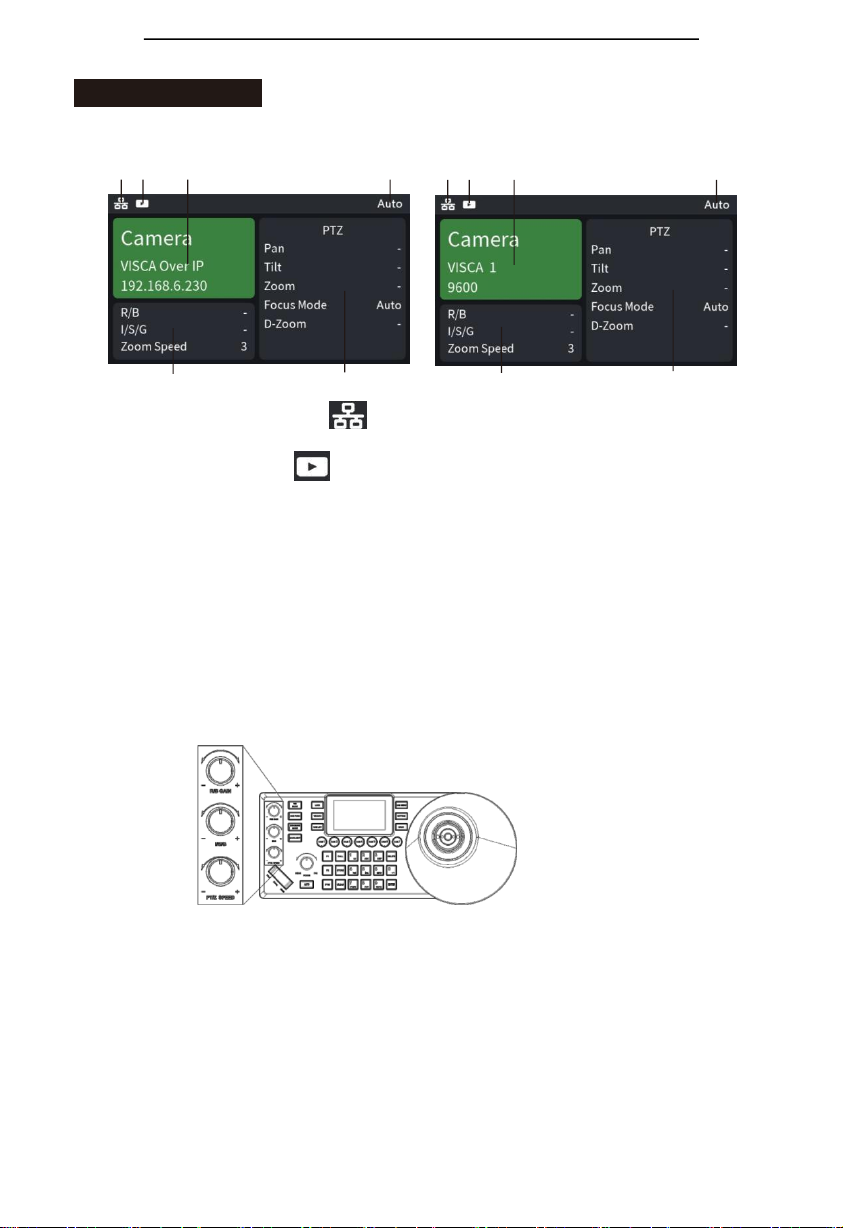
Screen:
1 2 3 4
1 2 3 4
56 5 6
1.
Network connection indicator icon“
”indicates that the network has been connected
successfully;
2.
Preview video indicator icon“
” indicates that current device you control has the
preview video streaming;
3. Control camerathrough network, it shows device name, control protocol,device IPaddress
respectively;
Control camera through Serial port, it shows device name, control protocol, device ID
address, baud rate respectively;
4. Operation record area;
5.“R/B”is current mode of “R/B GAIN” knob;
“I/S/G” is current mode of “I/S/G”knob;
“Zoom speed” is current mode of “PTZ SPEED” knob;
6.Camera’s current mode display area.

FoMaKo Focus Your Streaming www.fomako.net
Product diagram
- 6 -
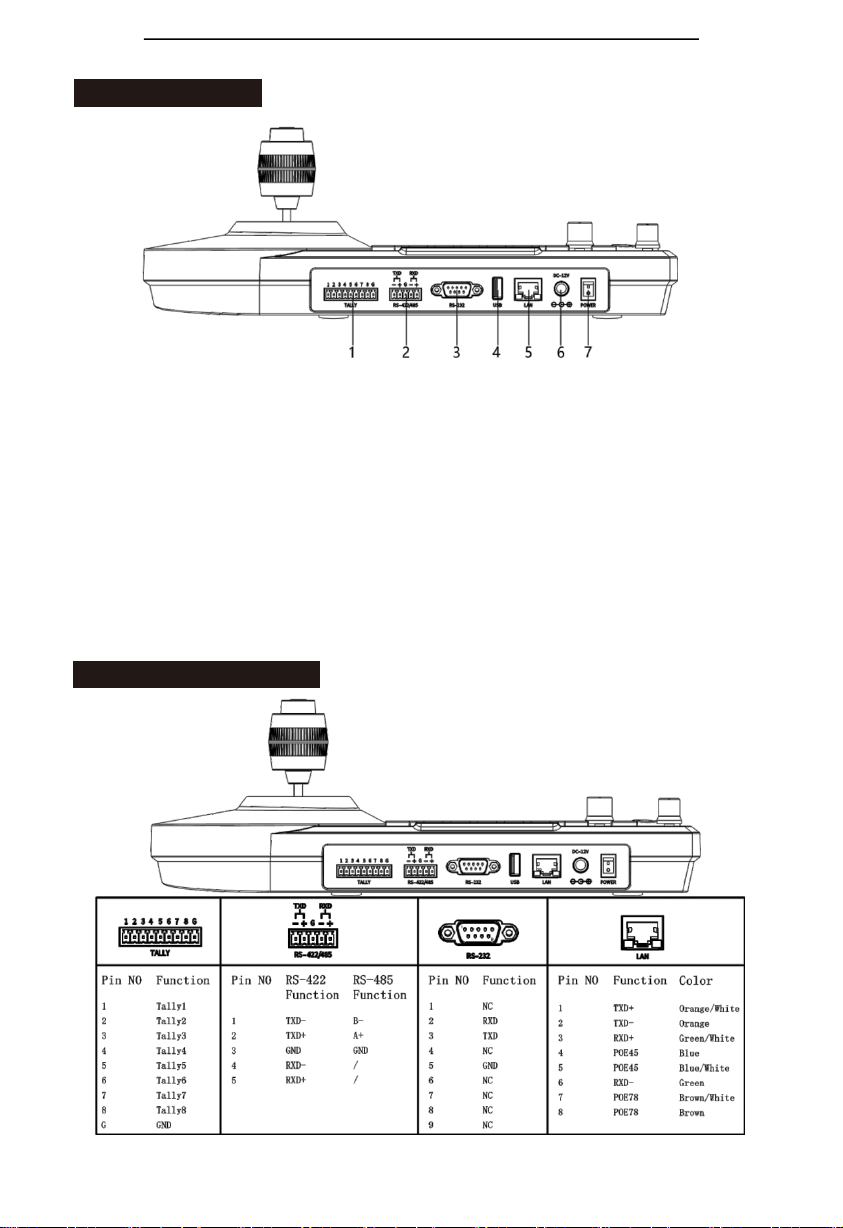
Interface:
1.
Tally interface;
2.
RS-422/485 interface;
Connect with RS-422 cable, up to 7 cameras can be controlled through VISCA protocol; Connect
with RS-485 cable, up to 7 cameras can be controlled through VISCA protocol and up to 255
cameras through PELCO protocol.
3.
RS-232 interface;
Connect with RS-232 cable, up to 7pcs cameras can be controlled through VISCA and and up to
255pcs cameras through PELCO protocol.
4.
USB interface (reserved interface, no function);
5.
LAN port, connect the controller with network (up to 1000 network cameras can be saved);
6.
DC-12V power input interface;
7.
Power on/off.
Interface pin definition

FoMaKo Focus Your Streaming www.fomako.net
- 7 -
Power supply
Supply controller ’spower by the following methods 1.DC
power adapter power supply (standard 12V)
2.POE power supply (connect the Ethernet IP port to the POE switch) Use
CAT6 cable, the maximum distance is 100 meters (802.3af)
IP connection
Connect “LAN” port of the controller to port on the Ethernet switch
Serial connection
1.
Connect DB9 to RS232 8 pin mini port control cable for RS-232 connection RS232 interface
picture
Este manual sirve para los siguientes modelos
1
Tabla de contenidos