Flologic CONNECT Guía de configuración

CONNECTION
VALVE MODE
STAT US
WiFi
Home
Away
Touch for Bypass
Hold for Water Shuto
Smarter Water Control™
flologic.com/connect
®
FloLogic CONNECT
Quick Start User Guide

FloLogic CONNECT
QQuick Start User Guide
This guide reviews the basics of operating your FloLogic System through the
FloLogic app. It also provides initial CONNECT Module and app setup instructions.
Visit the Support section of www.flologic.com to find any updates, helpful how-to
videos and to get answers to specific questions about operation and setup.
Scan for FloLogic App Overview Video
Scan for Connect Module Setup Video

TABLE OF CONTENTS
FloLogic CONNECT Setup
Creating an Account .............................................................................................. 1
Configuring the CONNECT Module.................................................................... 3
CONNECT Module Operation...............................................................................9
FloLogic App Basic Operation
System Mode......................................................................................................... 10
Settings.................................................................................................................. 12
Share a Device...................................................................................................... 15
Troubleshooting.................................................................................................... 16

1
CREATING AN ACCOUNT
FloLogic CONNECT Setup
CREATING AN ACCOUNT
1. Download the FloLogic app from the Apple or Google app stores.
2. From the home screen, touch the “Create Account” button in the lower left
corner.
3. Enter the email to associate with your account, the name to associate with you
as a user, and a password (Minimum 8 characters with upper case and lower
case letters, number(s) and one or more special characters).
4. You must receive and accept a confirmation email to activate the new account.
This may take several minutes. Check your spam folder if you don't see it.
5. Once you have set up an account, you can then log in to add a new device, or
accept an invitation to access an existing System.

2
FloLogic CONNECT Setup for App-Based Control
CREATING AN ACCOUNT
1. Download the FloLogic app from the Apple or Google app stores.
2. From the home screen, touch the “Create Account” button in the lower left
corner.
3. Enter the email to associate with your account, the name to associate with you
as a user, and a password.
4. You must receive and accept a confirmation email to activate the new account.
This may take several minutes.
5. Once you have set up an account, you can add a new device, or accept an
invitation to access an existing System.
CREATING AN ACCOUNT

3
CONFIGURING THE CONNECT MODULE
1. Ensure that the Module mounting location is in an area with a strong 2.4 Ghz
WiFi signal. For an existing FloLogic setup, remove the Communication Cable
from the back of the FloLogic Control Panel; on a new setup, use the
Communication Cable from the FloLogic Valve.
2. Plug the black Communication Cable into the bottom of the Connect Module in
the right-side port, as you’re looking at the front of the Connect Module.
3. Then use the supplied white Local Connection Cable to plug into the left-hand
port of the Connect Module, plugging the other end into the existing Control
Panel. Cutting out the removable tab (depicted on the next page) on the
Control Panel may make this connection easier.
Extensions and longer lengths of the Communication Cable from the Valve are
available if required. Any standard telephone line cord can be used for the Local
Connection Cable, provided it is 4-conductor or greater and has “reversed”
plugs.

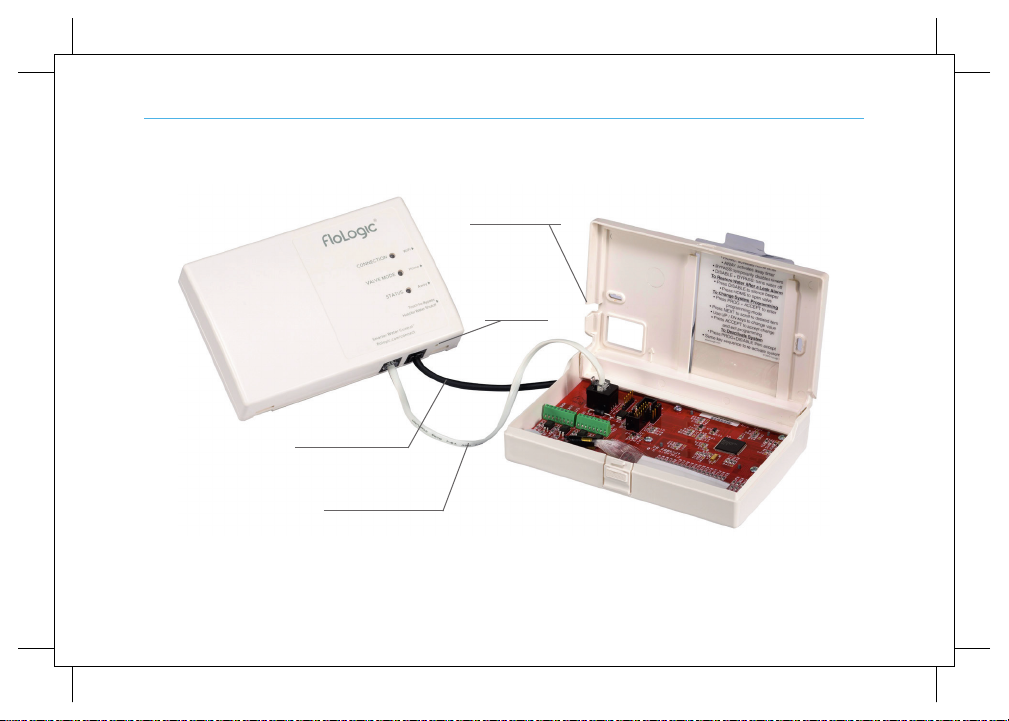
4
Local
Connection Cable
Communication
Cable from Valve
Removable Cable
Cutout
Factory Reset
Button
CONFIGURING THE CONNECT MODULE

5
Once the account has been setup,
the email verified and the cables
connected, log into the app. Stand
within 8 feet of the CONNECT
Module. Next, tap the “Add Device”
icon or tap the “+” symbol from the
dashboard screen to add an
additional device.
Please note, the FloLogic
CONNECT Module requires a
strong 2.4GHz router signal.
Network security experts
recommend that IoT devices get
provisioned to a guest Wi-Fi
network to segregate them from
other devices on the network.
CONFIGURING THE CONNECT MODULE

6
Enter the last six digits of the serial number found
printed on the bottom edge of the CONNECT WiFi
Module. If prompted, allow your device to join the
"FloLogic" network. Select your preferred WiFi
network from the provided list then enter the
password for the network (passwords are case
sensitive).
The CONNECT Module will now complete its
connection. This will take several minutes. When the
"CONNECTION" light on the CONNECT WiFi Module
turns solid green, you have successfully provisioned
the device. If the app does not immediately recognize
the device is online, you can close the app and
reopen it where will show as online.
If the device fails to connect after waiting five minutes,
see the next page for additional instructions.
CONFIGURING THE CONNECT MODULE

After five minutes, if you don’t get a green
CONNECTION light, you may have entered an
incorrect password. Press the WiFi button on the top
right of the Module and wait for the CONNECTION
light to blink red, close the app, reopen then restart
the process.
If the device fails to connect through the primary
method, you may be prompted to connect through a
"Legacy" method. Follow the prompts to open your
WiFi settings, connect to the FloLogic WiFi signal,
then return to the app to configure to the WiFi
network. Alternately the "Manual" method will ask for
the serial number on the CONNECT Module and
allow you to manually enter the SSID of the WiFi
network along with the password.
CONFIGURING THE CONNECT MODULE
7
Tabla de contenidos
Manuales populares de Unidad de control de otras marcas

Festo
Festo Compact Performance CP-FB6-E Manual de lista de piezas

Elo TouchSystems
Elo TouchSystems DMS-SA19P-EXTME Manual de usuario

JS Automation
JS Automation MPC3034A Manual de usuario

JAUDT
JAUDT SW GII 6406 Series Guía rápida

Spektrum
Spektrum Air Module System Manual de usuario

BOC Edwards
BOC Edwards Q Series Manual de usuario