FAST ComTec MCDWIN Manual de usuario

WebMCA
Multichannel Data Processor
MCDWIN User Manual
copyright FAST ComTec GmbH
Grünwalder Weg 28a, 82041 Oberhaching, Germany
Tel ++49 89 665180 50; FAX ++49 89 665180 40
Version 1.0, March 6, 2006

ComTec GmbH III
Software Warranty
FAST ComTec warrants proper operation of this software only when used with software and
hardware supplied by FAST ComTec. FAST ComTec assumes no responsibility for modifications
made to this software by third parties, or for the use or reliability of this software if used with
hardware or software not supplied by FAST ComTec. FAST ComTec makes no other warranty,
expressed or implied, as to the merchantability or fitness for an intended purpose of this software.
Software License
You have purchased the license to use this software, not the software itself. Since title to this
software remains with FAST ComTec, you may not sell or transfer this software. This license
allows you to use this software on only one compatible computer at a time. You must get FAST
ComTec's written permission for any exception to this license.
Backup Copy
This software is protected by German Copyright Law and by International Copyright Treaties. You
have FAST ComTec's express permission to make one archival copy of this software for backup
protection. You may not otherwise copy this software or any part of it for any other purpose.
Copyright
2006 FAST ComTec Communication Technology GmbH,
D-82041 Oberhaching, Germany. All rights reserved.
This manual contains proprietary information; no part of it may be reproduced by any means
without prior written permission of FAST ComTec, Grünwalder Weg 28a, D-82041 Oberhaching,
Germany. Tel: ++49 89 66518050, FAX: ++49 89 66518040, http://www.fastcomtec.com
The information in this manual describes the hardware and the software as accurately as
possible, but is subject to change without notice.

ComTec GmbH IV
Table of Contents
1. Introduction 1-1
2. Installation Procedure 2-1
2.1. Hard- and Software Requirements 2-1
2.2. Hardware Installation 2-1
2.3. Software Installation 2-2
2.4. Network Configuration 2-3
2.5. Updating the Firmware 2-6
3. Hardware Description 3-1
3.1. Signal description of the 25-pin ADC connector 3-1
3.2. Jumper settings for the FAST ComTec 7070 ADC 3-2
3.3. Network parameters 3-3
4. Windows Server Program 4-1
4.1.1. WEBMCA.INI file 4-1
4.1.2. Data Operations 4-1
4.1.3. MCA Settings 4-2
4.1.4. System Settings 4-3
4.1.5. Config file 4-3
4.1.6. Remote mode 4-4
4.2. Control Language 4-4
4.3. Controlling the WEBMCA Server via DDE 4-9
4.3.1. Open Conversation 4-9
4.3.2. DDE Execute 4-9
4.3.3. DDE Request 4-10
4.3.4. Close Conversation 4-11
4.4. Controlling the WEBMCA Server via DLL 4-13
5. MCDWIN Program 5-1
5.1. File Menu 5-2
5.2. Window Menu 5-4
5.3. Region Menu 5-4
5.4. Options Menu 5-8
5.5. Action Menu 5-15
6. WEBMCA Programming 6-1
6.1. Overview of the XML commands for controlling the webMCA 6-1
6.1.1. Version-Object 6-1
6.1.2. Error-Object 6-1
6.1.3. PING-Object 6-1
6.1.4. PONG-Object 6-1
6.1.5. Serial-Object 6-2
6.1.6. REVISION-Object 6-2
6.1.7. DEVICETYPE-Object 6-2
6.1.8. DEVICE-Object 6-3
6.1.9. PARAMETER-Object 6-3
6.1.10. MEASUREMENT-Object (ext. ADC) 6-3
6.1.11. Preset-Object 6-4
6.1.12. START_CONDITION-Object 6-4
6.1.13. STOP_CONDITION-Object 6-4
6.1.14. NETWORK_CONDITION-Object 6-4
6.1.15. AUTH-Object 6-4
6.1.16. COMMAND-Object 6-5
6.1.17. OBJECTS-Object 6-5
6.1.18. SPECTRUM-Object 6-5
6.1.19. STABILIZATION-Object 6-6
6.1.20. MCS-Object 6-6
6.1.21. Calibration-Object 6-7
6.1.22. DATA-Object 6-7
6.2. XML Examples 6-8
6.2.1. command_acquisition.xml 6-8

ComTec GmbH V
6.2.2. Preset.xml 6-8
6.2.3. Set_Preset.xml 6-8
6.2.4. Response_getdevice_root.xml 6-8
6.2.5. Set_Spectrumlength.xml 6-9
6.3. Delphi programming example 6-10
6.3.1. TCPTest.dpr 6-10
6.3.2. TCPTestUnit.pas 6-10
6.3.3. TCPTestUnit.dfm 6-11
7. Technical Data 7-1

ComTec GmbH VI
Table of Figures
Figure 2.1: Connecting the webMCA 2-1
Figure 2.2: LED panel of the webMCA 2-2
Figure 2.3: WebMCA Config utility 2-3
Figure 2.4: Network configuration dialog 2-4
Figure 2.5: Status display 2-4
Figure 2.6: Scan result 2-5
Figure 2.7: Update dialog 2-6
Figure 2.8: Update successfull 2-6
Figure 3.1: Timing of the handshake signals 3-2
Figure 3.2: Jumper setting for FAST ComTec 7070 ADC 3-2
Figure 4.1: WEBMCA Server program 4-1
Figure 4.2: Sample WEBMCA.INI file 4-1
Figure 4.3: Data Operations dialog box 4-2
Figure 4.4: MCA Settings dialog box 4-2
Figure 4.5: System Definition dialog box, two webMCAs 4-3
Figure 4.6: Remote Control dialog box 4-4
Figure 4.7: Opening the DDE conversation with the WEBMCA server in LabVIEW 4-9
Figure 4.8: Executing a control command from a LabVIEW application 4-10
Figure 4.9: Getting the total number of data with LabVIEW 4-10
Figure 4.10: Getting the data with LabVIEW 4-11
Figure 4.11: Closing the DDE communication in LabVIEW 4-11
Figure 4.12: Control Panel of the demo VI for LabVIEW 4-12
Figure 5.1: MCDWIN main window 5-1
Figure 5.2: MCDWIN Map and Isometric display 5-2
Figure 5.3: File New Display dialog box 5-3
Figure 5.4: Compare dialog box 5-3
Figure 5.5: ROI Editing dialog box 5-6
Figure 5.6: Single Gaussian Peak Fit 5-7
Figure 5.7: Log file Options for the Single Gaussian Peak Fit 5-8
Figure 5.8: Colors dialog box 5-9
Figure 5.9: Display Options dialog box 5-9
Figure 5.10: Axis Parameter dialog box 5-10
Figure 5.11: :Scale Parameters dialog box 5-10
Figure 5.12: Calibration dialog box 5-11
Figure 5.13: Comments dialog box 5-12
Figure 5.14: Settings dialog box 5-12
Figure 5.15: Data Operations dialog box 5-13
Figure 5.16: System Definition dialog box 5-13
Figure 5.17: Tool Bar dialog box 5-14
Figure 6.1: Delphi example 6-13

Introduction
ComTec GmbH 1-1
1. Introduction
The webMCA is an Ethernet based, high performance Multi Channel Analyzer (MCA), interfacing
NIM ADC's to local networks as well as to the internet. Existing and new NIM based electronics
are easily accessible through the Ethernet. The webMCA is a standalone MCA in cigarette box
form with real time and live time measurement, various presets and multiple spectra storage. It
contains a large spectrum memory, a battery powered real time clock.
The webMCA is a compelling RISC based computer, powered by Motorola's Coldfire controller.
Embedded Linux, a stable, robust operating system contributes to ist superior performance. The
XML transfer protocol offers access and data transfer to and from all operating systems.
The webMCA is ideal for remote monitoring applications in power plants, laboratories, industry,
universities and research centers. The novel power over Ethernet, PoEIEEE802.3af, connects and
powers as easy as USB, however, providing the speed, flexibility and connectivity of the Ethernet,
by far outperforming USB.
The webMCA offers Ethernet for virtually unlimited expansion: There is no restriction for the
number of devices which can be addressed. There is no distance limit on remote operation.
The sophisticated WINDOWS based control and analysis software MCDWIN ensures quick
learning and easy usage.
Some of MCDWIN’s features are high resolution graphics displays with zoom, linear and
logarithmic (auto)scaling, grids, ROIs, Gaussian fit, calibration using diverse formulas. and FWHM
calculations. Macro generation using the powerfull command language allows task oriented batch
processing and selfrunning experiments. An IAEA compatible software interface allows to directly
use such analysis packages as GANAAS, QXAS, POSFIT or others.

Installation Procedure
ComTec GmbH 2-1
2. Installation Procedure
2.1. Hard- and Software Requirements
The following items are required using a webMCA:
•Power over Ethernet adapter (DWL-P100 included with the webMCA)
•10+ Mbit network connection
•A PC with Microsoft Windows 98 / ME / 2000 / XP installed is required for use of the supplied
control and analysis software MCDWIN.
2.2. Hardware Installation
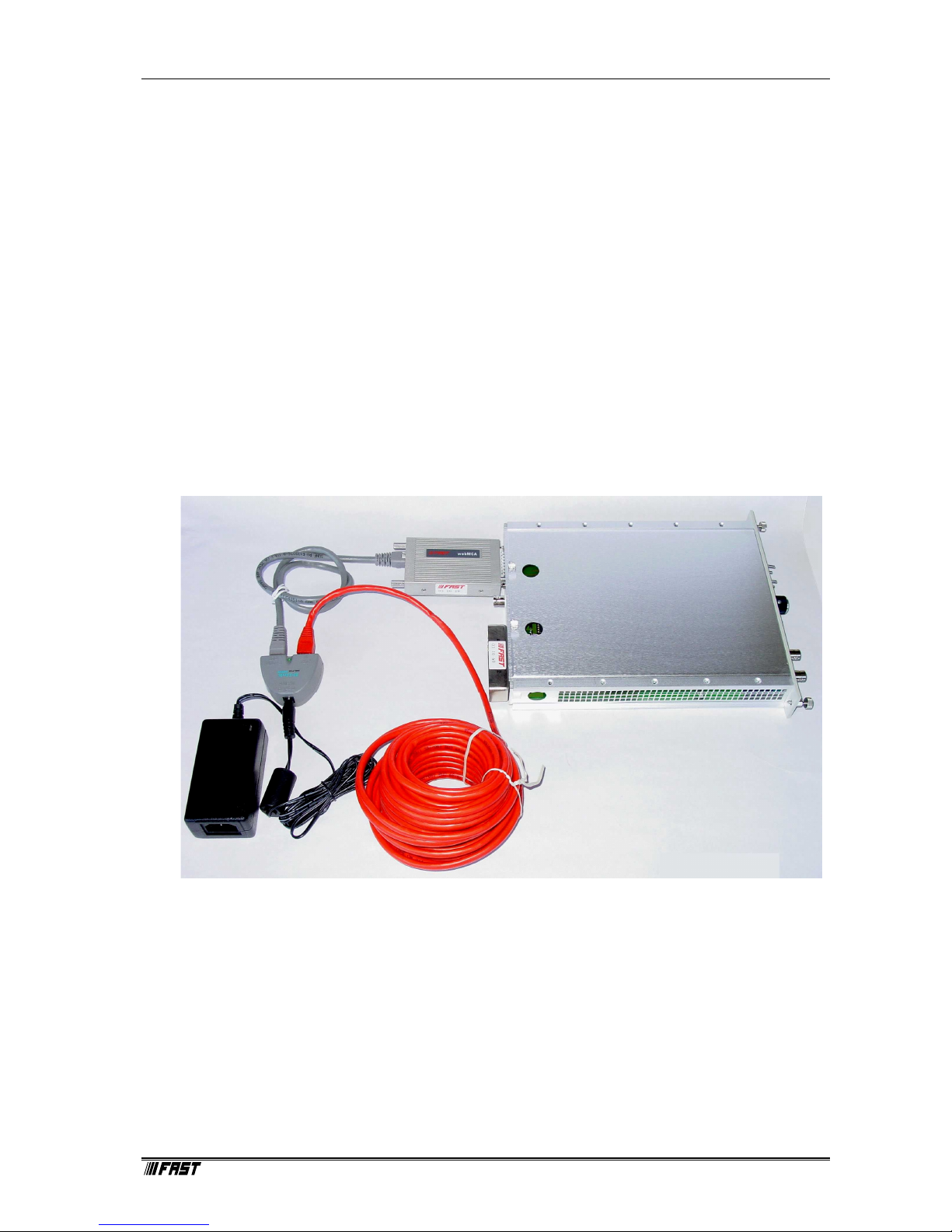
The webMCA has to be connected to the local network either with a Power over Ethernet (PoE)
adapter DWL-P100 or a PoE switch using a +48V power supply for the PoE device (optional).
The desired spectroscopy ADC has to be connected to the 25-pin connector of the webMCA using
the provided cable.
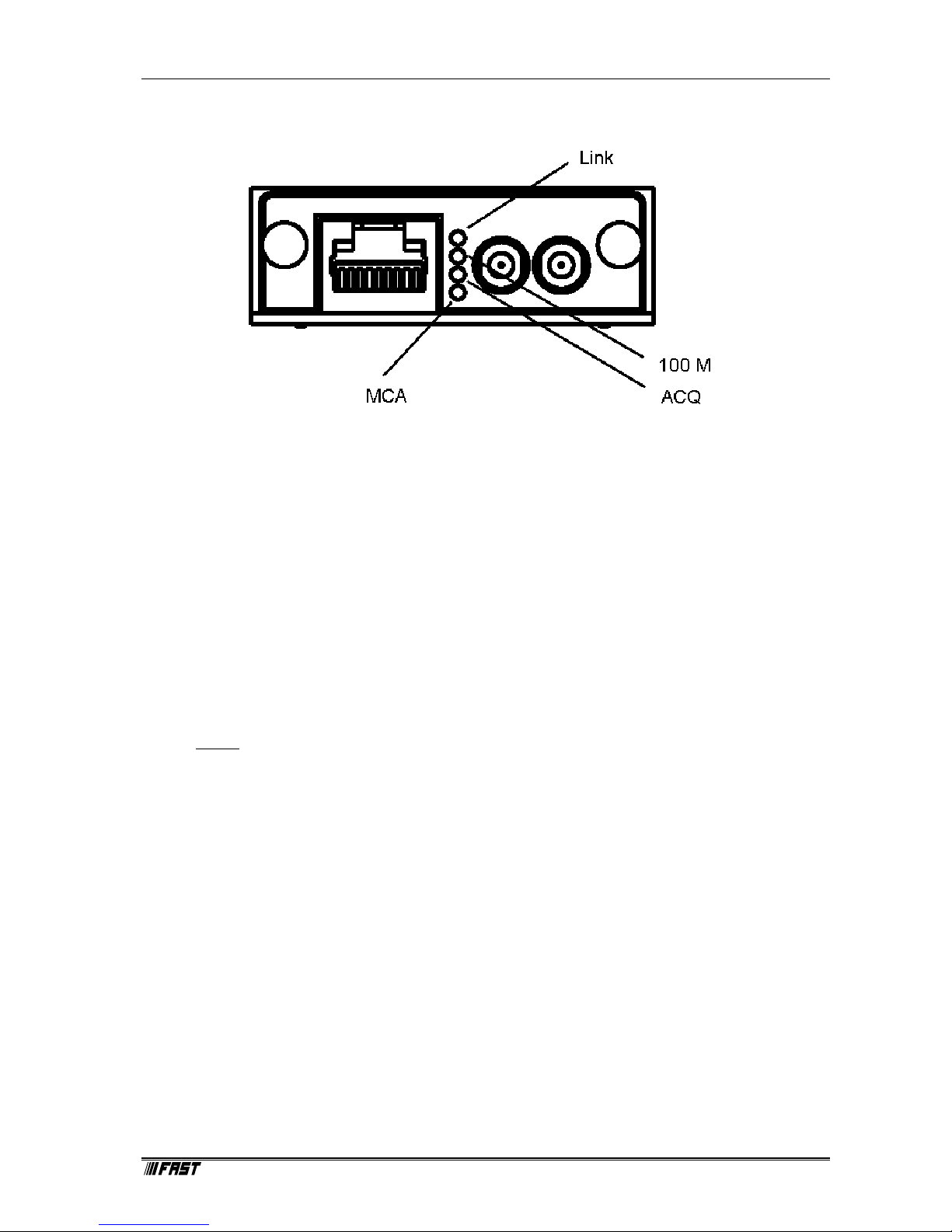
After connecting to the PoE device the webMCA needs about 30 sec for initialization. The “MCA”
LED indicates when the webMCA can be accessed.
Figure 2.1: Connecting the webMCA

Installation Procedure
ComTec GmbH 2-2
The “ACQ” LED signals the acquisition status of the device. “LINK” and “100M” correspond to the
network interface where “100M” indicates a 100 Mbit connection.
2.3. Software Installation
To install the MCDWIN software on your hard disk insert the MCDWIN CD and start the
installation program file by double clicking
SETUP
A directory called C:\WEBMCA is created on the hard disk and all webMCA and MCDWIN files
are transferred to this directory. Drive C: is taken as default drive and \WEBMCA as default
directory. It is not mandatory that the webMCA operating software is located in this directory. You
may specify another directory during the setup.
The Setup program has installed one shortcut on the desktop that starts the WEBMCA server
program. The server program will automatically call the MCDWIN.EXE program when it is
executed. The WEBMCA Server program controls the webMCA module but provides no graphics
display capability by itself. By using the MCDWIN program, the user has complete control of the
WEBMCA along with the MCDWIN display capabilities.
To run the WebMCA software, simply double click on the “WEBMCA“ icon. To close it, close the
WebMCA server in the Taskbar.
Figure 2.2: LED panel of the webMCA

Installation Procedure
ComTec GmbH 2-3
2.4. Network Configuration
The default IP address of a webMCA is 192.168.1.2. To change this address the “WebMCA
Config” utility has to be used. It can be found using the start button in the program folder "FAST
ComTec WebMCA"
The entries for user name and password in the login dialog are not evaluated currently and can be
left blank. After pushing the "Connect" button the firmware and hardware revision will be displayed
on success.
Selecting the “Configuration” page several network related properties can be changed.
The IP address should be set to match the used intranet. To allow a time synchronization a NTP
server IP address can be specified as well as a poll interval for the NTP requests.
The webMCA uses UTC time internally. When spectra are transferred to the winTMCA32 to start
and stop time are adjusted to the local time of the PC with respect to the time zone and daylight
saving settings.
Figure 2.3: WebMCA Config utility

Installation Procedure
ComTec GmbH 2-4
To transmit these parameters to the webMCA the “Configure” button has to be pressed. After the
transmission is done you will be asked to reboot the webMCA in order to accept these settings.
The “Status” page of the configuration tool can be used to check the device list and the network
configuration of the webMCA.
Figure 2.4: Network configuration dialog
Figure 2.5: Status display
Tabla de contenidos
Manuales populares de Hardware de computadora de otras marcas

EMC2
EMC2 VNX Series Manual del propietario

Panasonic
Panasonic DV0PM20105 Manual de usuario

Mitsubishi Electric
Mitsubishi Electric Q81BD-J61BT11 Manual de usuario

Gigabyte
Gigabyte B660M DS3H AX DDR4 Manual de usuario

Raidon
Raidon iT2300 Manual de usuario

National Instruments
National Instruments PXI-8186 Manual de usuario