
Falcon 4G 450 Router Manual de usuario

FALCON 4G
450 Router
User Manual
Benutzerhandbuch

2
CONTENT
Content 2
Getting started with Falcon 4G Router 3
Getting to know your Falcon 4G Router 3
Icon Description 5
Setting up Wi-Fi 5
Charging your battery 6
Getting connected 6
Connecting other devices 8
Connecting other devices 9
Connecting other devices 10
Router web page 11
Change your security settings 11
Troubleshooting 12
Erste Schritte mit dem Falcon 4G Router 13
Lernen Sie Ihren Falcon 4G-Router kennen 13
Symbolbeschreibung 15
WLAN einrichten 15
Laden Sie Ihren Akku auf 16
verbunden werden 16
Anschließen anderer Geräte 18
Connecting other devices 19
Connecting other devices 20
Router-Webseite 21
Ändern Sie Ihre Sicherheitseinstellungen 21
Fehlerbehebung 22
Range booster solutions 23
Congratulations on the purchase of your new
FALCON 4G 450 Router
Please read the manual carefully.
If further support is required please contact us
United Kingdom enquiries:
UK Website: https://falcontechnology.co.uk
European Website: https://falcontechnology.eu
Email: support@falcontechnology.co.uk
Telephone: +44 1928 759 239
German Enquiries:
Email: info@easynd24.de
Hotline: +49 2688 988181

3
GETTING STARTED WITH FALCON 4G ROUTER
Welcome to your new Falcon 4G Router. To get started please
ensure you have a contract or pay as you go SIM card activated
and ready to install into your router.
The router is unlocked to all networks.
Please note that some pay as you go SIM cards can take up to 24 hours
to activate depending on the provider.
If the SIM card is activated but no internet connection is available,
please refer to the setup steps for the provider APN.
* Remember to place your SIM card in your phone or mobile broadband
device and restart regularly to check if activation has been completed.
GETTING TO KNOW YOUR FALCON 4G ROUTER
These important features will help you get started with
your router.
Buttons and connectors:
Power button

4
Micro-USB port
External Antenna
LCD screen:
Touch the icons on the screen to view the hotspot’s status,
congure Wi-Fi settings, review data usage and see system alerts.
You can also view system alerts and notications by swiping
downward from the ALERTS icon at the top of the screen. Scroll across
to view multiple alerts.

5
ICON DESCRIPTION
Icon Description
Signal
Strength
Network
Type
Trac
Battery
Level
5 bars Excellent
1 bar Low level
4G An LTE network is available
H+ DC-HSPA+ HSPA+/DC HSPA
H HSPA
3G UMTS
Outline Connected
Solid Sending or receiving
None Not connected
5 bars Fully charged
1 bar Battery low
SETTING UP WI-FI
You can change the Wi-Fi name (SSID) and Wi-Fi password (security
key) by tapping the Wi-Fi icon on the screen or online via web browser
at Go to http://Optus.AC800S.
Quick tips
Default Wi-Fi name (SSID) Displayed on the home screen
when turned on, and also under
the battery.
Default Wi-Fi password (security
key)
Displayed on the home screen
when turned on. Please note that
passwords are case sensitive.
Web page http://Optus.AC800S
Web page password password

6
CHARGING YOUR BATTERY
Depending on which type of antenna solution being used there
are dierent options of how to charge your 4G router.
1. If using with a Falcon docking station, connect the docking
station power lead to the USB port of the router.
2. If using with a Falcon Portable 4G product connect to a mains power
source with a USB to mains adapter.
GETTING CONNECTED
To connect your mobile hotspot, rst you must insert your micro-SIM,
install and charge the battery, then press the Power button to turn on.
To insert the micro-SIM:
1. Remove the back cover using the thumb catch on the corner of the
hotspot.
2. Remove the battery.
3. Slide the micro-SIM into the slot, with the gold coloured contacts
facing down.
4. Make sure the micro-SIM is secure.
5. Reinsert the battery.

7
6. Replace the back cover.
To turn on your router:
Press and hold the Power button until the LCD screen lights up.
To connect devices to your router:
1. Check that Wi-Fi is enabled on your computer or other device.
2. On your computer or device, search for wireless networks
• For Windows devices, click the Internet Access icon.
• For Mac devices, navigate to the Wi-Fi menu.
• For tablets, look for a Settings option.
3. Select your routers Wi-Fi name, which will be displayed on-screen.
This is set to Falcon 4G by default.

8
4. Enter your routers Wi-Fi password exactly as it appears on the
LCD screen, remembering the password is case sensitive. When a
computer or device is connected to the hotspot, you will see a 1 beside
the Wi-Fi icon on the router screen.
5. Launch your browser on your computer or device and you’re ready
to go.
TIPS:
• Your SIM account must be active to connect to the network
To activate your SIM, visit your service providers homepage.
• Your router is ready to use straight out of the box,
but if you want to personalise your settings visit http://Optus.AC800S.
CONNECTING OTHER DEVICES
You can add multiple devices to your network using the Wi-Fi
network manager or WPS, if the device can use WPS. This lets you
connect WPS-enabled devices to a Wi-Fi network without entering a
password on a keyboard.
To connect devices using Wi-Fi:
1. Follow the instructions on page 5 under connect devices to your
router.
To connect devices using WPS:
1. Press the Power button to light the LCD screen.
2. Touch the Wi-Fi icon to open the Wi-Fi window.
3. Touch the WPS icon to open the WPS window.
4. Touch the Pair with Main Wi-Fi button.
5. On your computer or device, press the WPS button within two
minutes. The router and device will automatically connect and create a
secure connection.

9
CONNECTING OTHER DEVICES
Wi-Fi
Manage your Wi-Fi settings by tapping the main Wi-Fi icon or by
visiting Go to http://Optus.AC800S
If you change your Wi-Fi settings, your router will reset and any
connected devices will be disconnected.
Messages
You can receive SMS messages on your router. The messages icon
will show the number of unread messages your device has received.
To read your messages:
1. Touch the Messages icon on the home screen.
2. Touch a message line.
Settings
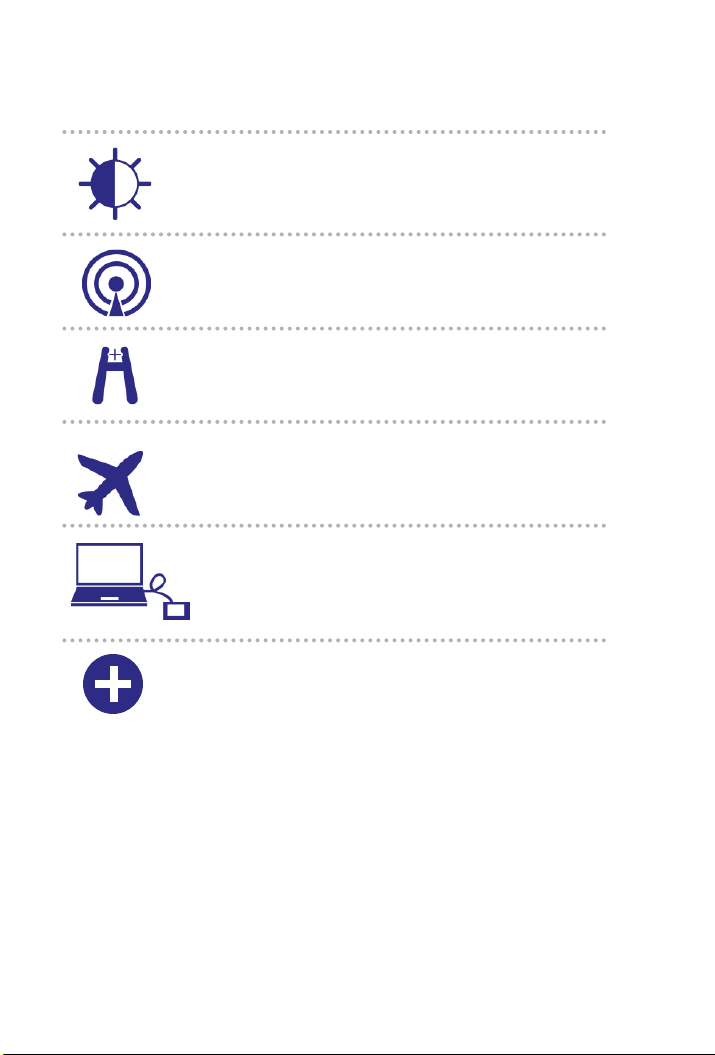
You can customise a range of dierent settings on your router.
1. Touch the settings icon on the home screen of the router.
2. Touch any of the icons to adjust a setting
10
CONNECTING OTHER DEVICES
Icon Description
Display
Network
Airplane
Mode
Jump
Boost
USB
Tether
Adjust the touch screen settings such as
brightness, time-out, display of Wi-Fi
credentials and status.
Choose the network to use, set roaming
rules, display network connection details.
Use your router to boost another device’s
battery using the Jump Boost cable.
Disable the Wi-Fi and cellular radios
when lying, or in areas where Wi-Fi is
restricted. The Jump Boost feature can
still be used in this mode.
Connect to the internet from supported
computers with a USB cable and charge
your device at the same time.
More See information about the device
including software updates, factory
reset and tutorials.
Tabla de contenidos
Idiomas:
Otros manuales de Enrutador inalámbrico de Falcon


