
Extron electronics TLP Pro 1225TG Manual de usuario

1
IMPORTANT:
Go to www.extron.com for the
complete user guide and installation
instructions before connecting the
product to the power source.
TLP Pro 1225TG, 1525TG, and 1725TG • Setup Guide
Overview
The Extron®TLP Pro 1225TG, TLP Pro 1525TG, and TLP Pro 1725TG are table-top touchpanels with high resolution capacitive,
edge-to-edge glass touchscreens. The TLP Pro 1225TG has a 12.1 inch screen with a 1280x800 resolution. The TLP Pro 1525TG
has a 15.6 inch screen with a 1366x768 resolution. The TLP Pro 1725TG has a 17.3 inch screen with a 1920x1080 resolution. All
three touchpanels are ideal for any AV applications requiring large touchpanels with exible mounting options and fully customizable
interfaces. This guide provides instructions for experienced installers to mount and install these touchpanels. For more complete
details, see the TLPPro 1225, 1525, and 1725 Series User Guide at www.extron.com.
Setup Overview and Checklist
Get Ready
Download and install the latest version of the following software:
zGUI Designer — For designing layouts for Extron TouchLink®Pro touchpanels and third party touch interfaces
zGlobal Configurator®Plus and Professional — For setting up and conguring the control processor and touchpanel
zGlobal Scripter®— Provides an integrated development environment for Extron control systems programming. Global
Scripter provides an Extron-exclusive Python™library (ControlScript®) and Global Scripter modules to get you started.
zToolbelt — For device discovery, device information, rmware updates, and conguration of network settings, system
utilities, and user management for TouchLink Pro devices.
NOTE: All four software programs are available from www.extron.com.
Obtain the following network information from your network administrator:
DHCP status (on or off). If DHCP is off, you also require:
IP address Subnet mask Gateway
Username — This can be either admin or user.
Passwords — The factory congured passwords for all accounts on this device have been set to the device serial number.
Passwords can be changed during conguration. Passwords are case sensitive.
NOTE: If the device is reset to default settings, the passwords are reset to the default password, which is extron (for
either admin or user).
Make a note of the touchpanel MAC address.
Mount and Cable All Devices
ATTENTION:
• Do not power on the touchpanels until you have read the Attention in the Power Supply section of the
TLPPro 1225, 1525, and 1725 Series User Guide.
• Ne branchez pas les écrans tactiles avant d’avoir lu la mise en garde dans la section «sources d’alimentation» du
TLPPro 1225, 1525, and 1725 Series User Guide.
Mount the units. There are several mounting options for TouchLink Pro touchpanels (see Mounting on page 2).
Connect cables to the touchpanels (see Rear Panel Features on page 4).
Connect the touchpanel to a power source. These models can be powered by PoE or by a 12VDC power supply.
The TLP Pro 1725TG ships with the PI 140 power injector. A power injector or 12 VDC power supply must be purchased
separately for the 12” and 15” models.
An Extron IP Link®control processor must be connected to the same Ethernet subnetwork as the touchpanel.
Set up the Touchpanels for Network Communication
Connect the PC that you will use for setup, the control processor, and touchpanel to the same Ethernet subnetwork.
Use the Setup Menu (see page 6) or Toolbelt to set the DHCP status and, if necessary, the IP address, subnet mask,
gateway, and related settings for the touchpanel.
Configure the Touchpanels
Create a graphical user interface with GUI Designer (see GUI Designer Help File for step-by-step instructions).
Associate functions with the graphical user interface features with Global Congurator or Global Scripter.

2
TLP Pro 1225TG, 1525TG, and 1725TG • Setup Guide
Mounting
A range of optional mounting kits are available for these models. The
kits must be purchased separately. Follow the installation instructions
provided with the kit.
Removing the back and base covers
Some of these procedures require the back and base covers to be
removed. You must remove the back cover before you can remove the
base cover.
1. Use the provided Extron removal tool. There is one notch on each
side of the back cover (gure 1, 1). Insert the tool into the notch to
release the catch.
2. Use the removal tool to remove the base cover. There are two
notches at the back of the base (2).
2. Drill two pilot holes into the desktop.
3. Remove the base cover (see Removing the back and base
covers, above).
4. Insert two #10 at-head wood screws (not provided) through
the touchpanel and align them with the two pilot holes.
5. Secure the touchpanel to the tabletop.
6. Replace the base cover.
Kensington®Security Lock
For added security, attach a Kensington Security Lock (not
provided) to the metal-reinforced Kensington Security Slot
on the rear edge of the base (see gure 3, 1). The gure
shows the rear edge of the TLP Pro 1525TG base, but the
base of the TLP Pro 1225TG and TLP Pro 1725TG are very
similar. Follow the instructions that are provided by the
manufacturer to install the lock.
Desktop Mounting
These touchpanels come assembled with stands that allow them
to be placed on any suitable at surface (for example a desk,
table, or lectern).
Fixed Mounting
Figure 2 shows the base of the TLPPro1225TG, with the cover
removed to indicate the position of the mounting holes (1). The
base of the TLP Pro 1525TG and TLP Pro 1725TG are similar and
the spacing of the mounting holes is identical.
1. Mark the location for two holes, 4.96inches (126 mm) apart.
This measurement is the same for all three models.
1
1
1
SMA-1 Swivel Mount Adapter
To swivel either device up to 180° in either direction, use the optional Extron SMA-1 swivel mount adapter, to permanently mount the
touchpanels.
1. Remove the back cover and base cover (see Removing the back and base covers, above).
2. Attach the conduit, insulation disk, and swivel disk and congure the set screws to allow for the degree of swivel that is required
(see the SMA-1 Swivel Mount Adapter Kit User Guide, available at www.extron.com). Place the mounting hole in the base over
the conduit of the SMA-1.
3. Secure the unit with the backing plate and locking nut as described in the SMA-1 Swivel Mount Adapter Kit User Guide.
VESA Mounting
Use a third-party D-type VESA mounting kit with the 100 mm x 100 mm mounting pattern.
1. Remove the back cover.
2. Remove the four screws holding the touchpanel to the base. There are two screws in each base attachment hinge.
3. Follow the instructions provided with the VESA mounting kit.
1
1
1
1
1
1
2
2
2
Figure 1. Remove the Back and Base Covers
Figure 2. Mounting Holes in TLP Pro 1225TG Base
Figure 3. Slot for Kensington Security Lock
3
Product Category
Front Panel Features
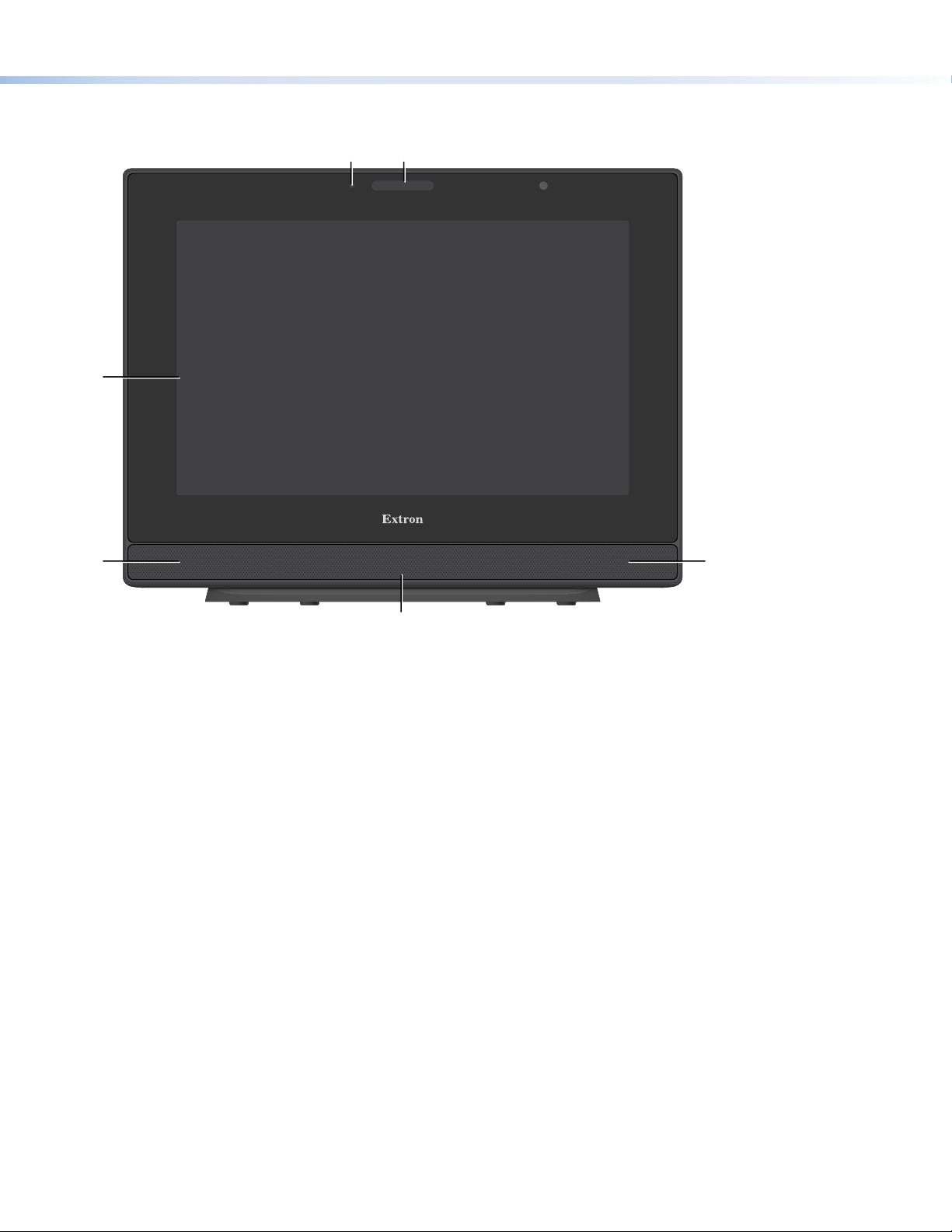
Figure 4 shows the TLP Pro 1225TG front panel diagram. The features of the TLP Pro 1525TG and TLP Pro 1725TG are very similar.
AB
C
DD
E
Figure 4. TLP Pro 1225TG Front Panel
AAmbient light sensor — Monitors ambient light level and adjusts screen brightness.
BStatus light — Can be programmed to provide system feedback. The LED light bar is located above the screen.
CCapacitive touch screen — Provides simple control of AV systems:
zThe TLP Pro 1225TG has a 12.1 inch screen with a 1280x800 resolution.
zThe TLP Pro 1525TG has a 15.6 inch screen with 1366x768 resolution.
zThe TLP Pro 1725TG has a 17.3 inch screen with a 1920x1080 resolution.
DSpeakers — Provide stereo audio for video preview and audible feedback from button presses. They are located below the
screen, one on each side of the panel.
EMotion sensor — Detects motion between three to ve feet from the touchpanel, and at least 15° from the center axis.
zIf the Sleep Timer has been set (see Setup Menu on page 6), and no motion has been detected for a user-dened
period of time, the touchpanel enters sleep mode.
zIf Wake on Motion has been set (see Setup Menu), and motion is detected by the sensor while the screen is in sleep
mode, the screen display is restored and active.

4
TLP Pro 1225TG, 1525TG, and 1725TG • Setup Guide
Rear Panel Features
Figure 5 shows the TLP Pro 1225TG rear panel diagram (with the base and back cover removed). The features of the
TLP Pro 1525TG and TLP Pro 1725TG are very similar.
XTP /
PoE /
LANHDMI IN
1
2
12VDC 3A
RESET
MENU
Marking
B
C
D
E
F
G
H
I
J
A
ARear status light EHDMI input IReset button (see page 5)
BVesa mounting holes FXTP/LAN/PoE input JReset LED (see page 5)
CPower supply input GAudio output (see page 5)
DUSB connectors HMenu button (see page 5)
Figure 5. TLP Pro 1225TG Rear Panel (with base and back cover removed)
ARear status light — An LED light bar that can be programmed to provide system feedback.
BVESA mounting holes (4) — For use with D-type VESA mounting kits with the 100 x 100 mm mounting pattern.
CPower supply input — Connect a 12 VDC, 3.0 A Limited Power Source (LPS) power supply to this DC plug connector.
ATTENTION:
• The touchpanels can use a 12 VDC desktop power supply or Power over Ethernet. Do not connect either power
supply before reading the Attention in the Power section of the TLPPro 1225, 1525, and 1725 Series User Guide.
• Les écrans tactiles peuvent utiliser une source d’alimentation externe 12 Vcc ou l’alimentation POE via Ethernet.
Ne branchez pas de sources d’alimentation externes avant d’avoir lu les mises en garde dans la section
«PowerSupply» du TLPPro 1225, 1525, and 1725 Series User Guide.
DUSB connectors (2) — For peripheral controls.
EHDMI input — For alternative video input.
FXTP/LAN/PoE input
zXTP input — Connect the touchpanel to an Extron XTP®source using a twisted pair cable, terminated with an RJ-45
connector. For complete information about which cables to use, see the user guide for your XTP product.
zLAN input — Connect the touchpanel to the LAN using a twisted pair cable, terminated with an RJ-45 connector.
zPoE input — The connector can be used with a PoE power injector (see Connecting Power on page 5).
NOTE: Some XTP models are able to remotely power these touchpanels but not all have that capability. Go to the Extron
website and check the product page for your XTP model to ensure it can power your touchpanel.
An Extron IP Link Pro control processor must also be connected to the same network as the TouchLink Pro touchpanel.
gure 5
note

5
Product Category
GAudio output (see figure 5 on page 4) — One 3.5 mm line level audio output for use with headphones or assistive listening
devices.
HMenu button — Activates the setup menu (see Setup Menu on page 6).
IReset button — Pressing the reset button allows the unit to be reset in any of four different modes (see Reset Modes: A Brief
Summary on page 6). For more information, see the TLPPro 1225, 1525, and 1725 Series User Guide).
JReset LED — Provides feedback about the reset status when the user presses the reset button.
Connecting Power
ATTENTION:
• Do not power on the touchpanels until you have read the Attention notication in the “Rear Panel Features” section of
the TLPPro 1225, 1525, and 1725 Series User Guide.
• Ne branchez pas les écrans tactiles avant d’avoir lu la mise en garde dans la section « Rear Panel Features » du
TLPPro 1225, 1525, and 1725 Series User Guide.
The TLP Pro 1725TG ships with the Extron PI 140 power injector included. For the TLP Pro 1225TG and TLP Pro 1525TG, the power
injector must be purchased separately. Figure 6 shows the PI 140. Your power injector may look different.
1. Connect a straight-through Ethernet cable from the power injector to a switch or router. This cable carries network information
Audio output
Menu button
Reset button
Reset LED
from the switch or router to the power supply input.
2. Connect a second straight-through cable from the power injector to the
XTP/PoE/LAN connector of the touchpanel (see figure 5, F, on page 4).
This cable carries the network information and 48VDC from the power injector
to the touchpanel.
3. Connect the IEC power cord to a convenient 100 VAC to 240 VAC, 50-60 Hz
power source.
Alternatively, use an Ethernet cable to connect the XTP/LAN/PoE+ port of the
interface to a PoE+ switch or connect the touchpanel directly to an XTP model that
is capable of remotely powering a touchpanel (see the note on page 4).
100-240V~50/60 Hz
1.1A MAX INPUT OUTPUT
POWERED TLP
LAN
To Network or
XTP Device
To a TLP Pro
touchpanel
Extr
on PI 140
Figure 6. Connecting the Power Injector

6
For information on safety guidelines, regulatory compliances, EMI/EMF compatibility, accessibility, and related topics, see the
Extron Safety and Regulatory Compliance Guide on the Extron website.
For information about replacing and disposing of batteries, see the TLP Pro 1225, TLP Pro 1525, and TLP Pro 1725 Series User
Guide at www.extron.com.
© 2020 Extron Electronics — All rights reserved. www.extron.com
All trademarks mentioned are the property of their respective owners.
Worldwide Headquarters: Extron USA West, 1025 E. Ball Road, Anaheim, CA 92805, 800.633.9876 68-3474-51 Rev. B
08 20
TLP Pro 1225TG, 1525TG, and 1725TG • Setup Guide
Setup Menu
Press the Menu button (figure 5, H, on page 4) to open the
setup menu. Select any of the six available screens (Status,
Network, Display, Audio, Input and Advanced) by tapping
the appropriate button in the navigation bar at the top of the
screen (for more information, see the TLPPro 1225, 1525, and
1725 Series User Guide).
Figure 7 shows the setup menu for the TLP Pro 1225TG. The
setup menu for the TLP Pro 1525TG and TLP Pro 1725TG are
very similar.
Info
Model: TLP Pro 1225TG
Part Number:60-1788-02
Firmware
Version: 1.02.0000.b003
PoE: Active
Network
IP Address:
DHCP:
Host Name:
Off
192.168.254.251
TLP-AB-CD-EF
Display
Resolution:
Project:
Sleep Timer:
1280x800
1280x800
5 Minutes
Audio
Master Volume:
Master Mute: Off
100
Input
HDMI:No Signal
Status DisplayAudio Advanced Exit
NetworkInput
Advanced
Controller IP: 192.168.254.250
Project Size: 1/197 MB
Bootloader
Version: 1.03.0000
XTP: 1280x720 HDCP
Figure 7. Setup Menu: Status Page for TLP Pro 1225TG
Reset Modes: A Brief Summary
These touchpanels offer the following reset modes. For full information about the modes, see the TLPPro 1225, 1525, and 1725
Series User Guide.
• Use factory firmware: Use this mode to replace rmware in the event of rmware failure. Press and hold the Reset
button (figure 5, Ion page 4) while applying power to the unit.
• Reset All IP Settings: Use this mode to reset all network settings without affecting user-loaded les. Press and
hold the Reset button for 6 seconds. After the Reset LED (J) blinks twice, release and
momentarily press the Reset button.
• Reset to Factory Defaults: Use this mode to return the touchpanel to factory default settings, including passwords. Press
and hold the Reset button for 9 seconds. After the Reset LED blinks three times, release and
momentarily press the Reset button.
NOTES:
• The factory congured passwords for all accounts on this device have been set
to the device serial number. Passwords can be changed during conguration.
Passwords are case sensitive.
• If the device is reset to default settings, the passwords are reset to the default
password, which is extron (for either admin or user).
• Enable or Disable the
DHCP Client:
Use this mode to toggle between DHCP enabled and DHCP disabled. Press the Reset button
ve times, consecutively. After the fth press, do not press the button again within 3 seconds.
If DHCP was enabled, it is now disabled and the Reset LED blinks three times. If DHCP was
disabled, it is now enabled and the Reset LED blinks six times.
NOTES:
• By default DHCP is off and the unit uses a static IP address.
• When you disable the DHCP client, the unit reverts to using the previously-set static IP
address.
Otros manuales para TLP Pro 1225TG
1
Este manual sirve para los siguientes modelos
2
Tabla de contenidos
Otros manuales de Pantalla táctil de Extron electronics


Manuales populares de Pantalla táctil de otras marcas

Elecro Engineering
Elecro Engineering Poolsmart Plus Instrucciones de instalación

Johnson Controls
Johnson Controls IQ4 HUB Manual de usuario

Elo TouchSystems
Elo TouchSystems ET2270L Manual de usuario

Elo TouchSystems
Elo TouchSystems ET1002L Manual de usuario

Elo TouchSystems
Elo TouchSystems 3201L Manual de usuario

Duratec
Duratec S15 Manual de usuario


