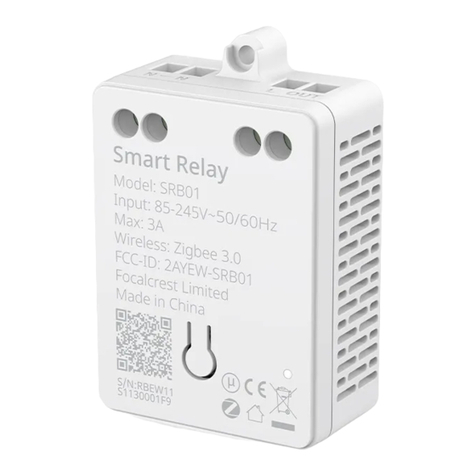
Setup Instructions
Note: When powered on for the first time, the Smart Relay will automatically go into inclusion mode. The
inclusion mode will exit if there is no action performed in 1 minute. If you want to set up the Smart Relay
again, please reset it or power cycle it to put it into inclusion mode once again.
Please contact us for any technical issue
Rev. 051723 v1.0 P/N SRB01 SS01
Troubleshooting
Smart Relay pairing failed.Q1
The device may be too far from the Wi-Fi router, or there
may be interference in the current network environment.
Please try to bring devices closer to the Wi-Fi router.
The device may be already paired. Please return the
device to factory defaults if you want to pair again.
Cannot be controlled by gateway/coordinator
or other Zigbee devices.
Q2
The device may be installed in an unreasonable location,
too far from the gateway or routing device, or there may
be signal interference.
Please check whether there is strong electromagnetic field
equipment near the wireless switch and check whether the
equipment is installed in a closed metal housing or in a
closed concrete wall. Add routing devices or bring devices
closer to the gateway/coordinator.
The light turns off automatically after a short
period of time (approximately 30 seconds).
Q3
The power of the light may exceed the maximum power
(AC 110V/ 300W, AC 220V/600W). Please check whether
the power of the light exceeds the maximum power.
In case of power loss while the lights were on,
the light status is on when power is restored?
Q5
Yes. The device will record the status of the light, and
after the device is powered off, re-powering will
restore the state before the device was powered off.
Cannot switch lights on and off normally.
Q6
The Switch Wire from switch to Smart Switch
Sub-Assembly is not properly connected or the
wiring of the switch is not correct.
1.
2.
3.
4.
5.
Check whether the Smart Relay blue/red LED is
on when the load light is on. If the blue/red LED is
not on, it may be that the ‘live IN wire’ and ‘live
OUT wire’ of the main’s power line are not
connected properly.
If the Smart Relay blue/red LED is on, check
whether the terminal is properly connected.
Please refer to the installation instructions section
to check for proper wiring.
If only one load is connected to the Smart Switch
Sub-Assembly, please check whether the ‘power
output for live’ of the Smart Switch Sub-Assembly
is connected to ‘L1’.
Mechanical switch type identification error.
(Please refer to “Type of Connected Switch”)
Type of Connected
Switch
Note: All operations require a 5-second wait after the Smart Relay power up before use.
Working with toggle/momentary switch
Quickly toggle/click the switch button 10 times.
The load will be on/off twice indicating a successful
operation.
Set the Smart Relay into inclusion mode
with Smart Switch Sub-Assembly
Overall diagram
For more wiring diagrams such as group lights, multi-control, double light switch 3-way control, etc.,
please visit evvr.io to view the support documents.
Note: Only one of the traveler wires is needed. Please insulate the other one and put it back into the
electric box.
L OUT 1
L1 L2
L OUT 2
N
LOAD 2
LOAD 1
SW1
SW2
L - live wire
N - neutral wire
Wiring 3-Way Control Light Switches (control the same light from 2 single light switches)
Wiring a Double Light Switch
N
N
OUT
LL 1
L
L1L
SW1
SW1
L - live wire
N - neutral wire
4
Double-click the RESET
button to switch between
the three switching modes.
Warranty Policy
For warranty information, please visit
https://www.evvr.io/warranty
This product must not be disposed of with your other household
waste. Instead, it is your responsibility to dispose of your waste
equipment by handing it over to a designated collection point for
the recycling of waste electrical and electronic equipment. The
separate collection and recycling of your waste equipment at the
time of disposal will help to conserve natural resources and
ensure that it is recycled in a manner that protects human health
and the environment. For more information about where you can
drop off your waste equipment for recycling, please contact your
local city office, your household waste disposal service or the
shop where you purchased the product.
Disposal Instructions
FCC ID:
2A68U-SRB01
FCC Statement
Certifications (regional)
This device complies with part 15 of the FCC rules. Operation is
subject to the following two conditions:
(1) this device may not cause harmful interference, and (2) this
device must accept any interference received, including interference
that may cause undesired operation.
Changes or modifications not expressly approved by the party responsible
for compliance could void the user’s authority to operate the equipment.
Note: This equipment has been tested and found to comply with the
limits for a Class B digital device, pursuant to part 15 of the FCC Rules.
These limits are designed to provide reasonable protection against
harmful interference in a residential installation.
This equipment generates, uses and can radiate radio frequency energy
and, if not installed and used in accordance with the instructions, may
cause harmful interference to radio communications. However, there
is no guarantee that interference will not occur in a particular installation.
If this equipment does cause harmful interference to radio or television
reception, which can be determined by turning the equipment off and on,
the user is encouraged to try to correct the interference by one or
more of the following measures:
- Reorient or relocate the receiving antenna.
- Consult the dealer or an experienced technician for help.
Important Announcement Important Note Radiation Exposure Statement
This equipment complies with FCC radiation exposure limits set
forth for an uncontrolled environment. This equipment should be
installed and operated with minimum distance 20cm between the
radiator and your body.
This transmitter must not be co-located or operating in conjunction
with any other antenna or transmitter.
Flip to turn on or off Always on/Always off Rebound after release
Toggle Switch - DEFAULT
Device changes status when
switch changes status
Toggle Switch (Sync)
Contact closed - ON,
Contact opened - OFF
Momentary Switch
Indicator blink purple once Indicator blink purple twice Indicator blink purple three times
123
Method 1
Add devices and
manually select the
device type
Method 2
Add devices by
scanning the QR code
on the device or manual
Short press the RESET button
to reboot it.
The indicator light will flash blue,
wait until pairing is successful or
60 seconds timeout.
60
SEC
If the Smart Relay is successfully paired,
the indicator will show BLUE when the
load light is on. If not, the indicator will
show RED when the load light is on.
2. Set the Smart Relay into inclusion mode
1. Set your Zigbee hub into inclusion mode with either method
If the Smart Relay is successfully
restored to factory settings, the
relay will go into inclusion mode
automatically.
Press and hold the RESET button
for more than 5seconds. The
red indicator will flash twice to
indicate a successful operation.
Restore Smart Relay
to factory settings
Turn ON the electrical power and check if the wires are connected correctly. If wires are properly
connected, the indicator light will come on while the light(s) connected to the switch are turned on.
Stick the foam pad to the recommended position on the Smart Relay and then place the relay on a flat,
clean surface.
Peel off the paper from the adhesive and affix the Smart Switch Sub-Assembly to the recommended
location on the box.
Recommended
placement
5Fix Smart Relays and Smart Switch Sub-Assemblies on a flat, cleaned surface