Eusso UGL2430-U2H2 Manual de usuario

IEEE
802.11
b/g/n
UGL2430-U2H2
Wireless-N USB Adapter
USER’S GUIDE
VERSION
1.0
©
All
rights
reserved.
All
trade
names
are
registered
trademarks
of
respective
manufacturers
listed.
This
manual
may
not
be
copied
in
any
media
or
form
withou
t
the
written
consent
of
original
maker.

Information To User ..................................................……..
1. Introduction .........................................................…… 1
2. Wireless LAN Basics ................................................……. 3
3. IP ADDRESS ..........................................................……. 4
4. Install Driver/Utility ...............................................……. 5
4.1 Windows XP/Vista.................................................. 5
5. Wireless Network Configuration ....................................... 7
5.1 Utility Icon ........................................................ 7
5.2 Client Mode (Default Setting)................................... 7
6. Technical Specifications ............................................... 13
7. Troubleshooting ......................................................... 14
8. Glossary ...................................................................15

INFORMATION TO USER
Federal Communication Commission Interference Statement
This equipment has been tested and found to comply with the limits for a Class
B digital device, pursuant to Part 15 of the FCC Rules. These limits are designed
to provide reasonable protection against harmful interference in a residential
installation.
This equipment generates, uses and can radiate radio frequency energy and, if
not installed and used in accordance with the instructions, may cause harmful
interference to radio communications. However, there is no guarantee that
interference will not occur in a particular installation. If this equipment does
cause harmful interference to radio or television reception, which can be
determined by turning the equipment off and on, the user is encouraged to try
to correct the interference by one of the following measures:
* Reorient or relocate the receiving antenna.
* Increase the separation between the equipment and receiver.
* Connect the equipment into an outlet on a circuit different from that to which
the receiver is connected.
* Consult the dealer or an experienced radio/TV technician for help.
REGULATION INFORMATION
The WLAN 11n USB Client Adapter must be installed and used in strict
accordance with the manufacturer’s instructions. This device complies with the
following radio frequency and safety standards.
This device complies with Part 15 of the FCC Rules.
Operation is subject to the following two conditions:
(1) This device may not cause harmful interference.
(2) This device must accept any interference received,
including interference that may cause undesired
operation.
FCC RF Radiation Exposure Statement:
This equipment complies with FCC radiation exposure limits set forth for an
uncontrolled environment. End users must follow the specific operating
instructions for satisfying RF exposure compliance.
To comply with the FCC RF exposure compliance requirements, this transmitter
must not be co-located or operating in conjunction with any other antenna or
transmitter.
Your device contains a low power transmitter. When device is transmitted it
sends out Radio Frequency (RF) signal. Use only with supplied antenna.
Unauthorized antenna, modification, or attachments could damage the
transmitter and may violate FCC regulations.
You are cautioned that changes or modifications not expressly approved by the
part responsible for compliance could void the user’s authority to operate the
equipment.

Europe- R&TTE Compliance Statement
Hereby, the company who declares that this equipment complies with the
essential requirements and other relevant provisions of DIRECTIVE 1999/5/CE
OF THE EUROPEAN PARLIAMENT AND THE COUNCIL of March 9, 1999 on radio
equipment and telecommunication terminal Equipment and the mutual
recognition of their conformity (R&TTE).
CE Declaration of Conformity
For the following equipment:
WLAN 11n USB Client Adapter
(Product Name) WLAN 11n USB Client Adapter
(Model Designation)
is herewith confirmed to comply with the requirements set out in the Council (European
parliament) Directive on the Approximation of the Laws of the Member States relating to
Electromagnetic Compatibility of Radio and Telecom device (1999/5/EC). For the
evaluation regarding this Directive, the following standards were applied:
EN 300 328 V1.7.1
EN 301 489-1 V1.6.1 ; EN 301 489-17 V1.2.1
EN 60950-1:2001
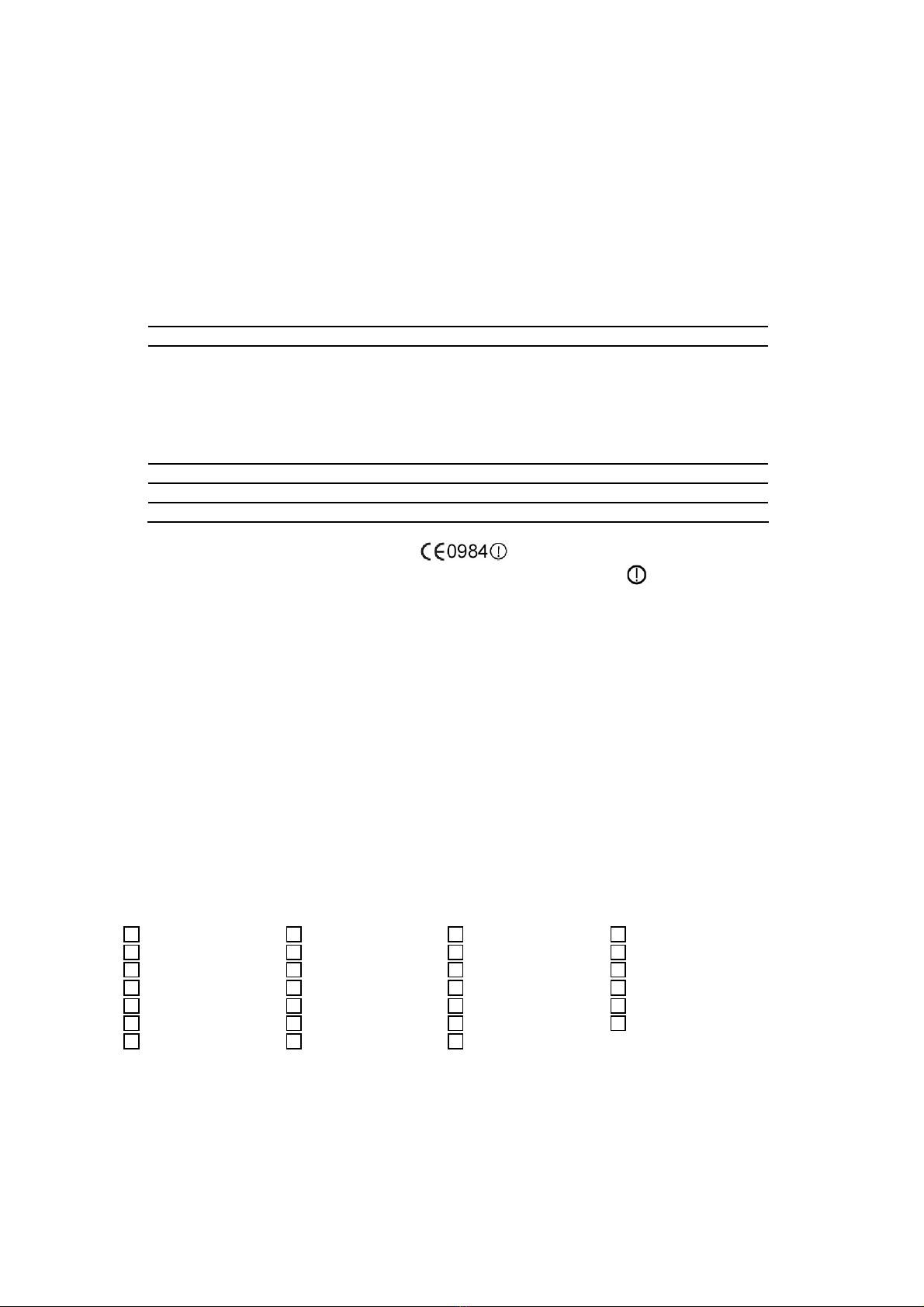
This equipment is marked with the symbol and can be used
throughout the European community. Marking by the symbol indicates that
usage restrictions apply.
France - 2.4GHz for Metropolitan France:
In all Metropolitan départements, wireless LAN frequencies can be used under
the following conditions, either for public or private use:
· Indoor use: maximum power (EIRP*) of 100 mW for the entire 2400-2483.5
MHz frequency band
· Outdoor use: maximum power (EIRP*) of 100 mW for the 2400-2454 MHz
band and with maximum power (EIRP*) of 10 mW for the 2454-2483 MHz band
Caution: Exposure to Radio Frequency Radiation.
To comply with RF exposure compliance requirements, for mobile configurations,
a separation distance of at least 20 cm must be maintained between the
antenna of this device and all persons.
This device is intended for use as check in the following European Community countries:
Austria Belgium Czech Republic Cyprus
Denmark Estonia France Finland
Germany Greece Hungary Ireland
Italy Iceland Luxemburg Latvia
Lithuania Malta Norway Netherlands
Portugal Poland Spain Sweden
Slovakia Slovenia United Kingdom

The channel identifiers, channel center frequencies, and regulatory domains of
each 22-MHz-wide channel are shown in following Table.
Regulato
r
y
Domains
Channel
Identifier
Frequency
(MHZ)
Japan ETSI
North
Ame
r
ica Israel
France
Outdoor
Mexico
1
2412
ˇ
ˇ
ˇ
ˇ
2
2417
ˇ
ˇ
ˇ
ˇ
3
2422
ˇ
ˇ
ˇ
ˇ
ˇ
4
2427
ˇ
ˇ
ˇ
ˇ
ˇ
5
2432
ˇ
ˇ
ˇ
ˇ
ˇ
6
2437
ˇ
ˇ
ˇ
ˇ
ˇ
7
2442
ˇ
ˇ
ˇ
ˇ
ˇ
8
2447
ˇ
ˇ
ˇ
ˇ
ˇ
9
2452
ˇ
ˇ
ˇ
ˇ
ˇ
10
2457
ˇ
ˇ
ˇ
ˇ
11
2462
ˇ
ˇ
ˇ
ˇ
12
2467
ˇ
ˇ
13
2472
ˇ
ˇ
14
2484
ˇ

6
Thank you for your purchase of the Wireless-N USB Adapter. Featuring wireless
technology, this wireless networking solution has been designed for both large
and small businesses, and it is scalable so that you can easily add more users
and new network features depending on your business scale.
FEATURES
Support Microsoft XP(32bit/64bit) / Vista(32bit/64bit).
Operating distance of up to 300 meters in free space.
300/270/240/180/120/90/60/54/48/36/30/24/22/18/12/11/6/5.5/2/1
Mbps selectable Data Rate.
64/128-bit WEP , WPA (Wi-Fi Protected Access), WPA2
2.400GHz ~ 2.4835GHz unlicensed ISM Frequency Band. Modulation
Method :
IEEE 802.11b : DSSS (Direct Sequence Spread Spectrum).
IEEE 802.11g / 802.11n : OFDM (Orthogonal Frequency Division
Multiplexing). Easy operation and setting up.
SYSTEM REQUIREMENTS
Windows System : XP(32bit/64bit) / Vista(32bit/64bit).
PCs must have a device driver installed. It allows you to communicate with
Wireless-N USB Adapter
BEFORE YOU START
1. Confirm Box Contents
◆
Wireless-N USB Adapter
◆ Quick Start Guide
◆
Driver CD
CONNECTING YOUR WLAN 11n USB Client Adapter TO PC
Quick Start Guide
Connect your Wireless-N USB Adapter to your PC. Install driver.
GETTING TO KNOW WIRELESS LAN ADAPTER LED
LED turns on when Wireless-N USB Adapter link to WLAN adaptor or AP. LED is
blinking when WLAN Adapter is active.
WPS button
Setup WLAN security in one second

7
Wireless LAN network defined by IEEE 802.11b/g standard committee
could be configured as :
Ad Hoc wireless LAN. Infrastructure wireless LAN.
Ad Hoc network is a group of PCs installed with wireless LAN cards, this group
of PCs is called a BSS (Basic Service Set). PCs in this group can use their
wireless LAN cards to communicate with each other, but can not connect to the
Internet.
Ad Hoc Wireless Network Infrastructure Wireless Network
The most obvious difference between Infrastructure wireless network and Ad
Hoc wireless network is that the PCs in Infrastructure wireless network can
access the resource in the Internet through Access Point.
Depending on your requirement, you can easily set up your PC’s network to be
a “Ad Hoc” or “Infrastructure” wireless network. Generally speaking, if in
your network, there is an Access Point in it, we recommend you to set your
network as an “Infrastructure”, so it can connect to the Internet.

8
To use the Wireless-N USB Adapter with a computing device, the Wireless-N
USB Adapter must be equipped with a proper Interface. All drivers and
supporting software for the Wireless-N USB Adapter must be installed and
configured first.
Ask your system administrator for the following information, which you may
need to provide during driver installation :
Your Wireless Client Name, Your Wireless SSID.
Your computer’s unique client name and workgroup name. For your network
account, your user name and password.
Your IP address, gateway address, and subnet mask if you’re not using a
DHCP client.
Any computer on a network is identified by a unique network address. There
are two methods to assign a network address to a computer on a TCP/IP
network :
Static IP addressing.
Dynamic IP addressing (DHCP Client).
In network with static IP addressing, the network administrator manually
assigns an IP address to each computer. Once a static IP address is assigned, a
computer uses the same IP address every time it reboots and logs on to the
network. You may manually change the IP address in the
Network
Properties
dialog
box.
Network using static IP address is easy to set up
and do not require additional network management software
.
In network with dynamic IP addressing, a DHCP server in the network
dynamically assigns IP addresses to all clients every time they log on to the
network. Network using dynamic IP address requires setting up and running a
DHCP Server.

9
The installation & driver CD will automatically activate the autorun installation
program after you insert the disk into your CD drive.
Step 1 :
Insert the installation CD into your
CD-ROM. Choose the Setup Language
and click Next button.
Step 2 :
Installation descriptions shown. Click Next to continue.
Click Install to begin the installation

10
Installing & configuring WLAN utility
Installing Drivers.
Step 3 :
Click Finish to complete installation
Tabla de contenidos
Otros manuales de Adaptador de Eusso

Eusso
Eusso Wireless-N PCI Adapter Manual de usuario

Eusso
Eusso GL2411-MU Manual de usuario

Eusso
Eusso Wireless-N PCI Adapter Manual de usuario

Eusso
Eusso 200Mbps Powerline HomePlug Manual de usuario

Eusso
Eusso UPL5500-201 Manual de usuario

Eusso
Eusso 85Mbps Powerline HomePlug Ethernet Adapter Manual de usuario

Eusso
Eusso UGL2430-UHM Manual de usuario