
EMDR Kit 003 Manual de usuario

English Manual
To be used with model 003
The EMDR Kit should be used only by trained EMDR therapists
Visit our website for the most recent version of this manual, instruction
video’s and frequently asked questions.

Table of contents
1 Introduction 3
2 The EMDR Kit for iOS devices (Apple) 4
2.1.0 Downloading the EMDR Kit app (iOS) 4
2.1.1 Connecting the EMDR Kit app (iOS) 5
2.1.2 Connecting the Light tube 5
2.1.3 Connecting the Pulsators 5
2.1.4 Connecting the Headphones 6
2.2.0 Using the EMDR Kit app (iOS) 8
2.2.1 Light tube settings 9
2.2.2 Pulsator settings 9
2.2.3 Headphone settings 10
2.2.4 Exiting after use 10
3 The EMDR Kit for Android devices 11
3.1.0 Downloading the EMDR Kit app (Android) 11
3.1.1 Connecting the EMDR Kit app (Android) 12
3.1.2 Connecting the Light tube 12
3.1.3 Connecting the Pulsators 12
3.1.4 Connecting the Headphones 13
3.2.0 Using the EMDR Kit app (Android) 15
3.2.1 Light tube settings 16
3.2.2 Pulsator settings 16
3.2.3 Headphone settings 17
3.2.4 Exiting after use 17
4 Practical tips 18
4.1 Charging batteries 18
4.2 Working without disturbance from incoming calls 18
4.3 Using multiple EMDR Kits in one location 19
5 System requirements 20
5.1. iOS requirements 20
5.2. Android requirements 20
6 Liability, warranty and decits 21
7 User information 22

3
1 Introduction
This manual contains all the necessary information to operate the EMDR Kit in a safe
and enjoyable way. Please read this information carefully. If anything is unclear or if
you have any questions, there is a list of frequently asked questions and additional
information at the back of this manual.
For convenience, this manual will refer to a tablet in explanations. However, the EMDR
Kit can be used with either a smartphone or a tablet.
The EMDR Kit 2 consists of the following parts:
• Light tube
• Pulsators (2x)
• Headphones
• Adapter (2x)
• EMDR Kit app (free to download)
• Carrying case (optional)
• Tablet stand (optional)
1. To control the EMDR Kit, you must use an app that has been specically
developed for the EMDR Kit. This app is free to download for iOS in the AppSto-
re or for Android in the Play Store. The system requirements are as follows:
iOS 8.0 or up (iPhone 4s/iPad 3th generation or up).
Android 4.3 or up. For Android there are also additional minimum
system requirements: CPU speed: 1600 GHzRAM: 2 GB.
2. Before using the EMDR Kit for the rst time, place the Pulsators in the docking
stations in the base of the Light tube so that they can charge. Also charge the
Light tube with the adapter. It is crucial that all parts of the EMDR Kit are char-
ged before usage.
3. The light tube, headphone and pulsators work with Bluetooth technology. When
the EMDR Kit app is opened, a message will pop up automatically to enable the
Bluetooth function, if this is not already enabled.You can also allow the device to
“access location”.You must enable this to work with the app
4. The Light tube and Pulsators only need to be connected once. If the app is closed
and opened again the next day, it will automatically restore the link to the last
EMDR Kit used.
Go to Chapter 2 to use the EMDR Kit with iOS/Apple and to Chapter 3 to use it with
Android.

4
2 The EMDR Kit for iOS devices (Apple)
This chapter will explain how to use the EMDR Kit and the app on devices running with
the iOS operating system (for Android see chapter 3).
2.1.0 Downloading the EMDR Kit app
1. Open the App store.
2. Search for EMDR Kit in the search bar.
3. Select the EMDR Kit app icon.
4. Click on install to install the app.
5. The app is now installed.
Main menu of the EMDR Kit app
EMDR Kit app
App store
Pass count / Set timer
Bluetooth connect menu
Sub-menu Light tube
Sub-menu Headphone
Sub-menu Pulsators
Speed buttons
Start/Stop button

5
2.1.1 Connecting the EMDR Kit app (iOS)
Before using the EMDR Kit, the parts must rst be connected with your tablet. To do
so, open the app. If prompted, consent to the following:
• Bluetooth
• Access location
Position the parts and the tablet as shown in the
picture. Also attach the adapter to the Light tube.
Connect the Light tube and Pulsators in
accordance with Chapters 2.1.2 and 2.1.3.
The headphones are not connected via the app.
Instead, connect these in the Bluetooth menu
on the tablet (see Chapter 2.1.4.)
2.1.2 Connecting the Light tube
1. Place your tablet as close as possible to the Light tube.
2. Click on the connect button in the main screen.
3. Click on the option: Choose Light tube.
4. Select the Light tube with the strongest Bluetooth signal.
5. The Light tube is now connected. To varify this, look for the luminous dot in the
centre of the Light tube.
2.1.3 Connecting the Pulsators
1. Place your tablet as close as possible to the Pulsators.
2. Click on the connect button in the top left of the screen.
3. Click on the option Choose Pulsator 1.
4. Select one of the Pulsators with the strongest Bluetooth signal.
5. The rst Pulsator is now connected.
6. Then click on Choose Pulsator 2.
7. Select another Pulsator with the strongest Bluetooth signal.
8. The second Pulsator is now connected.

6
2.1.4 Connecting the Headphone
1. Place your tablet as close as possible to the Headphone.
2. Hold the square button on the side of the headphone for 8 seconds. Ensure that
the light on the headphones ashes blue and red. They are now ready to connect.
3. Go to settings on the tablet.
4. Select the Bluetooth option and enable it if it is not already enabled.
5. Select the headphones in the list “My devices”.
6. When the headphones are connected, the text “connected” will appear next to it.
7. Click on the menu button to return to the main screen of the tablet and return to
the app.
Additional instructions for connecting:
You can choose which part you want to connect in the menu below. Once you have
connected a part, the name of this part will appear green in this list.
Return to the main menu
Choose Light tube
Choose Pulsator 1
Choose Pulsator 2
Reset all current connections

7
The menu below will appear when you have chosen to connect the Pulsator. Select
the Pulsator with the strongest Bluetooth signal in the menu.You can determine the
strength of the Bluetooth signal by looking at the bar graphs.
Sort Pulsators on their signal stength
Cancel: Back to the main menu
Pulsator
Strength of the bluetooth signal

8
2.2.0 Using the EMDR Kit app (iOS)
The Light tube, Pulsators and Headphones can be used simultaneously or separately.
When all three icons are green, all three parts are connected and switched on. If one
or more of the icons are grey, these parts are not connected and/or not switched on.
When all three parts are connected, use the corresponding sub-menu to switch each
one on or o.
• Use the +/- buttons to adjust the speed of the Light tube and Pulsators, as well as
the clicks in the Headphones.
• The time of the set as well as the pass count are indicated in the top right.
• Click on Connect in the top left to go to the Bluetooth connection menu.
• Click on the corresponding icon to switch dierent features on or o. You can se-
lect on, o, and other features in the sub-menu.
Main menu of the EMDR Kit app
Pass count / Set timer
Bluetooth connect menu
Sub-menu Light tube
Sub-menu Headphone
Sub-menu Pulsators
Speed buttons
Start/Stop button

9
2.2.1 Light tube settings
In the main menu, click on the Light tube icon to open the Light tube sub-menu. All of
the settings for the Light tube can be adjusted in this menu.
2.2.2 Pulsator settings
In the main menu, click on the Pulsator icon to open the Pulsator sub-menu. In this
menu, you can switch the Pulsators on and o and adjust their intensity.
Furthermore, you can set the speed of the Pulsators independently from the Light
tube with the ‘Pulsators in sync’ option.
Light tube on/o
Brightness of the Light tube
Preferred mode of the Light tube
Preferred color of the Light tube
Pulsators on/o
Intensity of the Pulsators
Pulsators synchronised
10
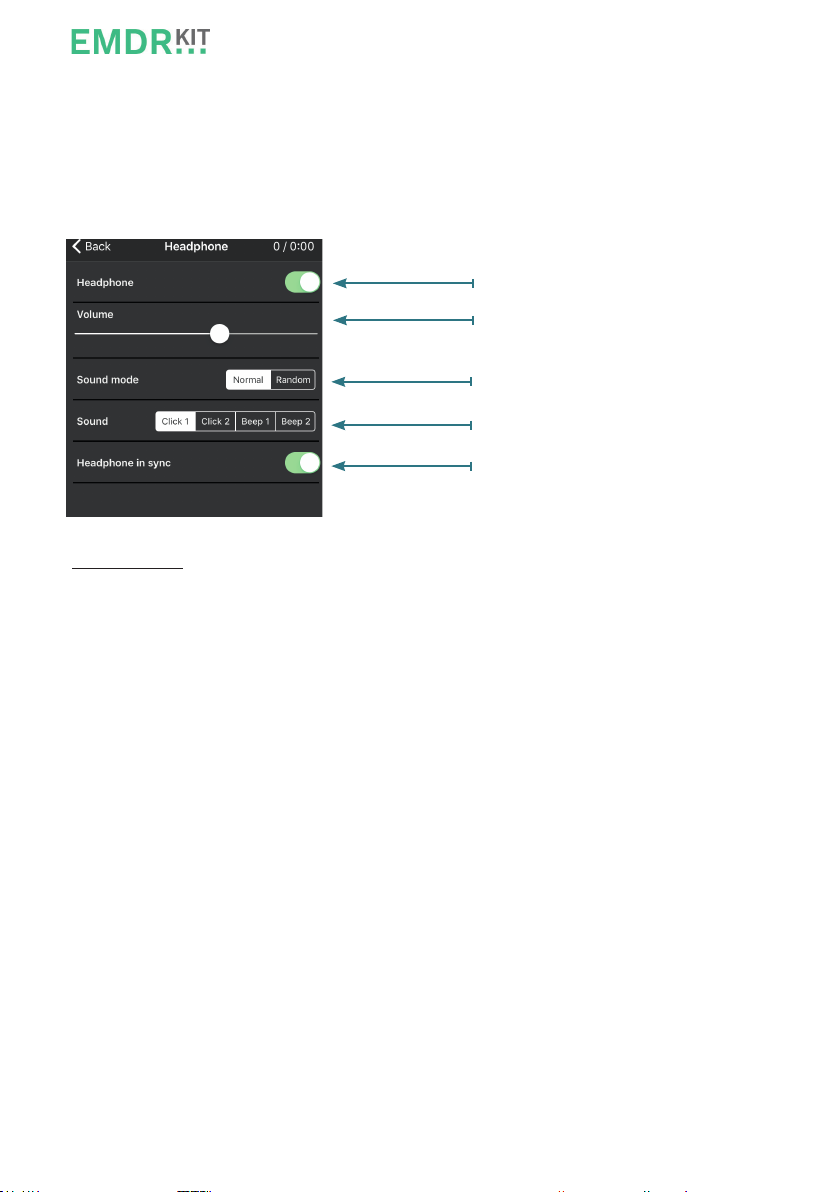
2.2.3 Headphone settings
In the main menu, click on the Headphones icon to open the headphones sub-menu.
The settings for the headphones can be adjusted in this menu.
Furthermore, you can set the speed of the Headphone independently from the Light
tube with the ‘Headphone in sync’ option.
Please note: The volume of the headphones can be adjusted in the app as well as on
the tablet itself. Make sure the sound on the tablet is set at maximum volume, so the
headphone volume can be controlled, using only the app.
2.2.4 Exiting after use
Use the home button to exit the app. The EMDR Kit is now available once again and
can be linked to other tablets, such as those of your colleagues.
Sound of the headphone on/o
Volume headphone
Regular or irregular sound
Dierent sounds
Headphone Synchronised
Tabla de contenidos
Otros manuales de Equipo médico de EMDR Kit


