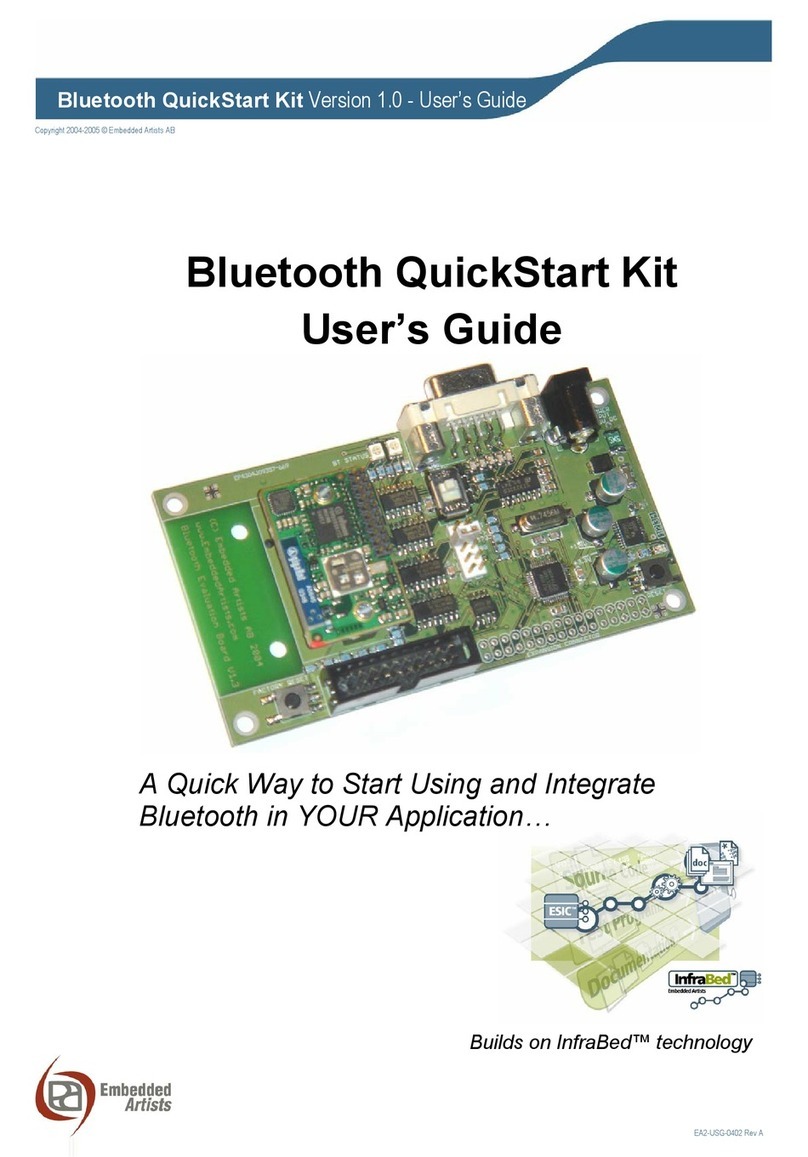
Embedded Artists iMX RT1166 Manual de usuario

iMX RT1166 Developer’s Kit - User Guide
Copyright 2021 © Embedded Artists AB
iMX RT1166 Developer’s Kit
User Guide
Get Up-and-Running Quickly and
Start Developing Your Application On Day 1!

iMX RT1166 Developer’s Kit - User Guide
Page 2
Copyright 2021 © Embedded Artists AB
Embedded Artists AB
Rundelsgatan 14
211 36 Malmö
Sweden
https://www.EmbeddedArtists.com
Copyright 2021 © Embedded Artists AB. All rights reserved.
No part of this publication may be reproduced, transmitted, transcribed, stored in a retrieval system, or
translated into any language or computer language, in any form or by any means, electronic,
mechanical, magnetic, optical, chemical, manual or otherwise, without the prior written permission of
Embedded Artists AB.
Disclaimer
Embedded Artists AB makes no representation or warranties with respect to the contents hereof and
specifically disclaim any implied warranties or merchantability or fitness for any particular purpose.
Information in this publication is subject to change without notice and does not represent a
commitment on the part of Embedded Artists AB.
Feedback
We appreciate any feedback you may have for improvements on this document. Please send your
comments to support@EmbeddedArtists.com.
Trademarks
All brand and product names mentioned herein are trademarks, services marks, registered
trademarks, or registered service marks of their respective owners and should be treated as such.

iMX RT1166 Developer’s Kit - User Guide
Page 3
Copyright 2021 © Embedded Artists AB
Table of Contents
1Document Revision History 4
2Getting Started 5
2.1 iMX RT1166 Developer's Kit Content 5
2.2 Hardware Overview 6
2.3 Mounting the LCD 7
2.4 Connecting - Get Started 11
2.4.1 Console 11
2.4.2 Tera Term Terminal Emulation Application 11
2.4.3 PuTTY terminal emulation application 13
2.4.4 Powering 13
2.4.5 Console output 14
2.5 Alternative Powering 14
2.6 ESD Precaution 14
2.7 Note uCOM Orientation when Mounting 15
2.8 General Handling Care 16
2.9 OTP Fuse Programming 16
2.10 CE Assessment 16
3uCOM Carrier Board Design 17
3.1 Ethernet Interface Adapter 18
4Disclaimers 19
4.1 Definition of Document Status 20

iMX RT1166 Developer’s Kit - User Guide
Page 4
Copyright 2021 © Embedded Artists AB
1 Document Revision History
Revision
Date
Description
PA1
2021-12-17
Initial release.

iMX RT1166 Developer’s Kit - User Guide
Page 5
Copyright 2021 © Embedded Artists AB
2 Getting Started
This chapter contains information about how to get acquainted with the iMX RT1166 Developer's Kit.
Please read this chapter first before you start using the board - it will be well spent time!
First of all, thank you for buying Embedded Artists’ iMX RT1166 Developer’s Kit based on NXP’s ARM
Cortex-M7/M4 i.MX RT1166 Crossover MCU. You will get up-and-running quickly!
Section 2.1 contains a list of what is included in the iMX RT1166 Developer's Kit.
Section 2.2 together with Figure 17 in chapter 3 gives an overview presentation of the
hardware and the interfaces and connectors available.
Section 2.3 describes how to mount the display.
Section 2.4 describes how to connect the USB cable, install the UART-to-USB driver and
power-up the board the first time.
Section 2.5 presents an alternative powering solution via the USB console interfaces.
Section 2.6 - 2.10 describes important handling and care issues.
Chapter 3 presents the uCOM Carrier Board and where to find more information about the
hardware design of it.
To get started with program development and program download/flashing, see document iMX RT
Developer's Kit Program Development Guide.
2.1 iMX RT1166 Developer's Kit Content
One iMX RT1166 uCOM board mounted on one uCOM Carrier board, see Figure 1 below.
One 100/10Mbps Ethernet adapter
One MIPI-to-HDMI adapter
One 40 pos, 0.5 mm pitch, 50 mm long flat cable
One 4.3 inch 480x272px LCD with capacitive touch panel, including mounting kit
One 12V supply
One micro-B to A USB cable
One MCU-Link debug interface
For program development you can optionally use another debug probe (than MCU-Link), like MCU-
Link Pro, ULINK, J-LINK or LPC-Link2, and a program development environment, like MCUXpresso,
Keil uVision or IAR Embedded Workbench. For more information about program development, see
document iMX RT Developer's Kit Program Development Guide.

iMX RT1166 Developer’s Kit - User Guide
Page 6
Copyright 2021 © Embedded Artists AB
2.2 Hardware Overview
Figure 1 below illustrates the top side of the uCOM Carrier board. Some key components, relevant to
get started, have been marked in the picture.
Figure 1 –iMX RT1166 Developer's Kit
1. ON/OFF switch (instead of having to plug in/out the 12V power supply barrel connector).
2. 12V power supply input, 12V/2-3A DC, via a 2.1mm power jack. The center position is the
positive terminal.
3. USB OTG connector - this USB interface can, together with a PC application, be used to
program the flash memory of the iMX RT1166 uCOM board.
4. UART-to-USB bridge - this gives access to the console UART for the Cortex-M7 core of the
i.MX RT1166 MCU.
5. ISP Enable push-button (and jumper, left of button) - pressing this button (or shorting jumper)
while the board power up will place the i.MX RT1166 is ISP mode (typically used for
programming the iMX RT1166 uCOM board flash memory).
6. Reset push-button - a press will generate a power cycle (in default behavior).
7. Mounting holes for the display.
8. Second UART-to-USB bridge - this gives access to the console UART for the Cortex-M4 of
the i.MX RT1166 MCU.
4
2
6
3
5
1
7
7
8

iMX RT1166 Developer’s Kit - User Guide
Page 7
Copyright 2021 © Embedded Artists AB
Figure 17 in chapter 3 gives a slightly more detailed presentation of all interfaces and connectors on
the board.
2.3 Mounting the LCD
If you are going to work with a display application and use the parallel RGB interface, when continue
with mounting the LCD. Follow the instructions in this section of the document.
If you are going to work with the second Ethernet interface (via the Ethernet Adapter), then do not
mount the LCD.
Begin with mounting the two 3D-printed display mounts. Each of them have two M3 screws. Remove
the screws from the mounts. Place the mounts as illustrated in the picture below.
Figure 2 –uCOM Carrier Board with LCD Mounts

iMX RT1166 Developer’s Kit - User Guide
Page 8
Copyright 2021 © Embedded Artists AB
Use the screws to fasten the mounts form the bottom side, as illustrated in the picture below. Do not
tighten the screws too much.
Figure 3 –Screws for LCD Mounts on Bottom Side of uCOM Carrier Board
Next, place the LCD behind the mounts, as illustrated in the picture below. This position makes it
easier to connect the two flat cables to the LCD. Make sure the locks on the flat cable connector on the
uCOM Carrier Board are open before inserting the two flat cables from the LCD.
Figure 4 –Placement of LCD to Connect Flat Cables
Lock the connector by
pushing down in both ends
(right and left) simultaneous

iMX RT1166 Developer’s Kit - User Guide
Page 9
Copyright 2021 © Embedded Artists AB
Remove the protection over the four double-sided tapes and carefully place the LCD in the mounts.
Figure 5 –Placing LCD on Mounts
The picture illustrates how it will look like from the side. Between the mounts and the LCD, there isthe
double-sided tape.
Figure 6 –Side View of LCD Mount

iMX RT1166 Developer’s Kit - User Guide
Page 10
Copyright 2021 © Embedded Artists AB
Make sure the flat cable for the capacitive touch panel is carefully bent over the mounts.
Figure 7 –Side View of LCD Mount
In the end, it will look like the picture below illustrates.
Figure 8 –LCD Mounted on uCOM Carrier Board
Flat cable shall be bend carefully over
the mount. It shall not be stuck or
jammed in-between the mount and LCD.
Tabla de contenidos
Otros manuales de Hardware de computadora de Embedded Artists
Manuales populares de Hardware de computadora de otras marcas

EMC2
EMC2 VNX Series Manual del propietario

Panasonic
Panasonic DV0PM20105 Manual de usuario

Mitsubishi Electric
Mitsubishi Electric Q81BD-J61BT11 Manual de usuario

Gigabyte
Gigabyte B660M DS3H AX DDR4 Manual de usuario

Raidon
Raidon iT2300 Manual de usuario

National Instruments
National Instruments PXI-8186 Manual de usuario