eCOMM S800 Manual de usuario

POS Terminal
USER
GUIDE
S800
VX680
S900
S920

Contents Page 1
Welcome
Support Details 2
S800 Terminal Overview Diagram 3
VX680 Terminal Overview Diagram 4
S900 Terminal Overview Diagram 5
S920 Terminal Overview Diagram 6
Quick Guide To Essential Operations
The keypad 7
Turning the terminal on/o 8
Using cards; magnetic strip, chip & PIN, contactless 8
Process a sale 8
Process a void 9
Process a refund 9
How to settle (batch) 9
How to charge your mobile terminal 9
How to lock the terminal 10
Functions
Function description 11
Function 0 - Test connection to eCOMM 11
Function 1 - Print what is in the batch at transaction level 11
Function 3 - Reset the terminal 12
Function 5 - Display totals of current batch 12
Function 72 - Print last receipt 13
Function 79 - Reports 13
Function 82 - Printer tests 13
References
Dynamic Currency Conversion (DCC) 14
Response Codes - Reference list for declines or errors 16
Frequently Asked Questions 17
How To Change A Receipt Roll 18
Locating The Ethernet Cable Socket On The S800 19
Wi-Fi Setup on VX680, S900 & S920 Terminals 20
Fraud & Chargeback Prevention Guide 21
© 2018 eCOMM Merchant Solutions

Welcome to your new terminal
See instructional videos online at:
https://ecomm365.com/how-to
Thank you for choosing your Point of Sale terminal from eCOMM Merchant
Solutions. These terminals come packed with the latest features, such as
contactless and mobile wallet technologies, as well as all the essential
reporting functions.
We have put together this guide to give you everything you need to get
setup and start processing transactions. In addition, if you have a website,
we can enable you to accept payments online.
Customer Service Desk
+353 (0)46 901 1288
Email:
Website:
https://ecomm365.com
If you have any queries, please contact our Customer Support Team:
Support Details Page 2
Welcome
Support Details 2
S800 Terminal Overview Diagram 3
VX680 Terminal Overview Diagram 4
S900 Terminal Overview Diagram 5
S920 Terminal Overview Diagram 6
Quick Guide To Essential Operations
The keypad 7
Turning the terminal on/o 8
Using cards; magnetic strip, chip & PIN, contactless 8
Process a sale 8
Process a void 9
Process a refund 9
How to settle (batch) 9
How to charge your mobile terminal 9
How to lock the terminal 10
Functions
Function description 11
Function 0 - Test connection to eCOMM 11
Function 1 - Print what is in the batch at transaction level 11
Function 3 - Reset the terminal 12
Function 5 - Display totals of current batch 12
Function 72 - Print last receipt 13
Function 79 - Reports 13
Function 82 - Printer tests 13
References
Dynamic Currency Conversion (DCC) 14
Response Codes - Reference list for declines or errors 16
Frequently Asked Questions 17
How To Change A Receipt Roll 18
Locating The Ethernet Cable Socket On The S800 19
Wi-Fi Setup on VX680, S900 & S920 Terminals 20
Fraud & Chargeback Prevention Guide 21

Paper cover
LCD display
Chip card slot
Power key
Paper cover handle
Menu key
Alpha key
Keypad
USB port
Power socket
Nameplate
Barcode
Screw
Ethernet socket
Magnetic strip card slot
Paper cutter
Contactless area
Function key
Enter key
S800 Countertop Terminal Overview Page 3

Magnetic strip card slot
Alpha key
Enter key
Nameplate
Serial number
SIM card in position
Chip card slot
Battery
SIM area
Roll cover handle
Paper roll cover
LCD touchscreen display
Keypad
LED indicator
Power key
Power cable
socket
Function key
Contactless area
VX680 Mobile Terminal Overview Page 4

Magnetic strip card slot
Chip card slot
Keypad
Menu key
Paper cover
handle
Stylus
SIM card
SAM card slots
LCD Display
Function key
Power key
Alpha key
Enter key
Paper cutter
Nameplate
Barcode
Power socket
USB port
RS232 port
Contactless area
S900 Mobile Terminal Overview Page 5

Paper cover
Contactless area
Function key
LCD touchscreen display
Barcode label
Battery & SIM
Charging contact
USB port
Screw
Chip card slot
Power key
Clear key
Enter key
Alpha key
Keypad
Paper cover handle
(lift to release)
Paper cutter
Magnetic strip card slot
S920 Mobile Terminal Overview Page 6

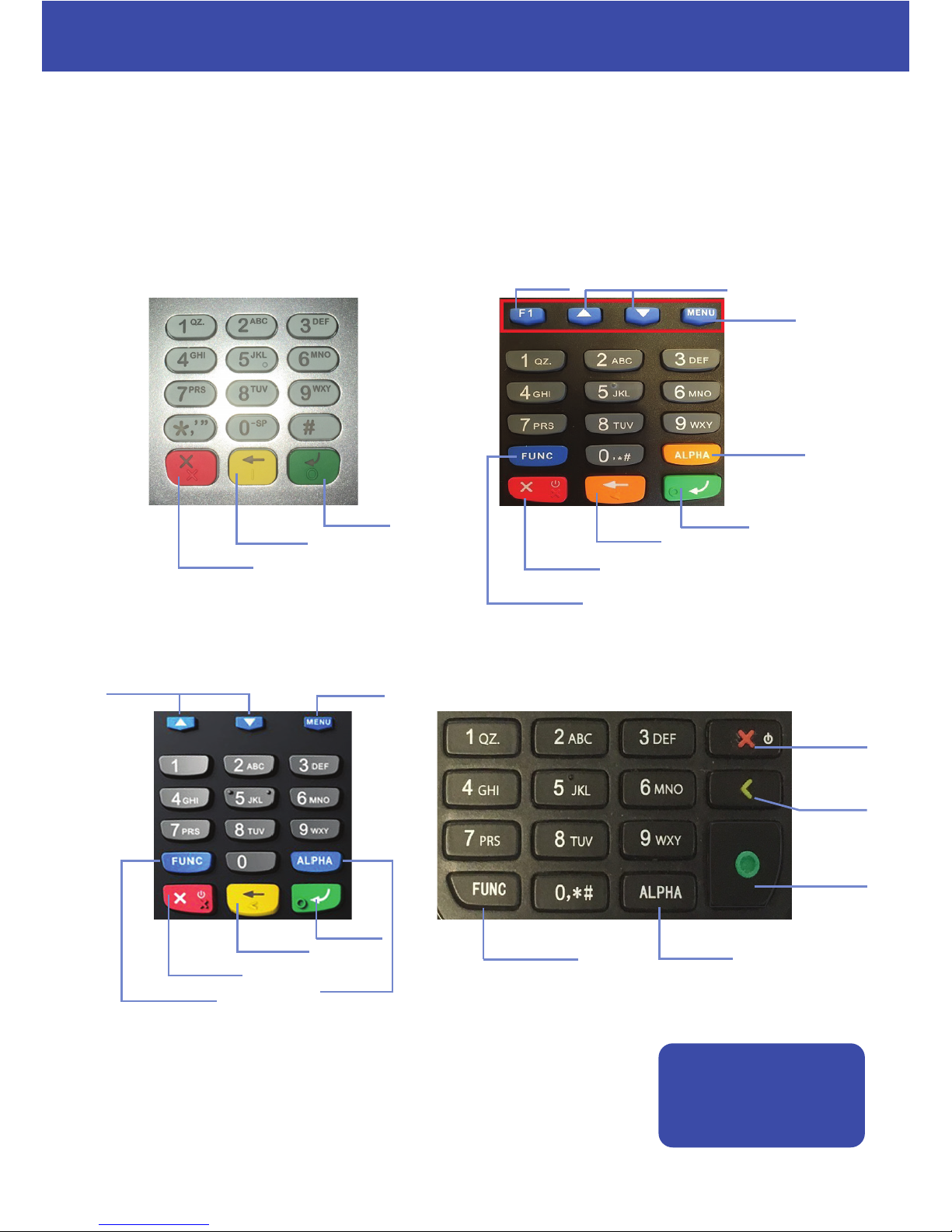
The keypad
Below are images of terminal keypads. Take a moment to familiarise yourself with the keys
of your particular model. Notice the arrow keys and the power, enter, func, back arrow and
alpha keys.
The VX680, S900 and S920 models have a touchscreen display
allowing various selections by tapping on-screen.
For the S800 the same selections are made by pressing the blue
button located directly under the on-screen option.
S920 keypad
Power key
Alpha key
Power key
Power key
Back,
clear key Enter key
Function key
Function key
Power key
Back, clear
Back, clear
Function key
Enter key
Alpha key
Menu key
F1 key
Menu key
Arrow selection keys
Back or
clear key
S800 keypadVX680 keypad
Arrow selection keys
S900 keypad
See instructional
videos online at:
ecomm365.com/how-to
Enter key
Enter key
Alpha key
Quick Guide To Essential Operations Page 7

Process a sale
Turn the terminal on/o
For the S800, S900 and S920 to press and hold the red‘X’ button on the keypad to turn
on the terminal. For the VX680 press and hold the green (enter) button. The terminal
performs a self-test and then shows the main options screen. If left idle, the terminal's
screen will go dark, press any key to bring it back. To turn the terminal o, press & hold
the red ‘X’ button.
1. On the main screen, tap on or use arrow keys to select SALE
2. Enter the amount and press the green (enter) button to conrm
3. Cashback, if congured on your terminal, will now be prompted on the display:
3.1 After the sale amount has been entered the terminal asks ‘Do you want cash?’
3.2 Tap YES or NO – on the S800 unit, press F1 for NO or Menu key for YES
3.3 If cash is requested by the customer enter the amount, tap or select YES
3.4 If the customer card has no cashback service enabled an error will be displayed
NB: It is important to settle or ‘batch’ your transactions for processing.
Using cards
Contactless Card: Hold the contactless card over the sensing area above the LCD
Chip & PIN: Insert the card chip side upward into the card slot, push in fully until stopped
Magnetic Strip Card: Place the magnetic strip side of the card facing inwards, towards
the keypad, swipe the card with a steady speed through the magnetic reader slot
4. Tap or insert the card (if the card is inserted, ask customer to enter their PIN and press the
green button)
5. The terminal will respond with APPROVE or DECLINE on the screen
6. If approved the terminal will automatically print the merchant receipt
7. Tap or select NEXT to print the customer receipt
Note: if a card is inserted into the terminal it will automatically bring up the SALE screen.
After powering on a mobile terminal (VX680, S900, S920) please wait 15-20
seconds before attempting a transaction. This is to allow the SIM in the
terminal to pick up the best signal from a local mobile carrier.
Quick Guide To Essential Operations Page 8

1. Enter the terminals main menu by pressing the ALPHA button
2. Select the 'batch' option
3. Select the 'void' option
4. Enter the invoice number of the transaction you want to void and press enter
5. The amount of the void will show on screen. Press enter to conrm.
6. The terminal prints a void receipt & displays a message on LCD when void completes
Process a void
A refund is dierent to a void. A refund is used after a transaction has been settled.
Refunds typically dont credit the customers account until 24hrs later.
1. On the main screen tap on or use arrow keys to select REFUND
2. Enter your 4-digit password and the refund amount
3. Tap or insert card (no PIN required)
4. The terminal prints a refund receipt & displays a message on LCD when refund completes
Process a refund
A Void is used when a transaction is made in error or the customer has been debited the
wrong amount. A void can only be issued for transactions that are pending settlement
and are within the current batch. A void will credit the customers account straight away
if their card issuer supports this transaciton type.
NB: By default eCOMM will auto-settle every terminal between 11pm and midnight daily.
If auto-settle is not congured on your terminal, please do the following:
1. On the main screen tap on or use arrow keys to select SETTLE
2. You must enter your 4-digit password
3. Conrm all totals are correct
4. Tap or use arrow keys and then the green button to select YES on screen
How to settle (batch)
The S900 terminal can be charged by inserting the power cable into the power socket,
located at the front of the device under the chip card slot. Alternatively, If you have a
charging base station, simply place the unit onto the base station.
The VX680 terminal can be charged by inserting the power cable into the power port at
the front of the device under the chip card slot. Alternatively, If you have a charging base
station, simply place the unit onto the base station.
How to charge your mobile terminal
Quick Guide To Essential Operations Page 9
Este manual sirve para los siguientes modelos
3
Tabla de contenidos