
easyRAID NAS easyRAID FN-420GT Manual de usuario

the easy-to-use NAS-Solution
NAS Series—Network Hard Disk
Drive Array
Operation Manual

-1- easyRAID NAS FN-420GT Operation Manual
Foreword
About this manual
The purpose of this manual is to assist users to understand the easyRAID family of
Network Attached Storage (NAS) with Hard Disk Drive Array functionality and to
operate the system easily.
All information in this manual has been verified carefully to ensure the correctness of
its contents. In case of negligence or error, please provide feedback to us. easyRAID
reserves the right to modify the contents of this manual without any notice in advance.
EMC Certified
This product has passed FCC Class B inspection. Appropriate certifications have also
been approved, e.g. CE, UL, CB, C-Tick and BSMI.
Copyright reserved. Do not duplicate. © 2005
Product Name: easyRAID 420GT NAS Network Hard Disk Drive Array
Manual Revision: 1.1
Release Date: Mai., 2005

-2- easyRAID NAS FN-420GT Operation Manual
Table of Contents
Thank You for purchasing
easyRAID® NAS the easy-to-use NAS System
To ensure proper installation and operation of the NAS network hard disk drive array,
please first read the operation guide and other important information in this manual.
Chapter 1 Introduction to easyRAID 420GT NAS System
1-1 easyRAID 420GT Family Features 4
1-2 Using this Manual 5
1-3 Items in the package 5
Chapter 2 Getting Started and Quick Configuration
2-1 System Hardware Installation and Configuration 6
2-2 Hard Disk Drive Installation 7
2-3 Network Connection 8
2-4 System Bootup—Self Configuration Test 9
2-5 IP Address 9
2-6 Connecting to a Network 11
2-7 Administrator Login 11
2-8 System Information Screen 13
2-9 Software Quick Configuration 13
2-10 Server Name 14
2-11 Date, Time, and Region 15
2-12 Network Settings 16
2-13 Adding Storage Volume 17
2-14 Enabling Windows Network Service 26
Chapter 3 Using Administrative Tools For Administrator
3-1 Login 30
3-2 Administrator Login 31
3-3 Instant Configuration 31
3-4 System Setups 32
3-5 Network Settings 42
3-6 Storage Volume Settings 66
3-7 User Privilege Settings 73

-3- easyRAID NAS FN-420GT Operation Manual
3-8 System Status 87
3-9 WAN Settings 95
3-10 Logout 99
3-11 Shutdown 99
3-12 User-Level Access 100
3-13 Changing Password 101
Chapter 4 Using Control Panel
4-1 Front Control Panel Functions Introduction 102
4-2 Basic Menu Options on the LCD Control Panel 104
4-3 Special Mode 104
4-4 System Memory Size 106
4-5 CPU Information 106
4-6 Advanced Menu Options 106
4-7 Network Menu 106
4-8 System Menu 107
4-9 Miscellaneous Menu 107
Chapter 5 System Operation
5-1 Normal Operation 108
5-2 Data Synchronization 108
5-3 Hard Disk Drive Damage 109
5-4 Hard Disk Drive Replacement 109
5-5 Automatic Data Recovery 110
Appendix
A
Appendix B WAN User Connection
How to use client FTP OCX Component 111
115

-4- easyRAID NAS FN-420GT Operation Manual
Chapter 1
Introduction to easyRAID 420GT NAS FAMILY
easyRAID NAS 420GT is a RAID enabled NAS (Network Attached Storage). The
ability of the unit to conduct continual self tests, beyond unsymmetrical fault tolerance,
data validation functions provided by RAID Level 0,1,3 and 5, the availability of
cooling fans and hot-swap function make the easyRAID family of network attached
storage with hard disk drive array even more reliable and easy to use.
1-1 easyRAID 420GT NAS Family Features
Completely OS Independent networking storage system.
Basic system configuration is easily done via web browser.
LCD Front Control Panel displays the system status and OS Configuration.
Hard Disk Drive Error indicator LED.
Automatic Formatting, Data Replacement and Recovery.
Support UPS device (APC Back-UPS ES 500 and Smart series with RS-232
Interface).
Support 2*RJ45 Ethernet Port. (One 10/100/1000 Mb, One 10/100 Mb)
Quick Configuration Function makes first-time system configuration easy.
Firmware upgradeable.
Support hard disk drive hot-swap.
Fan and Power System Failure automatic detection.
Automatic over-heat detection.

-5- easyRAID NAS FN-420GT Operation Manual
1-2 Using this Manual
The following icons will help you to identify important information, when used within
this manual.
This icon indicates helpful key points and information.
This icon indicates a warning, to avoid making damages
to the software, the hardware, or the data.
1-3 Items in the Package
Please ensure that the package housing the unit is not damaged before opening your
easyRAID 420GT. Items in the package include:
easyRAID 420GT NAS System
Power Cord
2 * 2Meter RJ45 Cable
Accessory Bag
Operation Manual on CD
If there is any question, please contact your local dealer.

-6- easyRAID NAS FN-420GT Operation Manual
Chapter 2
Getting Started and Quick Configuration
This chapter covers “Quick Configuration” of the system to get started with easyRAID
NAS System network HDD array.
Basically, we assume the system administrator who operates this system, has
adequate level of understanding of HDD array and LAN related knowledge.
2-1 System Hardware Installation and Configuration
The basic hardware setup includes: the system itself, 4 hot-swappable caddies, a
power cord, 2 network cables, and a set of key.
-7- easyRAID NAS FN-420GT Operation Manual
2-2 Hard Disk Drive Installation
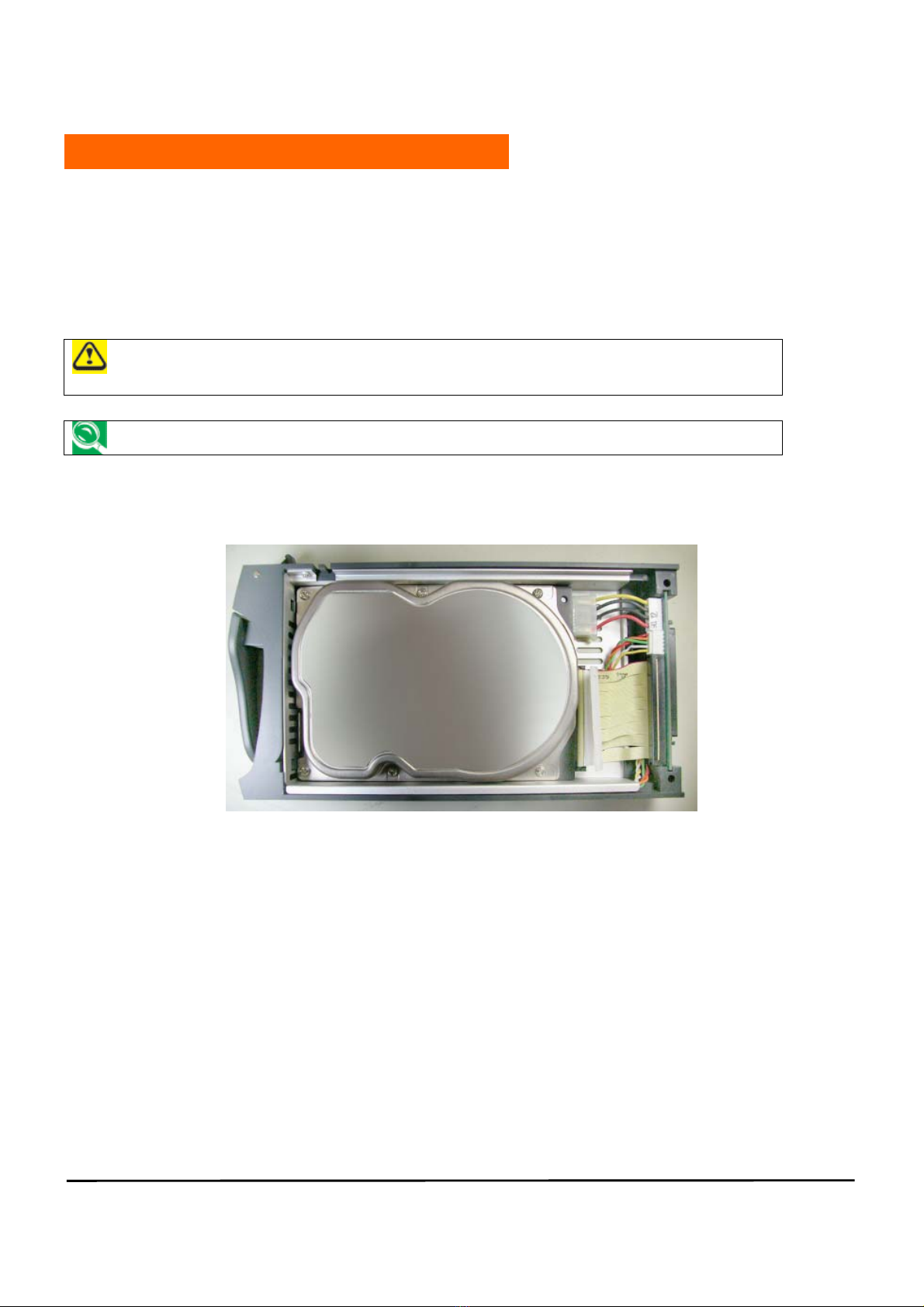
Install a hard disk drive (HDD) in the HDD caddy by connecting the HDD to the
connector at the rear of the HDD caddy. Since your easyRAID NAS System supports
hot swap, it is not necessary to shutdown the system upon HDD removal or
replacement of “One” drive. However, all practices relating to RAID systems must be
observed.
In the event that more than one drive needs to be removed,
the system must be shut down to avoid data corruption.
All HDD must be set as “Master Only Mode.”
Please follow these steps to add HDD into easyRAID NAS System network HDD
array.
Figure 2-1 Hard Disk Drive Installation
1. Withdraw the HDD caddy out from easyRAID NAS System.
2. Make sure the HDD is set to “Master Only” mode.
3. Connect the IDE cable and power cord in the HDD caddy to the HDD.
4. Place the IDE HDD into the HDD caddy, as shown in Figure 2-1 and secure with
the screws provided.
5. Insert the HDD caddy back into easyRAID NAS System.
6. Lock HDD caddy to prevent inadvertent removal.
-8- easyRAID NAS FN-420GT Operation Manual
2-3 Network Connection
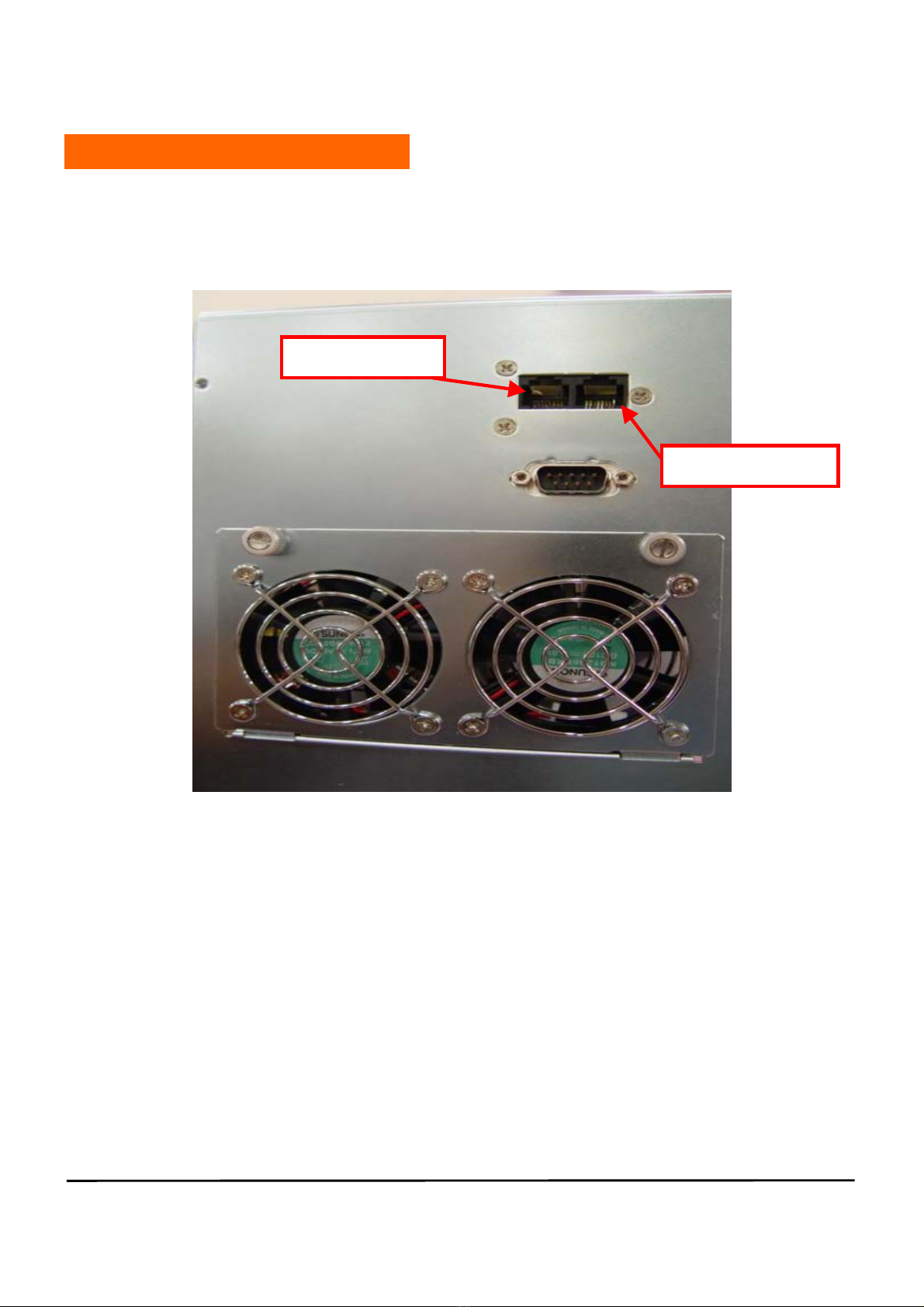
easyRAID NAS System supports two Ethernet ports (one Gigabit and one 10/100 Mb).
Under normal circumstances, simply connect a network cable from NAS Ethernet to
the switch and it will work.
Figure 2-2 Connecting Ethernet Port
To properly shutdown the system:
1. Select “Shut Down” from the menu on system LCD display.
2. Alternatively, select “Shut Down” from the administrative page.
3. Immediately turn off the power. Do not exceed 4 seconds. NAS System supports
manual shutdown by using the “Shutdown on Power Push Button.”
LAN (Channel 0)
WAN (Channel 1)

-9- easyRAID NAS FN-420GT Operation Manual
When the system is in normal operation, do not turn off the power
directly from the power source. Otherwise, data that are in the
process of been written on the NAS might be lost and can not be
recovered. For more details, please refer to section 4-8, system
menu.
2-4 System Bootup—Self Configuration Test
After the power is turned on, easyRAID NAS System performs Self Configuration Test
automatically. These self tests include CPU Type, CPU Fan, System Memory Size,
Network Control Chip, and IDE Control Chip data, to ensure normal system operation.
2-5 IP Address
Most system configuration settings can be set via system administrator control. This
administrative control is web browser based. To access the system administrator
control, you must know the IP Address of easyRAID NAS System.
Upon first-time bootup, easyRAID NAS System initiates DHCP/BOOTP to select all
available IP Addresses in network. If manual input of an IP Address is required,
acquire the IP Address from the system administrator. And then manually type the IP
Address via the front control panel.
Upon first-time bootup, easyRAID NAS System initiates
DHCP/BOOTP to select all available IP Addresses in network. If
other means of IP Address selection is required, you can manually
type an IP Address via LCD front control panel.
easyRAID NAS 420GT is supporting two Ethernet Ports (Eth0 and
Eth1). The settings procedure is almost the same except there is
no need to configure the “Gateway” for Eth0.
Follow these steps and manually type the IP Address through the front control panel:
Tabla de contenidos
Manuales populares de Servidor de almacenamiento en red de otras marcas

HP
HP NetStorage 6000 Manual de usuario

Seagate
Seagate U10 ST320423A Manual de usuario

Synology
Synology RackStation RS816 Manual

D-Link
D-Link ShareCenter Pro DNS-1200-05 Manual de usuario

Avid Technology
Avid Technology VideoRAID ST Guía de seguridad

Western Digital
Western Digital My Cloud Home Duo Manual de usuario


