Distech Controls Allure EC-Sensor Series Manual

Allure EC-Sensor Series
Figure1: EC-Sensor-SOF
Product Description
The Allure EC-Sensor series of analog wall sensors is designed to interface with controllers of fan coil, heat pump, roof top and terminal heating / cooling
units. These sensors provide precision local temperature measurement with the capability of local setpoint adjustment, fan speed setting, and occupancy
override.
Each sensor in this series has internal communications terminals to connect it to a LON® or BACnet® network. In addition, a built-in communications jack
exists, allowing a user to connect a computer to the communication network without having to open the sensor’s cover. In addition, through this commu-
nication jack, an EC-Smart-Sensor-VAV can be used as a hand-held balancing tool to perform VAV airflow calibration.
The EC-Sensor’s modern, alluring profile enclosure is suitable for classrooms, hotels, executive areas, office spaces and other commercial areas.
Mounting hardware with a separate sub-base is provided with the device for installation on a dry wall or on an electrical junction box.
This document describes the hardware installation procedures for the following device models: EC-Sensor, EC-Sensor-O, EC-Sensor-S, EC-Sensor-SO,
and EC-Sensor-SOF.
Unless otherwise indicated, the term EC-Sensor will be used in this document to represent all the models of the
Allure EC-Sensor Series.
For proper installation and subsequent operation of the device, pay special attention to the following recommendations:
£Upon unpacking, inspect the contents of the carton for shipping damages. Do not install a damaged device.
£Allow for proper clearance around the device’s enclosure and wiring terminals to provide easy access for hardware configuration and maintenance.
£Orient the device with the ventilation slots towards the top to permit proper heat dissipation.
£The device is designed to operate under the following environmental conditions:
– Operating temperature from 32°F to 122°F (0°C to 50°C)
– Storage temperature from 4°F to 158°F (-20°C to 70°C)
– Relative humidity from 0% to 90%, non-condensing.
£Ensure proper ventilation of the device and avoid areas where corroding, deteriorating or explosive vapors, fumes or gases may be present.
Any type of modification to any Distech Controls product will void the product’s warranty
Take reasonable precautions to prevent electrostatic discharge to the device when installing, servicing or during operation. Discharge
accumulated static electricity by touching one’s hand to a well-grounded object before working with the device.
Hardware Installation Guide

2 / 8
General Wiring Recommendations
Risk of Electric Shock: Turn off power before any kind of servicing to avoid electric shock.
£All wiring must comply with electrical wiring diagrams as well as national and local electrical codes.
£To connect the wiring to a device, use the terminal connectors. Use a small flat screwdriver to tighten the terminal connector screws once the wires
have been inserted (strip length: 0.25’’ (6mm), maximum tightening torque 0,4 Nm (3.45 in-lb)).
£The board connectors accept wires or flat cables ranging from 22 to 14AWG (0.644-1.630mm diameter) per pole.
£It is recommended that all terminals be wired by 18AWG wire except for network communications.
Maintenance and Cleaning
Gently clean the device with a soft, lint-free cloth slightly moistened with a solution of mild liquid dish soap and warm water or disinfect the device with a
soft cloth slightly moistened with a 70% isopropyl alcohol.
Do not directly spray any liquid or disinfecting solution on the device. Do not clean with any other chemicals products.
Mounting Instructions
The Allure EC-Sensor has been specially designed for easy installation. However, certain conditions apply when choosing a suitable location for the de-
vice:
£Install the device in a location of average temperature approximately 5 ft (1.5 m) above the floor
£The device should not be installed on an exterior wall.
£The device should not be installed near a heat source.
£The device should not be installed near an air discharge grill.
£The device should not be installed in a place where it can be affected by the sun.
£Install the device in an area that provides proper device ventilation. Nothing must restrain air circulation to the device.
The Allure EC-Sensor has not been designed for outdoor use.
Mounting hardware with a separate sub-base is provided with the device for installation on dry wall or on an electrical junction box.
Wall Mounting Installation Procedure
The Allure EC-Sensor can be mounted on a dry wall using supplied screws.
1. Remove the security screw from the device (See Device Mounting).
2. Open the device by pressing in the two (2) tabs on the bottom of the device and pulling the bottom side of the front plate out.
3. Pull all cables 6” (15cm) out of the wall, and insert them through the central hole of the back plate.
4. Align the back plate with the wall and mark the location of the mounting holes on the wall. Make sure to orient the proper side of the back plate facing
upwards.
5. Remove the back plate and drill holes in the wall if necessary.
6. Install anchors in the wall if necessary.
7. Make sure that the mounting surface is flat and clean.
8. Screw the back plate onto the wall. Do not over tighten.
9. Strip each wire if needed and connect each one according to the wiring diagram shown in this document. Gently push excess wiring back into the
wall.
10. Reattach the front plate and make sure it clips tightly into place.
11. Install security screw.
Electrical Junction Box Installation Procedure
The Allure EC-Sensor sensor can be mounted in most American, European or Asian style electrical junction box using screws.
1. Remove the security screw from the device (Device Mounting [pg.3]).
2. Open the device by pressing in the two (2) tabs on the bottom of the device and pulling the bottom side of the front plate out.
3. Pull all cables 6” (15cm) out of the wall, and insert them through the central hole of the back plate.
4. Screw the back plate onto the electrical junction box.
5. Strip each wire if needed and connect each one according to the wiring diagram shown in this document.
6. Gently push excess wiring back into the electrical junction box.
7. Reattach the front plate and make sure it clips tightly into place.
8. Install security screw.

3 / 8
Device Mounting
Wall anchors
Security screw
ß
To temperature sensor
Figure2: Mounting a sensor
Device Dimensions
Dimensions = mm (Inches)
Figure3: From top left to bottom: Front view, back plate, side view
Device Wiring
The EC-Sensor has physical connections for up to four (4) different features depending on the model.
These features include the following:
£Thermistor
£Setpoint potentiometer
£Status LED indicator
£Fan speed rotary switch

4 / 8
Wiring the 10kΩ Thermistor
Terminals TEMP and COMMON are used for the 10kΩ type 2 NTC thermistor, as well as for the override button (not available on EC-Sensor and EC-
Sensor-S models). These two terminals are present on every EC-Sensor model.
UI
COM TEMP
Controller Input
COMMON
Internal
Override Button
Internal
NTC Thermistor 10kΩ
Figure4: 10kΩ NTC Thermistor input
The override button creates a short circuit on the controller input, which is interpreted as an override signal.
Wiring the 10kΩ Thermistor and the Setpoint Potentiometer
Terminals SETPOINT and COMMON are used for the 10kΩ setpoint potentiometer.
These terminals are present on the EC-Sensor-S, EC-Sensor-SO, and EC-Sensor-SOF models.
TEMP
Controller Inputs
COMMON
SETPOINT
Internal
Override Button
Internal
Potentiometer 10kΩ
Internal
NTC Thermistor 10kΩ
UI
COM
UI
Figure5: 10kΩ NTC Thermistor and setpoint potentiometer inputs
Wiring a Status LED indicator
Terminals LED and COMMON are used to connect a controller output to the status LED indicator.
These terminals are present on the EC-Sensor-O, EC-Sensor-SO, and EC-Sensor-SOF.
LED
Controller 12 Vdc Output
COMMON Internal LED
UO
COM
Figure6: Status LED indicator output
Wiring a Five-Position Fan Speed Rotary Switch
Terminals FANSPEED and COMMON are used to connect the five internal preset resistance values of the fan speed rotary switch to a controller input.
These terminals are present on the EC-Sensor-SOF model. The following table shows the five fan speed settings and their corresponding resistance val-
ues.
Fan Speed Setting Corresponding Resistance Value
Auto 0Ω
Off 2.5kΩ
Fan speed 1 5.0kΩ
Fan speed 2 7.5kΩ
Fan speed 3 10.0kΩ

5 / 8
FANSPEED
Controller
COMMON
2.5kΩ
5.0kΩ
7.5kΩ
10.0kΩ
5-position rotary
switch
Internal resistors
UI
COM
Figure7: Five-position fan speed input
Wiring a EC-Smart-Sensor to a VAV for Air Flow Balancing (LON controllers only)
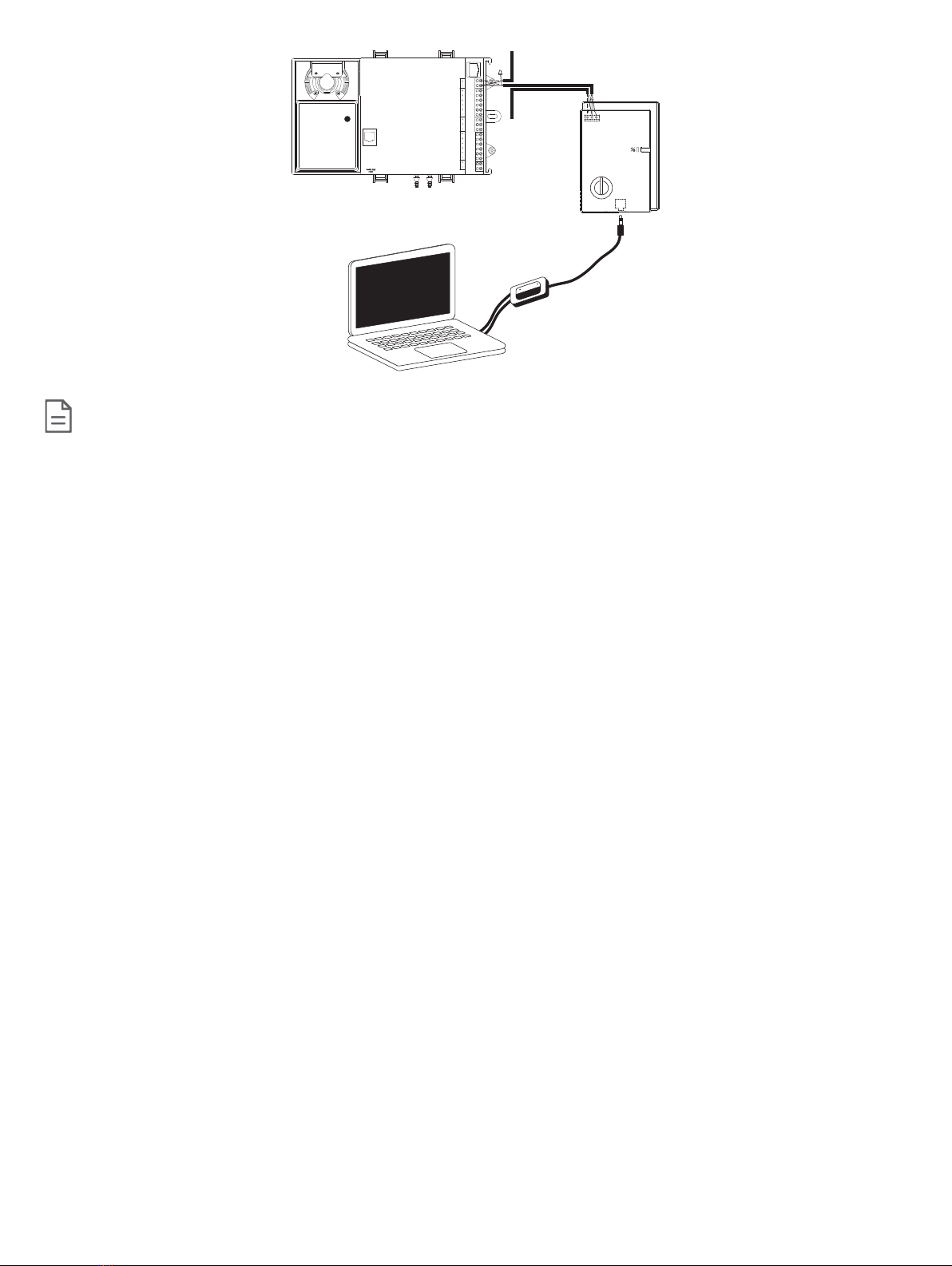
The communications terminals (NET+ and NET-) within the EC-Sensor can be connected to the SMRT+ and SMRT- inputs of a VAV and facilitate VAV
balancing with an EC-Smart-Sensor-VAV. In such a case, the EC-Sensor’s communications jack would have to be used.
To wire an EC-Smart-Sensor-VAV to a VAV via an EC-Sensor do the following:
1. Remove the front plate of the EC-Sensor.
2. Connect the communications terminals (NET+ and NET-) to the SMRT+ and SMRT- terminals of the VAV controller.
3. Remove the back plate of the EC-Smart-Sensor-VAV.
4. Connect the two (2) wires that terminate with the ⅛" audio cable to the SMRT+ and SMRT– terminals of the EC-Smart-Sensor-VAV.
5. Insert the ⅛" audio cable into the communications jack of the EC-Sensor.
PRESSURE
LOWHIGH
1
2
1
2
3
4
5
6
1
2
3
1
2
3
4
5
1
2
1
2
LON1
LON2
SMRT-
SMRT+
UI4
UI3
COM
UI2
UI1
UO6
COM
UO5
DO4
C3-4
DO3
DO2
C1-2
DO1
24 VAC
24V COM
WIRELESS
PORT
NET-
NET+
1/8"
Com.
Jack
SHIELD
TEMP
COMMON
SETPOINT
FANSPEED
LED
SMRT+
SMRT–
LON1
LON2
1/8"
Com.
Jack
Figure8: Wiring an EC-Smart-Sensor to a VAV for airflow balancing
The communications jack for both the EC-Smart-Sensor and EC-Sensor support mono and stereo audio cables.
Wiring an EC-Sensor to a LON network for Technician Use
The communications terminals (NET+, NET-) within the EC-Sensor can be optionally wired to a controller in a LON network To access the LON, a laptop
can be connected to the EC-Sensor. The recommended cable type for LON communications is 22AWG (0.65mm), twisted pair, unshielded. The follow-
ing figure shows how the EC-Sensor is connected in LON network with less than 10ft (3m) T-tap length:

6 / 8
Controller
Sensor
22AWG (0.65mm) unshielded
twisted pair network cable
<10ft (3m) Bus-topology
network
Figure9: LONWORKS
Network Bus Topology with T-tap
To wire a laptop to the LONWORKS network with T-tap via an EC-Sensor, do the following:
1. Remove the front plate of the EC-Sensor.
2. Connect all three (3) LON cables coming from the previous device, going to the next device and going to the EC-Sensor to the LON1 and LON2 input
terminals on the controller. If inserting multiple wires in the terminals, ensure to properly twist wires together prior to inserting them in the terminal con-
nectors.
3. Connect the LON network cable coming from the controller to the NET+ and NET- terminals on the EC-Sensor.
4. Connect the two (2) wires that terminate with the ⅛" audio cable to the output terminals of the LonTalk® adapter of the laptop.
5. Insert the ⅛" audio cable into the communications jack of the EC-Sensor.
PRESSURE
LOWHIGH
1
2
1
2
3
4
5
6
1
2
3
1
2
3
4
5
1
2
1
2
LON1
LON2
SMRT-
SMRT+
UI4
UI3
COM
UI2
UI1
UO6
COM
UO5
DO4
C3-4
DO3
DO2
C1-2
DO1
24 VAC
24V COM
WIRELESS
PORT
NET-
NET+
1/8"
Com.
Jack
SHIELD
From
Previous
To
Next
Figure10: Wiring an EC-Sensor to a LONWORKS
Network Bus Topology with T-tap
If the distance between the EC-Sensor and the controller (T-tap length) is greater than 10ft (3m), a bus topology must be used. The following figure
shows how the EC-Sensor in bus topology LON network:
Controller
Sensor
22AWG (0.65mm) unshielded
twisted pair network cable
Bus-topology
network
Figure11: LONWORKS
Network Bus Topology

7 / 8
To wire a laptop to a bus topology LONWORKS network via an EC-Sensor, do the following:
1. Remove the front plate of the EC-Sensor.
2. Connect the LON cables coming from the previous device and going to the EC-Sensor to the LON1 and LON2 input terminals on the controller. If in-
serting multiple wires in the terminals, ensure to properly twist wires together prior to inserting them in the terminal connectors.
3. Connect the LON cables going to the next device and coming from the controller to the NET+ and NET- input terminals on the EC-Sensor. If inserting
multiple wires in the terminals, ensure to properly twist wires together prior to inserting them in the terminal connectors.
4. Connect the two (2) wires that terminate with the ⅛" audio cable to the output terminals of the LonTalk® adapter of the laptop.
5. Insert the ⅛" audio cable into the communications jack of the EC-Sensor.
NET-
NET+
1/8"
Com.
Jack
SHIELD
From
Previous
To
Next
PRESSURE
LOWHIGH
1
2
1
2
3
4
5
6
1
2
3
1
2
3
4
5
1
2
1
2
LON1
LON2
SMRT-
SMRT+
UI4
UI3
COM
UI2
UI1
UO6
COM
UO5
DO4
C3-4
DO3
DO2
C1-2
DO1
24 VAC
24V COM
WIRELESS
PORT
Figure12: Wiring an EC-Sensor to a LONWORKS
Network Bus Topology
For information and detailed explanations on network topology and wire length restrictions, please refer to the
Junction Box and Wiring Guideline for Twisted Pair LONWORKS
®
Networks
, published by Echelon®.
Wiring an EC-Sensor to a BACnet network for Technician Use
The communications terminals (NET+, NET-, and SHIELD) within the EC-Sensor can be optionally wired to a controller in BACnet network. To access
the BACnet networks, a laptop can be connected to the EC-Sensor. The recommended cable type for BACnet communication is 24AWG (0.5mm),
twisted pair, shielded. The following figure shows how the EC-Sensor is connected in BACnet network:
Controller
Sensor
24AWG (0.5mm) shielded twisted
pair network cable
Bus-topology
network
Figure13: Wiring an EC-Sensor to a BACnet network
To wire a laptop to the BACnet network via an EC-Sensor, do the following:
1. Remove the front plate of the EC-Sensor.
2. Connect the BACnet cables coming from the previous device and going to the EC-Sensor to the NET+ and NET- input terminals on the controller.
Maintain consistent wire polarity. If inserting multiple wires in the terminals, ensure to properly twist wires together prior to inserting them in the termi-
nal connectors. Also, connect the shield of the two (2) cables together while keeping it as short as possible.
3. Connect the BACnet cables going to the next device and coming from the controller to the NET+ and NET- input terminals on the EC-Sensor. If in-
serting multiple wires in the terminals, ensure to properly twist wires together prior to inserting them in the terminal connectors. Also, connect the
shield of the two (2) cables to the SHIELD input terminal on the EC-Sensor.
4. Connect the three (3) wires that terminate with the ⅛" audio cable to the output terminals of the BACnet/IP to MS/TP Adapter.
5. Insert the ⅛" audio cable into the communications jack of the EC-Sensor.

8 / 8 EC-Sensor Series_IG_11_EN
NET-
NET+
1/8"
Com.
Jack
SHIELD
PRESSURE
LOWHIGH
From
Previous
To
Next
15VDC
UI4
UI3
COM
UI2
UI1
UO6
COM
UO5
DO4
C3-4
DO3
DO2
C1-2
DO1
24 VAC
24V COM
NET+
NET-
SUBNET
PORT
Figure14: Wiring an EC-Sensor to a BACnet Network Bus Topology
For information on best practices, specifications, and wiring rules, please refer to the
BACnet Network Guide
.
©, Distech Controls Inc., 2010 - 2020. All rights reserved.
Images are simulated. While all efforts have been made to verify the accuracy of information in this manual, Distech Controls is not responsible for damages or claims arising from the use of this manual.
Persons using this manual are assumed to be trained HVAC specialist / installers and are responsible for using the correct wiring procedures and maintaining safe working conditions with fail-safe environ-
ments. Distech Controls reserves the right to change, delete or add to the information in this manual at any time without notice.
Distech Controls, the Distech Controls logo, Open-to-Wireless, Innovative Solutions for Greener Buildings, and Allure are trademarks of Distech Controls Inc. BACnet is a registered trademark of ASHRAE.
Global Head Office - 4205 place de Java, Brossard, QC, Canada, J4Y 0C4 - EU Head Office - ZAC de Sacuny, 558 avenue Marcel Mérieux, 69530 Brignais, France
Tabla de contenidos
Otros manuales de Accesorios de Distech Controls

Distech Controls
Distech Controls Allure UNITOUCH Manual

Distech Controls
Distech Controls UNIWAVE Manual de usuario

Distech Controls
Distech Controls EC-Multi-Sensor-BLE Manual de usuario

Distech Controls
Distech Controls EC-Multi-Sensor Series Manual

Distech Controls
Distech Controls Allure EC-Smart-Vue Series Manual de usuario

Distech Controls
Distech Controls HS-THX Manual de usuario

Distech Controls
Distech Controls GS-AQR Manual

Distech Controls
Distech Controls Allure EC-Smart-Air Series Manual de usuario