Installing the Controller and Software
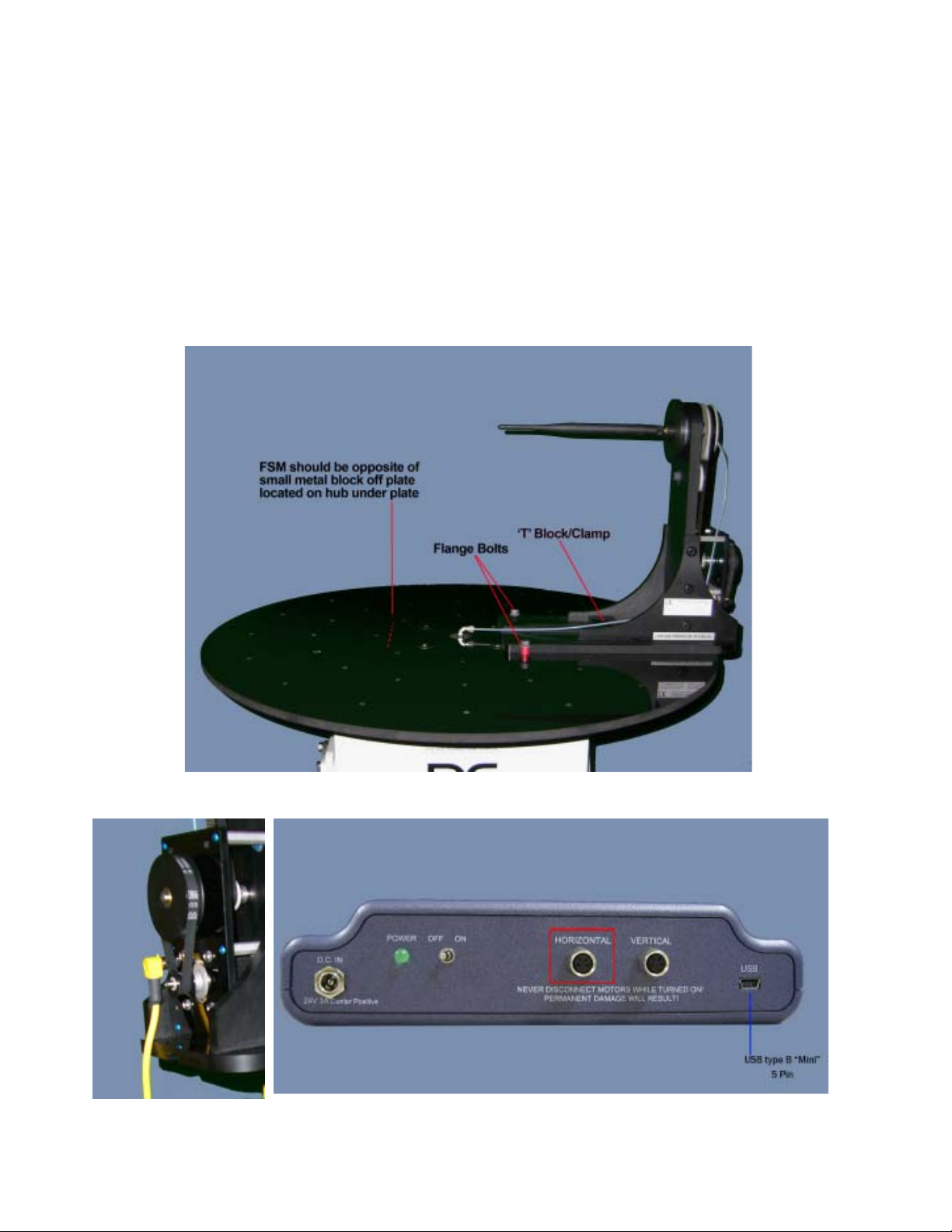
ControllerInstallation-DAMS x100 Series
1. Ensure thex100positioner isalreadyinstalledandconnected.
2. Using devicemanager(control panel>system>hardwaretab>devicemanager) notewhichCOM
portthex100positioneriscurrentlyconfiguredon.
3. Connect the USBcablefromtheController to the PC,thePCwillsayit found new hardware.
4. IMPORTANT–donotcheck windows updateforlatestdrivers,select “not atthistime”then
pressnext
5. choosealocation forwindowstolook for thedriver,youcan specifyc:\dams\driver(windows
willsaythedriverisnotcertified,thisisOK),pressnextandtheinstallation shouldfinish.
6. windows willfindnewhardwareagain , repeat steps4and5.
7. return to the device manager (step 2) andnotethenewcomportthathasappeared.
SOFTWARECONFIGURATION-DAMSx100 Series
*ifyou are upgrading your systemfollowthe upgrade instructions below beforeproceeding
1. Start theDAMSSoftware andclick“positionersettings”
2. place a checkmarkinthe“FullSpherical Mount” box , youwillseeaplaceto select a COM
portappearinthex100 settings area, selecttheportyounoted from device manager.
3. Press the“Save”buttonthenpress “QUIT” toexitandsaveyour changes.
SOFTWAREUPGRADE–Whenupgradinganexistingx100installationwiththeFSM
1. Makeabackup of c:\dams beforecontinuing.
2. Install theCDthatwas includedwiththeFSM
3. Startthesoftwareandpress the“importconfiguration”buttonto importyouroldconfiguration
includinglicensekey.
4. Ifyourold licens was“Standard” pressthe“enter licensekey”buttonto enter thelicensekeyfound
ontheWhiteCDenvelope that wasshippedtoyouwiththe FSM , itshouldbea“Professional
License”
5. Restart theDAMSsoftwareitshould now beatthelatest revision andshowthata professional
licensekeyisinuse.
8