
Dazzle Robotics MAKEIT-501 Manual de usuario

http://www.robokits.co.in
http://www.robokitsworld.com Page 2
Introduction:
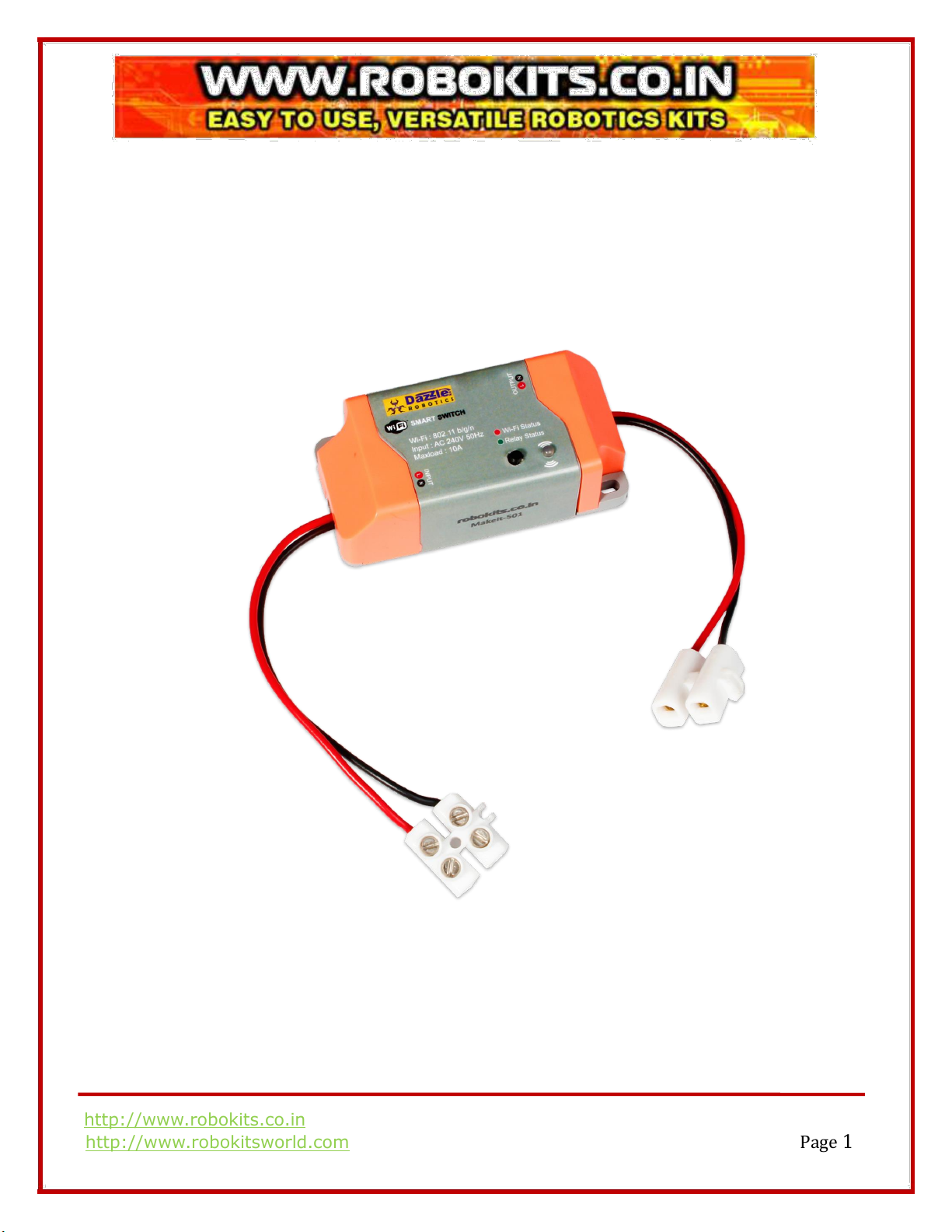
Wi-Fi smart switch is one of the latest IOT Device that provide users with smart home automation. It
is a remote control power switch that can connect to a wide range of appliances. Wi-Fi Smart Switch
transmits data to a cloud platform through the Wi-Fi Router, which enables users to remotely
control all the connected appliances.
Specification:
•WiFi:802.11 b/g/n
•Input: 240V AC(50Hz)
•Max current: 10A
•Dimensions:7.5mm*3.6mm*2.5mm
•Humidity: 5%-90%RH, Non-condensing
•Operating Temperature: 0℃-40℃(32°F-104°F)
Wiring instructions
•Switch off all related electricity sources first.
•Attention: The power input L N cables must connect with the “INPUT” side. The power
output L N cables must connect with "OUTPUT" side. DON`T mistaken the directions!

http://www.robokits.co.in
http://www.robokitsworld.com Page 3
How to use Wi-Fi Switch Module using Default Setting
•Create Wi-Fi-Hotspot in your Android Phone with SSID- abc and Password-123456789, and
then Turn ON the Wi-Fi-Hotspot of your Android Phone.
•See the option in for available Devices “sonoff-XXXX”
•Click on the Network “sonoff-XXXX”
•Find the IP Address of the Network.
•Copy the same IP Address and open your browser and add this IP Address in address bar
For example: IP Address http://192.168.43.12 .Add this Address to the browser Address Bar


http://www.robokits.co.in
http://www.robokitsworld.com Page 5
•Copy the IP Address and open your browser and add this IP Address in address bar
•Click on configuration.
•Commands Setting in Wi-Fi Switch Module. Click on the Console option.
You can change all the setting like SSID, Password, Dynamic IP to static IP, and configure your router
and gateway setting from by the command just you need to enter command in “Enter Commands”
box and you can access all the settings of the device.
Refer this link for Commands.Link: https://github.com/arendst/Sonoff-Tasmota/wiki/Commands

http://www.robokits.co.in
http://www.robokitsworld.com Page 6
How to Add your API and Password in the Device
For example: if you want to connect this to your office router or home router, then follow below
steps:
1. Wiring connections of the Wi-Fi Switch Module
2. Turn On the Wi-Fi of your Android Phone.
3. 4 short presses button available on the Module
•Start Wi-Fi manager providing an Access Point with IP address 192.168.4.1 and a
web server allowing the configuration of Wi-Fi. The LED will blink during the
configuration period. A single button press during this period will abort and restart
the device.
•For Button usage in Wi-Fi Switch Module refer below link:
https://github.com/arendst/Sonoff-Tasmota/wiki/Button-usage
4. Connect the available Devices “sonoff-XXXX”
5. Copy the IP Address and open your browser and add this IP Address(192.168.4.1) in
address bar.
•Add New Wi-Fi AP and Password here and press save.
•Wi-Fi Module switch will connect to your office/home Router after automatic restart.

http://www.robokits.co.in
http://www.robokitsworld.com Page 7
How to upload firmware manually in Wi-Fi Switch Module
•Follow the steps given below
1. Connect the Wi-Fi switch module to PC via CP2102
Wi-Fi Switch Module
CP2102(USB to UART)
VCC
5V
GND
GND
ESP_RXD
TXD
ESP_TXD
RXD
•Note: Switch the module in Program Mode and for this, First short the both pads of “GP” then
plug the CP2102 to PC.

http://www.robokits.co.in
http://www.robokitsworld.com Page 8
2. Open the ESP8266Flasher.exe
•Download from here https://github.com/nodemcu/nodemcu-flasher
3. Firmware
•Load firmware file from storage
•You can Download Firmware file from this link
https://github.com/arendst/Sonoff-Tasmota/releases/download/v6.4.1/sonoff-sensors.bin
4. Select the COM port and press “FLASH”

http://www.robokits.co.in
http://www.robokitsworld.com Page 9
After some time this dialogue box open and this shows flash has been completed.
5. Manually Restart the module
6. Scan for available Wi-Fi in Android Phone, See the option “sonoff-XXXX”
7. Connect to “sonoff-21XX” and open your browser and add this link in address bar
http:// 192.168.4.1
•Below Page opens on Android Phone.
•Add Wi-Fi AP and Password here and press save.
http://www.robokits.co.in
http://www.robokitsworld.com Page 10
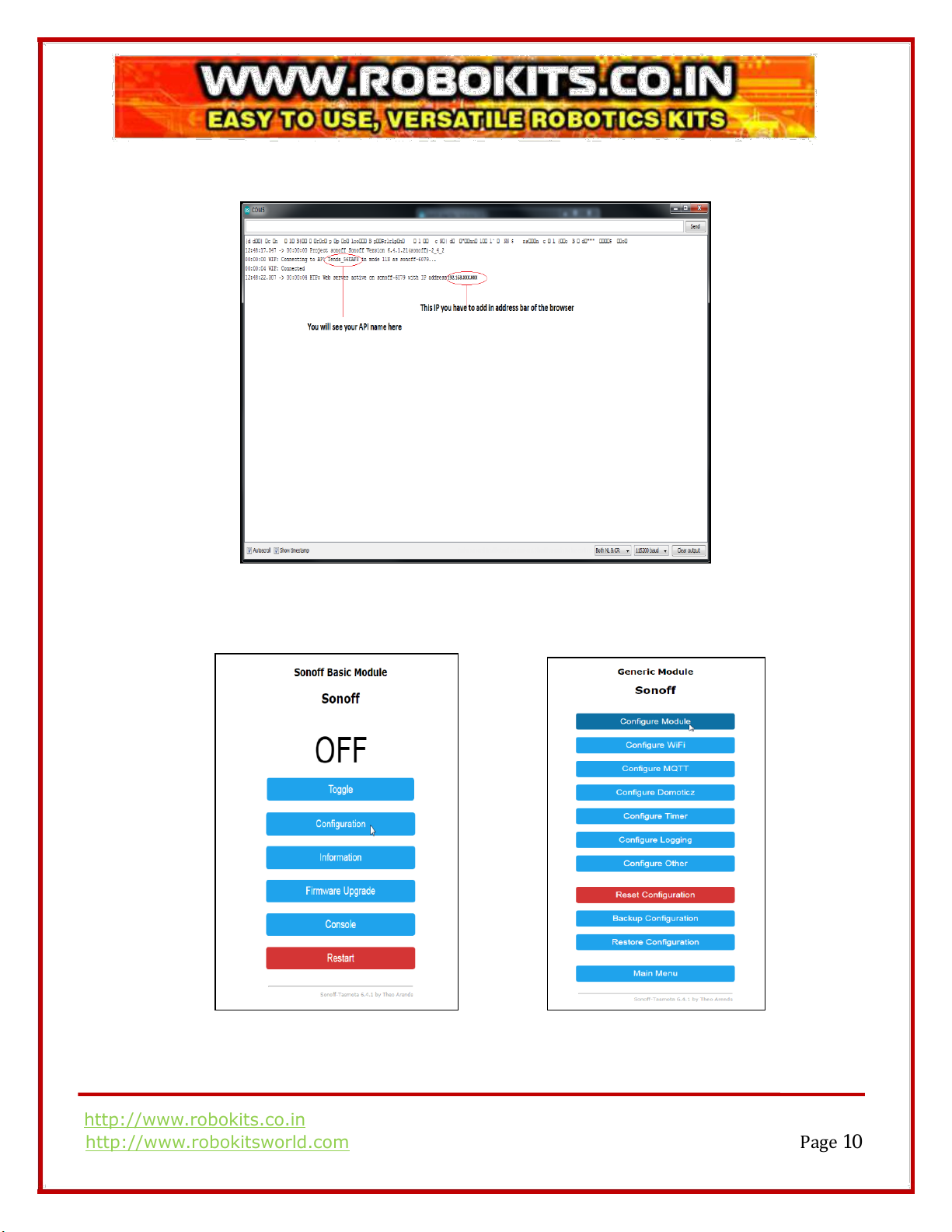
8. To know AP and IP Address ,Open Serial Terminal in Arduino IDE and Select the COM Port and
set Baud Rate at 115200
9. Find the IP address from Serial Terminal and Add that Address into Address Bar of the browser
or next configuration. You will find the web page like in below image, Click on configuration.
Click on Configure module
Tabla de contenidos
Otros manuales de Robótica de Dazzle Robotics

Manuales populares de Robótica de otras marcas

STEMCenter USA
STEMCenter USA Pi-Bot v2.00 Manual de usuario

SunFounder
SunFounder PiDog Manual de usuario

Universal Robots
Universal Robots UR5 Manual de usuario

Universal Robots
Universal Robots E Series Manual de usuario

YASKAWA
YASKAWA MOTOMAN-MPL80 II Manual de usuario

EFORT
EFORT ECR5 Manual de instrucciones


