
Cricket A600 Manual de usuario

User Manual
Cricket A600 EVDO USB Modem

2
1. BEFORE USING CRICKET A600 .........................3
About This User’s Manual.......................................3
Product Overview ......................................................3
Product Package Contents.....................................3
Introduction to Cricket A600 USB Modem ......5
Product Features........................................................5
Product Handling .......................................................6
Configuration...............................................................6
2. INSTALLATION AND SETUP FOR
CRICKET BROADBAND ......................................7
Installing Software...................................................... 7
Setup Program - Windows......................................8
Setup Program - Mac OS X .................................. 12
3. USING CRICKET BROADBAND........................16
Features....................................................................... 16
Getting Started.......................................................... 16
Connecting..................................................................17
Text Messaging......................................................... 19
4. CRICKET BROADBAND PREFERENCES........21
General Preferences............................................... 21
WWAN Specific Settings ....................................... 21
VPN Settings.............................................................22
Text Message Settings.......................................... 23
Update settings ....................................................... 24
Additional Features................................................ 24
5. INSTALLING CRICKET A600............................ 28
Recommended System Requirements .......... 28
Using the Modem ..................................................29
Unplugging or Ejecting the Modem................29
Remove the Modem from your Computer.... 34
Using the USB Modem Extension
Y Cable ...................................................................... 34
TROUBLESHOOTING............................................ 36
CARE AND MAINTENANCE .................................37
WARRANTY............................................................. 38
SAR INFORMATION .............................................. 44
SAFETY INFORMATION ....................................... 46
FCC COMPLIANCE INFORMATION....................47
U.S.A. U.S.FEDERAL COMMUNICATIONS
COMMISSION RADIO FREQUENCY
INTERFERENCE STATEMENT...............................47
CONTENTS

3
1. BEFORE USING CRICKET A600
About This User’s Manual
You will find all the information you need to
install and use the Cricket A600 in this user
manual. Before using the Cricket A600, you
must properly install the modem by closely
following the installation instructions.
Instructions
• Install the Cricket Broadband software by
inserting the Cricket A600 USB Device
into your PC. The installation software
is included in the Cricket A600 modem
memory. When you insert the Cricket A600
into your computer, the installation process
will automatically begin.
• It is highly recommended that you read the
safety precautions described in this manual
before using the Cricket A600.
Documents Included on Your Modem
Memory
• Broadband Usage Conditions, Terms &
Conditions
• User Manual
Product Overview
Thank you for purchasing Cricket A600
USB Modem.
The Cricket A600 is a high-speed wireless
device that enables your computer to
connect to Cricket’s high-speed wireless
network.
The Cricket A600 is simple to install and
use.
Product Package Contents
The following items are included in the
product package. If any of the items listed
below are missing, please contact the retail
location where you purchased the product.

4
1. BEFORE USING CRICKET A600
Cricket A600 Wireless
USB Modem
USB Modem Extension
Y Cable
Quick Start Guide

5
1. BEFORE USING CRICKET A600
Introduction to Cricket A600
USB Modem
The Cricket A600 is designed for the USB
port on your computer, which is available
in most PC models. The Cricket A600 can
be used to access the Internet, send and
receive e-mail and text messages. It is
extremely useful when you are away from
home, on the road, or wherever wired
Internet access is not readily available.
Product Features
- Power management: The Cricket A600
utilizes power management and system
overhead reduction functions provided
by the USB interface for maximum power
savings.
- Antenna design: Ecient, innovative design
optimizes data transfer rate and sensitivity
to network signals.
- Extension Y Cable connector: Connect the
Y cable to two separate USB ports of your
computer to deliver sucient power when
needed to increase RF performance, and to
solve clearance issues.
- USB Modem that supports Type A USB
Port interface.
- Supports North American PCS (1900 MHz),
Cellular (800 MHz) and AWS
(Tx 1700MHZ, Rx 2100MHZ) bands.
- Utilizes Qualcomm QSC6085 chipset.
- Supports high-speed network
technologies.
- Supports Windows 2000, XP, Vista and
Apple Macintosh systems with installed
Cricket Broadband software and driver.

6
1. BEFORE USING CRICKET A600
Product Handling
- Do not place any adhesive labels on
the USB connector. It may leave a sticky
residue that can cause problems inside the
PC USB port.
- The Cricket A600 USB device should
easily slide into the USB port. Do not force
the Cricket A600 into the USB port as it
may cause damage to the modem and/
or the port.
- Keep the Cricket A600 in a dry and clean
place. (Storage temperature: -22°F to 149°F
[- 30°C to 65°C]). Keep your device away
from liquids, dust and excessive heat.
Configuration
To use the Cricket A600, you should install
the Cricket Broadband software included
in the modem memory and configure the
Cricket A600 USB device. See the next
section for more information on software
installation and USB device configuration.

7
2. INSTALLATION AND SETUP FOR CRICKET BROADBAND
This section will guide you through the
installation and setup process for
Cricket Broadband. Before getting started,
you should become familiar with the
documentation that came with your USB
Modem.
Installing Software
Warnings
• Make sure to complete the unplugging/
ejection process before removing the
Cricket A600. If you remove the device
improperly, the modem may be damaged.
Notes
• If you have inserted the device properly,
Windows will inform you of the new
hardware. Wait until Windows completes
the “Found New Hardware” task.
Note: In Windows 2000, several windows
similar to “Found New Hardware” window
can appear and disappear automatically.
In Windows XP, several tool tips similar to
the “Found New Hardware” function will
appear and disappear in the system tray
automatically. In Windows Vista, several tool
tips similar to the “Installing device driver
software” function will appear and
disappear in the system tray automatically.
Once hardware detection is complete, you
will be prompted to start activation.
• It is normal to hear a short beep sound
each time you insert or remove the Cricket
A600. It is an audible notification that your
PC recognizes the new hardware.
Getting Started (Windows)
To install the Cricket Broadband software:
1. Turn on your computer then close all
applications.

8
2. INSTALLATION AND SETUP FOR CRICKET BROADBAND
2. Insert the Cricket A600 modem into your
USB port.
3. Your computer will recognize Cricket
A600 modem and start the installation
sequence automatically. Below pop-up
screen is shown if your OS is Windows
Vista. If the program does not launch
automatically, go to my computer and
select the ‘A600CD’ drive and double
click ‘start.exe’ program.
4. Follow the steps in the next section.
Setup Program - Windows
STEP 1:
The “Welcome to the Cricket
Broadband Setup Wizard” screen appears.
Click the [Next] button to continue with the
installation process.
9
2. INSTALLATION AND SETUP FOR CRICKET BROADBAND
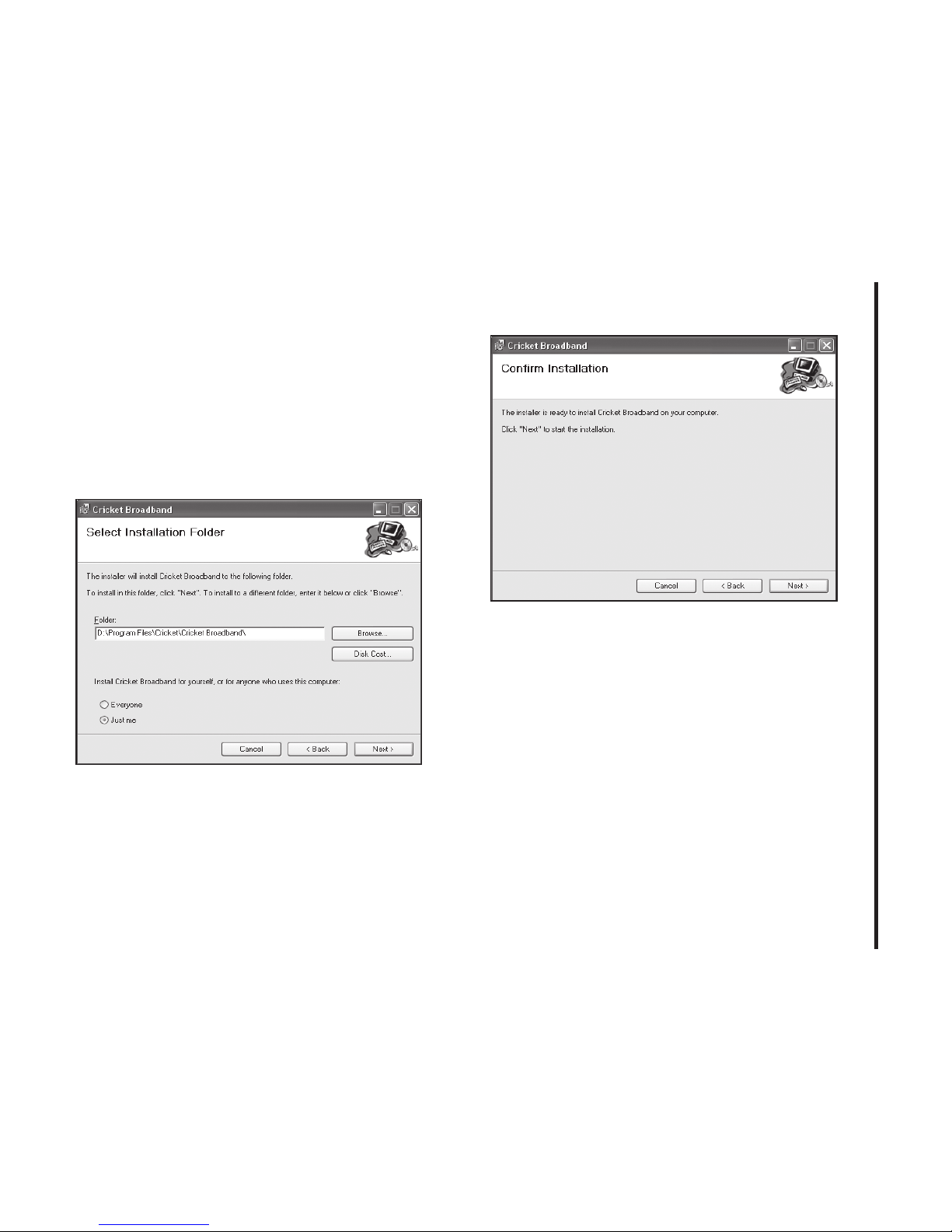
STEP 2:
You are now ready to select the
location on your computer where
Cricket Broadband should be installed. It is
recommended that you do not modify the
default destination folder. Click the [Next]
button to continue.
STEP 3:
During this step the components
of Cricket Broadband product are being
installed onto your computer. Installation
will occur to the destination folder speci-
fied in Step 2.

10
2. INSTALLATION AND SETUP FOR CRICKET BROADBAND
STEP 4:
Installation of Cricket Broadband is
now complete. Click the [Close] button to
leave the Cricket Broadband setup
program and begin using your new
software.
*The setup program will automatically
create a Cricket Broadband shortcut on
your desktop.
STEP 5:
Next, the computer will install the
USB Driver. Click the [Next] button.
Otros manuales para A600
1
Tabla de contenidos
Otros manuales de Módem de Cricket


Manuales populares de Módem de otras marcas


US Robotics
US Robotics 3453C Manual de usuario

MaxTech
MaxTech Plug & Play Internal Voice/FAX/Data/SVD... Manual de usuario

Zte
Zte MF823 Manual de usuario

Four-Faith
Four-Faith F1403 Manual de usuario

Sierra Wireless
Sierra Wireless AIRLINK MP595W Manual de usuario

Gemtek
Gemtek WiMAX WIXFBR-103 Manual de usuario