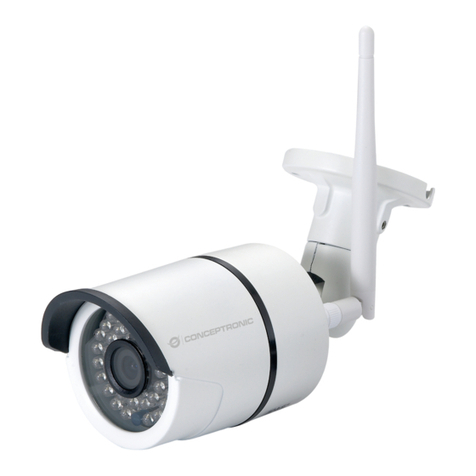
Conceptronic CIPCAMPTIWL Manual de usuario

Wireless Pan&Tilt Network Camera
User Manual
CIPCAMPTIWL
V2.0

1、Installation Environment
Keep away from the places for high-temperature, heat source and direct sunlight;
Keep away from water and when get wet, cut off the power immediately.
Avoid using at damp environment; the reference range for operation humidity is below
85%RH.
Avoid using in overheating and too cold environment, the reference range for operation
temperature is -10℃~ +50℃
Please install it horizontally or wall mounting, avoid strenuous vibration place and not put
other equipments onto the item
2、Transport and Handling
The package is well-designed to ensure the security during the delivery, so please do
not change the package at random.
Do not move the ip cameras from overheated to supercooled condition frequently,
otherwise it will frost and shorten the service life.
Do not move the item when is power on, otherwise the main board might be damaged.
Notice:
1. Please check the power supply before it is working
2. Be careful not to bang the camera or subject it to strong impacts or shocks.
3. Do not directly touch the optical components for the image sensor, if necessary, please
place a clean and moistened cloth with alcohol and wipe the dirt gently; When not in use,
please place the dust cover on to the item to protect the image sensor.
4. Do not aim the camera directly into the sun or at other intense light sources that could
affect the image quality (it is not the problem for the ip camera), also shorten the service
life for the image sensor.
5. Keep away from laser when it is working, otherwise the image sensor can be damaged.
6. If the equipment is not working properly, please contact the store or the service center,
do not disassemble or modify the equipment in any way. (Problems caused by
unauthorized modification or repair should be at your own risk.)
Notice

2
Index
1PRODUCT INTRODUCTION ......................................................................................................3
1.1 PRODUCT SUMMARY.................................................................................................................3
2INSTALLATION GUIDE ...............................................................................................................4
2.1 WIRED CONNECTION TO LAN...................................................................................................4
2.2 WIFI CONNECTING TO LAN .....................................................................................................5
2.3 CONNECTING TO WAN .............................................................................................................6
3OPERATION OF IE BROWSER.................................................................................................7
3.1 VIEW VIDEO..............................................................................................................................7
3.2 DEVICE INFORMATION ..............................................................................................................9
3.2.1 Device status........................................................................................................................9
3.2.2 Device alias setting..............................................................................................................9
3.2.3 Device date and time setting................................................................................................9
3.2.4 Local recording path............................................................................................................9
3.3 DEVICE WEB SETTING .............................................................................................................10
3.3.1 Basic network settings .......................................................................................................10
3.3.2 Wireless wifi settings..........................................................................................................10
3.3.3 Manufacture’s DDNS setting..............................................................................................10
3.3.4 Third party DDNS setting ..................................................................................................10
3.3.5 UPnP settings .................................................................................................................... 11
3.4 ALARM SETTINGS...................................................................................................................11
3.4.1 Alarm service setting ......................................................................................................... 11
3.4.2 Mail Service Setting...........................................................................................................12
3.4.3 FTP Service Setting ...........................................................................................................12
3.4.4 Alarm log ...........................................................................................................................13
3.5 USER AND DEVICE SETTING.....................................................................................................13
3.5.1 Multi-device Setting...........................................................................................................13
3.5.2 User Settings......................................................................................................................14
3.5.3 PTZ settings .......................................................................................................................14
3.5.4 Maintain.............................................................................................................................15
4VISITING DEVICE BY OTHER SOFTWARE..........................................................................15
4.1 OTHER WEB BROWSER ............................................................................................................15
4.2 MOBILE PHONE SOFTWARE .....................................................................................................15
5PRODUCT APPEARANCE AND FUNCTION........................................................................15

3
1 Product introduction
1.1Product summary
Keep an eye on your home or office area from any location. This wireless network (IP)
camera is ideal for remotely monitoring different spaces, with pan and tilt features as well
as advanced motion detection. With a built-in microphone for two-way communication,
the camera is designed for use at home in an area such as a baby’s bedroom or living
room where expensive equipment is kept, as well as for business use; monitoring a
reception area or warehouse. By connecting the IP camera to a wireless router, access
the live images recorded by the camera from any PC or notebook. With cloud
functionality, images can be viewed from any location in the world. Built-in infrared LEDs
enable night-time monitoring and the agile pan and tilt functions allow secure viewing of
every corner for ultimate peace of mind.
Main features for L series:
Monitor your home or office from anywhere in the world
1/5" Progressive CMOS, 640 x 480
Supports 340°pan and 110°tilt
Built-in Infrared LEDs for night viewing
Supports motion detection and event notification via e-mail or FTP
Digital input/output (1DI/1DO) for sensor and alarm
Wireless security with WEP, WPA and WPA2 encryption
Supports iPhone/smartphone/PDA remote viewing over the Internet
Free 64-channel monitoring software included
Supports cloud functionality

4
2 Installation guide
2.1Wired connection to LAN
Power on the IP camera, connect IP camera to router by network cable, meanwhile,
connect computer to the same router, example of figure 1.
Figure 1
Insert CD to computer driver, double click “LSearch_en.exe” in the CD, run the
software, click “Search”, select the device searched, click “Browse” to open browser,
it will pop up user login dialog, enter default user name(admin) and
password(123456) to login the camera as figure 2.
Figure 2
We suggest using IE kernel browser to view the video (it can provide more functions),
but user needs to install video player before viewing the video. Click “OCX Download ” to
download OCX and install it.
Network cable
Router

5
Notice:
If you installed the firewall software in your PC, when you run the LSearch_en.exe, it
may pop up a window to say “whether you want to block this program or not”, then
you should choose not to block.
You can hold on reset button on the camera for 10 seconds to restore factory default
if you forget user name and password, during the process, don’t disconnect the
power, otherwise the camera maybe damaged.
2.2WIFI connecting to LAN
You can connect the camera with router by wireless connection, as figure 3.
Figure 3
Before connecting router by wifi, please connect them as chapter 2.1 to Login camera
and enter wifi setting, and then operate as the following step, example of figure 4.
Figure 4
Enter the Wireless LAN Setting, click the “Scan” button, it will show you all the wireless
networks detected in the Wireless Network List column. Select one of them and tick

6
“Using Wireless Lan”, then the relevant data of the selected wireless network will be
shown in the following blanks. Input the password and click “Submit”, then the WIFI
setting is finished. Unplug the cable, then you can connect to router by wifi.
Notice: When the device is connected both WIFI and wired, it will firstly connect to the
wired network. If the camera enables DHCP to obtain IP address automatically, so the IP
address is not same in wired connection and wifi connection, recommend to set fixed IP
address for the camera.
2.3Connecting to WAN
You should connect the LAN network to WAN first and do the port forwarding, connect as
figure 5.
Figure 5
If visit IP Camera from WAN, you must do port forwarding on the router. Example of
figure 6.
IP camera
Power
LAN computer
WAN computer
Android Phone
iPhone/iPad
ADSL
Router
Internet

7
Figure 6
Operation Steps:
1) After login the interface of the router, choose “Port Forwarding”;
2) Choose “Add custom Service”;
3) Input IP camera http port;
4) Input IP address of IP camera, click “Apply”.
After finishing the port forwarding, you can use WAN IP address of router and http port of
camera to visit the camera by remote computer as figure 5.
Notice: because the routers are different, so the interface and setting method of router
are also different, how to do the port forwarding for various routers, please refer to the
user manual of your router or consult with router manufacturer.
3 Operation of IE browser
3.1View video
After installing the plug-ins, click “Mode 1 to view” as Figure 2 to view the video (video as
Figure 7).

8
Figure 7
1)Audio, Talk, Record, Snapshot
You can click these buttons to perform audio, talk, record
and snapshot functions.
Note: about recording path, click button to enter setting interface, you can set it in
“Local Recording Path”, as figure 8.
Figure 8
2)Multipicture change button
If you add multi-devices in chapter 3.5.1 “multi-device setting”, it will connect other
device to display pictures automatically when changing to 4, 9 split screen. In playing
video area, you can select a picture to control audio, talk, record, snapshot and PTZ
control etc.
3)Viewing control area
You can control PTZ moving, picture reversal and mirror etc. when viewing video, and
can adjust picture parameters, includes resolution, brightness etc.
The camera supports 16 preset points, you can set one place as preset point when
moving the PTZ to a place, also can call the preset point when the camera move to
another place, so the camera can return to set place.
3
1
4
2

9
Note: button can control work mode of IR LED. IR LED may have auto, forced
close two mode, the IR LED will power on or off according to environment light in auto
mode; the IR LED always power off in forced close mode.
4)Setting device parameters
Click button to enter setting interface, you can set all parameters of the camera
described in chapter 3.2 to 3.5. Only administrator can login to set these parameters.
3.2 Device information
3.2.1 Device status
The user can obtain “Device firmware version”,” Web UI version”, “Alias”, “AP MAC” etc.
3.2.2 Device alias setting
The user can name the camera, example for home, office etc.
3.2.3 Device date and time setting
You can enable “Sync with NTP Server” when the device was connected to WAN, but
need to select correct time zone where the camera is located, otherwise need to
select“ Sync with PC time”.
Figure 9
Remark:Please carefully check the camera time, so it can be sure the alarm accuracy.
3.2.4 Local recording path
The camera will be automatically create a file folder named “Record files” when the user
don’t set “local recording path” and launch recording directly, and then save recording file
to the folder, as figure 10.
Figure 10
Otros manuales para CIPCAMPTIWL
3
Tabla de contenidos
Otros manuales de Cámara de seguridad de Conceptronic

Conceptronic
Conceptronic CIPCAM720S Manual de usuario

Conceptronic
Conceptronic CIPCAMPTIWL Manual de usuario

Conceptronic
Conceptronic JARETH03W Manual de usuario

Conceptronic
Conceptronic DARAY01W Manual de usuario

Conceptronic
Conceptronic JARETH02W Manual de usuario

Conceptronic
Conceptronic OZUL05BE Manual de usuario

Conceptronic
Conceptronic CCAM1080TVI Manual de usuario

Conceptronic
Conceptronic CIPCAMPTIWL Manual de usuario

Conceptronic
Conceptronic JARETH Manual de usuario

Conceptronic
Conceptronic CIPCAMPTIWL Manual de usuario