Clas Ohlson NC4000-W10 Manual de usuario
ENGLISH SVENSKA NORSK SUOMI
36-2955
Model NC4000-W10
IP camera

ENGLISH
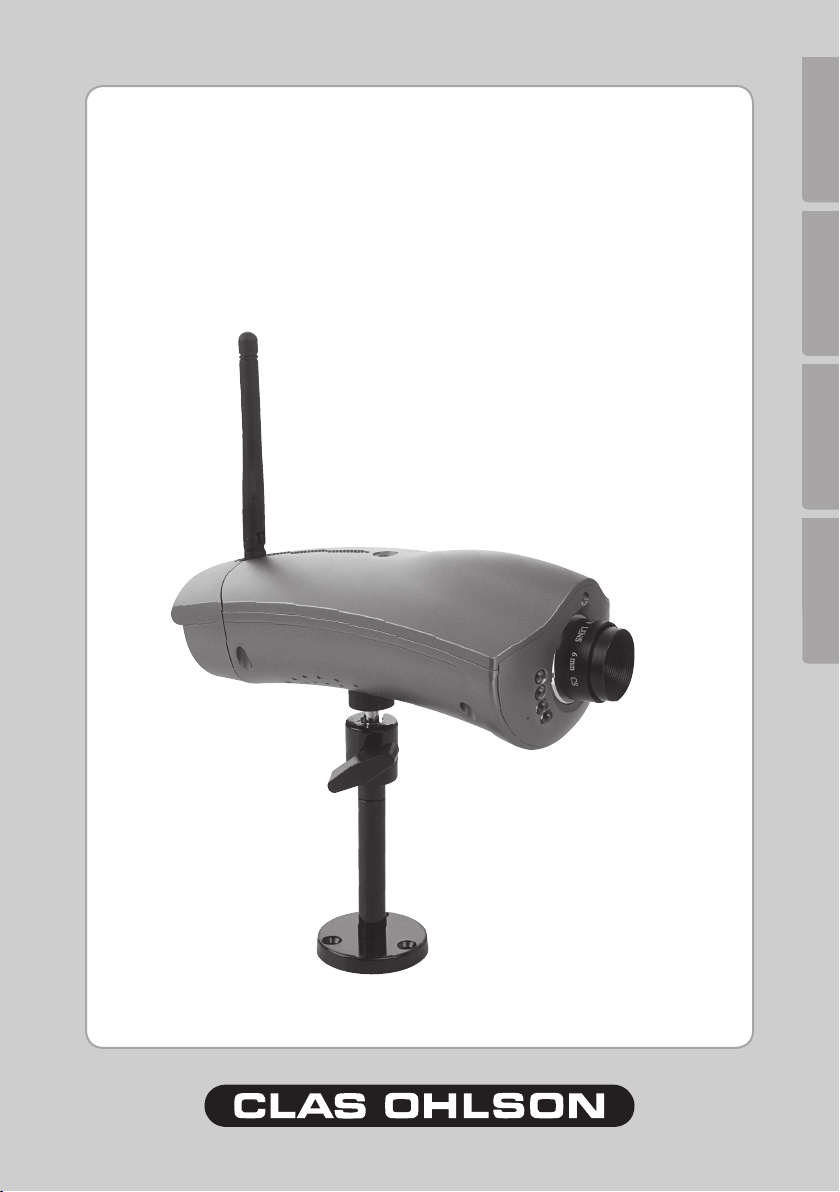
IP camera, art. No. 36-2955, model NC4000-W10
Please read the entire instruction manual before using and save it for future use.
We apologise for any text or photo errors and any changes of technical data.
If you have any questions concerning technical problems please contact our
Customer Service Department (see address on reverse.)
Note! This is only a brief operator’s manual to help you get started.
A complete operator's manual in English is found on the supplied CD.

ENGLISH
Table of Contents
Safety 3
System demands 3
Packaging contains 4
Buttons and Functions 5
Installation 6
Connection 7
Camera’s menu 10
Conguring the Camera 12
Conguring advanced settings 15
Care and Maintenance 16
Trouble Shooting Schedule 17
Disposal 17
Specications 17
Safety
- The camera is for indoor use only.
- Use only the supplied or recommended power adaptor (5V DC).
- Never expose the camera to moisture or humidity.
- Always disconnect the camera from the electricity network before cleaning.
- Never dismantle the camera. Dangerous current exists unprotected in certain
components within the product casing. Contact with this can give electrical
shock.
System demands
- Network connection PC with Windows 2000 or XP
- Microsoft Internet Explorer 6.0 or later

ENGLISH
Pow er
Lan
WLa n
Quick Start Guide
Packaging contains
IP camera Bracket with mounting kit
Network Cable RJ-45
Screws & plugs
Power adaptor
Operating manual
Software program on CD-ROM

ENGLISH
Po wer
La n
WL an
La n 10 / 100 GP IO 1 DO / 2 DI
DC 5V
DI1 DI2 NO
COM
NC
GPIO Port
Connectors
Buttons and Functions
Front view of camera
Lens
IR LED
for night vision
Light Sensor
Microphone
Back view of camera
Antenna for
WLAN
Connector for
LAN (RJ-45)
GPIO ports
(input and output for
external sensors and
sirens)
Power connection
(DC 5 V)
Indicator lights:
POWER (green)
Lights up when the cam-
era is on.
LAN (green)
Lights up when data is
transferred through the
network.
WLAN (green)
Lights up when data is
transferred through the
wireless network.
View from underneath
Screw hole
for the supplied
bracket

ENGLISH
Powe r
Lan
WLan
Lan10/100
GPIOIDO/2DI
D
C5
V
Lan10/100
GPIOIDO/2DI
D
C5
V
Installation
Install software
No software is needed for simple viewing of images from the IP camera, however
you will need to use the supplied software program to set the camera up for the
rst time and nd it on the network.
1. Insert the supplied CD into the computer’s CD-ROM drive.The installation
guide automatically starts and the start image is displayed. If the installation
does not start automatically, use a le explorer application found directly under
the root folder on the CD-ROM.
2. Follow the on-screen instructions until the installation is completed.
Assembling the camera
The camera can be mounted in two different ways with the supplied bracket,
hanging or standing.
Assembling the bracket
- Mount the camera and attachment
as shown in picture. The camera can
then be rotated 360° and can also be
adjusted in height.
- Make sure that the camera is attached
carefully so there is no risk for falling
down.
Note!
The camera should only be mounted in-
doors and not be exposed to moisture or
humidity.

ENGLISH
Powe r
Lan
WLan
Lan10/100
GPIOIDO/2DI
D
C5
V
Lan10/100
GPIOIDO/2DI
D
C5
V
Powe r
Lan
WLan
Lan10/100
GPIOIDO/2DI
D
C5
V
Lan10/100
GPIOIDO/2DI
D
C5
V
Connection
Power Supply
- Connect the adaptor’s DC plug to the camera’s DC-IN socket [DC 5 V] and
then plug the adapter into the wall socket.
- Use only the supplied or recommended net adaptor.
Connection to network through network cable
The camera connects to the network through a network hub, router or switch. You
can also connect the camera directly to your pc with the supplied cable.
To connect the camera to a wireless network see section Conguring Network
Settings.
- Connect a network cable between the
socket marked “LAN” on the camera and
a free port on your router/switch.

ENGLISH
Configuring Network Settings
- To use the camera in a network it must rst be congured with an IP address,
net mask, gateway and a http-port.
1. Install the supplied software program in a network connected computer. Follow
the instructions on the screen.
2. Connect the camera to the network (e.g. router) and then start the program:
MPEG4 Master.
3. When the program has
started, click on "Search"
to search for the camera.
If the camera has
connected correctly the
camera's IP address will
be displayed in the list.
Note! You may need to click on “Search” several times for the program to nd
the camera. You may even need to deactivate any rewall or install a rewall
to restore the program on the network.
4. Select the connected
camera on the list
and make possible
congurations.

ENGLISH
Program functions
Search
Click to search for the connected camera in the network
Wizard
Click to start the conguration guide.
Reboot
Restart the camera.
Save
Save your installations.
Restore
Delete all the elds without saving your settings.
Default
Restore the camera to original setting.
Name
Select a name for the camera, e.g. Hall
IP Address
Enter the camera’s IP address, net mask and gateway. Select DHCP if you want
to give the camera an IP address from the router (see router's operating manual).
You will connect to this IP address later for use and conguration.
New Password
Create a new personal password. The password is used to be able to congure
the camera. The preset password is set to “admin”.
Conrm Password
Enter the password once to conrm the password you entered in the eld above.

10
ENGLISH
Camera menu
Through the camera web interface you can view camera images in real time. You
can also change existing congurations while adjusting the functions of the cam-
era such as image, web and email congurations. For further instructions see the
complete operator’s manual in English which is found on the supplied CD-ROM.
Images in real time can only be shown if the web reader is ActiveX 8.0 – compat-
ible (e.g. Internet Explorer 6.0).
1. Enter the camera’s IP address (in this case 192.168.1.35) and press Enter.
Tip! Enter a page in the web browser's favourites/bookmarks!
2. When the camera’s web interface is loaded the actual camera image is
displayed along with the main menu in the left corner.
Note!
- Images in real time can only be shown if the web browser is ActiveX 8.0
– compatible (e.g. Internet Explorer 6.0).
- You must accept and install the Active X component when the question comes
up on the web browser window.
Tabla de contenidos
Idiomas:
Otros manuales de Cámara IP de Clas Ohlson