CHIYU BF-480 Manual de usuario

BF-480
8 ports serial To TCP/IP Gateway
User’s Guide
2005
CHIYU TECHNOLOGY CO., LTD
http://www.chiyu-t.com.tw
TAIPEI >> TEL:886-2-25491289 | CHIAYI >> TEL:886-5-2835460

【Table of Content】
1. Getting to Know your BF-480…………………………...1
1.1 Introduction
1.2 Main features
1.3 Applications for BF-480…………………………….......4
2. Hardware Installation & Initial Setup…………………….5
2.1 Hardware Installation
2.2 LED status………………………………………………………6
2.3 Initial Setup
2.3.1 Installing the TCP/IP Protocol………………………............5
2.3.2 Fixed IP Addresses Configuration…………………….........7
2.3.3 Configure your BF-480……………………………….........10
3. BF-480 Configuration Setup……………………………....11
3.1 Network Setting
3.2 Operation mode………………………………………….........13
3.3 Serial Type……………………………………………………...15
3.4 Dynamic DNS…………………………………………………...17
4. BF-480 Management Setup………………………………...18
4.1 Device Admin
4.2 Device Status……………………………………………………...19
4.3 Backup and Restore………………………………………......21
4.4 Upgrade Firmware
4.5 Ping………………………………………………………………..22
5. Troubleshooting………………………………………………….23
Appendix B: DDNS
Appendix C: Glossary…………………………………………….30
Appendix D: Finding the MAC Address and IP Address for Your
Ethernet Adapter……………………………………………............35

Copyright by Chiyu Technology Co., Ltd., all rights reserved.
The information in this document has been carefully checked and is believed to
be correct as of the date of publication. Chiyu Technology Co., Ltd. reserves the
right to make changes in the product or specification, or both, presented in this
publication at any time without notice.
Chiyu assumes no responsibility or liability arising from the specification listed
herein. Chiyu makes no representations that the use of its products in the
manner described in this publication will not infringe on existing or future patents,
trademark, copyright, or rights of third parties. Implication or other under any
patent or patent rights of Chiyu Technology Co., Ltd grants no license.
All other trademarks and registered trademarks are the property of their
respective holders.

1. Getting to Know your BF-480
1.1 Introduction
BF-480 serial device servers are designed to make your industrial serial devices
Internet ready instantly. The compact size of BF-480 device servers makes them the
ideal choice for connecting your RS-232 or RS-422/485 serial devices—such as
PLCs, meters, and sensors—to an IP-based Ethernet LAN, making it possible for
your software to access serial devices anywhere over a local LAN or the Internet.
BF-480 serial device servers ensure the compatibility of network software that uses
a standard network API (Winsock or BSD Sockets) by providing TCP Server Mode,
TCP Client Mode, and UDP Mode. And using Chiyu’s virtual COM drivers, software
that works with COM ports can be set up to work over a TCP/IP network in no time.
This excellent feature preserves your software investment and lets you enjoy the
benefits of networking your serial devices instantly.
BF-480 serial device servers support automatic IP configuration protocols (DHCP,
BOOTP) and manual configuration via Chiyu’s web browser console. Both methods
ensure quick and effective installation. BF-480 support special design for PPPoE +
DDNS that could let your device to connect to Internet without static IP address.
1.2 Main features
Package Checklist
BF-480 is shipped with the following items:
Standard Accessories
1 BF-480 8-port serial device server
Document & Software CD
Quick Installation Guide
Product Warranty Booklet
Optional Accessories
Power adaptor
NOTE: Notify your sales representative if any of the above items is missing or damaged.
Product Features
BF-480 enjoys the following features:
Make your serial devices Internet ready
Versatile socket operation modes, including TCP Server, TCP Client, and UDP
Easy-to-use Windows Utility for mass installation
Supports 10/100 Mbps Ethernet—auto detectable
6 port RS-232, one RS-232/485 port and one RS-232/485/422 port
Built-in 15 KV ESD protection for all serial signals
BF-480 has 2 KV isolation protection

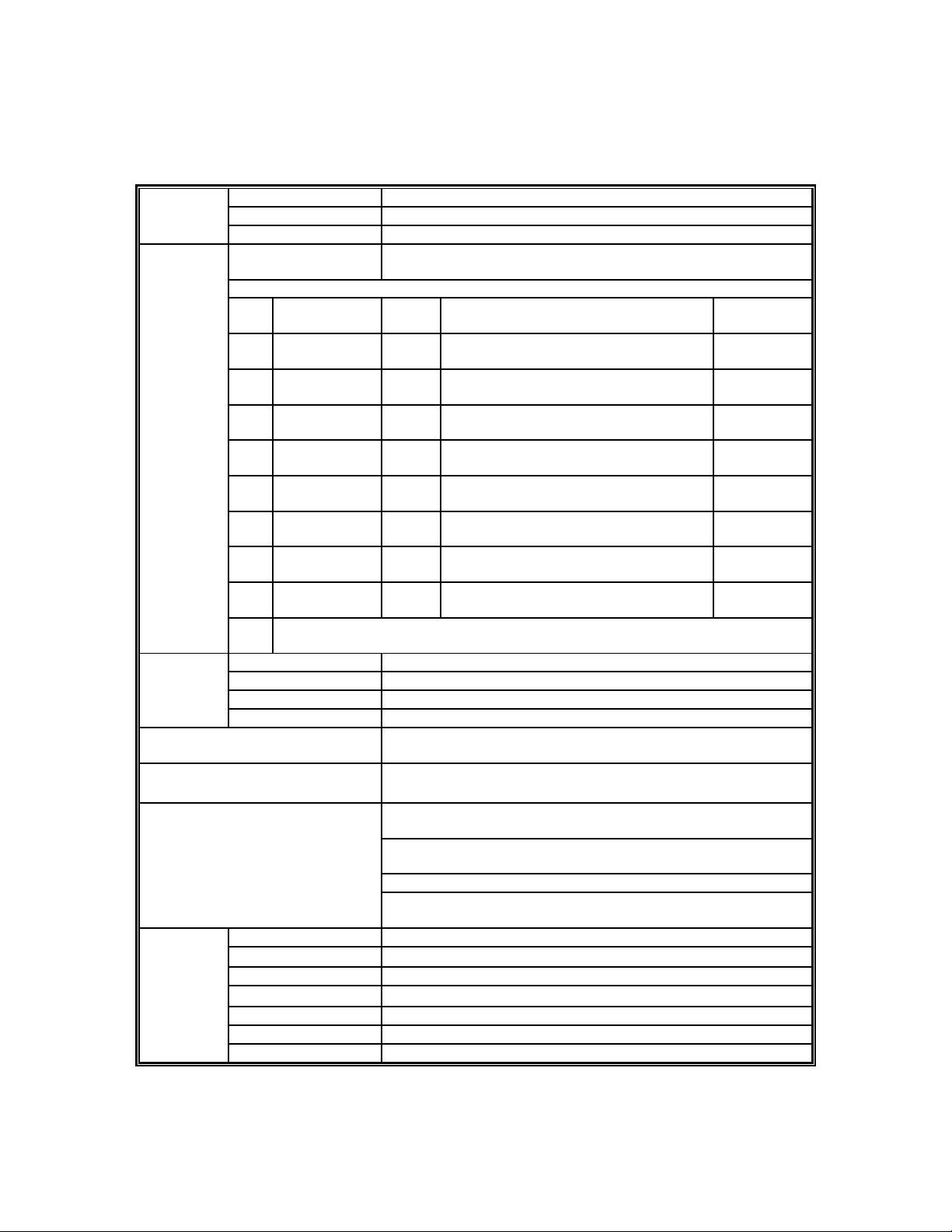
Product Specifications
CPU 16 bit CPU, 100MHz
Memory 256 KB ROM & 768KB SDRAM
Hardware
Watch Dog Support watch Dog, system never halt
Ethernet 10/100Base-T,half/full duplex, Auto Cross Over, 1.5 KV Magnetic
protected
Serial
Port Interface Port
Type signals protection
COM1 RS-232 Screw
TerminalTxD,RxD,RTC,CTS,DTR,DSR,DCD,GND 15KV ESD
COM2 RS-232/485 Screw
Terminal
TxD,RxD,GND(RS-232)
D+, D-(RS-485) 15KV ESD
COM3 RS-232/485/422
Screw
Terminal
TxD,RxD,GND(RS-232)
D+, D-(RS-485) T+, T-, R+, R-(RS-422) 15KV ESD
COM4 RS-232 Screw
TerminalTxD, RxD, GND 15KV ESD
COM5 RS-232 Screw
TerminalTxD, RxD, GND 15KV ESD
COM6 RS-232 Screw
TerminalTxD, RxD, GND 15KV ESD
COM7 RS-232 Screw
TerminalTxD, RxD, GND 15KV ESD
COM8 RS-232 Screw
TerminalTxD, RxD, GND 15KV ESD
Interface
Baud
rate 1200 bps ~230.4Kbps
Parity Check None, even, odd, Mark, Space
Data bits 5, 6, 7, 8
Stop bits 1, 2
Configuration
Flow Control RTS/CTS, XON/XOFF
Supported OS Windows XP, Windows 2000, Windows NT, Windows95/98 ME,
Linux, UNIX
Protocol TCP, IP, UDP, Telnet, ARP, DHCP, ICMP、SMTP、PPPoE、
HTTP、DDNS
Support TCP/UDP Server/Client mode
User name & password protected for web management
Built-in Http server for set up and remote management via any
browser easily
Support backup & restore system configuration data
Management
Support Windows 95/98/ME/NT/2000/XP/2003 virtual COM
drivers
Power requirement DC 9-30V ,500mA
Operation Temp. 0 ~ 55℃
Operation Humidity 5 ~ 95%RH
Storage Temp. -20 ~ 85℃
Size 81X103X30 mm
Magnetic protected Ethernet port 1.5 KV
Power
&
Environment
A
pproval FCC, CE
The following are the main features of BF-480
TCP server/client & UDP mode support
The BF-480 support four types of connection: TCP server, TCP client and UDP mode, user can
select one of types to meet application requirement.
DHCP Client
DHCP (Dynamic Host Configuration Protocol) client obtains the TCP/IP configuration at start-up
from a centralized DHCP server, which means it can get IP address, an IP default gateway and
DNS server.
PPP Over Ethernet
PPPoE is a protocol for connecting remote hosts to the Internet over DSL connection by
simulating dial-up connection.
Dynamic DNS
With dynamic DNS support, you can have a static hostname alias for a dynamic IP address,
allowing the host to be more easily accessible from various locations on the Internet.
Auto-negotiating 10/100Mbps Ethernet
The Ethernet interface automatically detects if it is on a 10 or a 100 Mbps Ethernet.
Full Network Management via Web
This feature allows you to access or manage device through IE or Netscape on any platform. The
firmware also can be upgraded via Web browser.
Backup and Restore configuration
This feature allows you to backup system configuration to a file and restores it, for the security
issue, the file which backup from system is an encryption format.
1.3 Applications for BF-480
Figure 1 Standalone BF-480’s application through Internet

2. Hardware Installation & Initial Setup
2.1 Hardware Installation
BF-480
BF-480M Testing Board

2.2 LED status
LED Color(s) Activity Desc.
Off Power OFF
Red
Blinking Booting/System Self-Test
Power Red
Red On Device Ready
Off No Ethernet Link
Link Green
Green On Ethernet Link established
Off 10 Mbps
SPD Green
Green 100 Mbps
Off No collision
Collision
Red Red Collision
Off No data activity
Ethernet
(on the RJ-45
connector)
ACT Green Green
Blinking Transmitting/Receiving
Off No TCP/IP session link
Green On TCP/IP session link established
Transaction
Link
Green
Green
Blinking
Data Sending/Receiving between Serial
and Ethernet
COM Port No.1-8 Green On The COM port is connected
2.3 Initial Setup
Use this section to set up your computer to assign it a static IP address in the 192.168.168.1 to
192.168.168.254 range with a subnet mask of 255.255.255.0. This is necessary to ensure that
your computer can communicate with your BF-480.
Your computer must have an Ethernet card and TCP/IP installed. TCP/IP should already be
installed on computer using Windows 98/2000/XP and later operating systems.
Note: Connect a computer to BF-480 Ethernet port directly should be with crossover
Ethernet cable, if both connect to hub/switch should be with straight-through Ethernet
cable.

2.3.1 Installing the TCP/IP Protocol
If you are not sure whether the TCP/IP Protocol has been installed, follow these steps to check,
and if necessary, install TCP/IP onto your PCs.
Step 1:Click the “Start” button. Choose “Settings”, then “Control Panel”. Double-click the
“Network Connections” icon. Your Network window should appear as follows:
Step 2:
For Windows 98 and Millennium
On the “Configuration” tab (if using Windows 98 and Millennium PCs), select the TCP/IP line
for the applicable Ethernet adapter. Do not choose a TCP/IP entry whose name mentions
PPPoE, VPN. If the word TCP/IP appears by itself, select that line. Click the Properties button.

Important:
For Windows 2000 & Windows XP Setting, you will find that they differ with Windows 98/ME/NT
slightly. See the following for reference.
For Windows XP and Windows 2000
Click the “Local Area Connection” icon on the lower right hand side of your desktop screen.
In the “Local Area Connection Status” window, click the “Properties” button then your
Network window will appear.
There are two tabs, “General” ”Support”,in the Network window.
Tabla de contenidos
Manuales populares de Puerta de otras marcas

LST
LST M500RFE-AS Manual de usuario

Kinnex
Kinnex Media Gateway Manual de usuario

2N Telekomunikace
2N Telekomunikace 2N StarGate Manual de usuario

Mitsubishi Heavy Industries
Mitsubishi Heavy Industries Superlink SC-WBGW256 Manual de usuario

ZyXEL Communications
ZyXEL Communications ZYWALL2 ET 2WE Manual de usuario

Telsey
Telsey CPVA 500 - SIP Manual de usuario


