
CenturyLink C4000BG Manual de usuario

C4000BG
USER
GUIDE
Version 1.0

2
NOTICE
This document contains confidential information, which is proprietary to CenturyLink. No part of its contents can be used, copied, disclosed, or
conveyed to any party in any manner whatsoever without prior written permission from CenturyLink.
Copyright © 2020 CenturyLink Inc. All Rights Reserved.

3
Contents
1 Introduction........................................................................................................................................................................................................................4
2 Overview.............................................................................................................................................................................................................................4
3 Setup...................................................................................................................................................................................................................................4
4 Internet Connection Setup (CenturyLink Home Router side).............................................................................................................................................7
4.1 Automatic Connection ...............................................................................................................................................................................................7
4.2 Manual Connection....................................................................................................................................................................................................7
5 Setting up a wireless network ............................................................................................................................................................................................9
5.1 Using WPS (Wireless Protected Setup)......................................................................................................................................................................9
5.2 Setting up a wireless network manually ....................................................................................................................................................................9
6 Getting to know the C4000BG ..........................................................................................................................................................................................10
7 Technical Specifications:...................................................................................................................................................................................................11
7.1 General Specifications..............................................................................................................................................................................................11
7.2 Dimensions and weight............................................................................................................................................................................................11
7.3 Environmental Parameters ......................................................................................................................................................................................11
8 FCC: ...................................................................................................................................................................................................................................12
4
1 Introduction
Please read through this user guide prior to using this product and retain the manual for future use. Only operate this device upon the full
understanding of the devices basic operation as described in this manual.
Any deviation or alteration of this product, it's appearance or specification are without consent or further notice of the company.
2 Overview
The C4000BG is a high performance 2x2 Wi-Fi 6 router (802.11ax) with a bonded VDSL2 integrated access device (IAD) and a four-port built-in it Gigabit
Ethernet switch. The C4000BG allows wired and wireless clients to safely access the Internet. Additionally, the C4000BG includes a Gigabit Ethernet LAN
port that can also serve as a WAN connection to support a either a WAN or LAN function.
3 Setup
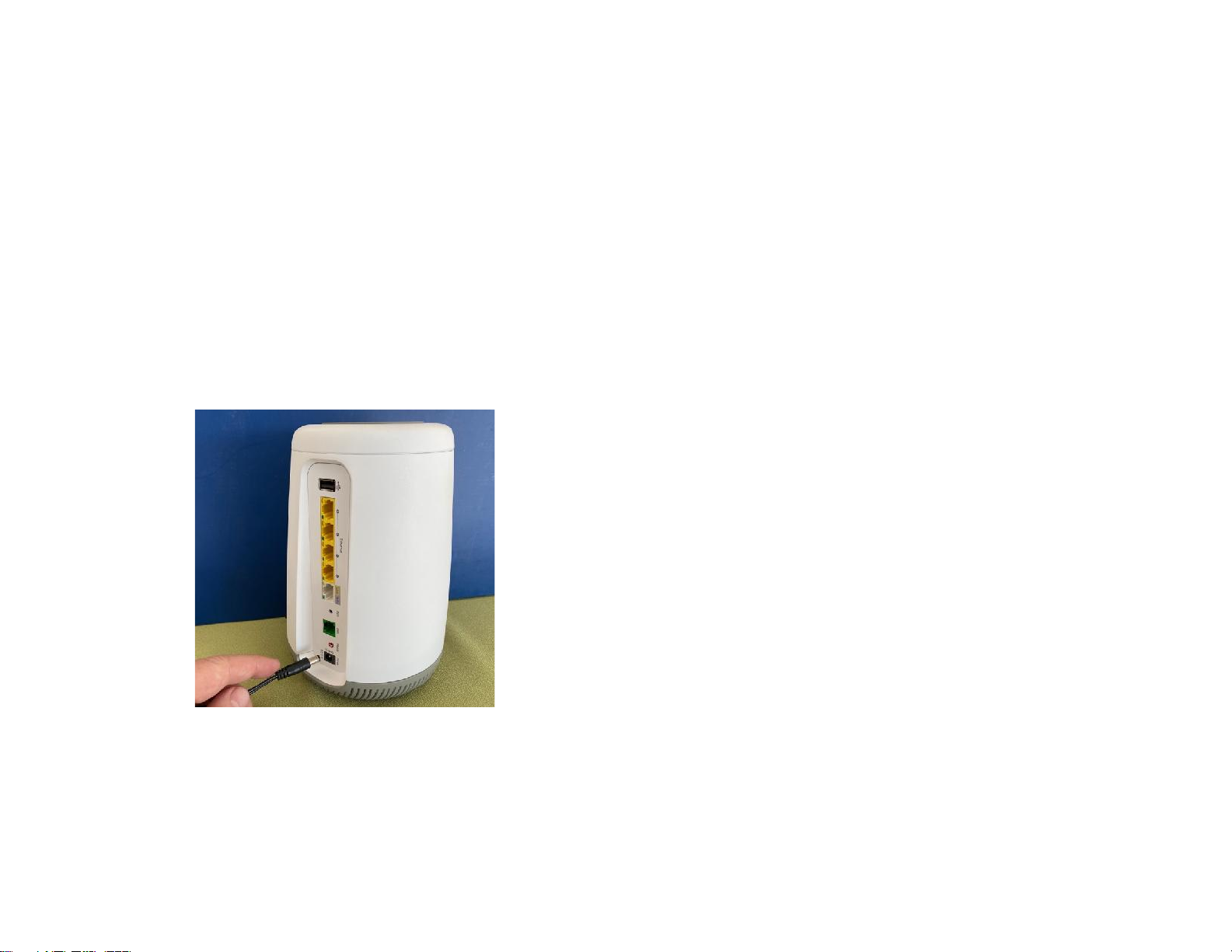
1. Insert the power connector into the C4000BG.

5
2. Plug the power adapter into a power outlet.
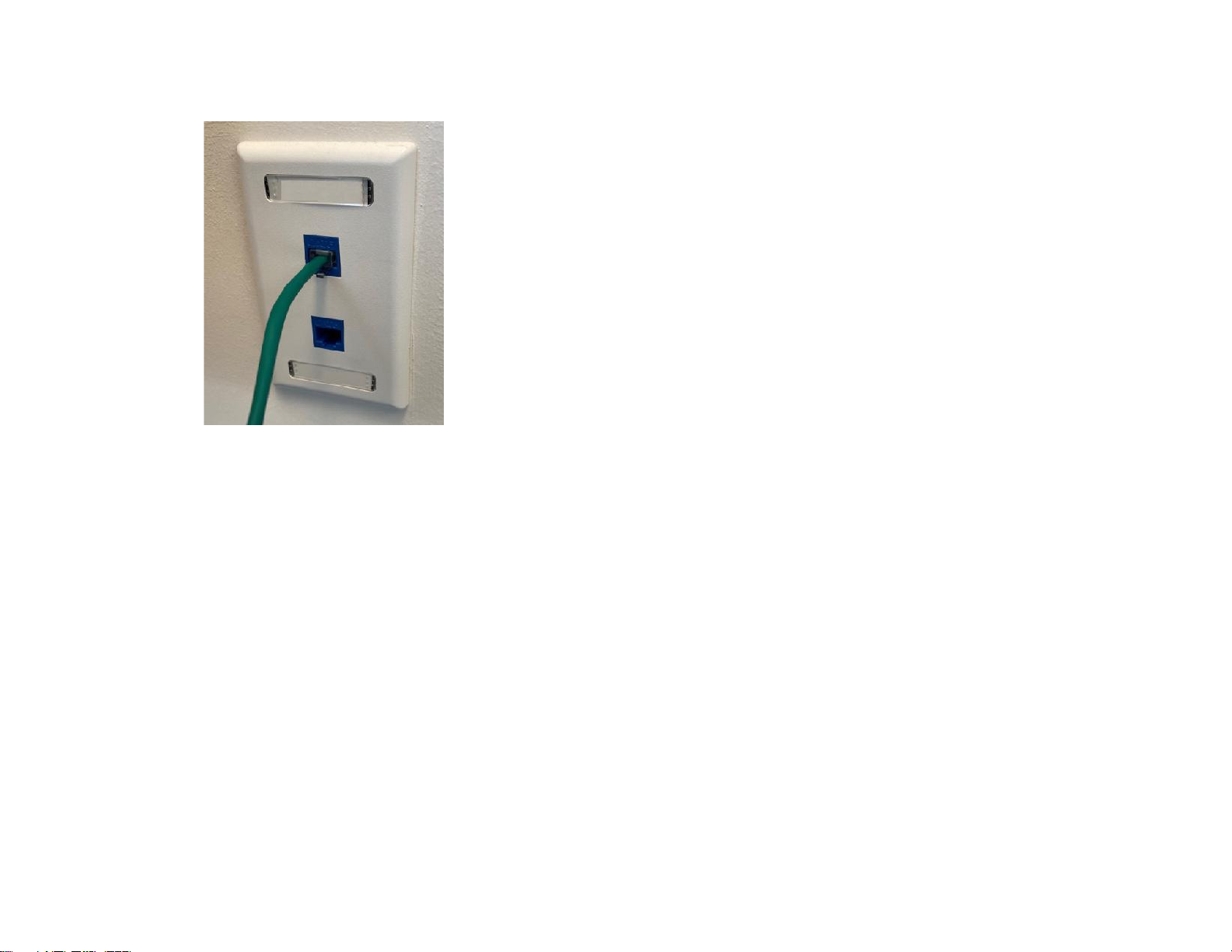
3. Plug phone cable (green) into the C4000BG
6
4. Plug other end of phone cable into the your home phone line.
5. Continue to the Internet connection Setup.
7
4 Internet Connection Setup (CenturyLink Home Router side)
Your C4000BG can automatically detect and configure your Internet (section 4.1), or done manually (section 4.2).
4.1 Automatic Connection
1. Open your web browser to a website. Wait while your device tries to detect your DSL connection to your ISP. This may take a few
minutes.
2. After it detects the connection, the LED Ring will show green on your C4000BG when the Internet is ready for you to use. If you
have a PPPoE connection, you will have to enter the user name and password provided by your ISP.
3. Go to Set Up a Wireless Network if you wish to configure your wireless settings.
4. If the automatic connection is not successful, check your connections and restart the Device. Also, make sure you have entered the
user name and password correctly. If you still cannot access the Internet, follow the steps in the next section to manually configure
the Internet connection.
4.2 Manual Connection
You can also manually log into the router’s Web UI to configure your Internet connection
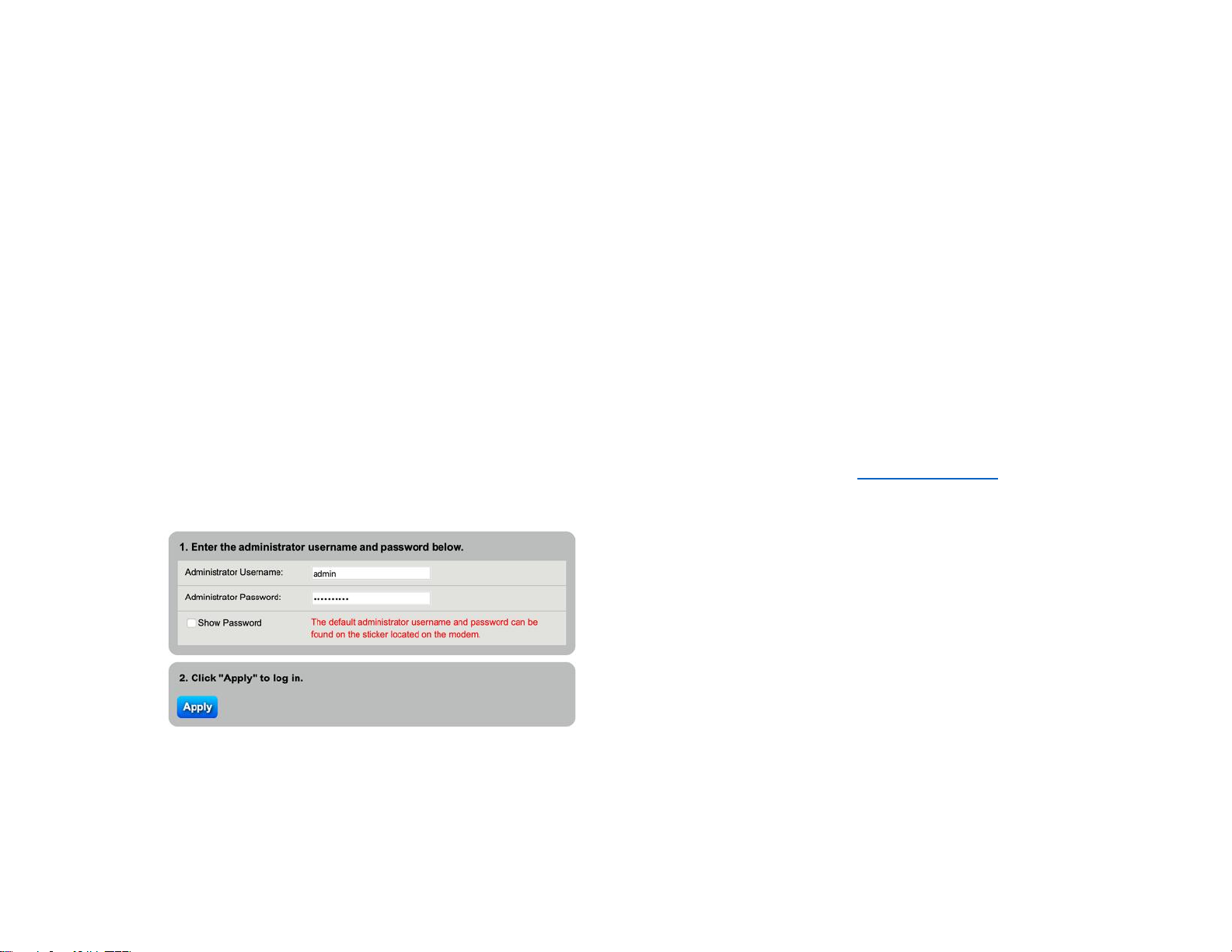
1. In your browser, if the Device does not automatically re-direct you to the login screen, go to http://192.168.0.1
2. Enter the default user name admin and password (see the label on the bottom of the device). Click Apply.
If the login screen does not open, make sure you allow web browser pop-up windows, JavaScripts and
Java permissions. Your computer should be also set to get an IP address automatically from a DHCP server.

8
3. The main screen will appear. Click the quick setup icon to configure the device’s Internet access
4. Enter the user name and password provided by your ISP. Click Apply to finish the configuration.
5. The LED ring in the center of the C4000BG will light up green upon full internet access. If it is Red, please contact CenturyLink
support to troubleshoot. Alternatively, you can look at the status within the Web UI to try to determine what the issue might be.

9
5 Setting up a wireless network
You can setup a wireless network using the following methods using an automatic connection (section 5.1) or manually connecting the
device (section 5.2):
5.1 Using WPS (Wireless Protected Setup)
1. Press the WPS button on the C4000BG’s front for more than five seconds to turn WPS on.
2. You should see the light blinking White until a pairing sequence has started with the device connecting to the network (at which
point it will alternate white and green).
3. Press the WPS button on the device you wish to connect to the network
4. If a successful connection is established, the LED ring will alternate Green, then white, then solid green once normal active
operations continue.
5.2 Setting up a wireless network manually
The wireless LAN on your C4000BG is enabled by default. To add a wireless client to the network, use the settings found on the bottom label
of your C4000BG. Configure wireless devices that you want to connect to the wireless network to use the same wireless settings as the
C4000BG.

10
6 Getting to know the C4000BG
Front
Back
WPS BUTTON
LED RING
BUTTONLED
USB PORT
BUTTONLED
ETHERNET
PORTS
WAN/LAN PORT
DSL PORT
RESET & POWER
PORTS
Tabla de contenidos
Otros manuales de Enrutador inalámbrico de CenturyLink


