
Caimore CM520-82 Manual de usuario

厦 门 才 茂 通 信 科 技 有 限 公 司
Xiamen Caimore Communication Technology Co.,Ltd
User Manual
CM520-82 Router
Xiamen Caimore Communication Technology Co.,Ltd
Add: 3F, 1st Building, 23# Wanghai Road, Xiamen
Tel:+86-592-3799895 Fax:0592-5975885 P:361009
Web:www.caimore.net Email:oversea@caimore.com
版权所有2003-2009
----
才茂通信 通畅天下
----

厦 门 才 茂 通 信 科 技 有 限 公 司
Xiamen Caimore Communication Technology Co.,Ltd
Statement
Copyright Statement:
All contents included in this user manual are protected by copyright law, any organization
or person has no right to copy, reproduce and spread by any method, unless gets the written
authorization from Xiamen Caimore communication technology co.,Ltd.
Trademark:
Caimore and other Caimore brands are possessed by Xiamen Caimore communication
technology co.,Ltd. Other brands or registered brands mentioned in this page are possessed
by their owner.
Notice:
The file will be updated because of the unscheduled upgrade of products and other
reasons. Unless there are other agreement, the file is only used as the manual guide, the
information and suggestion included in this page do not constitute any express or implied
warranty.

厦 门 才 茂 通 信 科 技 有 限 公 司
Xiamen Caimore Communication Technology Co.,Ltd
Catalog
1. Installation......................................................................................................................................................... 1
1.1 Overview................................................................................................................................................1
1.2 Unpacking.............................................................................................................................................. 1
1.2.1 CM520-82 standard parts list.................................................................................................... 1
2. Installation......................................................................................................................................................... 2
2.1 Install SIM Card.....................................................................................................................................2
3. Rapidly Configure............................................................................................................................................. 3
3.1 Dial to Internet....................................................................................................................................... 3
3.1.1 Insert SIM Card to SIM Card Slot............................................................................................ 3
3.1.2 Connect Antenna....................................................................................................................... 3
3.1.3 Connect Router and Computer..................................................................................................3
3.1.4 Configure Computer’s Network................................................................................................4
3.1.5 Configure WAN........................................................................................................................ 6
3.1.6 Configure LAN......................................................................................................................... 8
3.1.7 Test Configuration.....................................................................................................................8
4. Detailed Configuration...................................................................................................................................... 9
4.1 Basic.......................................................................................................................................................9
4.1.1 WAN......................................................................................................................................... 9
4.1.2 LAN.........................................................................................................................................10
4.1.3 DDNS...................................................................................................................................... 10
4.1.4 Keep Alive...............................................................................................................................12
4.2 Advance............................................................................................................................................... 12
4.2.1 Filter........................................................................................................................................ 12
4.2.2 NAT/DMZ...............................................................................................................................16
4.2.3 Route....................................................................................................................................... 17
4.3 VPN......................................................................................................................................................19
4.3.1 GRE.........................................................................................................................................19
4.3.2 PPTP........................................................................................................................................19
4.3.3 IPSEC/L2TP............................................................................................................................21
4.3.4 N2N......................................................................................................................................... 24
4.3.5 OpenVPN................................................................................................................................ 25
4.4 Internet Management........................................................................................................................... 25
4.4.1 QoS..........................................................................................................................................25
4.4.2 Portal....................................................................................................................................... 26
4.4.3 Wifidog....................................................................................................................................26
4.4.4 Application Filtering............................................................................................................... 27
4.4.5 Follower.................................................................................................................................. 28
4.5 System..................................................................................................................................................28
4.5.1 Status....................................................................................................................................... 28
4.5.2 WiFi Probe.............................................................................................................................. 28
4.5.3 User......................................................................................................................................... 29
4.5.4 Upgrade................................................................................................................................... 30
4.5.5 System Tool.............................................................................................................................30

厦 门 才 茂 通 信 科 技 有 限 公 司
Xiamen Caimore Communication Technology Co.,Ltd
4.5.6 Debug...................................................................................................................................... 32
4.6 Other.................................................................................................................................................... 33
4.6.1 DTU.........................................................................................................................................33
4.6.1 FlowCtrl.................................................................................................................................. 35
4.6.2 Reboot..................................................................................................................................... 35
Technical Support................................................................................................................................................35

厦 门 才 茂 通 信 科 技 有 限 公 司
Xiamen Caimore Communication Technology Co.,Ltd
1
1. Installation
1.1 Overview
To meet the design function, router must be installed correctly. Usually, the installation
should be under the guidance of qualified engineer who is approved by Xiamen Caimore
communication technology co.,Ltd.
Notice:Please install the router without power!
1.2 Unpacking
To ensure the safe transportation, product should be packed reasonably. Please keep the
package material when you open the box so as to use them again when before transporting
in the future.
Notice:Please confirm that the accessories coincides with packing list when you
open the product box.
1.2.1 CM520-82 standard parts list
Gateway Host
1 Unit
RJ45-DB9 Serial Cable
1PC
DC 9V Power Adapter
1 Unit
Network Cable
1PC
3G Antenna
1PC
厦 门 才 茂 通 信 科 技 有 限 公 司
Xiamen Caimore Communication Technology Co.,Ltd
2
2. Installation
2.1 Install SIM Card
SIM card stores information such as user identification, network settings, additional
service information and so on. The router supports 1.8V/3V/5V SIM card, and user can
insert SIM card without opening the enclosure.
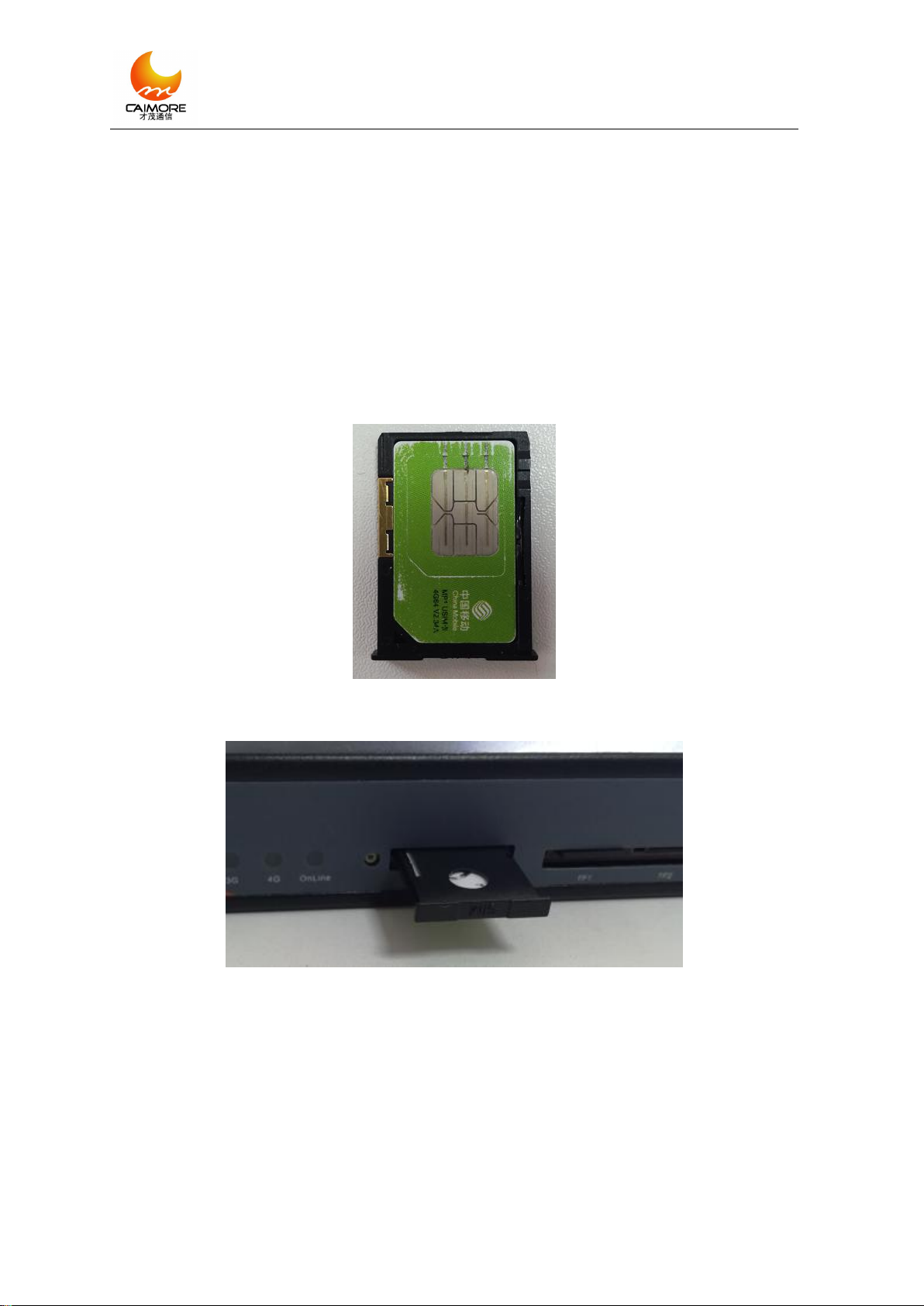
The method to insert the SIM card:
Before powering the router, turn the side with metal contact surface up while putting it
on card tray. As picture showing:
After that, please turn the card tray 180 °to make the metal contact face down and
insert it to router. As picture showing:
Notice: Please do not insert or pull out the SIM card when router is charged!

厦 门 才 茂 通 信 科 技 有 限 公 司
Xiamen Caimore Communication Technology Co.,Ltd
3
3. Rapidly Configure
For one condition, to make it convenient for customers to test router, and another
condition, for most customers who just need some basic functions, this chapter is very
useful for these customers. And it shows the configurations under the operation system of
Windows 7.
Usually, there are WAN and LAN need to be configured in quick configuration, other
functions settings please refer to chapter 4 “Details of All Settings”.
3.1 Dial to Internet
There are multiple modes can be used to make router dial to internet, you can choose
one of them.
3.1.1 Insert SIM Card to SIM Card Slot
Insert the SIM card.As picture showing.
NOTICE: Please power up router after inserting the SIM card.
3.1.2 Connect Antenna
Please connect antennas according to interfaces.
3.1.3 Connect Router and Computer
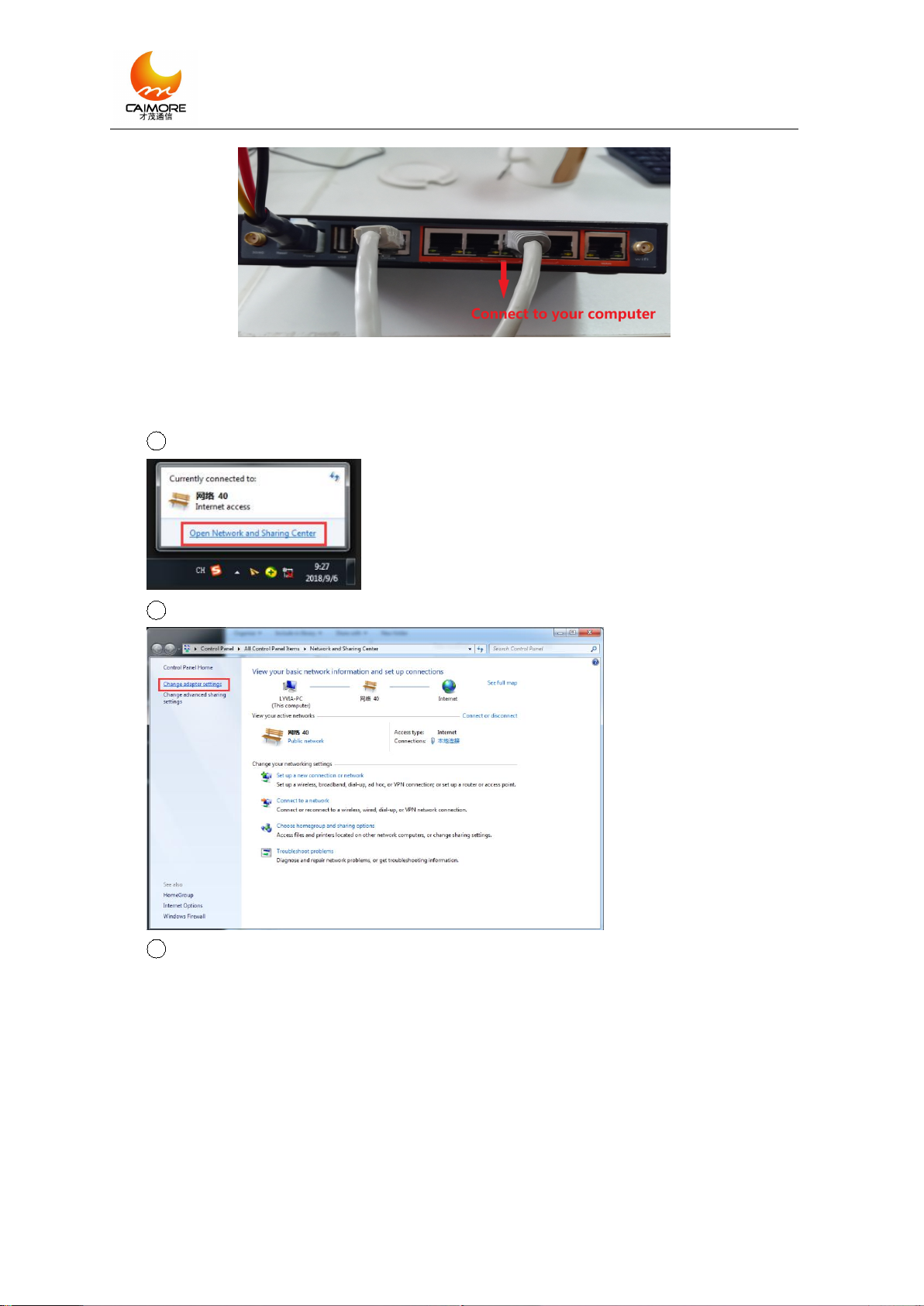
Please connect your computer and router through LAN port. As picture showing:
厦 门 才 茂 通 信 科 技 有 限 公 司
Xiamen Caimore Communication Technology Co.,Ltd
4
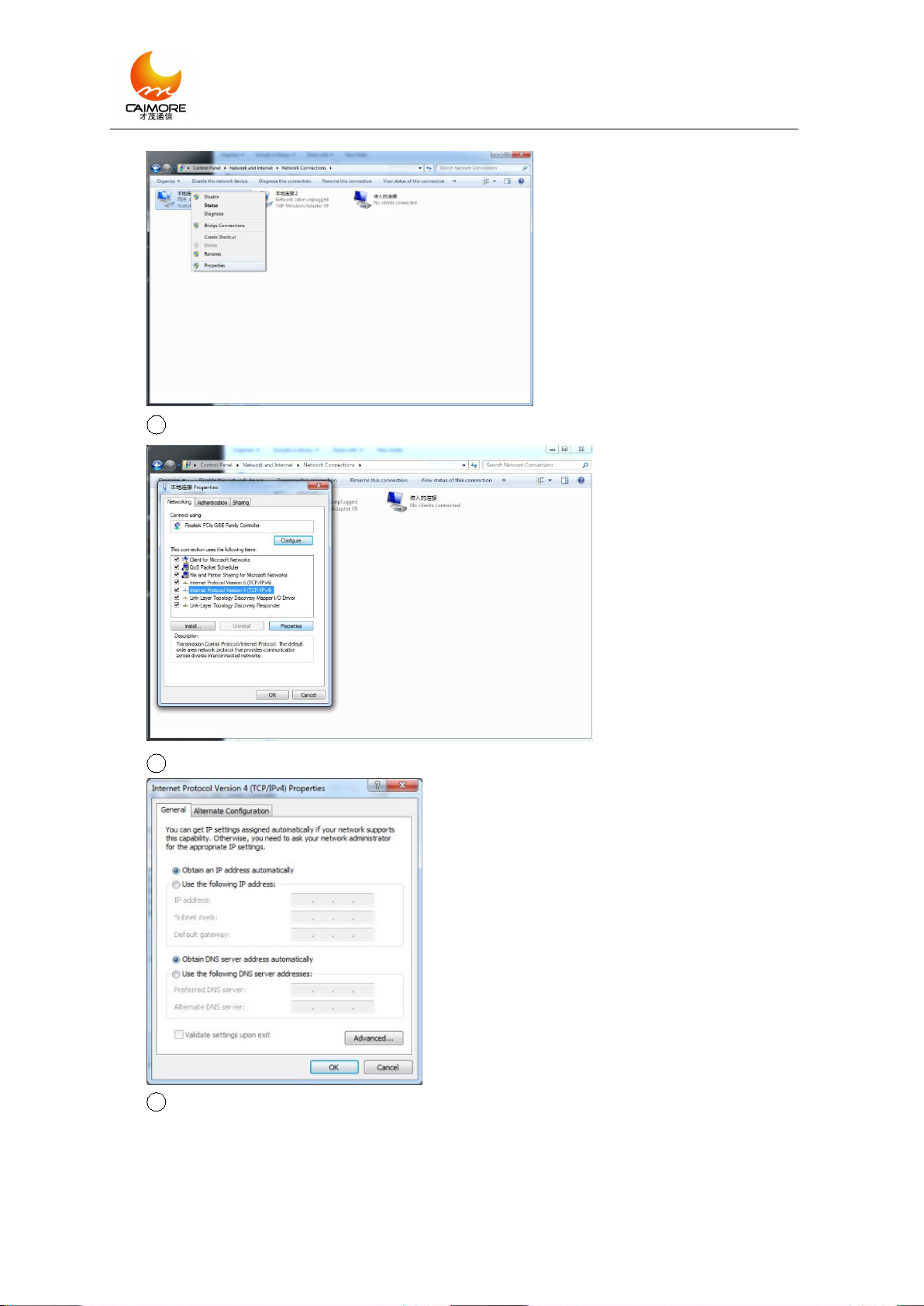
3.1.4 Configure Computer’s Network
1Open Network and Sharing Center.
2Change adapter settings.
3Choose “Realtek PCIe GBE Family Controller”. And click “Properties”.
厦 门 才 茂 通 信 科 技 有 限 公 司
Xiamen Caimore Communication Technology Co.,Ltd
5
4Choose “Internet Protocol Version 4(TCP/IP 4)”, and click “Properties”.
5Obtain a IP address and DNS server address automatically.
6Type “ipconfig” in cmd, then you can see the “Default Gateway”, that’s the LAN
IP address of router.

厦 门 才 茂 通 信 科 技 有 限 公 司
Xiamen Caimore Communication Technology Co.,Ltd
6
7Type “192.168.9.1:9999” in browser’s URL box.
8There will be a window popping up, and it requires username and password. As
picture showing, the default username and password are both “admin”.
Notice:
Router’s default LAN IP address is 192.168.9.1.
The default port to access the configuration web page is “9999”.
The default username is “admin”, the default password is “admin”.
3.1.5 Configure WAN
Please switch to “WAN” - “SIM Dial” page.
Tabla de contenidos
Otros manuales de Enrutador de red de Caimore

Caimore
Caimore CM520-86WG Manual de usuario

Caimore
Caimore CM3155R Manual de usuario

Caimore
Caimore CM530-8 Series Manual de usuario

Caimore
Caimore CM520-86 Manual de usuario

Caimore
Caimore CM520-8AF/W Manual de usuario

Caimore
Caimore CM520-87 Manual de usuario

Caimore
Caimore CM520-6X Series Manual de usuario
Manuales populares de Enrutador de red de otras marcas


NETGEAR
NETGEAR FS526T - Switch Manual de usuario

Korenix
Korenix JetNet 5710G Series Manual de usuario

Automated Logic
Automated Logic ZN551 Manual del propietario

Cisco
Cisco ASR 1000 Series Manual del operador

EnGenius
EnGenius ESR-9710 Manual de usuario

Cisco
Cisco 805 Series Instrucciones de funcionamiento y seguridad