
Blocklychain TH-104 Manual de usuario
Thermometer
Hygrometer
TH-104

2
Thank you for purchasing Smart Button. We
are excited to bring convenience, security, and
peace of mind into your home.
Control and monitor your home devices
from Internet.
HELLO
Remote Access
Thermometer Hygrometer provides Wi-
Fi to connect directly to the Internet.
Using a last-longing rechargable battery,
Thermometer Hygrometer works for a
long time.
Using Blockly, you can automate and
expand the functionalities of your Ther-
mometer Hygrometer.
Wi-Fi Connectivity
Rechargable Battery
Blockly Programming
Turn home devices on and o through
your voice.
Voice Control

3
How to Install
Thermometer
Hygrometer
1. Connect Thermometer Hygrometer to a USB
Type-C charger.
2. Go to www.blocklychain.io
www.blocklychain.io

4
4. Click on Devices on the menu.
Home
Devices
Service Market
Installed Services
SEM
Activity
Service Creator
My Home Today
Tuesday, 29 September 2021
Devices
Services
0
4
12:28 Europe/London
Home
Devices
Service
Service Gallery
SEM
Activity
Service Creator
My Home
5. Click on Add New Device.
Home
Devices
Service Market
Installed Services
SEM
Activity
Service Creator
My Home
3. Log into your account in BKC Control Panel.
[or signup if you don’t have an account.]
www.blocklychain.io
Login

5
7. Name your device and click on Next.
Add New Device
Name your device
Set a name for your device.
NextCancel
Home
Devices
Service Market
Installed Services
SEM
Activity
Service Creator
My Home
8. Make sure your device is connected to a
charger and press the button on your device
once. Then, click on Next.
Add New Device
Turn on the device
Make sure that your device is on.
NextCancel
Make sure your device is connected to a charger.
Home
Devices
Service Market
Installed Services
SEM
Activity
Service Creator
My Home
6. Select Thermometer Hygrometer from the
list.
Add New Device
Choose your device type
Choose the type of your new device you want to install
Motion Detector
Thermometer
Hygrometer
Door Sensor Smart Button Smart Plug Smart Speaker
Home
Devices
Service Market
Installed Services
SEM
Activity
Service Creator
My Home
6
11. Wait for a few seconds until the pop-up
window closes automatically.
10. Go back to BKC Control Panel and click on
Next.
Add New Device
Change your Wi-Fi
Go to Setting on your mobile and connect to the Wi-Fi name “Thermometer_Hygrometer ”.
NextCancel
Make sure your mobile/laptop Wi-Fi is changed to “Thermometer_Hygrometer”.
Then, click on Next button.
Home
Devices
Service Market
Installed Services
SEM
Activity
Service Creator
My Home
Add New Device
Set your home Wi-Fi
Choose your home Wi-Fi from the list below.
NextCancel
Available Wi-Fi list
Wi-Fi Password
Connect
My Wi-Fi
Wi-Fi X
James
SD۱TJQ
Manual Setting
192.168.100.100
Home
Devices
Service Market
Installed Services
SEM
Activity
Service Creator
My Home
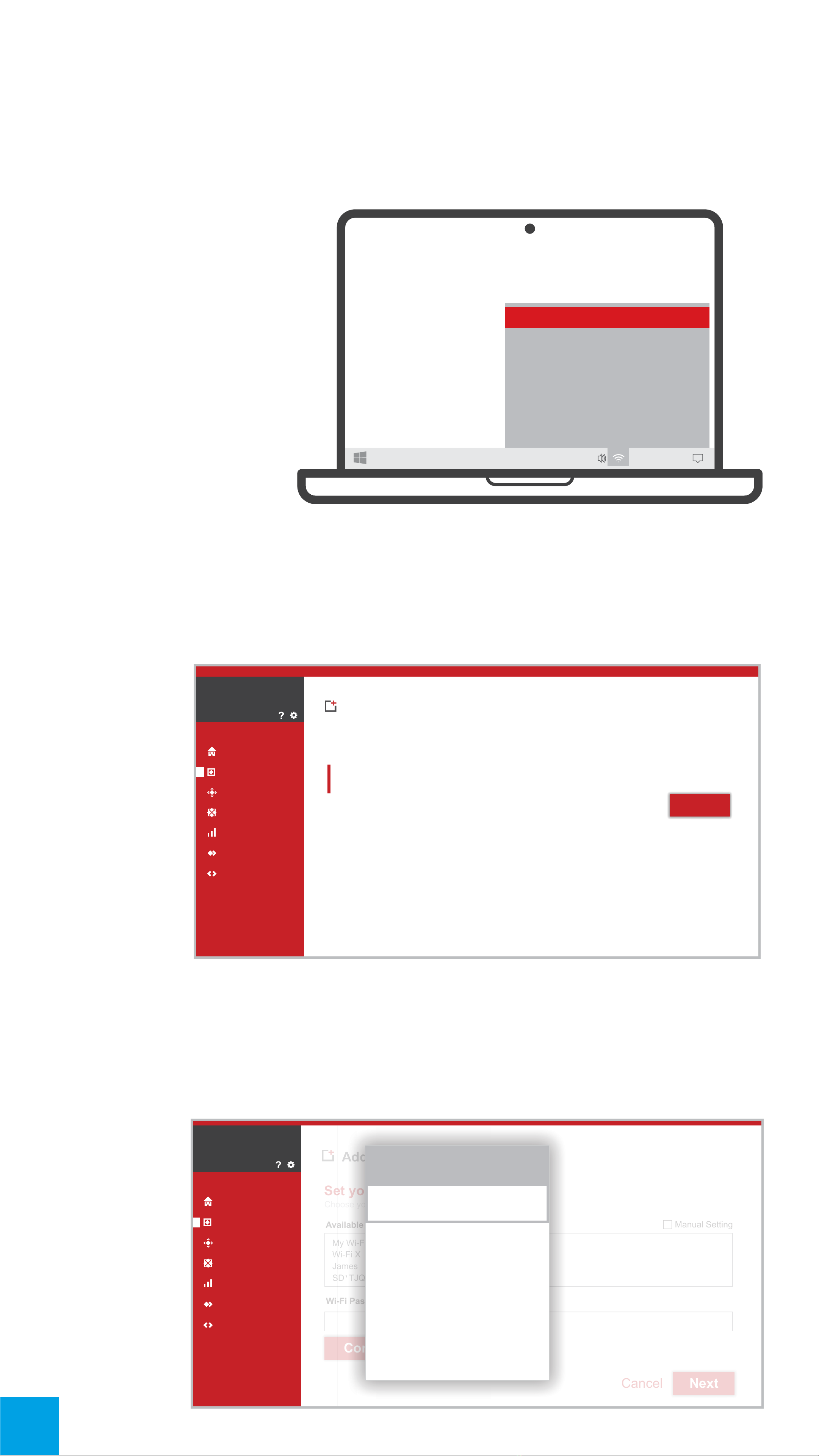
9. Go to the Wi-Fi setting on your laptop/mobi-
le and switch it to Thermometer_Hygrometer
Wi-Fi.
2:28 pm
12/6/2020
ENG
Thermometer_Hygrometer
HomeWi-Fi
James
ST1QTJ1
Tigerx

7
12. Choose your home Wi-Fi from the list and
type the password. Then, click on Check Wi-Fi.
Note: If you can not find your Wi-Fi in the list, click on the
Manual Setting checkbox and enter your Wi-Fi name.
Add New Device
Set your home Wi-Fi
Choose your home Wi-Fi from the list below.
Cancel
Available Wi-Fi list
Wi-Fi Password
Check Wi-Fi
My Wi-Fi
Wi-Fi X
James
SD1TJQ
Manual Setting
Home
Devices
Service Market
Installed Services
SEM
Activity
Service Creator
My Home
13. Wait for 30 seconds for initialization.
Add New Device
Initialization
Device is initializing.
Your device is installed and it is initializing now. Please wait...
Make sure your device is on.
Make sure your mobile/laptop is connected to the Internet.
If after 30 seconds, your device is not shown in the Device page, turn off and on the device.
Then, check the Device page again.
Please wait for 30 seconds...
Home
Devices
Service Market
Installed Services
SEM
Activity
Service Creator
My Home
14. If it nishes successfully, the page will be
redirected to the Devices page, and it shows
your newly installed device.

8
How to Control
Your Device
Log into your account in BKC Control
Panel. Then, go to the Devices page. Your
Thermometer Hygrometer card will be like
below.
2
3
6
5
1
4
Name of the device
Temperature and humidity data
Last activity time
Battery indicator
Device dashboard
Device connection indicator
1
2
3
4
5
6

9
Update device
Reset Factory
Change Sample Rate Time
1. Connect the device to a charger.
2. Click on the button on your device.
3. Go to BKC Control Panel.
4. Go to Devices page.
5. On the device card, click on the device
dashboard button.
6. Go to the Cong tab.
7. Click on Update Now.
1. Connect the device to a charger.
2. Click on the button on your device.
3. Go to BKC Control Panel.
4. Go to Devices page.
5. On the device card, click on the device
dashboard button.
6. In Monitor tab, change the Wakeup_
interval time.
Click and release the button, then press and
hold it for 10 seconds.
Note:The sample rate of your sensor can aect battery usage
and reduce or increase the lifetime of your device in each
charge period.
5
5
On your Thermometer Hygrometer

10
Device Dashboard
Clicking on the gear icon on the Smart Plug
card, a pop-up window opens with 3tabs.
In Monitor tab, there are data about device
functions.
In Data Graph tab, a bar chart represent
power consumption during time.
5
Monitor
Data Graph
Monitor Data Graph Config
0.0
0.01
0.02
0.03
0.04
0.05
0.06
0.07
0.08 Temperature
Humidity
Battery
Wakeup
5 June 09:23:35
6 June 09:23:35
7 June 09:23:35
8 June 09:23:35
9 June 09:23:35
10 June 09:23:35
11 June 09:23:35
12 June 09:23:35
13 June 09:23:35
14 June 09:23:35
15 June 09:23:35
16 June 09:23:35
17 June 09:23:35
18 June 09:23:35
19 June 09:23:35
20 June 09:23:35
21 June 09:23:35
22 June 09:23:35
23 June 09:23:35
24 June 09:23:35
25 June 09:23:35
26 June 09:23:35
27 June 09:23:35
28 June 09:23:35
29 June 09:23:35
30 June 09:23:35
ThermoHumid
Thermometer Hygrometer
ThermoHumid
Thermometer Hygrometer
Temperature
Battery
Humidity
Wakeup-interval
22 %56
Monitor Data Graph Config
c
10
Otros manuales para TH-104
2
Tabla de contenidos
Otros manuales de Termómetro de Blocklychain


