
Bell Carte PC P720 Manual de usuario

Getting started guide
Carte PC P720
3G Novatel Wireless
P720 PC card
CLIENT:
Bell
DOCKET NUMBER:
111-BMCBMU9175
AD NUMBER:
U9175
FILE NAME:
U9175 P720 Bil Book
DESCRIPTION:
Novatel P720 Packaging
FILE STARTED:
Feb. 9, 2009
PUBLICATION(S):
Book
MECHANICAL SIZE: (File built at 100% of production size)
Bleed: 5.25 in x 6.943 int5SJN5 in x 6.693 int-JWF4.75 in x 6.443 in
ART DIRECTOR:
Israel D
COPYWRITER:
Josh R
PHOTOGRAPHER:
NA
STUDIO
ARTIST:
Beth Craft
PRINT PRODUCTION:
None
SHIPPING DATE:
None
TODAY’S DATE & REV#:
None
COLOURS:
Special Blue + 4C
Leo Burnett
175 Bloor Street E. North Tower, 12th Floor
Toronto, ON M5W 3R9 (416) 925-5997
Getting started guide
Carte PC P720
3G Novatel Wireless
P720 PC card
!"#$%&
!"'(')*$%&

Important information about data usage charges
Please note that using your Mobile Internet Stick to transmit data on
a pay per use basis will result in per megabyte data usage charges at
the Bell Mobility rates current at the time of usage. THESE FEES CAN
BE HIGH.
We encourage you to minimize these changes by subscribing to a
data plan that includes sufficient data usage for your individual needs.
Data plans are available at a variety of included usage levels. Usage
over that which is included in your individual plan, is also charged at
the per megabyte rate identified in your plan.
Finally please note data roaming rates may apply if you are
transmitting data through your Mobile Internet Stick on one of Bell
Mobility’s roaming partners’ network. THESE FEES VARY WIDELY.
PLEASE ENSURE YOU ARE FAMILIAR WITH THESE RATES WHEN
PLANNING TO TRANSMIT DATA ON A BELL ROAMING PARTNER
NETWORK.
Visit bell.ca/coverage for more information.
Visit: bell.ca/datapricing or call 1 866 235-5249
(1 866 BELL-BIZ) for more information.

Welcome
Thank you for purchasing a Mobile Internet card from Bell.
This card will enable you to connect to the Internet using Canada’s
fastest high speed mobile network at broadband-like speeds.
Use this Mobile Internet card to visit your favourite Web sites, connect
to your corporate Virtual Private Network (VPN), exchange files with
colleagues or run network applications.
This guide details how to set up your computer for use with the
Mobile Internet card.
Getting started
Installing the Mobile Connect software
– on the Windows®2000/XP platform
– on the Windows Vista™ platform
Choosing/installing theMobile Internet card driver
Activating your Mobile Internet card
Making a connection
Troubleshooting

Getting started
Before activating your Mobile Internet card, ensure you have the
following information:
OekhCeX_b[:_h[YjehoDkcX[hC:D%
Phone Number !"""""""""""""""""""""""""""""""""""""""""
OekhCeX_b[IjWj_ed?:CI?: !"""""""""""""""""""""""""""""""""""""""""
OekhKdbeYaA[o !"""""""""""""""""""""""""""""""""""""""""
78[bbm_h[b[iiWYYekdjm_j^ZWjWhWj[fbWd
If you don’t have an account or a data rate plan, go to your nearest Bell
store, Bell wireless dealer or speak with your Bell account representative
to get set up.
J^[CeX_b[?dj[hd[jYWhZ¿i;b[Yjhed_YI[h_WbDkcX[h;ID"
an eight or eleven-character code located on
the bottom side of the Mobile Internet card !"""""""""""""""""""""""""""""""""""""""""
Operating system Microsoft®Windows 2000, XP, or Vista
Card slots 1 Type II PC card slot
Communication ports 2 free COM ports
I/O Resources 1 IRQ, 4096 bytes of I/O space
Memory 128MB
Disk space 200MB
Disk drives CD-ROM drive
SYSTEM REQUIREMENTS
To install and operate the Mobile Internet card, ensure your computer
has the following system resources:

Installing the Mobile Connect software
on the Windows 2000/XP platform
Caution:
Do not insert the Mobile Internet card until you have finished installing
the Mobile Connect software on the Windows 2000/XP platform and
are instructed to do so.
Mobile Connect from Bell is a software application that allows you to
manage your wireless connections, both over the data optimized high
speed mobile network from Bell and over 802.11 Wi-Fi. You will need
to install this software and then select the Mobile Internet card when
prompted to do so:
1. Insert the installation CD into your CD-ROM drive. The Mobile Connect
installer should start automatically. If it does not start, select Start,
Run and enter d:\setup.exe, where d: is your CD-ROM drive letter.
2. Follow the Mobile Connect InstallShield®Wizard. It will guide you
through the process of installing the Mobile Connect application.
Use the Next and Back buttons to navigate through the installation
wizard. To continue with the installation, you must click Yes to accept
the terms of the License Agreement.

3. Select Restart or Finish to complete the installation. Once the
installation procedure is complete, a restart may be required.
If a restart is not required, Mobile Connect will launch automatically.
If your computer restarts, launch the Mobile Connect application
by clicking on the Mobile Connect desktop icon.
4. The first time Mobile Connect runs, it will check for incompatible
applications. Often these are utility programs supplied by your Wi-Fi
device or laptop vendor. Mobile Connect will replace these programs,
so it is safe to stop them from running by pressing the Stop All
button. Once all the incompatible applications are stopped, as shown
in the window below, click OK to continue.
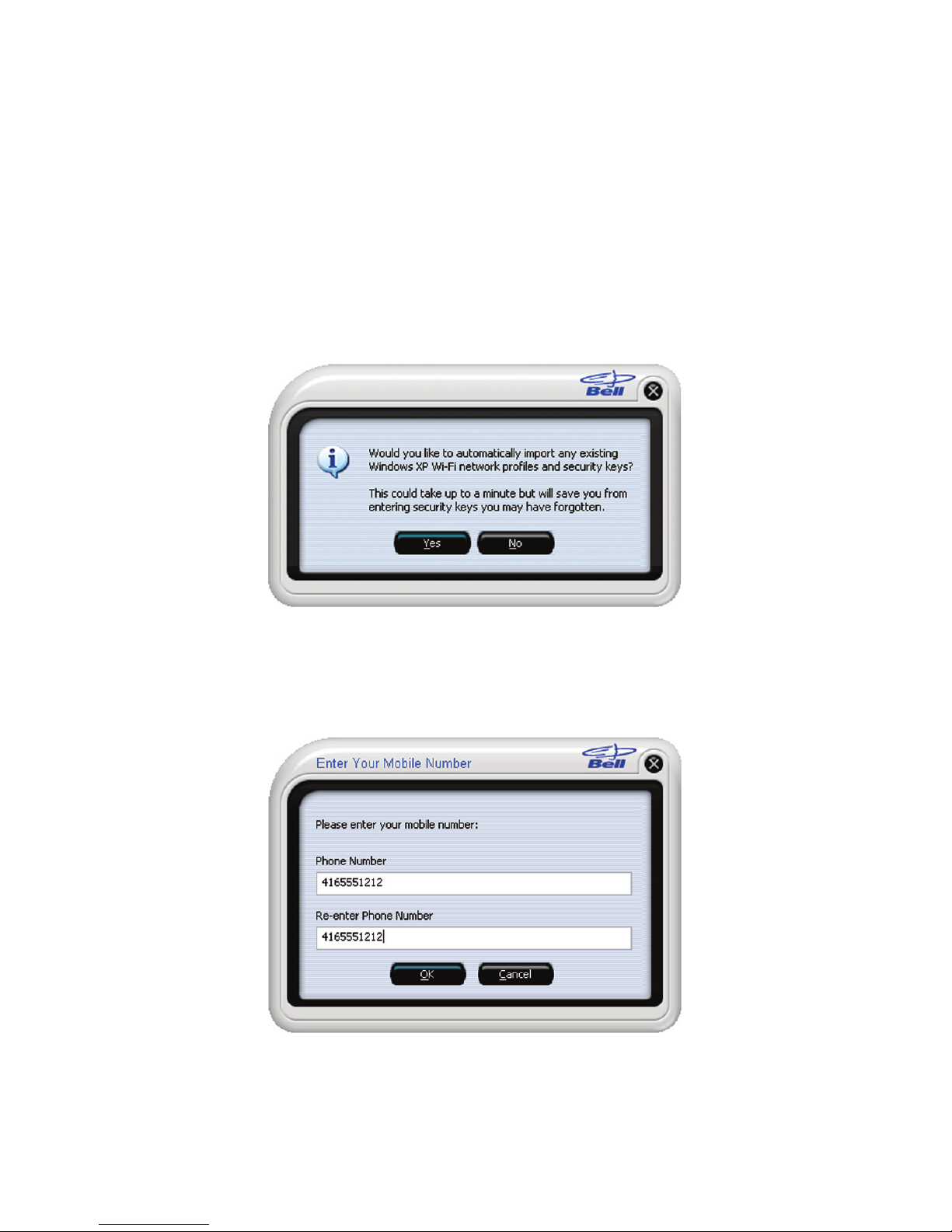
5. Mobile Connect will also prompt you to import Wi-Fi profiles from
your existing computer configuration. This allows it to manage all
your wireless connections. If you would like Mobile Connect to
import your Wi-Fi network profiles and security keys, click Yes and
follow the onscreen instructions in the Wi-Fi Profile Import Wizard.
6. Mobile Connect will ask for your Mobile Directory Number (MDN).
Please enter it twice to confirm and click OK.

Installing the Mobile Connect software
on the Windows Vista platform
Caution:
Do not insert the Mobile Internet card until you have finished installing
the Mobile Connect software on the Windows Vista platform and are
instructed to do so.
Mobile Connect from Bell is a software application that allows you to
manage your wireless connections, both over the data optimized high
speed mobile network from Bell and over 802.11 Wi-Fi. You will need
to install this software and then select the Mobile Internet card when
prompted to do so.
Under the Start button, select Control Panel. A new window will open
up; select User Accounts & Family Safety, then select User Accounts
and then Turn User Account Control on or off. Lastly, deselect Use User
Account Control (UAC) to help protect your computer, and click OK.
You may need to restart your computer.
1. Insert the installation CD into your CD-ROM drive. The Mobile
Connect installer should start automatically. If it does not start, select
Start, then Computer, select the CD-ROM drive and run the setup.exe
program.

3. Select Restart or Finish to complete the installation. Once the
installation
procedure is complete, a restart may be required.
If a restart is not required,
Mobile Connect will launch automatically.
If your computer restarts, launch the Mobile Connect application
by clicking on the Mobile Connect desktop icon.
2. Follow the Mobile Connect InstallShield Wizard. It will guide you
through the process of installing the Mobile Connect application.
Use the Next and Back buttons to navigate through the installation
wizard. To continue with the installation, you must click Yes to accept
the terms of the License Agreement.

4. The first time Mobile Connect runs, it will check for incompatible
applications. Often these are utility programs supplied by your Wi-Fi
device or laptop vendor. Mobile Connect will replace these programs,
so it is safe to stop them from running by pressing the Stop All
button. Once all the incompatible applications are stopped, as shown
in the window below, click OK to continue.
5. Mobile Connect will ask for your Mobile Directory Number (MDN).
Please enter it twice to confirm and click OK.
Tabla de contenidos
Otros manuales de Hardware de computadora de Bell

Manuales populares de Hardware de computadora de otras marcas

EMC2
EMC2 VNX Series Manual del propietario

Panasonic
Panasonic DV0PM20105 Manual de usuario

Mitsubishi Electric
Mitsubishi Electric Q81BD-J61BT11 Manual de usuario

Gigabyte
Gigabyte B660M DS3H AX DDR4 Manual de usuario

Raidon
Raidon iT2300 Manual de usuario

National Instruments
National Instruments PXI-8186 Manual de usuario


