
bctone RFC3261 Manual de usuario

SIP | User Manual
v1.0 September 2015


Table of Contents
Product Description 4
General Information 5
Technical Data 5
Safety, Cleaning & Support 6
Safety Instructions 6
Cleaning Instructions 6
Technical Support 6
Scope of Delivery
& Mounting Instructions 7
Desk-Device 7
Wall-Device 7
Your bctone terminal 8
Functions 10
Home Screen 10
Home Button 11
Status Bar 11
Volume Button 11
Background 11
Menu Bar 11
Notifications 11
Volume Control 12
Device Information 13
Call-App 14
Make a Call 14
Incoming Calls 17
Multiple Incoming Calls 18
Forward Calls 18
Active Calls 20
Camera 21
Call Overview Options 22
Screens (Dashboards) 24
Door Communication 25
Address Book 26
Call History 30
Configurations in ConfigWeb 31
Manufacturer’s Reference 32
Class-B Statement 32
bctone | User Manual

Product Description
bctone combines telephony & various applications into a multifunctional communication de-
vice. Its innovative audio processing enables the simultaneous handling of calls. The touch
display makes operation a breeze and allows video communication due to an optional integ-
rated megapixel camera.

5
General Information
• SIP RFC3261 compatible IP phone (VoIP)
• Microphone array with digital MEMS microphones
• Camera for video calls incl. SIP video
• Possibility of two conversations at the same time
• HiFi audio quality up to 20 kHz
• GestureControl
• Configuration via web interface
• Support of different languages
• Password protection for WebConfig
• Desk (polycarbonate) and wall version (polycarbonate, aluminium)
Technical Data
• Certificates: CE, FCC Class B
• Display: 7“ TFT color display with 800x480 pixels and IPS technology
• Touchscreen: Capacitive multitouch screen
• Camera: color camera
• Network: 1 x RJ45 (10/100 Mbit)
• Power Supply: bct Power Supply (Art.: 1030001) or Power over Ethernet (PoE-PD, IEEE
802.3af, Class 3)
• Temperature range: 0- 60°C
• Relative humidity: up to 95 % non condensing
• Protection type: IP20
• Handheld: 4P4C socket
• Headset / Line: 4P4C socket
• USB: 3 x Type A, USB 2.0 host interface, WLAN ready
• Memory extension: MicroSD Slot
• In: 2 x active or passive, analog or digital (configurable via software)
• Out: 2 x digital
• Call indicator: multicolor LED
• Color: black
bctone | User Manual

6
Safety, Cleaning & Support
Safety Instructions
Failure to follow the instructions provided in this document may cause hazards and/or may
violate existing laws. Please read this document carefully and keep it for future reference.
When you hand your bctone to third parties, always include the operating instructions:
• Ensure that all cables are plugged only into their intended flush-mounted box and do
not modify the connectors.
• Installations and repairs may only be performed by an appropriately qualified expert.
• The bctone should only be operated at ambient temperatures between 0 °C and +60 °C.
• Avoid direct exposure to sunlight and other heat sources.
• Protect the bctone against humidity, extreme dust, aggressive liquids and vapours.
Cleaning Instructions
Please follow the cleaning tips below to avoid damages to your bctone:
• Use only a soft, lint-free cloth. Abrasive cloths, towels, paper towels, and similar items
may cause damage to your device.
• Disconnect your bctone from any external power sources before cleaning.
• Disconnect any external devices and other cabling from your bctone.
• Keep liquids away from your bctone.
• Don‘t get moisture into any openings, and don‘t use aerosol sprays, solvents, abrasives
or corrosives.
• Do not spray cleaners directly onto the device.
Note: If liquid does make its way inside your bctone, seek assistance from bct as soon as
possible. Liquid damage is not covered under the bct product warranty.
Technical Support
If any errors occur please contact your IT department or technician who set up your telephone
or intercom network.

7
Scope of Delivery
& Mounting Instructions
Desk device
Scope of Delivery
bctone terminal, pedestal, handset (optional), network cable; Accessories: bctone power
supply (Art.No. 1030001)
Mounting Instructions
1. Connect bctone terminal to pedestal.
2. Connect the network cable to the bctone.
3. If no PoE is available, connect the 24V power supply as well. (Art.No. 1030001) Connect
the handset (optional). Place the handset as far to the left until it is automatically (ma-
gnetic) held in place.
4. Your bctone should be set up and configured by a technician. Please contact your
IT-department or technician if that is not the case.
Wall-Device
Scope of Delivery
bctone terminal, wall mount kit, handset (optional), network cable; Accessories: bctone po-
wer supply (Art.No. 1030001)
Mounting Instructions
1. Attach the wall mount to the wall.
2. Connect the network cable to the bctone. If no PoE is available, connect the 24V power
supply as well. (Art.No. 1030001)
3. Connect the handset (optional). Place the handset as far to the left until it is automati-
cally (magnetic) held in place.
4. Slide the bctone from the top onto the wall mount until it locks into place.
5. Your bctone should be set up and configured by a technician. Please contact your
IT-department or technician if that is not the case.
bctone | User Manual

8
Your bctone Terminal
(1) Handset: automatically (magnetic) held in place
(2) Camera: color camera
(3) Display: 7“ Multi-Touchscreen
(4) Speaker: HiFi audio quality up to 20 kHz
(5) GestureControl: sensor for touch-less operation
(6) Microphone array: 4 digital MEMS microphones
(7) Status LED
9
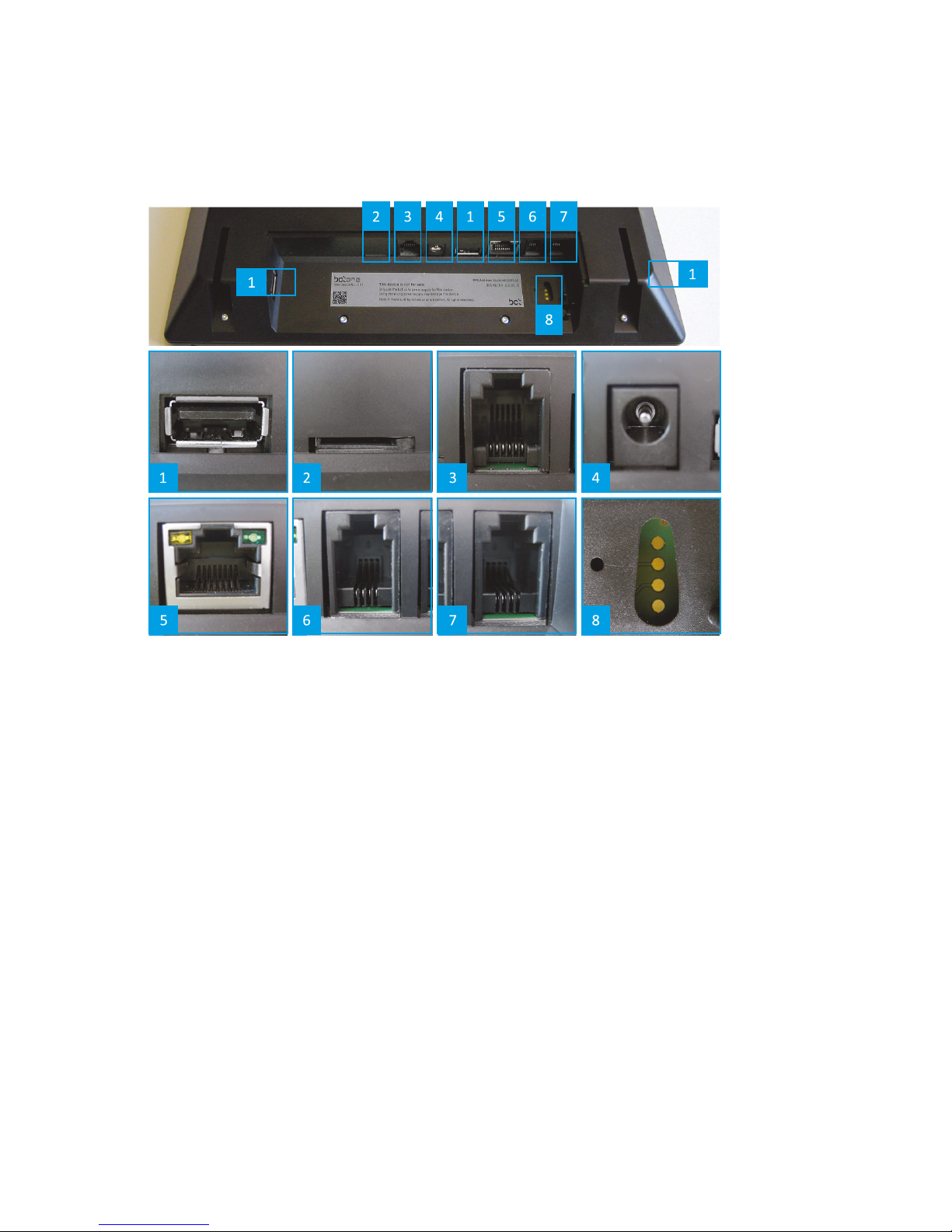
(1) USB 2.0: Host connection
(2) MicroSD slot: For future extensions
(3) I/O: Digital input/output
(4) DC: Connection for external power supply
(5) Network: RJ45 Ethernet network connection
(6) Headset: Input (4P4C connection)
(7) Handset: Input (4P4C connection)
(8) Service connection: For internal purposes
bctone | User Manual

10
Functions
Information on the version of your firmware of your bctone can be found by pressing the
information-icon on the button in the left corner of your bctone.
The latest version of this user manual can be found here:
http://support.bct-electronic.com
Home Screen
Your bctone should be set up and configured by an IT technician. With default settings your
bctone home screen can look like this:
Tabla de contenidos


