
Aurum Electronics AEC-711C Manual de usuario

AEC-711C Wireless Handheld Screen Receiver
I. OVERVIEW OF AEC-711C
II. ASSEMBLY INSTRUCTION
1. Install 3pcs NI-MH rechargeable batteries to the battery compartment with its polarities
matched.
Note:
- This receiver can also be powered on by adapter (DC 6V 1.5A).
- The rechargeable battery will be charged after the adapter is plugged in, and the charge
indicator lights up during charging and will turn off after a full charge.
- A full charge will take about 6 hours, which can power the receiver for about 4 hours
continuously.
- You are recommended to have the battery fully charged before its first installation to optimize its life.
- Do not burn or disassemble the rechargeable battery.
- Do not short-circuit the battery, it may cause fire or electric shock.
2. Push the power switch to ON position.
Battery case
Rechargeable
battery (inside)
LCD
LCD/TV Button
MENU Button
OK Button
Channel Button
Buzzer
Antenna
LED indicator
Power switch
Video Output
Power Socket
Holder
View Button (1/4)
(Single/Quad)
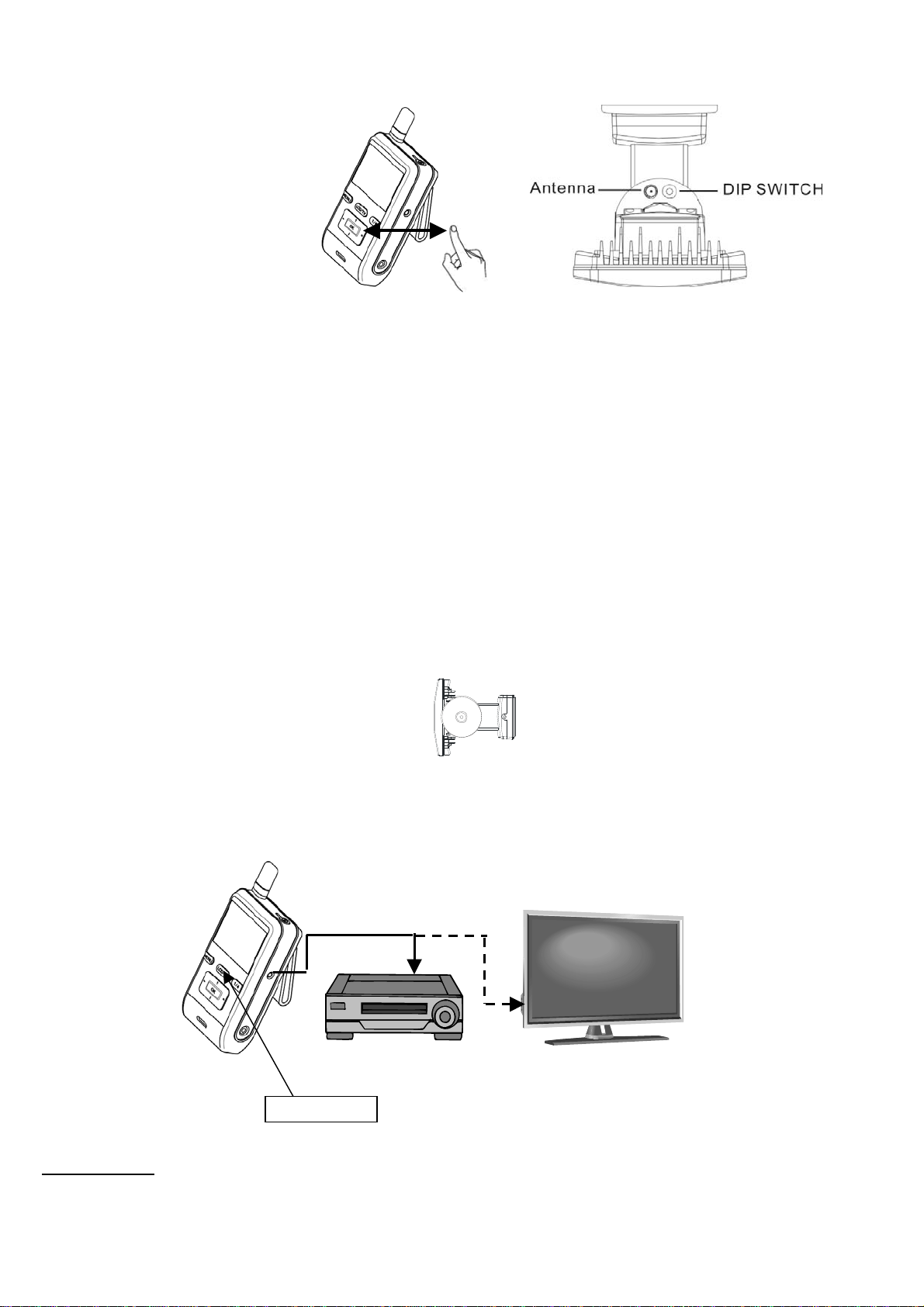
3 . Set the channel of receiver same as that of fitting by pressing the channel button continuously, and the pictures
are displayed on the monitor/TV.
- Press “MENU Button” then press Channel Button to select “MONITOR” and press “OK button”.
- Press “Channel Button” to select ”Pair Cam” and then press “OK button”.
- There is ”1 2 3 4” shown on the LCD, to select which number of channel you want to set up this fitting. Within 10 seconds, press
“Channel Button” to select the number of the channel you want then press ”OK button”. Within 10 seconds, press the “Dip
Switch” on the fitting and when you see detecting image displayed on the LCD, it means the channel setting is completed. If it
shows “No Connection”, repeat these steps again.
- For other three different fittings, repeat the above same steps to set up the different channel. Press ”View Button” for Quad View
condition, you can see 4-split view from 4 different fittings.
NOTE: 1. When you make the channel setting, LCD must be under “Single View” condition.
2. Before setting the channel between the fitting and LCD, press “Push-button” switch on the bottom of the fitting firstly,
the stepper motor will stop working (the RED LED will keep flashing) in order to keep “Dip Switch” on the fitting not moving
and can be easily pressed when setting up the channel later.
4. For more clear pictures or record image:
○
1Please connect the receiver to a TV with video cable.
○
2Please connect the receiver to a TV and a video recorder with video cable.
III. OPERATION
When AEC-9331C detects any movement, wireless LCD monitor is triggered for 30/60 seconds image at the same time.
The unobstructed transmission effective range is about 80 meters, but actual transmission range may vary according
to weather, location, interference and building. One wireless LCD monitor is possible to receiver 4 camera image.
LCD/TV Button
○
1
○
2

OPERATION OF WIRELESS HANDHELD SCREEN RECEIVER
1. LCD image display:push view button「1/4」for image display
-Single View:single CAMERAview (initial image<original default>)
display image from one camera at one time
-Quad View :4 split view (able to connect 4 CAMERAS and
display 4 images on screen at the same time)
☆When SENSOR is triggered, the monitor will sound ”BEEP”
(“BEEP” is set “ON” condition)
No. 1 sensor light detects motions, sound ”BEEP” once
No. 2 sensor light detects motions , sound ”BEEP-BEEP” twice
No. 3 sensor light detects motions, sound ”BEEP-BEEP-BEEP”3 times
No. 4 sensor light detects motions, sound ”BEEP-BEEP-BEEP-BEEP” 4 times
BEEP will sound continuously for 20 times and stops if there is no further detection.☆
During 20 times of BEEP if this unit detects any motions, it will recount for 20 times.
☆Push any of the buttons to stop ”BEEP”.
☆When BEEP is set“OFF”, there will be no sound.
☆「View Mode」is set ”MENU”(manual) , the number of camera will flash under quad-view.
2. Function settings:push “MENU “ button to choose settings.
-CAMERA:
-MONITOR:Beep:ON/OFF(original default ON) When SENSOR detects motions, monitor will
beep.
Beep Vol:High/Low(original default High) Volume adjustment for beep
Brightness:0~10( original default 5) LCD brightness adjustment
OSD Disp:ON/OFF Date and antenna icon display set
View Mode:AUTO/MENU( original default
AUTO) Single view and quad-view setting
(AUTO/MENU):
Cam1 EV:-2.0~+2.0
Cam2 EV:-2.0~+2.0
Cam3 EV:-2.0~+2.0
Cam4 EV:-2.0~+2.0
Set the brightness of CAMERA. Standard value is
0, turn the knob to ”-“ side to reduce the brightness,
turn the knob to ”+”side to increase the brightness.
Before attempting any setting, please power sensor
light. For multiple cameras, the brightness of each
CAMERA may be different, please adjust the
brightness to preferred value.
(Every adjustment value is 0.5. Original default is 0.)
Freq:50 / 60 Hz
Version:software program version
Reset:Yes/No Back to original default.
IMPORTANT
This is only for connecting 1 CAMERA.
For connecting several CAMERAS, make
sure to return to quad-view after finishing
setting in single view.

Under AUTO mode, single view will return to
quad-view automatically 20 seconds later;under
MENU mode, please switch from single view to
quad-view by manual.
Under MENU mode, if switch to single view,
there will no display on the screen if other
sensor lights detect motions.
Scan time:OFF/5SEC/10SEC/15SEC
(original default OFF) Looping function, 4 CAMERAS display single
view on the screen in order.
Pair Cam:1/2/3/4 Register CAMERA ID。(up to 4 CAMERAS)
Version:software program version
Reset:YES/NO Back to original default.
-Other:Date/Time:set time and date
CHARGE
When connect Wireless Handheld Screen Receiver to AC ADAPTER, it will charge batteries automatically.
Under charge, LED turns red color.
Charge time:6 hours max.
Red LED:charge
Red LED flashes:abnormal charge
※Under abnormal charge, please remove AC ADAPTER and check if
batteries are placed correctly.
REPLACE BATTERIES
Battery used:AA NI-MH 2600mAh rechargeable battery 3PCS
1. Take old batteries out.
2. Place new batteries into battery case see right side figure
-Make sure the polarity is aligned correctly
- Please replace 3 batteries together
IMPORTANT
Before registering ID, please push the
bottom button to stop sensor light
turning.
IMPORTANT
DO NOT USE PRIMARY BATTERY !
Such as Manganese electric
battery 、Alkaline electric battery
and oxy ride electric battery to
prevent hazard like leakage and
crack.
LED indicator
FCC Caution: Any changes or modifications not expressly approved by the party responsible for compliance could
void the user's authority to operate this equipment.
This device complies with Part 15 of the FCC Rules. Operation is subject to the following two conditions: (1) This
device may not cause harmful interference, and (2) this device must accept any interference received, including
interference that may cause undesired operation.
This device and its antenna(s) must not be co-located or operating in conjunction with any other antenna or
transmitter


