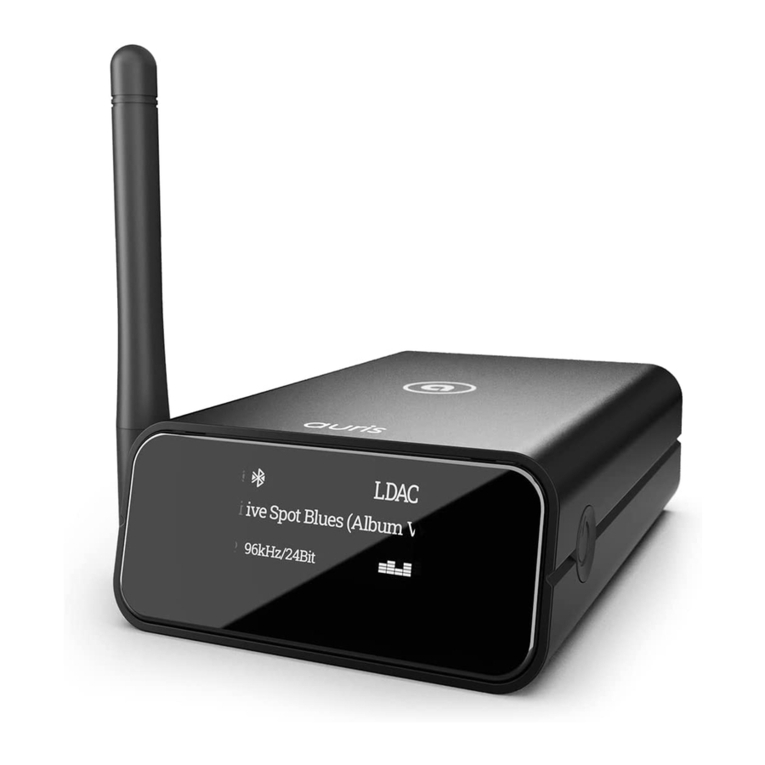
auris audifi Manual de usuario

audifi
Quick Start Guide


Table of Contents
1. Introduction................................................................................................................................................................................................ 1
2. What's inside?.......................................................................................................................................................................................... 1
3. Main Features ........................................................................................................................................................................................ 2
4. Technical Specifications.................................................................................................................................................................... 3
5. Interface .................................................................................................................................................................................................... 4
6. Remote Control...................................................................................................................................................................................... 5
7. Connection diagram............................................................................................................................................................................. 6
8. Setup .......................................................................................................................................................................................................... 6
8.1 App download ................................................................................................................................................................................... 6
8.2 Connection.........................................................................................................................................................................................7
8.2.1 Connecting audifi to your stereo system......................................................................................................................7
8.2.2 Option 1 - Connecting audifi via WiFi ...........................................................................................................................7
8.2.3 Option 2 - Connecting audifi via LAN ........................................................................................................................ 10
8.2.4 Option 3 - Connecting audifi via Bluetooth ............................................................................................................. 10
8.4 App Features....................................................................................................................................................................................11
8.3.1 Device settings........................................................................................................................................................................11
8.3.2 To play Local Storage Music............................................................................................................................................11
8.3.3 To play music from NAS....................................................................................................................................................12
8.3.4 To play in Line In mode .....................................................................................................................................................12
8.3.5 To play in Bluetooth mode................................................................................................................................................12
8.3.6 To play in Optical In mode................................................................................................................................................13
8.4 Streaming services.......................................................................................................................................................................13
8.4.1 Spotify Connect.....................................................................................................................................................................14
8.4.2 AirPlay.......................................................................................................................................................................................14
8.5 Multiroom and Multizone............................................................................................................................................................15
8.6 Left and right channel..................................................................................................................................................................15
8.7 Preset..................................................................................................................................................................................................16
8.8 Source mode change .................................................................................................................................................................16
8.9 Restore factory setting ...............................................................................................................................................................17
8.10 Firmware update ..........................................................................................................................................................................17
9. Play on PC ...............................................................................................................................................................................................18
9.1 To play music from iTunes on Mac and Windows PC......................................................................................................18
9.2 To play music from Windows PC via Foobar2000..........................................................................................................18
9.3 To play music from Windows PC via MusicBee.............................................................................................................. 20
10. Web Player Interface........................................................................................................................................................................22
11. FAQ...........................................................................................................................................................................................................25

1
The auris audifi is a WiFi music streamer that works with any amplifier or active speakers to unlock and
discover a world full of music streaming services and internet radio stations, all streaming in 24-bit Hi-Res
audio. It can be used as a standalone streamer alongside your preferred amp or grouped with other players to
create a multi-room listening experience.
1. Introduction
2. What's Inside?
Main Unit x1
Power Adapter x1
User's Manual x1
Antenna(3dB) x2
2-2RCA Cable x1
2-1RCA Cable x1
Remote Control x1
audifi

2
3. Main Features
- Streaming music via network without distance limitation or Bluetooth 5.0 up to 15 meters.
- Qualcomm® aptX™ HD for true high resolution music.
- Spotify connect, Airplay, Qplay, DLNA, UPnP streaming protocols supported.
- Support streaming source from online services, smart device memory, USB pen drive, NAS, Bluetooth and
line in.
- Multiroom and multizone streaming enabled by mutiple units connected in same network.
- All music sources can be restreamed in sync to other models from us.
- Airplay, Spotify Connect, Qplay, DLNA, UPnP protocol and 3rd party app compatible.
- High quality music streaming support, sample rate decoding up to 24bit / 192kHz.
- Coaxial and Optical to provide digital audio output.
- Spotify, Deezer, Tidal, Qobuz, iHeartRadio, TuneIn, Napster, lots of online streaming services integrated to use
in the app.
- Free iOS and Android app available.
- Free global online update for new features.
- Full function remote controller to use without cellphone.
- Digital and Analog inputs for more possible external audio input.
- Subwoofer output for external active subwoofer.
- OLED display panel for display info.
- EQ adjustment via app or remote controller.
- Preset playlist is availble and short buttons on remote controller for one button play.
- iTunes working with PC streaming.

3
4. Technical Specifications
Connectivity
WiFi IEEE 802.11 b/g/n (2.4GHz)
Ethernet Single 10/100M RJ45
Bluetooth Bluetooth 5.0 with Qualcomm® aptX™ HD, AAC ans SBC
USB Host For USB pen drive/stick, 1024 songs limited
Streaming Protocols AirPlay, DLNA, UPnP, Spotify connect
D/A Converter ESS SABRE ES9023 DAC
Frequency Response 20Hz to 20kHz
Signal to Noise Ratio 110dB
Total Harmonic Distortion 0.03%
Audio Outputs
Stereo Analog RCA (2Vrms)
Subwoofer (3.7Vrms)
Digital Optical
Digital Coaxial
Audio Inputs
Stereo Analog RCA (1.3Vrms)
Digital Optical
Digital Coaxial
Power supply 12V/1A
Audio Decoding Up to 24bit/192kHz
Audio Formats FLAC, MP3, AAC, AAC+, ALAC, APE, WAV
Remote IR remote controler
Display Screen OLED display panel
App 4stream App - Free iOS and Android App
Dimensions 120mm(4.72in) x 37mm(1.46in) x 113mm(4.45in)
Weight 14.6oz (414gms)

4
5. Interface
LED: To show the device status.
Display Panel: Display status info.
IR receiver: Infrared sensor for remote control.
Trigger Out: 12V trigger output used to control or activate other external devices.
Reset Button: Short press to reset the device WiFi, long press to restore the device to factory setting (only
works in WiFi mode). Please change to WiFi mode when the device is in Bluetooth or Line In mode.
WiFi antenna: External WiFi antenna for better signal strength.
Line In: For external audio sources from TV, CD player and so on.
SubW Out: To connect to any powered (“active”) subwoofer.
Opt In: Digital Optical input to connect to the digital optical output of other compatible devices.
Line Out: To connect to the corresponding analog audio input of any amplifier, receiver or stereo system
Coax Out: Digital Coaxial output to connect to the coax input of compatible devices such as receivers,
computer soundcards or other digital processors.
Opt Out: Digital Optical output to connect to optical input of other compatible amplifiers or receivers.
LAN: The LAN port to connect to your ethernet broadband router with an ethernet cable.
USB (Type A) : Connect a USB pen drive to the USB input. (1024 tracks limit)
BT Antenna: External Bluetooth antenna for better Bluetooth signal strength.
DC In: 12V/1A DC input.

5
6. Remote Control

6
8.1 App Download
Download and install the free 4STREAM app from the Apple App Store for iOS or from Google Play for Android.
This is what you will need to set up and configure audifi.
No need to open this app yet as we first need to connect audifi to your music system.
8. Setup
7. Connection Diagram
Smart Phone Smart Tablet
Windows PC iMAC
Smart Phone Smart Tablet
Windows PC iMAC
Router
Analog device
Audio input RCA
Analog device
Audio output RCA
Digital device audio
Coax/Optical output
Active Subwoofer
RCA
Digital device audio
Optical input
DC input
Internet
Wi-Fi
Ethernet RJ 45
connect to network
Connect to USB
pen drive
BT Connnect
Wi-Fi Connnect
Google Play App Store

7
8.2.1 Connecting audifi to your stereo system
8.2 Connection
1. Connect the provided RCA audio cable or your digital Optical/Coaxial cable between audifi and your music
system or powered speakers.
2. Power audifi with the included power supply. The LED indicator shows “Red” indicating that audifi is in
standby mode.
3. Turn on your music system and set the volume level so that you can hear the voice and audio prompts during
the setup.
4. Turn “ON” the audifi device by pressing the power button on the Remote Control or the reset button situated
at the back of the device.
5. The audifi display will show “Loading” and in a few seconds a piano tone will play through your music system.
6. The audifi display will then show “Waiting for connection” followed by a voice prompt that will say: “Entering
setup mode. Follow the instructions in the app to finish the setup.”
Note: If no piano tone or voice is heard after 15 seconds, check your music system volume level.
To go back into setup mode, simply restart the audifi device again by using the Remote Control or the reset
button at the back of the device.
8.2.2 Connecting audifi via WiFi
1. Connect your mobile device to your WiFi network.
You’ll need your WiFi password if it’s not already saved on your mobile device.
2. Go to your mobile device WiFi settings and select "SoundSystem_XXXX” from your WiFi list.
Tabla de contenidos
Otros manuales de Receptor de auris