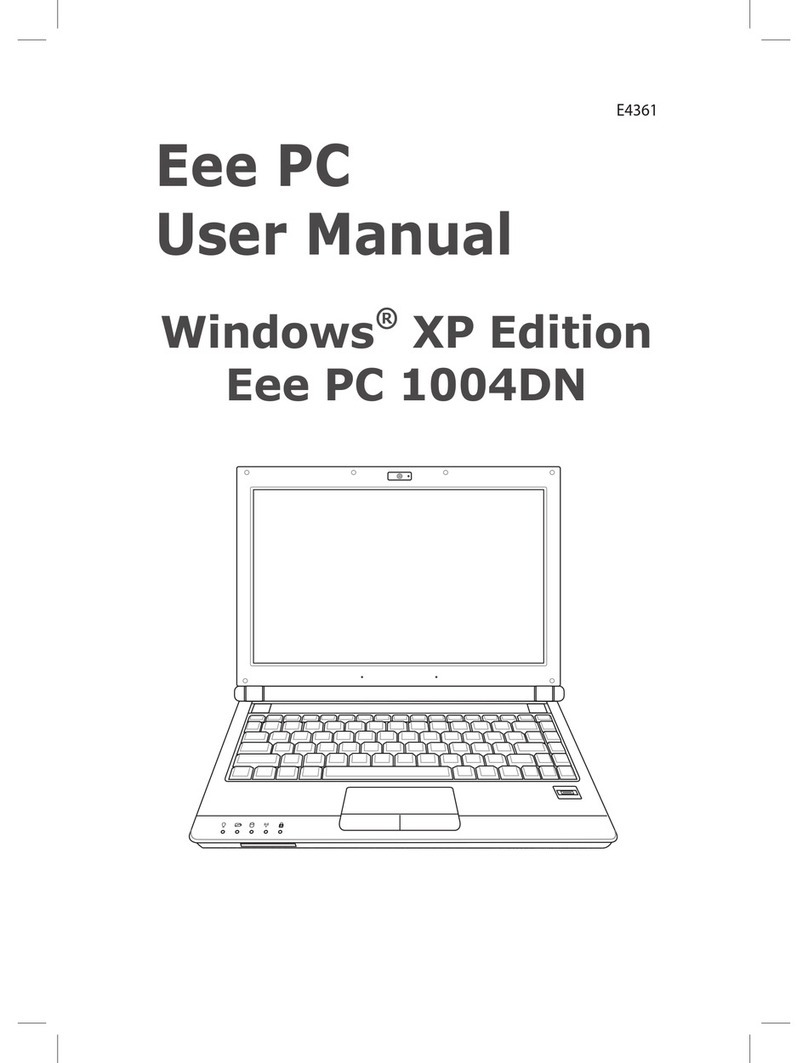
Asus U6E Instrucciones de uso

Notebook PC
Hardware User’s Manual
E3354 / Aug 2007

2
Contents
Tableof Contents
1. Introducing the Notebook PC
About This User’s Manual .......................................................................................... 6
Notes For This Manual........................................................................................... 6
Preparing your Notebook PC...................................................................................... 9
2. Knowing the Parts
Top Side....................................................................................................................12
Bottom Side..............................................................................................................14
Left Side ................................................................................................................... 16
Right Side.................................................................................................................18
Front Side.................................................................................................................19
Rear Side..................................................................................................................20
3. Getting Started
Power System .......................................................................................................... 22
Using AC Power................................................................................................... 22
Using Battery Power ............................................................................................ 23
Battery Care......................................................................................................... 23
Powering ON the Notebook PC ........................................................................... 24
The Power-On Self Test (POST).......................................................................... 24
Checking Battery Power ...................................................................................... 25
Charging the Battery Pack................................................................................... 25
Power Options ..................................................................................................... 26
Power Management Modes................................................................................. 27
Sleep and Hibernate ............................................................................................ 27
Thermal Power Control........................................................................................ 27
Special Keyboard Functions..................................................................................... 28
Colored Hot Keys................................................................................................. 28
Microsoft Windows Keys...................................................................................... 30
Keyboard as a Numeric Keypad ......................................................................... 30
Keyboard as Cursors ........................................................................................... 30
Table of Contents

3
Contents
Switches and Status Indicators ................................................................................ 31
Switches...............................................................................................................31
Status Indicators .................................................................................................. 32
Multimedia Control Keys (on selected models) ................................................... 33
4. Using the Notebook PC
Pointing Device......................................................................................................... 36
Using the Touchpad ............................................................................................. 36
Touchpad Usage Illustrations............................................................................... 37
Caring for the Touchpad....................................................................................... 38
Automatic Touchpad Disabling............................................................................. 38
Storage Devices ....................................................................................................... 39
Expansion Card ................................................................................................... 39
Optical Drive ........................................................................................................ 40
Flash Memory Card Reader ................................................................................ 43
Hard Disk Drive.................................................................................................... 44
Memory (RAM)..................................................................................................... 45
Connections..............................................................................................................46
Modem Connection.............................................................................................. 46
Network Connection ............................................................................................ 47
Wireless LAN Connection (on selected models) ................................................. 48
Windows Wireless Network Connection .............................................................. 49
Bluetooth Wireless Connection (on selected models) ......................................... 50
Trusted Platform Module (TPM) (on selected models)............................................. 51
Fingerprint Registration (on selected models).......................................................... 52
3G Watcher Software (on selected models)............................................................. 54
Appendix
Optional Accessories
Optional Connections
Operating System and Software
Glossary
Declarations and Safety Statements
Notebook PC Information
Table of Contents (Cont.)

4
Contents

5
1. Introducing the Notebook PC
About This User’s Manual
Notes For This Manual
Safety Precautions
Preparing your Notebook PC
NOTE: Photos and icons in this manual are used for artistic purposes only and do not
show what is actually used in the product itself.

6
1Introducing the Notebook PC
About This User’s Manual
You are reading the Notebook PC User’s Manual. This User’s Manual provides informa-
tion on the various components in the Notebook PC and how to use them. The following
are major sections of this User’s Manuals:
1. Introducing the Notebook PC
Introduces you to the Notebook PC and this User’s Manual.
2. Knowing the Parts
Gives you information on the Notebook PC’s components.
3. Getting Started
Gives you information on getting started with the Notebook PC.
4. Using the Notebook PC
Gives you information on using the Notebook PC’s components.
5. Appendix
Introduces you to optional accessories and gives additional information.
Notes For This Manual
A few notes and warnings in bold are used throughout this guide that you should be aware of in order
to complete certain tasks safely and completely. These notes have different degrees of importance as
described below:
NOTE: Tips and information for special situations.
TIP: Tips and useful information for completing tasks.
IMPORTANT! Vital information that must be followed to prevent damage to data, com-
ponents, or persons.
WARNING! Important information that must be followed for safe operation.
Text enclosed in < > or [ ] represents a key on the keyboard; do not actually type the
< > or [ ] and the enclosed letters.
< >
[ ]

7
Introducing the Notebook PC 1
Safety Precautions
The following safety precautions will increase the life of the Notebook PC. Follow all precautions and
instructions. Except as described in this manual, refer all servicing to qualified personnel. Do not use
damaged power cords, accessories, or other peripherals. Do not use strong solvents such as thinners,
benzene, or other chemicals on or near the surface.
IMPORTANT! Disconnect the AC power and remove the battery pack(s) before clean-
ing. Wipe the Notebook PC using a clean cellulose sponge or chamois cloth dampened
with a solution of nonabrasive detergent and a few drops of warm water and remove
any extra moisture with a dry cloth.
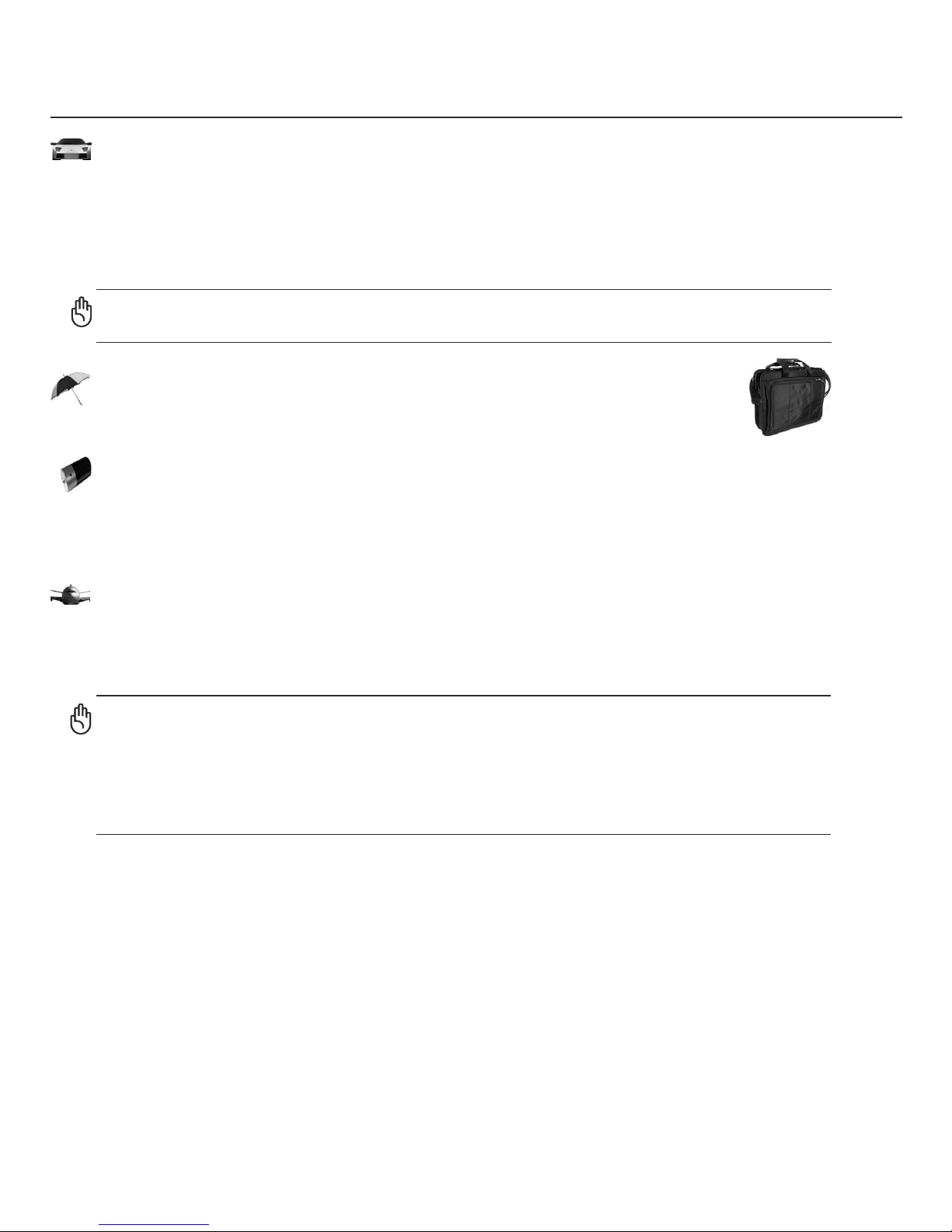
DO NOT expose to or use near liquids,
rain, or moisture. DO NOT use the
modem during an electrical storm.
DO NOT expose to dirty or dusty en-
vironments. DO NOT operate during
a gas leak.
SAFE TEMP: This Notebook PC
should only be used in environments
with ambient temperatures between
5°C (41°F) and 35°C (95°F)
Battery safety warning:
DO NOT throw the battery in fire.
DO NOT short circuit the contacts.
DO NOT disassemble the battery.
DO NOT expose to strong magnetic
or electrical fields.
DO NOT place on uneven or unstable
work surfaces. Seek servicing if the
casing has been damaged.
DO NOT place or drop objects on top
and do not shove any foreign objects
into the Notebook PC.
DO NOT press or touch the display
panel. Do not place together with
small items that may scratch or enter
the Notebook PC.
DO NOT leave the Notebook PC on
your lap or any part of the body in
order to prevent discomfort or injury
from heat exposure.
DO NOT throw the Notebook PC
in municipal waste. Check local
regulations for disposal of electronic
products.
DO NOT carry or cover a Notebook
PC that is powered ON with any ma-
terials that will reduce air circulation
such as a carrying bag.
INPUT RATING: Refer to the rating
label on the bottom of the Notebook
PC and be sure that your power adapter
complies with the rating.
(1)
(See end of Section 4 for definition)
Models with 3G(1):Produces radio wave emissions that may cause electrical interferences
and must be used in places that do not prohibit such devices. Take precautions while using.
WARNING! The 3G function needs to be switched OFF in areas with potentially explosive atmo-
spheres such as petrol (gas) stations, chemical storage depots, and blasting operations.

8
1Introducing the Notebook PC
CAUTION! There are three main types of airport security devices: X-ray machines
(used on items placed on conveyor belts), magnetic detectors (used on people walking
through security checks), and magnetic wands (hand-held devices used on people or
individual items). You can send your Notebook PC and diskettes through airport X-ray
machines. However, it is recommended that you do not send your Notebook PC or
diskettes through airport magnetic detectors or expose them to magnetic wands.
Charge Your Batteries
If you intend to use battery power, be sure to fully charge your battery pack and any optional battery
packs before going on long trips. Remember that the power adapter charges the battery pack as long as
it is plugged into the computer and an AC power source. Be aware that it takes much longer to charge
the battery pack when the Notebook PC is in use.
Airplane Precautions
Contact your airline if you want to use the Notebook PC on the airplane. Most airlines will have restric-
tions for using electronic devices. Most airlines will allow electronic use only between and not during
takeoffs and landings.
Transportation Precautions
To prepare the Notebook PC for transport, you should turn it OFF and disconnect all external peripher-
als to prevent damage to the connectors. The hard disk drive’s head retracts when the power is turned
OFF to prevent scratching of the hard disk surface during transport. Therefore, you should not transport
the Notebook PC while the power is still ON. Close the display panel and check that it is latched securely
in the closed position to protect the keyboard and display panel.
CAUTION: The Notebook PC’s surface is easily dulled if not properly cared for. Be
careful not to rub or scrape the Notebook PC surfaces.
Cover Your Notebook PC
Purchase a carrying bag to protect the Notebook PC from dirt, water, shock, and scratches.

9
Introducing the Notebook PC 1
Preparing your Notebook PC
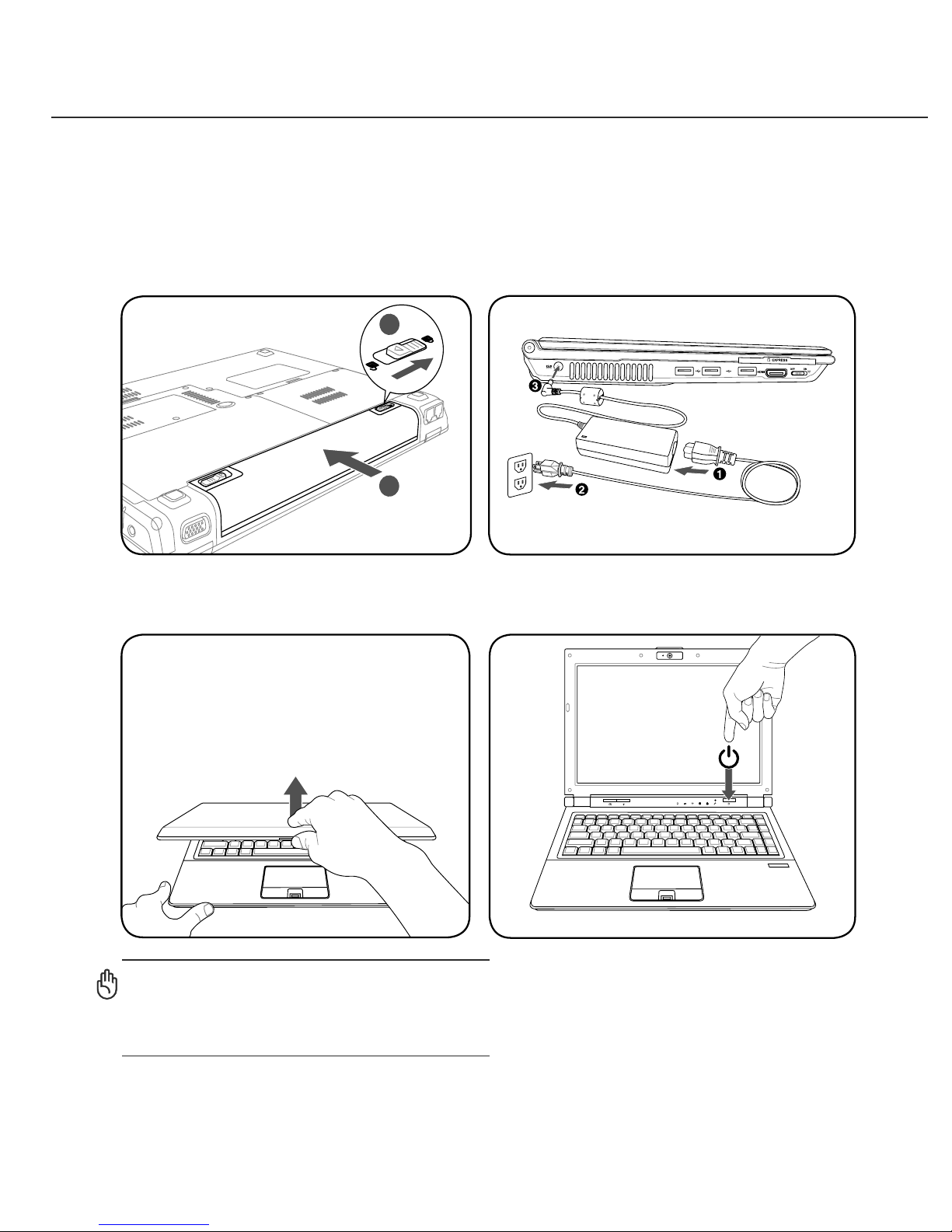
These are only quick instructions for using your Notebook PC. Read the later pages for detailed informa-
tion on using your Notebook PC.
1. Install the battery pack 2. Connect the AC Power Adapter
IMPORTANT! When opening, do not force
the display panel down to the table or else
the hinges may break! Never lift the Note-
book PC by the display panel!
1
2
1.3
MEGA
PIXELS
3. Open the Display Panel 4. Turn ON the Notebook PC
The power switch turns ON and OFF the Notebook
PC or putting the Notebook PC into sleep or hiber-
nation modes. Actual behavior of the power switch
can be customized in Windows Control Panel >
Power Options > System Settings.

10
1Introducing the Notebook PC
Este manual sirve para los siguientes modelos
10
Tabla de contenidos
Otros manuales de Computadora portátil de Asus