
Asoka PlugLink Manual de usuario

Asoka™ PlugLink™
USB and Ethernet Wall Mounts
User’s Manual
© Copyright 2003. Asoka USA Corporation. All rights reserved. Asoka USA Corporation reserves the right to modify
product offerings or specifications without advance notice. No part of this publication may be produced in any for-
mat without the express written permission of Asoka USA Corporation.
Part Number: 65-9620-001

Table of Contents
Page
Introduction 2
Important Safety Information 3
Home Networking 101 4
Powerline Networking 5
Getting Started 6
Getting Intimate with your Powerline Networking Device 9
Installing USB Wall Mount (PL9720-USB) 10
Installing Ethernet Wall Mount (PL9620-ETH) 13
Encryption Utility Guide 16
Adding Computers to a Network 20
Appendix A: Specifications 22
Appendix B: Trouble Shooting Guide 23
Appendix C: Tech Support Information 27
Appendix D: FCC Statement 28
Appendix E: Limited Warranty Information 29
Appendix F: Glossary 31
Asoka™ PlugLink™ Wall Mount Users Manual
1

Introduction
Congratulations! As the proud owner of the state-of-the-art Asoka™ PlugLink™ networking
device, connecting multiple computing devices together to establish a LAN (Local Area Network)
is as simple as 1-2-3. The Asoka PlugLink networking device is an ideal solution to provide you
with the ability to share information and resources such as documents, mp3s, videos, games,
printers, and scanners.
Whether you are connecting two computers together or extending your existing network, the
Asoka PlugLink networking device comes with drivers for the most popular operating systems:
Windows 98SE, 2000, ME, and XP.
This manual provides a quick introduction to PLC (Power Line Communications) technology and
its application as it relates to networking. Please take a moment to read through this manual and
familiarize yourself with PLC technology. We also suggest that you give yourself some time to
play with your new powerline networking device.
All Asoka PlugLink networking devices are designed and manufactured to meet Asoka’s and
industry organizations’ (i.e. HomePlug Powerline Alliance, IEEE, FCC, and UL) rigorous specifi-
cations and world-class quality standards. During development, our laboratory testing team put
the PlugLink networking device through strenuous evaluations and standards. We are confident
that the one you purchase will meet your own exacting standards.
Thank you for choosing Asoka and, by all means, enjoy your PlugLink networking device!
Asoka™ PlugLink™ Wall Mount Users Manual
2

Important Safety Information
This product is intended for connection to the AC power line. The following precautions should
be taken when using this product:
• Read all instructions before installing and operating this product.
• Follow all warnings and instructions marked on the product.
• Do not operate this product near water.
• This product relies on a building’s electrical installation for short-circuit (over current)
protection. Ensure that a fuse or circuit breaker no larger than 15 Amp is used on the
phase conductors (all current-carrying conductors).
• Do not allow anything to rest on the product interconnect cords.
• Do not locate this product where people may walk on the cords.
• The wall mount should be plugged directly into a AC wall outlet. (Note: The appropriate
voltage, 120/240V, will be clearly marked on the box.)
• Only a qualified technician should service this product. Opening or removing covers may
result in exposure to dangerous voltage points or other risks. (Note: Opening or remov-
ing the covers will void your product warranty.)
• Unplug the wall mount from the wall outlet and refer the product to qualified service per-
sonnel for the following conditions:
- When the interconnect cords are damaged or frayed.
- If liquid has been spilled onto the product.
- If the product has been exposed to rain or water.
- If the product does not operate normally when the operating instructions have
been followed.
- If the product exhibits a distinct change in performance.
Asoka™ PlugLink™ Wall Mount Users Manual
3

Home Networking 101
What is Home Networking? Why do we need it?
Today, more than ever, the idea of multiple PCs in a household is not uncommon. The dinosaur
age of having only one PC is not a viable mean to a successful life of a business. With the intro-
duction of high-speed Internet access, people demand information when and where they want it.
Nowadays, both children and adults conduct research for school and work through the Internet.
Thus, having multiple accesses to the Internet is pertinent in a household or business.
Recent studies have found that individuals who are purchasing PCs are not purchasing their first
PC nor are they purchasing to replace their old PCs. Instead, recent PC purchases are mainly
additions to ones already at home or office.
As a result of the introduction of multiple PCs in a household or business, sharing information
and resources became a necessity to save time and money. And that is when the term, "Home
Networking," was born.
In a nutshell, Home Networking allows you to share information and resources such as docu-
ments, mp3s, videos, games, printers, scanners, even Internet access. Sure, many computer
accessory manufacturers and ISPs (Internet Service Providers) would like you to purchase their
products and services for each computing device, but that only help companies generate profits
and leave you with less money in your pocket. Not only can Home Networking save you money,
but also time. Just think, with a Home Network, you can send print jobs to a central computer-all
with a click of a mouse-without having to save on a disk and moving it to the only computer con-
nected to the printer.
What are the options to Home Networking? What is Powerline Networking? Why
should I choose Powerline over other Home Networking solutions?
There are four options on how to create a network in your home or office and they are:
1) Ethernet Networking - is the most common method to create a LAN (Local Access Network).
It uses a CAT5 (Category-5 or RJ-45) cable to connect multiple computing devices together.
Ethernet Networking is the most reliable method to network. However, it is also the most time
consuming and labor-intensive method. It requires intermediate to advance knowledge of com-
puter and computer networking.
2) HPNA (Home Phoneline Networking Alliance) - was the first no new wires approach intro-
duced to the marketplace. It uses the existing phone lines as the wires to network. Simply plug a
computing device to a regular phone jack and share information and resources instantly. Though
the concept of using phone lines to transmit data seem convenient, the lack of phone jacks and
the increase of multiple phone lines in a home or office create an onset of problems for con-
sumers.
Asoka™ PlugLink™ Wall Mount Users Manual
4

3) WiFi (Wireless) - is probably the easiest Home Network technology to comprehend. It uses
RF (Radio Frequency) technology - much like the technology found in cordless phones,
microwaves, and cellular phones - as the medium to transmit data between computing devices.
WiFi Networking is also known as the most unreliable and unsecure method to network. RF
technology is an open forum where neighbors can easily access your information. In addition, it
is also heavily influenced by the environment. Since it uses the same technology as many home
appliances, often times, a WiFi network can be intercepted or lost without warning.
4) Powerline - is the latest method to create a LAN. It combines the pros of all networking
topologies (Ethernet, HPNA, and WiFi). Much like HPNA, Powerline Networking, as the name
implies, uses the existing power line infrastructure of a home or office to transmit data. However,
with the abundance of electrical outlets throughout a home or office giving you the flexibility to
move around your home or office, Powerline Networking far outweighs the HPNA solution. And
since it is still a wired network, Powerline Networking is a secure and reliable network much like
an Ethernet Network.
Table 1.0 Comparison of the four network topologies.
Data Rate Cost Coverage QoS Security
Ethernet
HPNA
802.11a/g
Powerline
Data Rate Cost Coverage QoS Security
Ethernet
HPNA
802.11a/g
Powerline
Simply put, Powerline Networking offers the most convenient and advantageous method to cre-
ate a LAN. Unlike an Ethernet Network, a Powerline Network can be established within a few
minutes. No need to run new cables through the attic or underneath the house or office. Don't
spend thousands of dollars to remodel your home or office only to have ugly wiring hanging
around the walls. The no new wires approach to create a LAN is the ultimate way to network a
home. But between the three technologies (HPNA, WiFi, and Powerline), Powerline provides the
best solution.
For more information about Powerline Networking, please visit Asoka's web site at
www.asokausa.com.
Asoka™ PlugLink™ Wall Mount Users Manual
5

Getting Started
To begin, we suggest that you quickly sketch a layout of your LAN (Local Area Network) on a
piece of paper. This will help you visualize on how to set up your very own LAN.
Depending on what you want to do with your network, the layout of your LAN can vary. To help
you better understand, follow the appropriate statement below that best describes the type of
network you want to build.
1. "I want to connect 2 or more computers/ laptops to share documents."
When you have installed your Powerline Network, it will look like this:
2. "I want to share an Internet connection between multiple computers/laptops."
When you have installed your Powerline Network, it will look like this:
Asoka™ PlugLink™ Wall Mount Users Manual
6
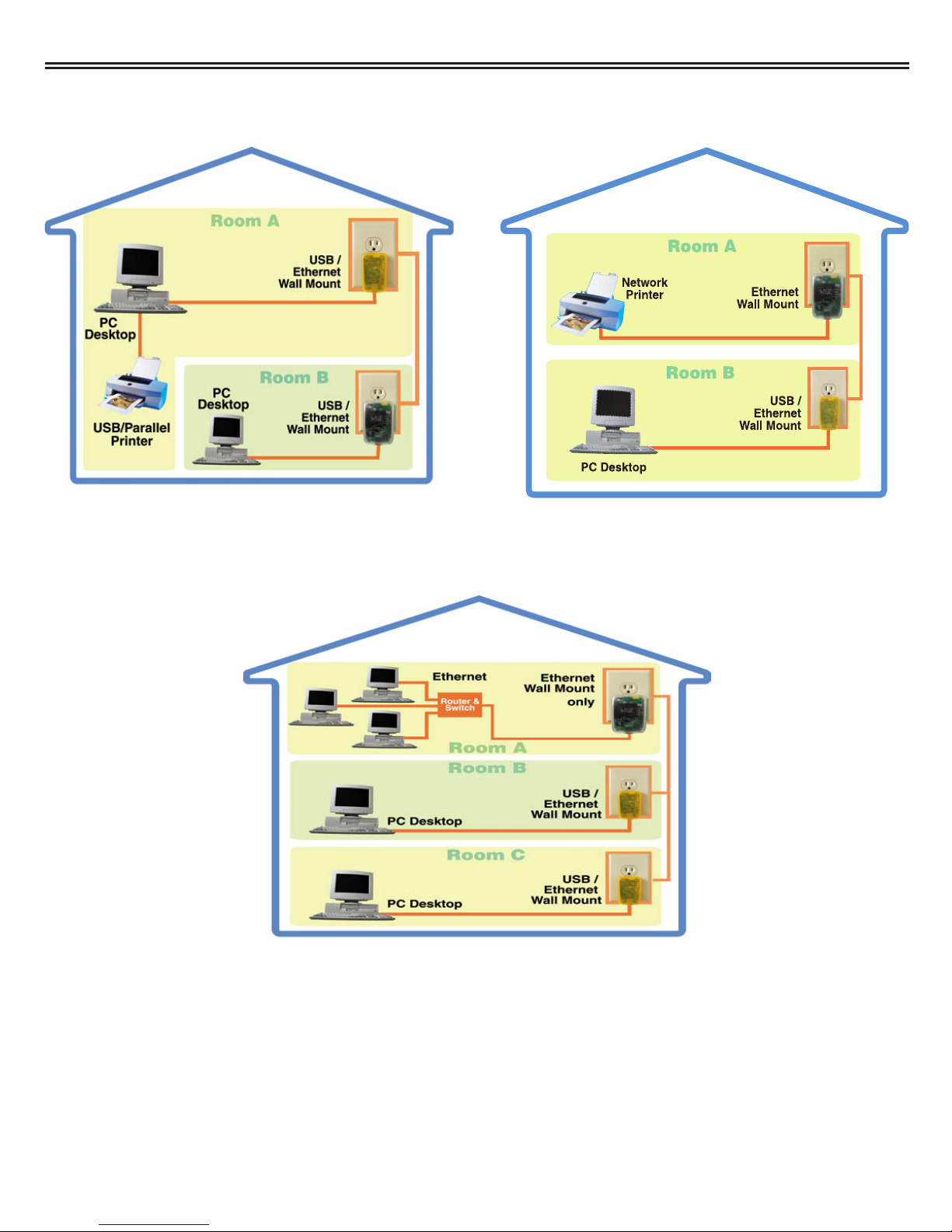
3. "I want to share a home printer or a network printer between multiple computers/ laptops."
When you have installed your Powerline Network, it will look like this:
4. "I want to add or extend my existing Ethernet (Cat5) network."
When you have installed your Powerline Network, it will look like this:
Asoka™ PlugLink™ Wall Mount Users Manual
7
OR
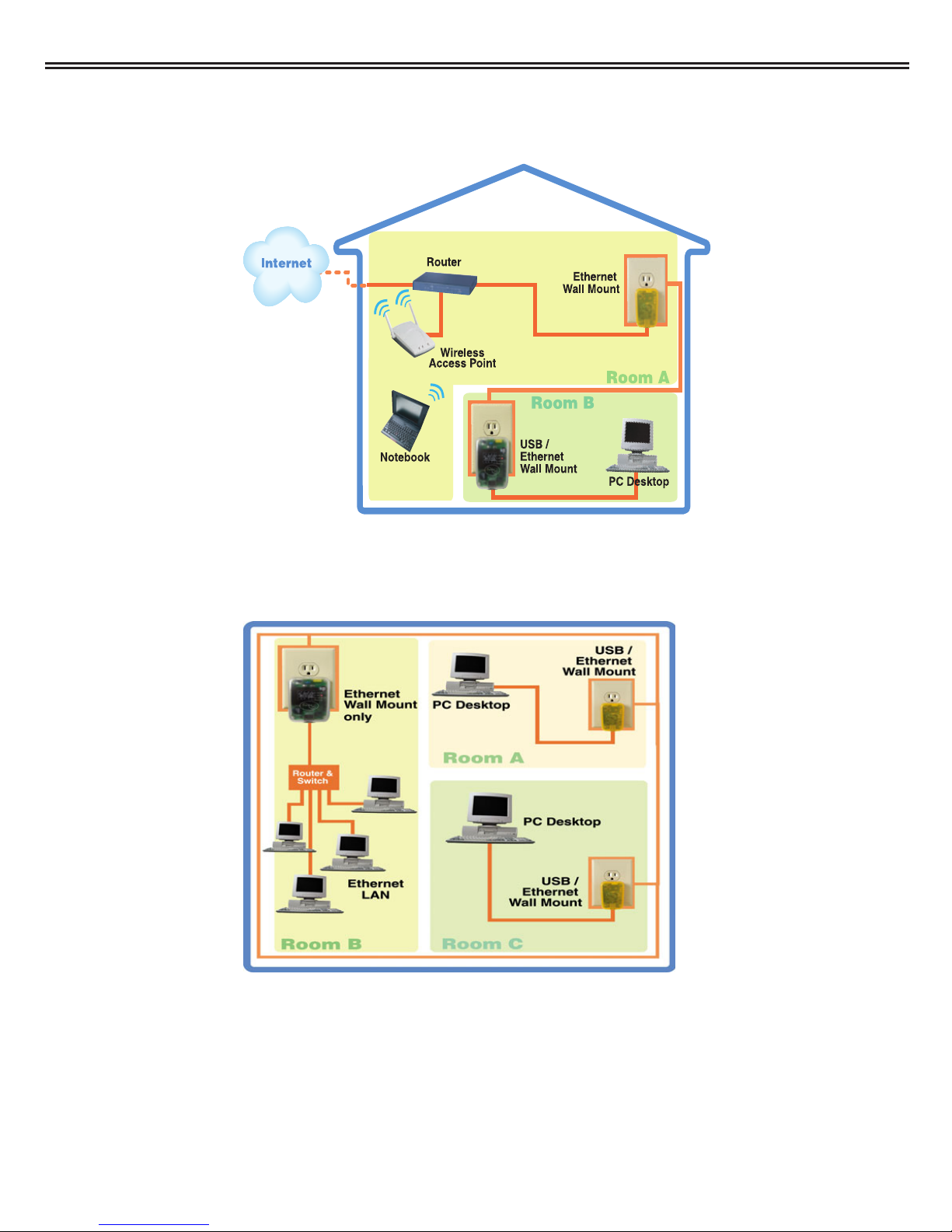
5. "I want to use a combination of a Wireless Network and a Powerline Network for my home
LAN (Local Access Network)."
When you have installed your Powerline Network, it will look like this:
6. "I want to integrate a Powerline Network into my existing Corporate LAN (Local Area
Network)."
When you have installed your Powerline Network, it will look like this:
Asoka™ PlugLink™ Wall Mount Users Manual
8

COL = Collision
LNK = Link
ACT = Activity
Getting Intimate with your Powerline Networking Device
Before installing your powerline networking device, take a moment to examine and familiarize
yourself with it. Below is a diagram of PL9720-USB and PL9620-ETH along with a brief descrip-
tion of what each LED represent.
Abbr. Full Word Description
ETH-
LNK/ACT
Ethernet -
Link/ Activity
This LED lights up if another Ethernet device is found on the other
end of the Ethernet cable. If this LED remains dark, check that both
connected devices are powered on and the cable is not damaged.
COL Collision If two powerline devices are trying to send data at the same time,
one of them will delay the transmission and this LED lights blinks.
LNK Link Lights up when the device detects another HomePlug compliant
device on the powerline network.
ACT Activity Indicates transmission of data.
PL9620-ETH PL9720-USB
Asoka™ PlugLink™ Wall Mount Users Manual
9
PL-COL = Collision
PL-LNK = Link
PL-ACT = Activity
ETH-LNK/ACT = Power On
Tabla de contenidos


