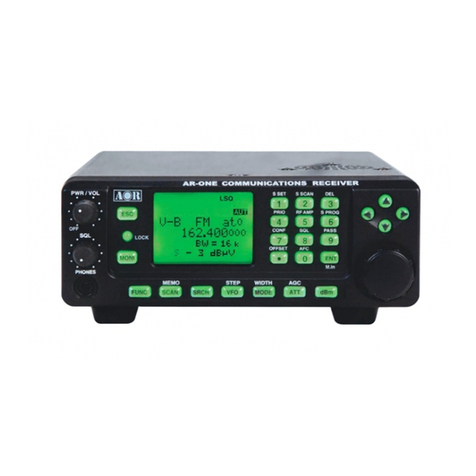
AOR AR2300 Manual de usuario

0
AR2300 BLACK-BOX RECEIVER
OPERATING MANUAL
OCTOBER 28, 2020
AOR, LTD.
www.aorja. om

1

1
INTRODUCTION
Thank you for pur hasing the AR2300.
AR2300 is a high-end bla k-box type re eiver with wide band overage between 40kHz and 3.15GHz. Some of its
outstanding features are:
1) Digital signal processing:
Input signals after the 45.05MHz IF are onverted from analog to digital by a DSP pro essor. There is no AGC in
the analog pro essing unit, as all pro essing, in luding AGC, is done by DSP.
2) High-performance analog front-end:
Analog signal pro essing is performed by a omputer simulated, high-performan e distribution onstant filter.
3) DDS local oscillator:
Instead of the onventional PLL method, the first lo al frequen y is produ ed by dire t digital synthesis. That
method allows frequen y swit hing at high speed.
4) IF output:
An analog IF of 15MHz (+/-7.5MHz) bandwidth is output.
5) ptional digital I/Q output:
A digital I/Q signal of 0.9MHz is output via a USB 2.0 interfa e.
6) High precision frequency reference:
0.01ppm frequen y stability of the 10MHz internal master os illator is a hieved when using the optional GPS
re eiver unit.
7) FFT analyzer:
Thanks to the onboard FFT pro essor, 10MHz wide spe trum data an be output at high speed via serial.
8) ptional APC 25 Phase 1 digital voice demodulation
9) Video demodulation
By onne ting and external TV monitor, it is possible to demodulate the signal of FM modulation se urity
ameras and analog TV broad asts. When you onne t the TV monitor, you an he k the demodulated video.
Not ompatible with digital terrestrial television.
10) Simultaneous monitoring
2 band re eption, offset re eption, triple re eption (restri tions apply).
11) SD card slot
You an re ord the re eived audio on SD, as well as ba king up re eiver settings and memory data.
12) 12kHz analog I/Q output
Allows DRM broad asts de oding via a PC and dedi ated 3rd party software.
13) HF direct sampling
When re eiving HF signals, the signals are onverted dire tly to digital without entering the mixer. This allows
very good linearity hara teristi s.
14) Control via LAN/Internet with optional ARL2300 Ethernet Controller
Please read this operating manual arefully. This information will allow you to enjoy maximum performan e from
your re eiver. Due to ontinuous developments of the re eiver, firmware and software, we a knowledge that there
might be some hanges, errors or omissions.
We sin erely hope that the AR2300 will be your monitoring ompanion for many years to ome.

2
SAFETY PRECAUTIONS
DO NOT operate the re eiver near unshielded ele tri al blasting aps or in an explosive atmosphere. This ould ause
an explosion and death.
DO NOT operate the re eiver with a headset or other audio a essories at high volume levels. If you experien e a
ringing in your ears, redu e the volume or dis ontinue use.
DO NOT dire tly apply AC power to the DC so ket on the re eiver rear panel. This ould ause a fire or damage the
re eiver.
DO NOT apply more than 16 V to the DC so ket on the re eiver rear panel. This ould ause a fire or damage the
re eiver.
DO NOT reverse the DC power able polarity. This ould ause a fire or damage the re eiver.
DO NOT let metal, wire or other obje ts onta t the inside of the re eiver, or make in orre t onta t with onne tors
on the rear panel. This ould ause an ele tri sho k or damage the re eiver.
DO NOT operate or tou h the re eiver with wet hands. This ould ause an ele tri sho k or damage to the re eiver.
Immediately turn OFF the re eiver power and remove the power able from the re eiver if it emits an abnormal odor,
sound or smoke. Conta t your AOR dealer or distributor for advi e.
DO NOT put the re eiver on an unstable pla e where the re eiver may suddenly move or fall. This ould ause an injury
or damage the re eiver.
DO NOT operate the re eiver during a lightning storm. It may result in an ele tri sho k, ause a fire or damage the
re eiver. Always dis onne t the power sour e and antenna before a storm.
DO NOT expose the re eiver to rain, snow or any liquids.
DO NOT hange the internal settings of the re eiver. This ould redu e re eiver performan e and / or damage the
re eiver. The re eiver warranty does not over any problems aused by unauthorized internal adjustments.
DO NOT install or pla e the re eiver in a pla e without adequate ventilation.
DO NOT use harsh solvents su h as Benzine or al ohol when leaning, as they will damage the re eiver surfa es.
DO NOT leave the re eiver in areas with temperatures below 0°C or above +50°C.
DO NOT pla e the re eiver in ex essively dusty environments. This ould damage the re eiver.
DO NOT pla e the re eiver against walls or put anything on top of the re eiver. This may overheat the re eiver. The
re eiver will be ome hot when operating the re eiver ontinuously for long periods of time.
Turn OFF the re eiver’s power and / or dis onne t the DC power able when you will not use the re eiver for a long
period of time.
The AR2300 may re eive its own os illated frequen y, resulting in no re eption or only noise re eption in luding on the
spe trum displayed by ontrol software, on some frequen ies.

3
TABLE OF CONTENTS
1. Supplied items ........................................................................................................................... 1
2. Front/rear panel description. ..................................................................................................... 2
2.1. Front panel ................................................................................................................................. 2
2.2. Rear panel................................................................................................................................... 3
3. Preparing for PC control ............................................................................................................. 5
3.1. PC requirements ......................................................................................................................... 5
3.2. Conne ting the re eiver to the PC .............................................................................................. 5
3.3. Installing the driver..................................................................................................................... 5
4. Control software operation ........................................................................................................ 7
4.1. Conne ting power ...................................................................................................................... 7
4.2. Power on .................................................................................................................................... 7
4.3. Starting the ontrol software ..................................................................................................... 7
4.4. Software windows des ription ................................................................................................... 8
4.4.1 Main ontrol window des ription .............................................................................................. 9
4.4.2 Spe trum display des ription ................................................................................................... 10
4.4.3 Menu bar des ription ............................................................................................................... 10
4.4.4 Database window des ription .................................................................................................. 13
4.4.5 Des ription of ontrol windows 1 and 2................................................................................... 14
4.4.6 Des ription of ontrol windows 3 and 4................................................................................... 15
4.4.7 Des ription of ontrol window 5 .............................................................................................. 16
4.4.8 Des ription of ontrol window 6 .............................................................................................. 17
5. AR2300 specifications ............................................................................................................... 18

1
1. SUPPLIED ITEMS
●
AR2300 re eiver ___________________________ 1
●
AC power adapter _________________________ 1
●
Printed user manual ________________________ 1
●
SD ard __________________________________ 1
●
USB able ________________________________ 1
●
CD with ontrol software and drivers __________ 1
A list of optional a essories is available at:
http://www.aorja. om/a essories/re eiver_a essories.html
AOR software and utilities are listed at:
http://www.aorja. om/support/software.html
A list of 3
rd
party software solutions is available at:
http://www.aorja. om/support/third_party_sw.html

2
2. FR NT/REAR PANEL DESCRIPTI N
2.1. Front panel
①
Power swit h
If you need to
dis onne t the AC power adapter, make sure that the re eiver is shut
down before.
②
Status LED Green: Power on and re eiving, Orange/yellow: Stand-by, Not lit: Off
③
Speaker
To mute the
speaker audio
while setting up the re
eiver and ontrol software, simply
plug in a headphone.
④
SD ard
onne tor
Standard size SD Card Conne tor
You an re ord and playba k re eived audio, ba kup and restore memory data and
re eiver settings. Insert the SD ard fa e down. For mi roSD ards, use an SD ard
adapter.
⑤
Headphone
ja k
Three pin 3.5mm, stereo output.
For stereo broad asts, use the FMST re eive mode with 100kHz or 200kHz bandwidth.
In dual-band re eption, the main frequen y is audible on the right hannel, and the
sub-frequen y on the left hannel.
⑥
Video output RCA type so ket (75Ω 1 V p-p) to output the image of a demodulated analog video
signal.

3
2.2. Rear panel
①
ANT 1 Type N so ket (50Ω) for frequen ies over 25MHz only.
②
ANT2/HF Type N so ket (50Ω) for all frequen ies, in luding HF.
③
10MHz IN SMA type so ket (50Ω)
External referen e lo k input of 10MHz (2dBm±2dB). When a valid 10MHz is
entered, it automati ally swit hes to that external input.
④
CABLE CLAMP Se ure the DC able with this lamp to avoid the DC onne tor to be pulled out
a identally.
⑤
12V INPUT DC barrel so ket (5.5/2.1mm), enter positive, for power input. DC10.7V〜16V
(2.0A@12V).
⑥
IF OUT
BNC type so ket (50Ω)
Outputs analog IF at 45.05MHz with a bandwidth of +/- 7.5MHz.
(Output level is +10dBm relative to antenna input)
⑦
ACC
Mini-DIN-8 so ket pinout des ription:
8
5
4
2
7
6
3
1
1
12V DC output.
No urrent limitation. Both voltage and amperage depend on power supply
DC input.
2
Dis riminator output
Unfiltered audio limited to the NFM re eive mode.
0.78V p-pEMF 10kΩ (NFM deviation 3kHz, audio 1kHz)
3
External mute input.
Short this terminal to the ground to mute the re eiver’s audio output.
Remember that this fun tion does not prote t the high frequen y ir uitry
from strong nearby transmissions.
4,5
Control 1,2
When busy (squel h is open) the ontrol loses between 1 and 2 terminals.
Uses non-polar photo MOS relays. Up to 350mA on-resistan e 2Ω or less,
load voltage 40V)
6 GPS time pulse input
7
Low level audio output (2.5mV@
600Ω)
Not affe ted by hanges in AF GAIN.
8 Ground

4
⑧
SP OUT Φ3.5mm monaural ja k (Up to 2W with 8Ω load)
To onne t to an external speaker.
⑨
LINE OUT
Φ3.5mm stereo ja k (600Ω -10dBm)
To onne t to an external re ording devi e, or an audio amplifier. Can be
swit hed to output a 12kHz wide analog I/Q signal.
In dual-band re eption, the main frequen y is audible at the right side and the
sub-frequen y at the left side.
⑩
GPS
(not
ompatible
with the
GP5001 GPS
antenna unit)
For future
appli ations.
Only populated when optional IQ5001 board is fitted.
Mini-DIN-8 so ket pinout des ription:
8
5
4
2
7
6
3
1
1 GPS TXD
2 GPS 1Hz Pulse
3 12V
4 GND
5 GPS RXD
6 RTS
7 CTS
8 NC
⑪
I/Q OUT Only populated when optional IQ5001 board is fitted.
USB type B so ket whi h outputs digital I/Q data (bandwidth 0.9MHz) for PC.
⑫
AUX D-SUB 9 male so ket for re eiver serial ontrol or to onne t the optional
Ethernet Controller unit.
⑬
USB so ket USB Type B so ket for re eiver ontrol by PC.

5
3. PREPARING F R PC C NTR L
The supplied AR2300 CONTROLSOFT software features omplete re eiver ontrol, audio re ording/playba k
and memory bank management for the AR2300 re eiver.
3.1 PC requirements
Minimum PC system:
Supported OS: Windows 7/8.1/10
2GHz Dual Core CPU
2 GHz RAM
1024 x 768 resolution monitor
One available USB 2.0 port
CD-ROM drive for software installation
3.2 Connecting the receiver to the PC
Conne t the supplied USB able as follows:
Re eiver’s USB so ket (labelled with USB logo) on the ba k of the re eiver, to PC.
Some type of USB 3 ports an be in ompatible due to the parti ular hipset they use. If that o urs, use a USB
2.0 port instead.
3.3 Installing the driver
Providing that your PC is onne ted to the Internet, you do not need to manually install the supplied USB driver.
(All following instru tions and s reenshots are based on the Windows 10 operating system)
1. Make sure the USB able is onne ted.
2. To he k the driver status, open WINDOWS DEVICE MANAGER
(press simultaneously the Windows key and the X key, then
sele t “Devi e Manager”)
3. Windows will first dete t the USB onne tion as pi tured:
Otros manuales para AR2300
4
Tabla de contenidos
Otros manuales de Receptor de AOR

AOR
AOR AR7000 Manual de usuario

AOR
AOR AR8000 Manual de usuario

AOR
AOR AR5000 Manual de usuario

AOR
AOR AR5000 Manual de usuario

AOR
AOR AR-3000A Manual de usuario

AOR
AOR AR8200 SERIES II Manual de usuario

AOR
AOR SDU5600 Manual de usuario

AOR
AOR DA753G Manual de usuario

AOR
AOR AR-3000A Manual de usuario

AOR
AOR AR1500 Manual de usuario

AOR
AOR AR2002 Manual de usuario

AOR
AOR AR1000 Manual de usuario

AOR
AOR AR2300 Manual de usuario

AOR
AOR The Superior AR820 0 Series Manual de usuario

AOR
AOR AR8200 MK3 Manual de usuario

AOR
AOR SDU5500 Manual de usuario

AOR
AOR AR2300 Manual de usuario

AOR
AOR SR2200 Manual de usuario

AOR
AOR AR900 Manual de usuario

AOR
AOR AR8000UK Manual de usuario