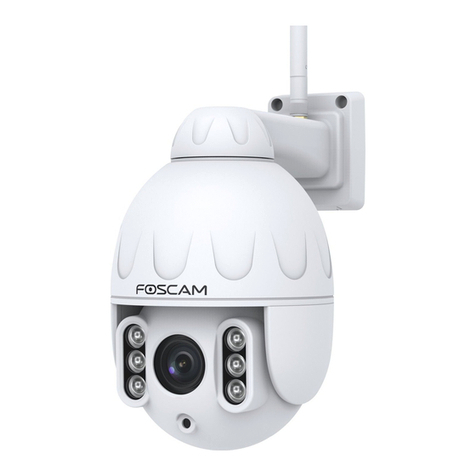
ALZA C2M Manual de usuario

Indoor FHD IP Security
Camera
User’s guide

2
To view this guide in other languages (e.g. Español, Français, Deutsch, Nederlands), and
for detailed manuals, tools, etc., please visit foscam.com/downloads.
The product user guide contains product features, how to use, and the operating
procedure. Read the user manual carefully to get the best experience and avoid
unnecessary damage. Keep this manual for future reference.
Strictly comply with applicable laws and regulations at the place of use. The device must
not be used in violation of applicable legislation or for illegal purposes.
The company Alza.cz a.s. bears no responsibility if the device is used in violation of
applicable legislation or for illegal purposes.
Importer: Alza.cz a.s., Jankovcova 1522/53, 170 00 Prague 7, www.alza.cz
Package Contents
IP Camera
AC Adapter
Ethernet cable
USB Power Cable
Quick Setup Guide
Security Tips
•Please change the camera's password regularly, using a combination of numbers,
letters and special characters.
•We recommend that you regularly update your camera with the latest available
software and firmware to ensure the best experience with your camera.

3
Physical Description
Warning:
The cords on this product are a potential strangulation hazard. For child safety, please
keep these cords out of the reach of children.
Setting Up Your Camera: Connection via the Foscam App
(Recommended)
Scan the QR code below to download and install the Foscam APP.
To ensure a smoother video experience on your smart phone, it is recommended that
your smart phone meet the following specifications:
•iOS: version 8.1 or higher.
•Android: 4.1 or higher, using a device with a Graphics Processing Unit (GPU).
Note:
For the best experience, please update the APP to the latest version!
Light sensor
Lens
Microphone
Micro SD Card Slot
Magnetic Bracket
WPS/Reset
Power light/
Network light
Power

4
WiFi connection
1. Plug the power adapter into the camera, and please wait for a few seconds until
hearing the “Ready for WiFi configuration”.
Tips:If you didn’t hear the voice prompt, press and hold reset for about 10 seconds to
reset the camera.
2. Make sure that your smart phone is connected to your WiFi router.
Tips: The camera supports dual-band 2.4GHz and 5GHz WiFi networks, so you can
choose the channel with the stronger signal to use. For example, choose your SSID:
XXXXX_2.4G or XXXXX_5G.
3. Open the foscam APP and please sign up for a Foscam account, or sign in if you
have one already.
4. After logging into Foscam APP, select “Tap to add a camera” or "+" icon on the
upper right corner, then select "Scan the QR code" and scan the QR code that
labeled at the bottom of your camera.
5. In “WiFi connection”, select “WiFi connection” and enter your WiFi's password and
tap "Confirm", afterwards tap the “Configure WiFi connection” button (see
illustrations on next page).
Reset

5
6. Please scan the QR code on the phone screen with the camera, then you will hear
a voice prompt say ”WiFi connecting”. Select the checkbox and tap ”Next”.
Tips: Please place the QR code on the phone screen about 10 to 15cm (3.94 to 5.9in)
away, and if you encounter difficulties you can try to move the screen slowly around 10 –
15cm (3.94 - 5.9in).
7. Wait a few seconds until the camera notifies you that the “Wireless connection
succeeded”, which means your camera has connected to your WiFi successfully.
After, you can set the camera name and tap “Save” in "Set name" interface.
Note: If the process of adding a camera fails, please reset your camera and try adding
again according to the above method.
8. Tapping on the play button within the video box will jump to the “Camera Login
setting interface. For your security, please set a new username and password for
your camera before viewing live video.
9. After completing the above steps, you can begin to use the camera.

6
Other Ways to Access Your Camera
Foscam VMS
Foscam VMS is a new tool for PCs. It does not require plug-ins and is compatible with
Windows & Mac, supporting all Foscam HD cameras and up to 36 cameras at the same
time. If you would like to manage multiple cameras, we suggest you install Foscam VMS.
You can download the “Foscam VMS ” Windows version from foscam.com/vms, and can
download the "Foscam VMS" Mac version from the APP store:
https://apps.apple.com/cn/app/foscamvms/id1521202507?mt=12
Note: For the best experience, please update Foscam VMS to the latest version!
Add the IP Camera
1. Run Foscam VMS, then create a local administrator account and login.
2. Tap the "+" icon on the Foscam VMS and follow the setup wizard to add your
camera. Please visit foscam.com/downloads to view the user manual and for
additional detailed steps.
Foscam Cloud Service
You can access the camera via the Foscam Cloud website: www.myfoscam.com
Some benefits of viewing your camera in the cloud:
•It’s simple and convenient to remotely access and manage all your WiFi security
cameras.
•Enjoy the latest features _rst through Foscam Cloud including cloud storage and
more.
•Getting started is fast—if you have already registered an account in the Foscam
App, you can directly use the same login credentials for Foscam Cloud.

7
Hardware Installation
1. Rotate the base of the camera until points a and b are aligned, allowing the
mounting plate to be removed.
2. Install the mounting plate on a wall or ceiling with the supplied fixing screws.
3. Align points a and b to insert the camera base to the mounting plate. Rotate so
that points a and b are no longer aligned, which attaches the camera securely to
the base.

8
Important Notice
Camera Username & Password
The camera username & password are used to access and manage your camera. Having
a strong password can significantly improve the security of your camera.
If you have forgotten either of them, please press the "Reset" button and hold it for
more than 10 seconds while the camera is powered on. After hearing the voice prompt,
release the button. The camera will automatically reboot and the default settings will be
restored.
You can then reconnect the camera by following this Quick Setup Guide.
Foscam Cloud Service Account
Username & Password
Your Foscam Cloud service account and password may be used to access both the
Foscam App and the Foscam Cloud service website.
Therefore, you can register your account username & password on either one.
Storage Media
Your camera supports cloud, NVR (Network Video Recorder), and Micro SD card (only
supports EX-FAT and FAT-32 format) storage formats. If you wish to record and play back
large amounts of video, we recommend using a Foscam NVR device as well.
Firmware Upgrades
You can upgrade the firmware of your camera with the Foscam App by using the new
“One-Key-Online Upgrade” feature (Open the Foscam App and Login to the camera,
select “Settings” > “Firmware Upgrade”).
You also can download the latest version to upgrade your camera from our official
website foscam.com/upgrades.

9
Safety Tips
•Please ensure that the proper power supply is used before using the camera.
•Please install the camera and bracket securely using the screws provided.
•Please use this product within the temperature range. When the ambient
temperature is too high or too low, it may cause product failure.
•To avoid the risk of _re or electric shock, please keep your camera in a cool, dry
place.
•Please keep the camera out of reach of small children.
•This product is not a toy; children should use the product under adult
supervision.
•Change your default port to a greater range to help ensure the safety of your
connection. How to change the default port: please visit foscam.com/downloads
to view the user manual.
•Check the logs of your Foscam cameras frequently.
•Foscam cameras have embedded logs telling you which IP addresses are
accessing the camera.
Product Performance
WLAN frequency range: 2412MHz-2472MHz and 5725MHz-5875MHz
Maximum transmission power: < 18.5dBm
Wireless Standard: IEEE802.11b/g/n (2.4GHz)
IEEE802.11a/n/ac (5GHz)
Power Supply: DC 5V 1.0A 5W
Technical Support
If you have problems with your Foscam device, please contact the reseller you
purchased from, or you can e-mail the company headquarters technical support team:
support@foscam.com
Your valuable comments and suggestions on improving Foscam products are welcomed!

10
WARRANTY CONDITIONS
A new product purchased in the Alza.cz sales network is guaranteed for 2 years. If you
need repair or other services during the warranty period, contact the product seller
directly, you must provide the original proof of purchase with the date of purchase.
The following are considered to be a conflict with the warranty conditions, for
which the claimed claim may not be recognized:
•Using the product for any purpose other than that for which the product is intended
or failing to follow the instructions for maintenance, operation and service of the
product.
•Damage to the product by a natural disaster, the intervention of an unauthorized
person or mechanically through the fault of the buyer (e.g. during transport, cleaning
by inappropriate means, etc.).
•Natural wear and aging of consumables or components during use (such as
batteries, etc.).
•Exposure to adverse external influences, such as sunlight and other radiation or
electromagnetic fields, fluid intrusion, object intrusion, mains overvoltage,
electrostatic discharge voltage (including lightning), faulty supply or input voltage and
inappropriate polarity of this voltage, chemical processes such as used power
supplies, etc.
•If anyone has made modifications, modifications, alterations to the design or
adaptation to change or extend the functions of the product compared to the
purchased design or use of non-original components.
Tabla de contenidos
Idiomas:
Otros manuales de Cámara de seguridad de ALZA