
Aluratek CDM530AM Manual de usuario

WiFi Mobile Broadband
Gateway
User Manual
ྤᒵሁطᕴ
˖˗ˠˈˆ˃˔ˠ

Copyright
The contents of this publication may not be reproduced in any part or as a whole, stored,
transcribed in an information retrieval system, translated into any language, or transmitted in any
form or by any means, mechanical, magnetic, electronic, optical, photocopying, manual, or
otherwise, without the prior written permission.
Trademarks
All products, company, brand names are trademarks or registered trademarks of their respective
companies. They are used for identification purpose only. Specifications are subject to be changed
without prior notice.
FCC Interference Statement
This equipment has been tested and found to comply with the limits for a Class B digital device
pursuant to Part 15 of the FCC Rules. These limits are designed to provide reasonable protection
against radio interference in a commercial environment. This equipment can generate, use and
radiate radio frequency energy and, if not installed and used in accordance with the instructions in
this manual, may cause harmful interference to radio communications. Operation of this
equipment in a residential area is likely to cause interference, in which case the user, at his own
expense, will be required to take whatever measures are necessary to correct the interference.
CE Declaration of Conformity
This equipment complies with the requirements relating to electromagnetic compatibility, EN
55022/A1 Class B.
The specification is subject to change without notice.
FCC COMPLIANCE STATEMENT

Table of Contents
FCC Interference Statement...............................................................................2
1. Introduction..................................................................................................4
1.1. Package Contents .........................................................................4
1.2. System Requirements for Configuration.....................................5
1.3. Interfaces .......................................................................................5
The Rear View ..............................................................................................5
The Top View................................................................................................6
1.4. LEDs– the Front View....................................................................7
1.5. Features .........................................................................................9
2. Configuring Wireless WAN Mobile broadband Router...........................10
2.1. Installation Considerations ........................................................10
2.1.1. Installation Instructions- Get Start Networking ........................10
2.1.2. Establish WiFi Connection .........................................................13
3. Using the Configuration Menu..................................................................14
3.1. Wizard setting..............................................................................16
3.2. Administrator’s Main Menu ........................................................25
4. Troubleshooting ........................................................................................63
5. Technical Specifications...........................................................................66
1. Introduction
The WiFi Mobile Broadband Gateway is a high-performance tool that supports wireless
networking at home, work, or in a public place. The WiFi Mobile Broadband Gateway
supports uses a USB 3G modem card, either WCDMA or EVDO and even HSDPA as
well, and supports wireless data transfers up to 80M bps, and wired data transfers up to
100 Mbps.
The WiFi Mobile Broadband Gateway is compatible with industry security features.
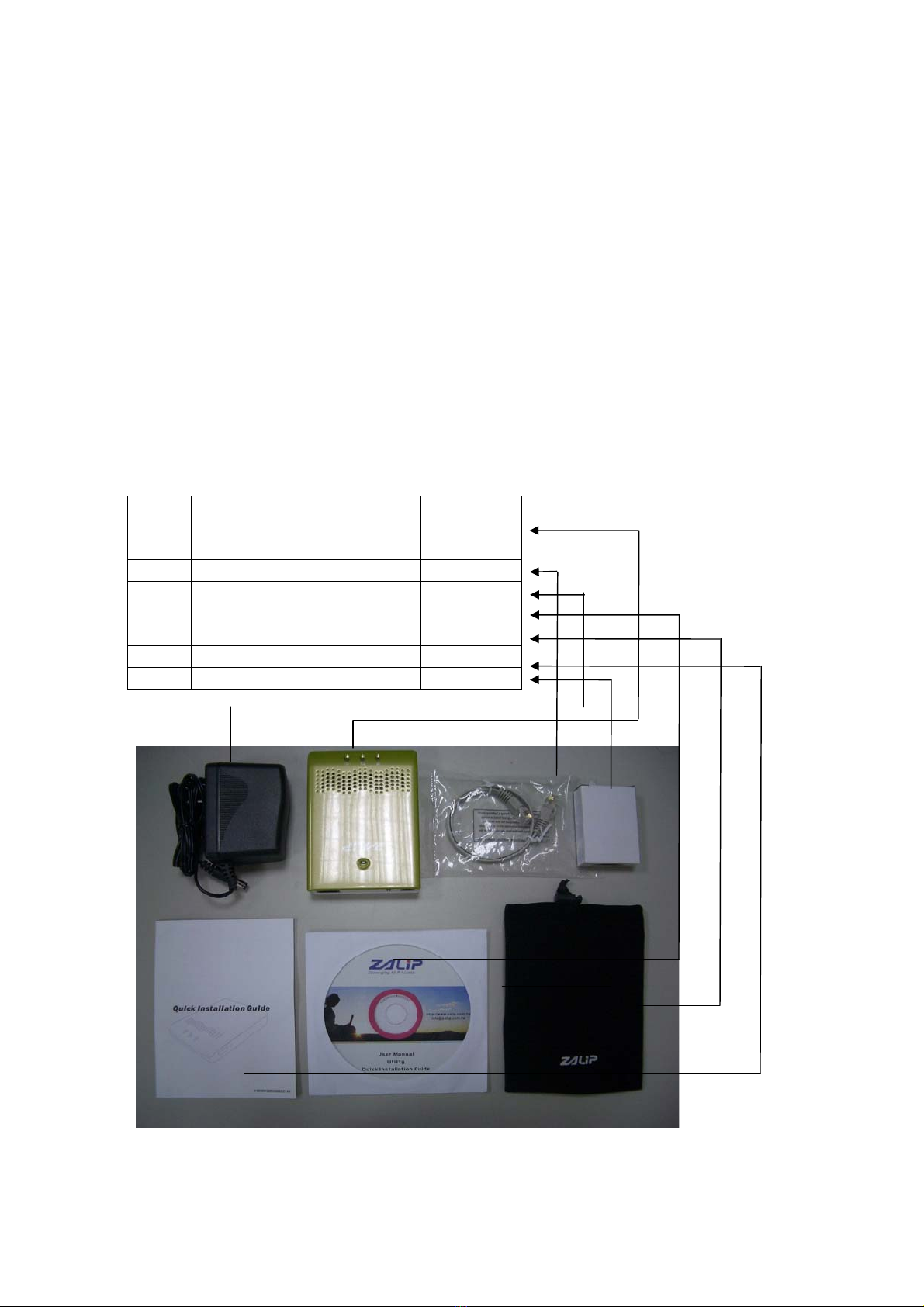
1.1. Package Contents
Importance: Check your product package contents FIRST.
The WiFi Mobile Broadband Gateway package should contain the items listed below.
If any of the items are missing, please contact your reseller.
items Description Quantity
1 WiFi Mobile Broadband
Gateway
1
2 RJ-45 Cable 1
3 Power adapter 5V 2.5A 1
4 CD 1
5 Leather case 1
6 QIG 1
7 Li-ion Battery 1

Caution: Using a power supply with a different voltage rating than the one included
with the WiFi Mobile Broadband Gateway will cause damage and void the warranty
for this product.
1.2. System Requirements for Configuration
• A compatible USB 3G modem card with service
Note: Subject to services and service terms available from your carrier.
• Computers with Windows, Macintosh, or Linux-based operating systems with an
installed Ethernet adapter.
• Internet Explorer version 6.0 or Netscape Navigator version 7.0 and above.
• Wi-Fi System Requirements: An 802.11b, 802.11g, or 802.11n Adapter.
1.3. Interfaces
The Rear View
Auto MDI/MDIX RJ-45 Port
Configurable WAN or LAN
ON/OFF
switch button
Receptor for
Power adapter

The Side View
NOTE:
Press the reset button 3 seconds: the LEDs (WiFi and USB) will flash 2 times, and Ethernet
port be resented to LAN.
Press the reset button 8 seconds: the LEDs (WiFi and USB) will flash 3 times, and restore
the setting back to original factory defaulted setting as if your convenience of
forgetting your applicable setting
Press the WPS button enables user to establish a wireless home network easily under
secure environment between router and clients in air connection.
Reset Button
Restore to Original factory
defaulted setting
USB port for connecting
with 3G USB modem
WPS Button
WiFi Network security
setup

1.4. LEDs– The Top View
Power LED: (and Battery Status)
Ωwhen device is on and with battery inside
ΩGreen: power adapter is plugged, and battery is fully charged
ΩGreen in flash: power is provided by battery
ΩAmber: power adapter is plugged, and charging the battery
ΩRed: battery low
Ωwhen device is on and without battery inside
ΩAmber: power adapter or CLA is plugged
Ωwhen device is off and with battery inside
ΩAmber: power adapter is plugged, and charging the battery
ΩNA: power adapter is plugged, and battery charging finished
ΩNA: no power adapter is plugged
Ωwhen device is off and without battery inside
ΩNA: no matter power adapter or CLA is plugged or not.
Ethernet LED:
ΩGreen: Ethernet connection is established
USB LED
(3G Status)
A green light as
p
ower is on and
Ethernet LED
A green light as
WAN is connected
WiFi LED
A green light as
connection on
WLAN available
Power LED
(Battery Status)

ΩGreen in flash: data packet transferred via Ethernet
USB LED: (WAN)
ΩGreen: 3G/3.5G connection is established
ΩGreen in flash: data packet transferred via 3G/3.5G connection
WiFi LED:
ΩGreen: WLAN is active and available
ΩGreen in flash: data packet transferred via WLAN

1.5. Features
IEEE 802.11b/g/n compliant
¾Backward compatible to IEEE 802.11b standards
¾Max physical rate up to 54Mbps in 802.11g mode
¾Security Supports: WEP (64/128 bits), WPA, WPA2, WPA-PSK,
WPA2-PSK, and 802.1x
Provide 1 * 10/100 RJ-45 port
¾LAN or WAN (Configurable)
WAN connection through external USB 3G/3.5G modem card
WAN connection through 3G tethered-data-enabled cell phone
WAN connection through Ethernet
¾Dynamic IP (DHCP Client)
¾Static IP
¾PPPoE
¾PPTP
¾L2TP
PPTP over 3G WAN connection
Built-in NAT function: one IP sharing with PCs
Built-in firewall to protect your Intranet
VPN pass through supported
¾PPTP
¾L2TP
¾IPSec
Easy to upgrade firmware
¾Web UI
¾Windows utility
Easy to manage:
¾Web UI
¾SNMP
¾UPnP
L3/L4 QoS
Network Protocols
¾UDP/TCP/IP/ARP/RARP/ICMP
¾DHCP/PPPoE
¾DNS/TFTP/HTTP
Antenna
¾1 x Internal Wi-Fi antenna
Continue working 100 minutes with built-in Li-Ion battery (1700mAh)
Note: The WiFi Mobile Broadband Gateway is designed to work with either EVDO or
WCDMA (UMTS) even up to 3.5G HSPA PC interface.
Please refer to your service provider for detailed feature information.

2. Configuring Wireless WAN Mobile broadband Router
2.1. Installation Considerations
The WiFi Mobile Broadband Gateway allows you access your network using a
wireless connection, from virtually anywhere within its operating range. Keep in mind
however, that the number, thickness, and location of walls, ceilings, or other objects
that the wireless signals must pass through, may limit this range.
Typical ranges vary depending on the types of materials used, and background RF
(radio frequency) noise in your home or business.
To maximize your wireless range, please follow these guidelines:
1. Keep the number of walls and ceilings between the WiFi Mobile Broadband
Gateway and other network devices to a minimum. Each wall or ceiling can
reduce the Wireless WAN Mobile Broadband Router’s range from 3-90 feet (1-30
meters).
Note:The same considerations apply to your broadband EVDO connection.
2. Keep your product aware from electrical devices (such as microwaves, air
conditioners, and televisions) that emit large quantities of RFI (Radio Frequency
Interference).
2.1.1. Installation Instructions- Get Start Networking
Connect the WiFi Mobile Broadband Gateway to Your Network
Note: DO NOT switch on WiFi Mobile Broadband Gateway before performing
the installation steps below.
1. Turn off the power switch.
2. Attach the Li-ion battery. ---picture 2.1
Picture 2.1
Otros manuales para CDM530AM
1
Tabla de contenidos
Otros manuales de Puerta de Aluratek

Manuales populares de Puerta de otras marcas

LST
LST M500RFE-AS Manual de usuario

Kinnex
Kinnex Media Gateway Manual de usuario

2N Telekomunikace
2N Telekomunikace 2N StarGate Manual de usuario

Mitsubishi Heavy Industries
Mitsubishi Heavy Industries Superlink SC-WBGW256 Manual de usuario

ZyXEL Communications
ZyXEL Communications ZYWALL2 ET 2WE Manual de usuario

Telsey
Telsey CPVA 500 - SIP Manual de usuario


