
AJAX Ajax-hub Manual de usuario

Hub User Manual
Updated September 19, 2019
Hub is a central device within the Ajax security system, coordinating the
operation of the connected devices and interacting with the user and a
security company.
How to install the Ajax StarterKit, if you’ve never done this before. A
masterclass from the undisputed cruiserweight champion Oleksandr Usyk.
.
Hub needs Internet access for connection to the cloud server Ajax Cloud –
for setting up, control from any point of the world, transmission of event
notifications and update of the software. The Ajax Cloud server is located
on the capacities of Amazon Web Services. Personal data and detailed
system operation logs are stored under multilevel protection, and
information exchange with the Hub is carried out via an encrypted channel
on a 24-hour basis.

To communicate with the Ajax Cloud, the system uses a wired Ethernet
connection and GSM network of a mobile operator.
If possible, please use both Internet connection channels. This will ensure more reliable
communication between the Hub and the Ajax Cloud and prevent from failures in the operation of
one of the communication service providers.
Hub can be controlled via an app for iOS and Android-based smartphones.
Mobile apps allow responding promptly to any notifications of the security
system.
Follow the link to download an app for your smartphone:
Android
iOS
You may set up in the Hub what events and how will be notified to the user.
Choose what is more convenient for you: push notifications, SMS, or phone
call. If the Ajax system is handed over for servicing to a security company,
an alarm signal will be sent it directly, bypassing the server.
Buy intelligent security control panel Hub
Up to 100 Ajax devices are connected to the Hub. The
protected Jeweller protocol is used for communication between the devices,
with the coverage radius up to 2 km, absent any obstacles.
List of Ajax devices
Hub Sockets and Operational Indication

1. Logo with a light indicator
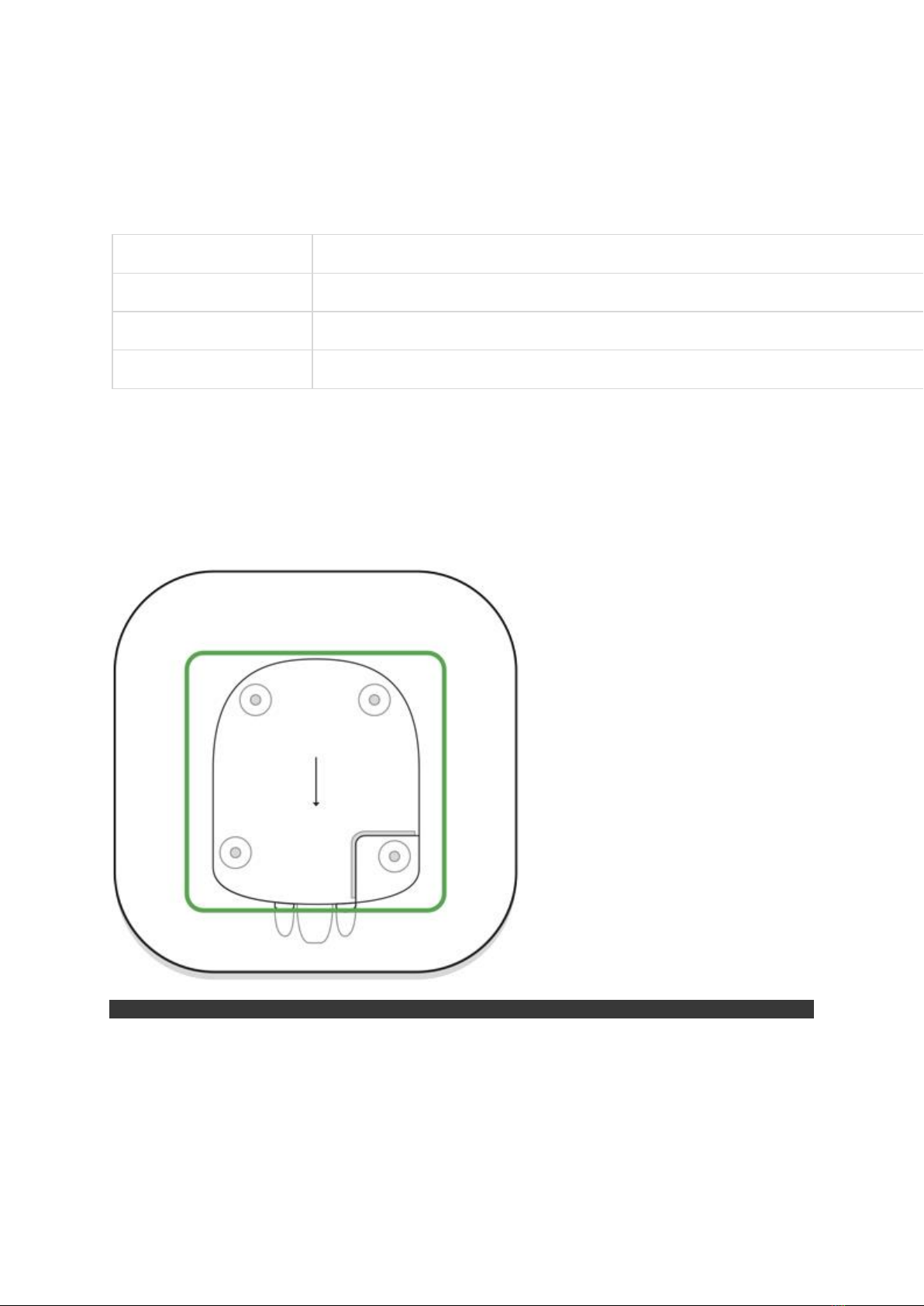
2. SmartBracket attachment panel (perforated part is required for actuating
the tamper in case of any attempt to tear off the Hub from the surface)
3. Socket for connecting a power supply cable
4. Socket for connecting an Ethernet cable
5. Slot for installing a card of a cellular service provider (Micro SIM type)
6. QR code
7. Tamper button
8. On/Off button
Hub Operation Indication by Logo Light
When you click the power button, the Ajax logo lights up green for a
second. Right after that, the logo changes its color to red, indicating that
the hub is loading. When loading is complete, the color of the logo depends
on the connection with Ajax Cloud.
If the hub is not connected to the power supply, the logo lights up for 3
minutes, then flashes every 20 seconds.
Communication with the Ajax Cloud
Highlight colour notifies of the communication with the Ajax Cloud
Indication
Event
Lights white
Both communication channels are connected (Ethernet and GSM)
Lights bright green
One communication channel is connected
Lights red
The Hub is not connected to the Internet or there is no communication with the server
Connection Hub to the Network
1. Open the Hub cover by shifting it down by force.
Be careful not to damage the tamper protecting the Hub from hacking!

2. Connect power supply cables and Ethernet cables to the respective
sockets.
1 —Power Socket
2 —Ethernet socket
3 —SIM-card slot
3. Press and hold the “on” button for 2 seconds until the logo lights up. The
Hub needs approximately 2 minutes to identify the available communication
channels.

Bright green or white color of the logo notifies that the Hub has connected to the server
If the Ethernet connection does not occur automatically, disable proxy,
filtration by MAC addresses and activate the DHCP in the router settings –
the Hub will receive an IP address. During the next set-up of the Hub in the
web application or mobile application, you will be able to preset a static IP
address.
To connect to the GSM network, you will need a Micro-SIM format mobile
operator’s card with the disabled PIN code request (PIN code request can
be disabled using your mobile phone) and sufficient amount on the account
to pay for the GPRS, SMS services and make calls.
In some regions, Hub is sold already complete with a SIM card
If the Hub does not connect to the Ajax Cloud via the GSM network, use
Ethernet to set up the network parameters in the mobile application. To
prescribe the access point, username and password correctly, please
contact the support service of the operator.
Ajax Account
The Ajax security system is set up via the app to which the account of the
administrator is connected. The account with the information about the
added Hubs is placed on the cloud server Ajax Cloud in encrypted form.
User parameters of the Ajax security system and connected devices are
stored locally on the Hub and are inextricably connected with it. Any
change of the Hub administrator does not result in any failure in the
settings of the devices connected thereto.
The telephone number may be used to create only one Ajax account
Create an account in the Ajax system in the mobile app following the step-
by-step guidance. As part of the process, you will need to confirm your e-
mail address and mobile phone number.
Your account may combine the roles –administrator of one Hub, user of
another Hub.

Adding a Hub to the Ajax Security System
app
You must give the app access to all the system functions (in particular, to
display notifications)! This is a sine qua non-condition of controlling the
Ajax security system from a smartphone/tablet.
1. Enter into your account.
2. Open the menu Add Hub and select the suitable method –manually or
with a step-by-step guide.
3. At the registration stage, prescribe the name of the Hub and scan the QR
code located under the cover (or enter a registration key manually).
4. Wait until the Hub is registered and a new device appears on the
application desktop.
Hub Installation
Prior to installing the Hub, make sure that you have selected the optimal location: the SIM card
demonstrates consistent reception, all the devices have been tested for radio communication,
and the Hub should be hidden from direct view.

The Hub should be reliably attached to the surface (vertical or horizontal).
We strongly discourage using double-sided adhesive tape –it cannot
guarantee secure attachment and facilitates disassembly of the device.
Do not install the Hub:
outside the premises (outdoors);
nearby or inside any metal objects or mirrors causing attenuation and
screening of the signal;
in places with the low GSM signal and high radio interference level;
within any premises with the temperature and humidity beyond the range of
permissible limits.
Installation of the Hub:
1. Put the Hub on the cover and fix it with bundled screws.
2. Fix the Hub cover on the surface using bundled screws. If using any other
attachment hardware, make sure that they do not damage or deform the
Hub cover.
Fixing the Hub cover with screws prevents any accidental shifting of the Hub and minimizes the
risk of impulse theft of the device.
If the Hub is securely attached, when tearing off the body from the surface,
the tamper will be actuated, and you will receive the respective notice.
Rooms in the Ajax Security System app

Rooms combine the connected devices. The app can create up to 50
rooms, with each device located only in one room.
Without creating a room, you will not be able to add devices to the Ajax Security System app!
Creating and Setting Up a Room

The room is created in the mobile app using the menu Add Room.
Assign a name to the room, if wished, attach (or make) a photo –you will
easier find the required room in the list.
By pressing on the gear wheel go to the room set-up menu.
To delete a room, move all the devices stored in it to other rooms via the
device setup menu. Deleting the room will erase all its settings.
Connecting Devices to the Hub
Tabla de contenidos
Otros manuales de Cambiar de AJAX


