
Airvana CDMA Femtocell Manual de usuario

CDMA Femtocell User Guide

Copyright 2013 Airvana, LLC. All rights reserved.
Airvana is a registered trademark of Airvana, LLC. (“Airvana”). All other trademarks are trademarks of
their respective owners.
This document contains information that is the property of Airvana. This document may not be copied,
reproduced, reduced to any electronic medium or machine readable form, or otherwise duplicated, and
the information herein may not be used, disseminated or otherwise disclosed, except with the prior
written consent of Airvana.
THE SPECIFICATIONS AND INFORMATION REGARDING THE PRODUCTS IN THIS MANUAL
ARE SUBJECT TO CHANGE WITHOUT NOTICE. ALL STATEMENTS, INFORMATION, AND
RECOMMENDATIONS IN THIS MANUAL ARE BELIEVED TO BE ACCURATE BUT ARE
PRESENTED WITHOUT WARRANTY OF ANY KIND, EXPRESS OR IMPLIED. USERS MUST
TAKE FULL RESPONSIBILITY FOR THEIR APPLICATION OF ANY PRODUCTS.
THE SOFTWARE LICENSE AND LIMITED WARRANTY FOR THE ACCOMPANYING PRODUCT
ARE SET FORTH IN THE INFORMATION PACKET THAT SHIPPED WITH THE PRODUCT AND
ARE INCORPORATED HEREIN BY REFERENCE. IF YOU ARE UNABLE TO LOCATE THE
SOFTWARE LICENSE OR LIMITED WARRANTY, CONTACT YOUR AIRVANA SALES
REPRESENTATIVE FOR A COPY.
CDMA Femtocell User Guide (910750) Rev. 02.06, March, 2013 - DRAFT

— iii —
Contents
Introduction ...................................................................1
Check What’s in the Box ...............................................2
Setup at a Glance .........................................................3
Setting up Your Femtocell .............................................4
Setting up Optional Components..................................7
Configuring Your Femtocell’s Built-in Router.................9
How Your Femtocell Works .........................................10
Your Broadband Connection Speed............................12
Maintenance ...............................................................13
Troubleshooting Installation Problems ........................14
Using LEDs.................................................................16
FAQs ...........................................................................21
Adding Your ISP User Name and Password ...............23
General Precautions ...................................................26
Warning of 911 Limitations .........................................27
FCC Information .........................................................28

— iv —

— 1 —
Introduction
This guide introduces you to your CDMA femtocell device and all its features. Throughout this
guide, you’ll find tips and techniques to get you started and to help you make the most of your
new femtocell and service. This guide also provides troubleshooting information to isolate
common issues with your femtocell installation.
TIP
The Table of Contents can help you quickly locate specific information.
Because of updates in software, this printed guide may not be the most current version for your
femtocell. See your service provider’s website to access the most recent version of the User
Guide.
WARNING
It is important to read the safety information on page 23 and page 27 to learn
about how to safely use your femtocell. Failure to read and follow the safety
information in this user guide may result in serious bodily injury, death, or
property damage.

— 2 —
Check What’s in the Box
Make sure that the following items are in the box:
Femtocell
Power supply
Quick Start Guide
User Guide
Yellow Ethernet
cable
External GPS
antenna cable

— 3 —
Setup at a Glance
TIP
See the Quick Start Guide for the basics on setup and getting your femtocell up and running.
External GPS Antenna
(if needed) Home
Router
Broadband Device
To
Internet
PC
PC
Power Supply
Femtocell

— 4 —
Setting up Your Femtocell
Femtocell
Home
Router
1Disconnect the power from all devices on
your network.
NOTE: This includes your cable or DSL
modem and home router.
2Place your device close to a window and
in a central location. For best results,
place the device in an elevated location,
such as the top of a bookshelf or tall
cabinet.
NOTE: In large homes, the external GPS
antenna can be used to allow the
femtocell to be placed in a more central
location. This allows the femtocell to
provide even coverage throughout the
home. See “Your Broadband Connection
Speed” on page 12 for more information.
3Connect one end of the yellow Ethernet
cable to the LAN port on your home
router.
NOTE: If your modem includes a home
router, plug the femtocell into an available
port on the modem.
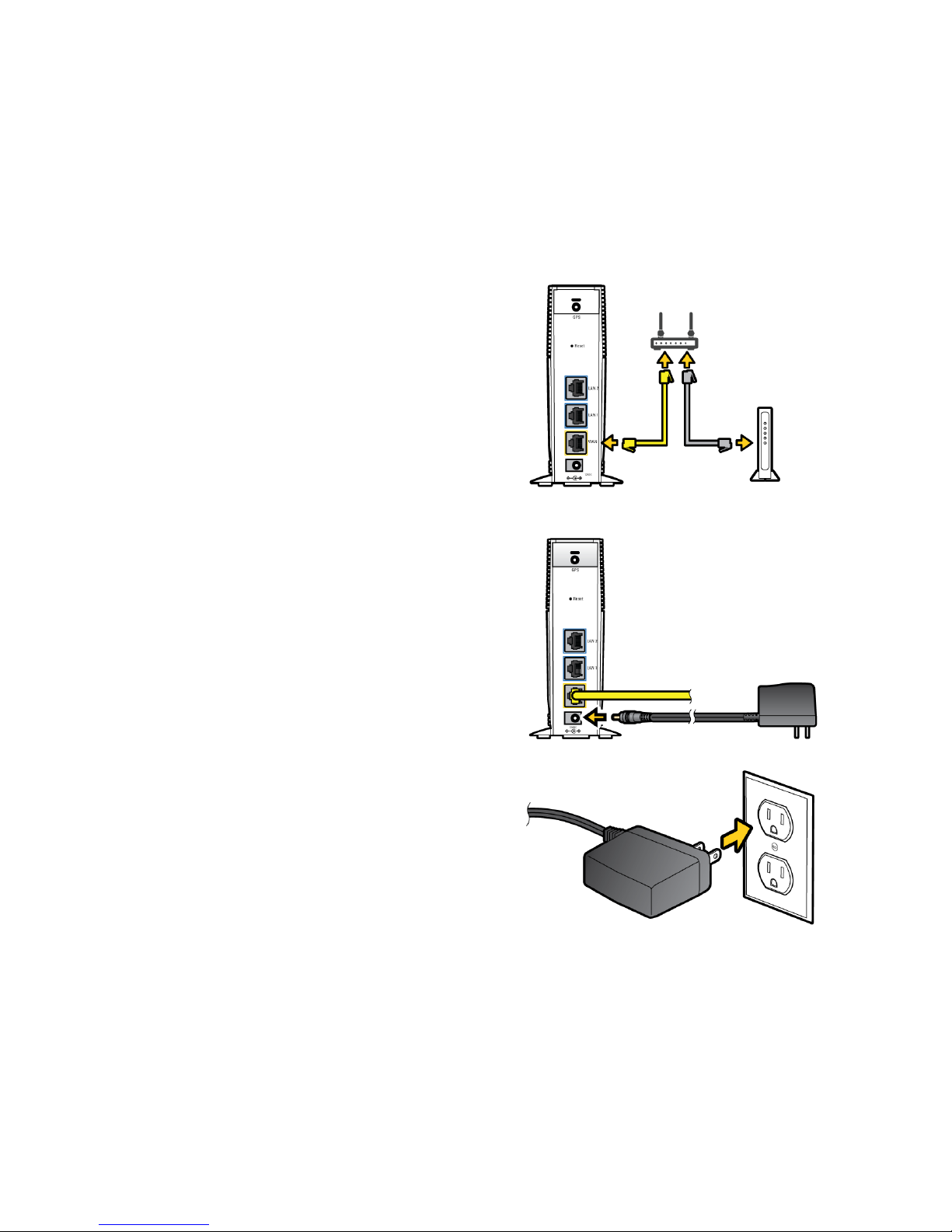
— 5 —
4Connect the other end of the Ethernet
cable to your femtocell’s yellow WAN port.
5Turn on your cable or DSL modem, and
home router.
NOTE: Wait a couple of minutes for the
cable or DSL modem to fully initialize
before continuing.
6Plug the power supply connector into the
black port on your femtocell.
7Plug the other end into an available
electrical outlet.
Femtocell
Femtocell

— 6 —
When is Your Femtocell Ready
for Use?
After installing and turning on your femtocell for the
first time, take notice of an automated setup
sequence. During this time, the device’s green
LEDs will be solid for a few seconds, and then all
LEDs, except the Broadband LED, will turn off until
the software loads. This process may take up to 2
hours if your GPS antenna is not near a window to
receive sufficient GPS signals from the sky.
When the Broadband, GPS, Network, and Mobile
LEDs are solid green, your femtocell is ready for
use.
For complete descriptions of LED states and a
quick reference to LED status indicators, see
“Using LEDs” (page 16).
TIP
You will hear three short beeps when
placing or answering calls on your wireless
phone if you are within range of the
femtocell.
Tabla de contenidos
Manuales populares de Enrutador de red de otras marcas


NETGEAR
NETGEAR FS526T - Switch Manual de usuario

Korenix
Korenix JetNet 5710G Series Manual de usuario

Automated Logic
Automated Logic ZN551 Manual del propietario

Cisco
Cisco ASR 1000 Series Manual del operador

EnGenius
EnGenius ESR-9710 Manual de usuario

Cisco
Cisco 805 Series Instrucciones de funcionamiento y seguridad