
AirLink Communications PinPoint CDMA Manual de usuario

P
Pi
in
nP
Po
oi
in
nt
t
C
CD
DM
MA
A
User Guide
Version 1.0
AirLink Communications, Inc.
February 22, 2003

PinPoint CDMA User Guide Version 1.0
AirLink Communications, Inc. Page 1 February 22, 2003
Information in this document is subject to change without notice.
© Copyright AirLink Communications, Inc, 1993-2003. All rights reserved.
Please send comments to:
Fax: 510-226-4299
Phone: 510-226-4200
Post: AirLink Communications, Inc.
Attention: Technical Publications Dept.
472 Kato Terrace
Fremont, CA 94539

Preface
AirLink Communications, Inc. Page i February 22, 2003
Important Notice
Because of the nature of wireless communications, transmission and reception of
data can never be guaranteed. Data may be delayed, corrupted (i.e., have errors) or
be totally lost. Although significant delays or losses of data are rare when wireless
devices such as the AirLink Communications modem are used in a normal manner
with a well-constructed network, the AirLink modem should not be used in situations
where failure to transmit or receive data could result in damage of any kind to the
user or any other party, including but not limited to personal injury, death, or loss of
property. AirLink Communications, Inc., accepts no responsibility for damages of any
kind resulting from delays or errors in data transmitted or received using the
AirLink Communications modem, or for failure of the AirLink Communications
modem to transmit or receive such data.
Safety and Hazards
Do not operate the AirLink Communications modem in areas where blasting is in
progress, where explosive atmospheres may be present, near medical equipment,
near life support equipment, or any equipment which may be susceptible to any form
of radio interference. In such areas, the AirLink Communications modem MUST BE
POWERED OFF. The AirLink Communications modem can transmit signals that
could interfere with this equipment. Do not operate the AirLink Communications
modem in any aircraft, whether the aircraft is on the ground or in flight. In aircraft,
the AirLink Communications modem MUST BE POWERED OFF. When operating,
the AirLink Communications modem can transmit signals that could interfere with
various onboard systems. The driver or operator of any vehicle should not operate the
AirLink Communications modem while in control of a vehicle. Doing so will detract
from the driver or operator's control and operation of that vehicle. In some states and
provinces, operating such communications devices while in control of a vehicle is an
offence.
Limitation of Liability
The information in this manual is subject to change without notice and does not
represent a commitment on the part of AirLink Communications, Inc. AIRLINK
COMMUNICATIONS, INC. SPECIFICALLY DISCLAIMS LIABILITY FOR ANY
AND ALL DIRECT, INDIRECT, SPECIAL, GENERAL, INCIDENTAL,
CONSEQUENTIAL, PUNITIVE OR EXEMPLARY DAMAGES INCLUDING, BUT
NOT LIMITED TO, LOSS OF PROFITS OR REVENUE OR ANTICIPATED
PROFITS OR REVENUE ARISING OUT OF THE USE OR INABILITY TO USE
ANY AIRLINK COMMUNICATIONS, INC. PRODUCT, EVEN IF AIRLINK
COMMUNICATIONS, INC. HAS BEEN ADVISED OF THE POSSIBILITY OF
SUCH DAMAGES OR THEY ARE FORESEEABLE OR FOR CLAIMS BY ANY
THIRD PARTY.

PinPoint CDMA User Guide Version 1.0
AirLink Communications, Inc. Page i February 22, 2003
Table of Contents
1Introduction ..................................................................................... 1
1.1 CDMA2000 1X ............................................................................................... 1
1.2 Product Overview........................................................................................... 2
2Network Connection ...................................................................... 3
2.1 Internet (TCP/IP) Connections via 1xRTT ................................................... 3
3Windows 2000 Setup for 1xRTT Communications................... 4
3.1 Windows 2000 Modem Configuration........................................................... 4
3.1.1 Prepare the Modem for Installation 4
3.1.2 Adding the Modem 4
3.2 Windows 2000 PPP Configuration................................................................ 6
3.3 Making a 1xRTT Data Connection ............................................................. 16
4Low-power Mode ........................................................................... 17
5PinPoint Vehicle Installation..................................................... 18
5.1 Overview....................................................................................................... 18
5.2 Mounting the PinPoint ................................................................................ 19
5.3 Installing the Antennas............................................................................... 20
Figure 2 – Optimum GPS antenna positioning on a vehicle................ 20
6Using AT Commands .................................................................... 21
6.1 Terminology ................................................................................................. 22
6.2 PinPoint Serial Communication Modes...................................................... 22
6.2.1 AT Mode 23
6.2.2 PPP Mode 23
6.2.3 PassThru Mode 24
6.2.4 UDP PAD Mode 24
6.2.5 UDP Submodes 24
6.2.6 TCP PAD Mode 25
6.2.7 TCP Auto Answer 26
6.2.8 Hybrid Modes 26
6.2.9 SLIP Mode 26
6.3 AT Command Reference .............................................................................. 27
6.3.1 PinPoint Specific AT Commands 38
7Technical Specifications ............................................................. 40
7.1 Quick Look: .................................................................................................. 40

PinPoint CDMA User Guide Version 1.0
AirLink Communications, Inc. Page ii February 22, 2003
7.2 Physical Characteristics: ............................................................................. 40
7.3 Power Specifications: ................................................................................... 40
7.4 Environmental: ............................................................................................ 40
7.5 Status LED Display:.................................................................................... 41
7.6 RF Features: ................................................................................................ 41
7.7 Application Interface Features: .................................................................. 41
7.8 CDMA and Cellular Standards:.................................................................. 42
7.9 GPS Module ................................................................................................. 42
PinPoint CDMA User Guide Version 1.0
AirLink Communications, Inc. Page 1 February 22, 2003
PinPoint CDMA
User Guide
WARNING
The antenna(s) used for this transmitter must be installed to provide a
separation distance of at least 20 cm from all persons and must not be co-
located or operating in conjunction with any other antenna or transmitter
and must not have a gain exceeding 2 dBi
1Introduction
This manual covers information for first-time setup and configuration of your
AirLink PinPoint CDMA modem, as well as technical details on this modem. The
PinPoint is a combination of a CDMA modem and GPS tracking unit. The CDMA
modem allows the PinPoint to report its GPS location to the AirLink Tracking
System main console or to custom applications. The modem may be remotely
configured to report at different time or distance parameters. The PinPoint is also
capable of having its firmware upgraded wirelessly, rendering it unnecessary to
physically connect to the modem to upgrade it.
The AirLink CDMA modem is designed to operate in CDMA networks. Two services
are available in the CDMA networks: 1xRTT, a packet switched connection, and IS-
95B, a circuit switched connection. The PinPoint CDMA primarily uses 1xRTT
connections to transmit and receive data.
1.1 CDMA2000 1X
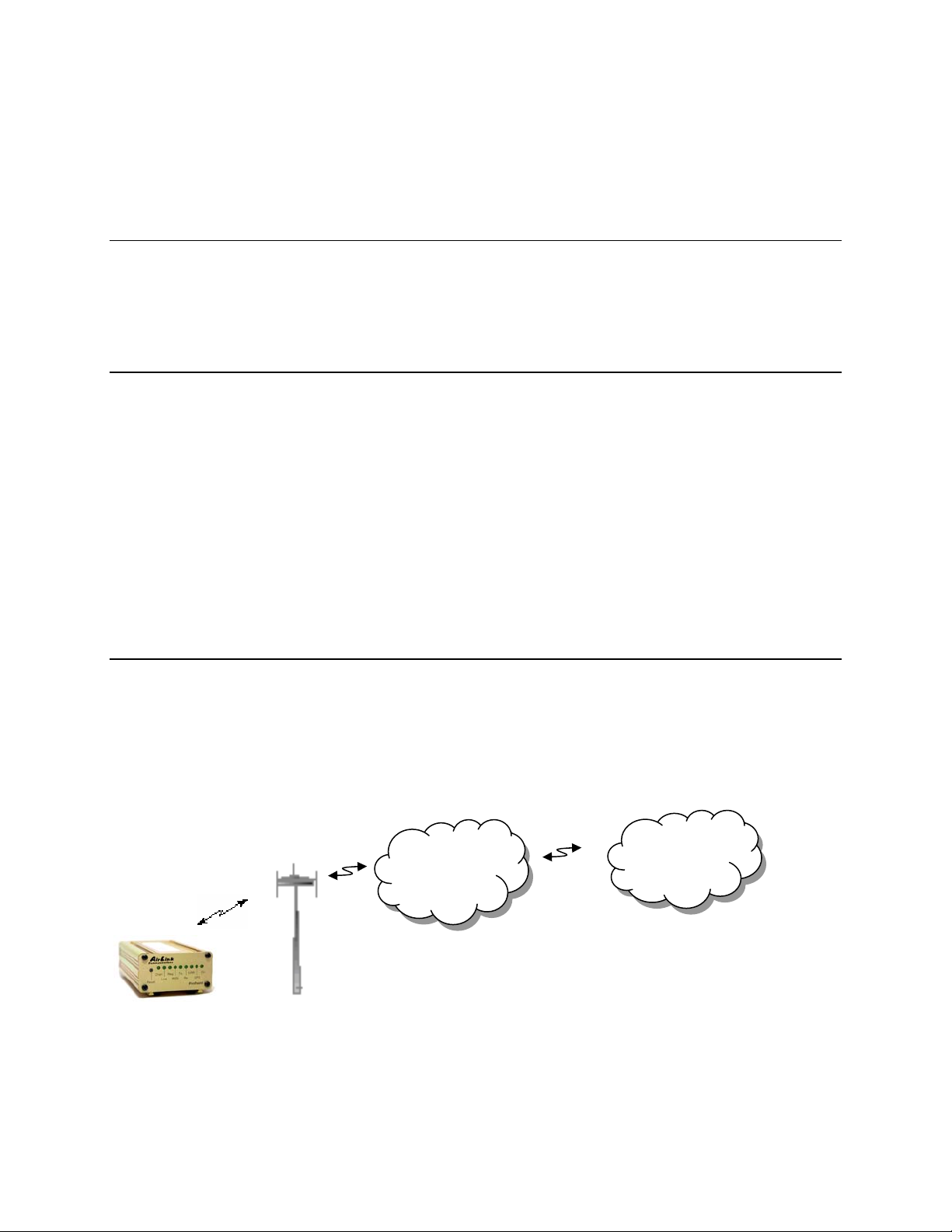
The AirLink CDMA modem provides data capability into the packet service offered
with CDMA2000 1X (1xRTT) technology. CDMA2000 1X offers higher speed data
operations than are available with IS-95 service. IS-95 is limited to 14.4 kbps. 1X
service uses a fundamental channel at 9600 bps and can add supplemental channels
when needed to boost speed to as high as 153.6 kbps on the downlink (network to
modem) and 76.8 kbps on the uplink (modem to network).
Internet
CDMA
1xRTT
Network

PinPoint CDMA User Guide Version 1.0
AirLink Communications, Inc. Page 2 February 22, 2003
1.2 Product Overview
The AirLink PinPoint CDMA is a rugged, full duplex 1xRTT CDMA modem that
provides wireless transport capabilities for fixed and mobile applications. CDMA is
an efficient and secure wireless technology that works well for fixed or mobile
applications.
The PinPoint's rugged form factor is ideal for industrial and commercial applications
that require real-time communications. The PinPoint provides wireless data
communications for a variety of applications, such as fleet management, public
safety, ambulance, traffic control, home delivery, transit arrival systems and more.
Front of PinPoint 9612 Back of PinPoint 9612

PinPoint CDMA User Guide Version 1.0
AirLink Communications, Inc. Page 3 February 22, 2003
2Network Connection
The AirLink PinPoint CDMA will be capable of offering multiple network connection
options. As of January 2003, the PinPoint CDMA will only use 1xRTT. Circuit
switched and SMS will follow later.
2.1 Internet (TCP/IP) Connections via 1xRTT
When using the PinPoint CDMA, remote access to is done via a PPP (TCP/IP)
connection to the CDMA network. The CDMA carrier actually provides Internet
connectivity, and, therefore, it becomes the ISP for that session. Applications such as
web browsing, email, FTP, etc should work as they would normally.
NOTE: Connections to Internet are provided by carrier.
Corporate network connections are unique and not provided as part of service.
CDMA
1xRTT
Network
Internet
Corporate
LAN
ATS

PinPoint CDMA User Guide Version 1.0
AirLink Communications, Inc. Page 4 February 22, 2003
3Windows 2000 Setup for 1xRTT Communications
This section describes the setup of Windows to enable communications over the
CDMA 1xRTT network. Windows 2000 is used as the example because it the one
Windows OS revision that carries the most similarity to both Windows 98 as well as
WinXP.
3.1 Windows 2000 Modem Configuration
3.1.1 Prepare the Modem for Installation
•Connect the modem to the computer with the DB9 cable
•Plug in the AC adapter, connect the antenna(s) and power on the modem
•Obtain administrator privileges on your system.
If you do not know how, check with your system administrator
3.1.2 Adding the Modem
•Select Start> Settings> Control Pane> Phone and Modems Options
•You should see be in the Phone And Modem Options dialog box. Select the
Modems tab
•Select Add.
•Check "Don't detect my modem..." and select Next
•Select (Standard Modem Types) from the Manufacturers and then select
Standard 33600 bps Modem under "Models."
•Select Next
•Check Selected Ports, then select the COM port the modem is connected to and
select Next

PinPoint CDMA User Guide Version 1.0
AirLink Communications, Inc. Page 5 February 22, 2003
•Select Finish to exit the "Install New Modem" wizard
•You should see the modem added to the correct COM port
•To set the modem speed on the driver, highlight the modem driver and select
Properties.
•Ensure the "Maximum Port Speed" is set to 115200, which is the default value of
the PinPoint CDMA.
•Select OK to exit.
Tabla de contenidos
Otros manuales de Transmisor de AirLink Communications

Manuales populares de Transmisor de otras marcas


Dejero
Dejero EnGo 3x Manual de usuario

Rosemount
Rosemount 4600 Manual de usuario

Speaka Professional
Speaka Professional 2342740 Manual de usuario

trubomat
trubomat GAB 1000 Manual de usuario

Teledyne Analytical Instruments
Teledyne Analytical Instruments LXT-380 Manual de usuario

Rondish
Rondish UT-11 Manual de usuario


