
AIPTEK HyperPen 10000U Manual de usuario

HyperPen 10000U
Quick Start Guide

1
Index
English..................................................................................2
Finnish................................................................................10
German...............................................................................18
Italian..................................................................................27
Norwegian...........................................................................35
Portuguese..........................................................................43
Spanish...............................................................................51

2
Welcome
Thank you kindly for purchasing this product.
Much investment in time and effort has gone into its development, and it is our hope
that it will give you many years of trouble-free service.
If the time arises to throw away your product, please recycle all the components
possible. Batteries and rechargeable batteries are not to be disposed in your
domestic waste. Please recycle them at your local recycling point.
Together we can help to protect the environment.
Package Contents
You should have received the following items inside of package:
Graphic Tablet
Digital Pen
Pen tips
Pen holder & tip remover
Alkaline AAA battery
Quick Start Guide
Hotline leaflet
Driver CD
Application Software CD
System Requirements
1. for Windows PC
- PC Windows 2000/XP/Vista 32 or 64 bit; USB port; DVD-ROM drive
2. for Macintosh
- Macintosh System (Power Mac / Intel Mac)
- MAC OS X 10.3.5 to 10.5.6 Version
3
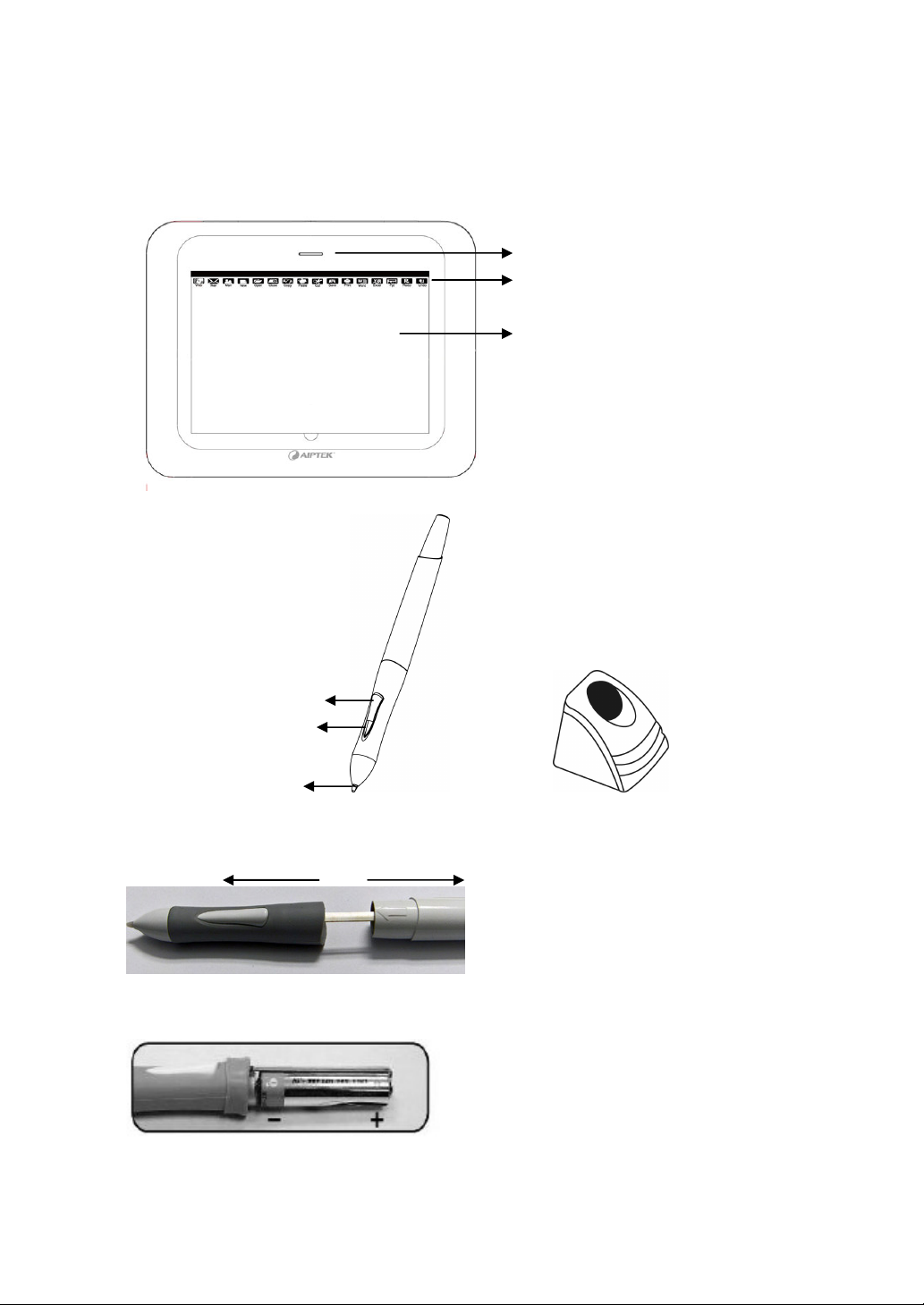
Knowing your HyperPen 10000U
1. Tablet
.
2. Digital Pen 3. Pen Holder & tip remover
Loading the battery for digital pen
Step 1: Pull the upper and lower part of the digital pen to opposite direction to open it.
Step 2: Load the battery into the battery compartment with + and – aligned with the
contact correctly as indicated.
Working area
Hot Cells (Shortcut)
LED indicator
Pen Ti
p
Pen Button
1
Pen Button
2
4
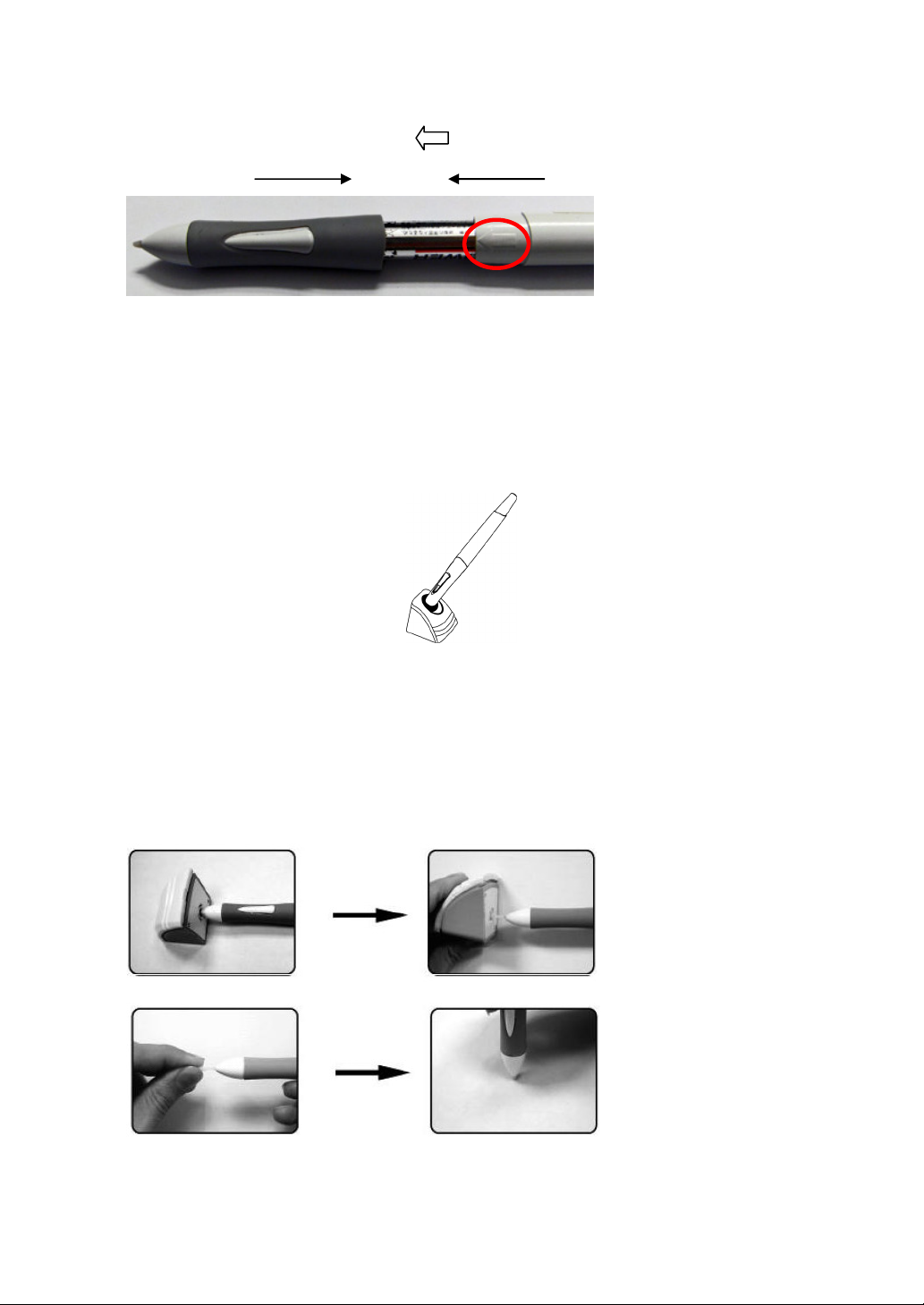
Step 3: Wind the pen by aligning the symbol with pen buttons.
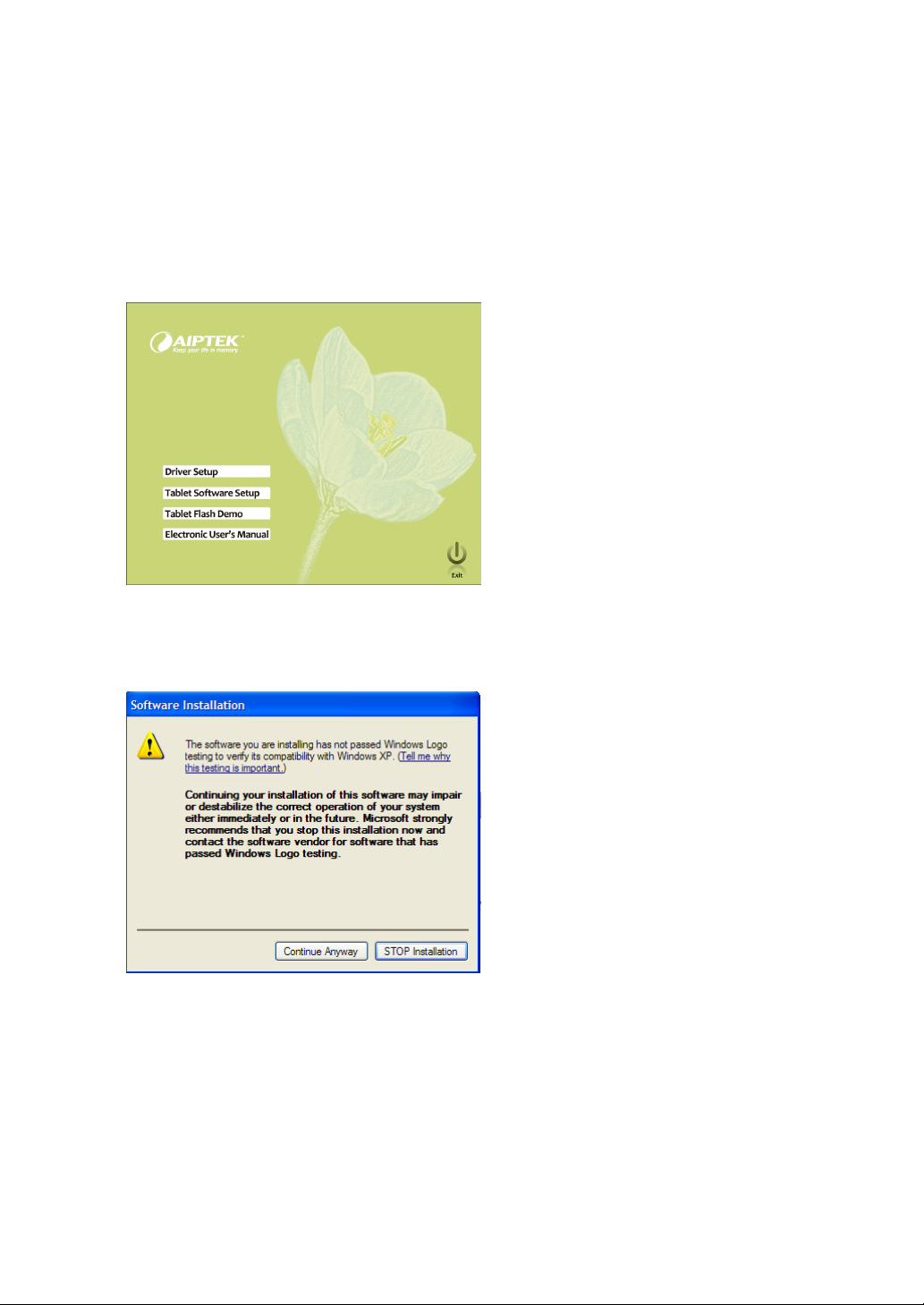
Storing the digital pen between tasks
To store the digital pen properly, please make sure that the pen tip does not have
contact with any object. By doing so, pressure applied to the pen tip will cause a
constant drain on pen’s battery. You are recommended to place the pen in the pen
holder, store it with the pen tip pointing upward, or lay it flat with the pen tip free of
contact with any object.
Changing the pen tip
To change the pen tip, pull the pen tip out from pen by using the embedded pen clip
on the bottom of pen holder.
Step 1: Insert the pen tip into the pen clip.
Step 2: Pull the pen so the pen tip becomes detached.
Step 3: Push the new pen tip into the pen.
5
Installation
Step 1: Install the driver for Windows OS
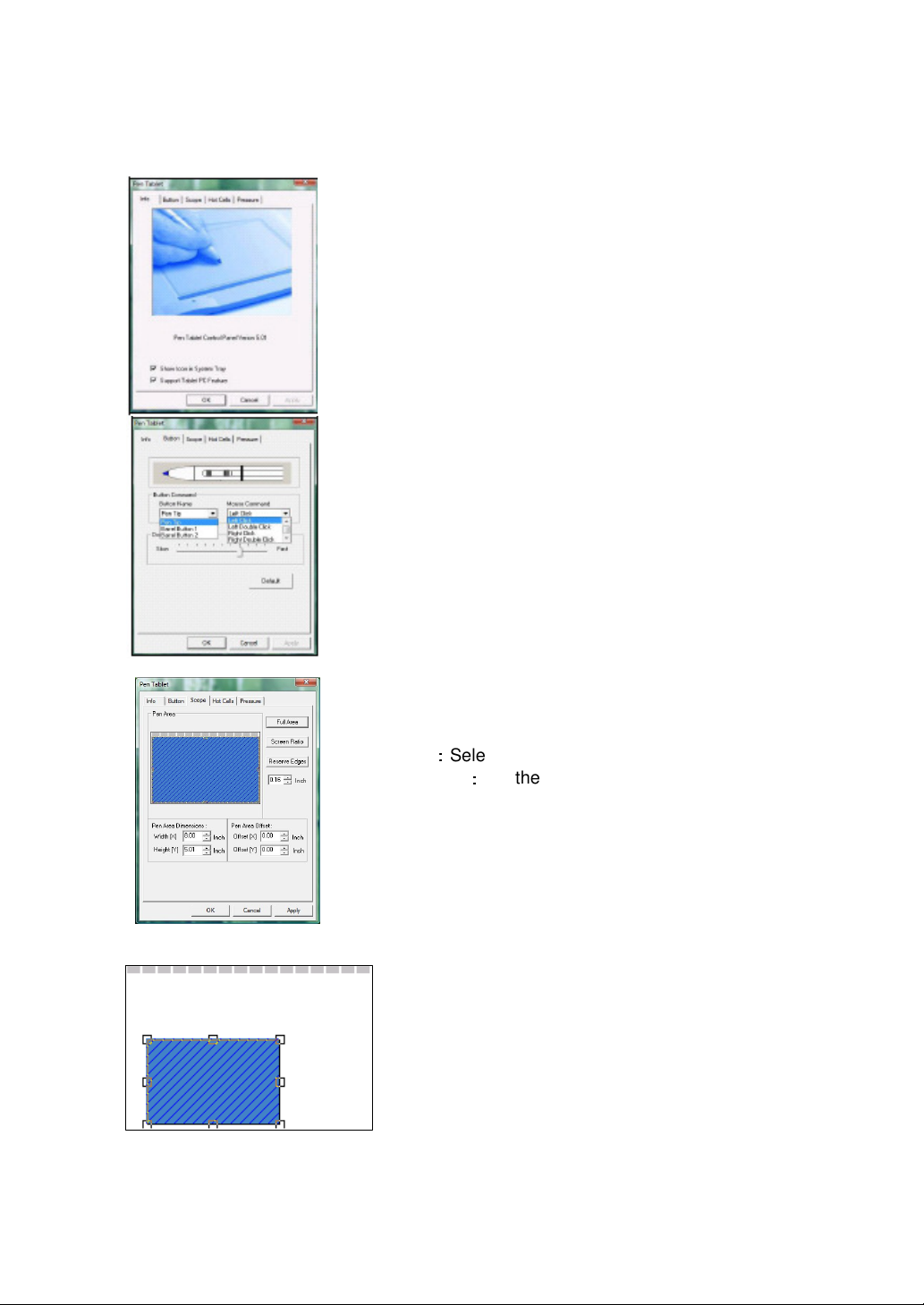
(1) Insert the CD into the CD-ROM drive. The setup program will be started automatically.
(2) Click ‘Driver Setup’ to start the installation.
Notice: Please install the driver before plugging in the tablet into your PC.
(3) If a window pops up information ‘The software you are installing has not passed
Windows logo testing to verify its compatibility with Windows XP’, click ‘Continue
Anyway’ to proceed the installation.
Install the driver for Mac OS
(1) Browse the CD and find the driver version for your Mac:
Step 1 Click Driver Setup
Step 2 Click Driver Setup
(2) Follow up the instructions step by step to install the driver.
(3) Wait until the installation has been completed.

6
Step 2: Connecting the tablet to PC or MAC by USB cable
★
★★
★
For windows:
(1) Connect the tablet to the computer by USB cable. It will take a few seconds
until a window ‘Found New Hardware Wizard’ pops up. Click on the “finalize”
button.
(2) A small tablet icon will appear in the taskbar on the bottom of the screen.
Double click and the set up window will open.
7
Step 3: Set up the tablet and pen
1. The Info Tab
The Info tab displays the information of current driver. You
could choose to:
a. display the icon in the toolbar or not.
b. enable the features if you use a tablet PC.
Notice: There’re no features for Tablet PC under the
Mac OS.
2. The Button Tab - Button Command
You can define the function for the pen tip and two-barrel
buttons based on your preference.
You can adjust the sensitiveness of double click speed
between slow to fast.
Notice: Mac OS has no middle click and middle
double click.
3. The Scope Tab
The Scope Tab contains three functions:
a. Full Area
:
::
:
Select the largest working area.
b. Screen Ratio
:
::
:
Set the working area to
automatically fit to the screen aspect ratio.
c. Reserve Edges: Reserve the space for hot cells
on the top area.
Tip: In addition to these three options, it’s easy
to resize or relocate the working area to suit
your need by moving the frame of the blue
square shown in the picture.
8
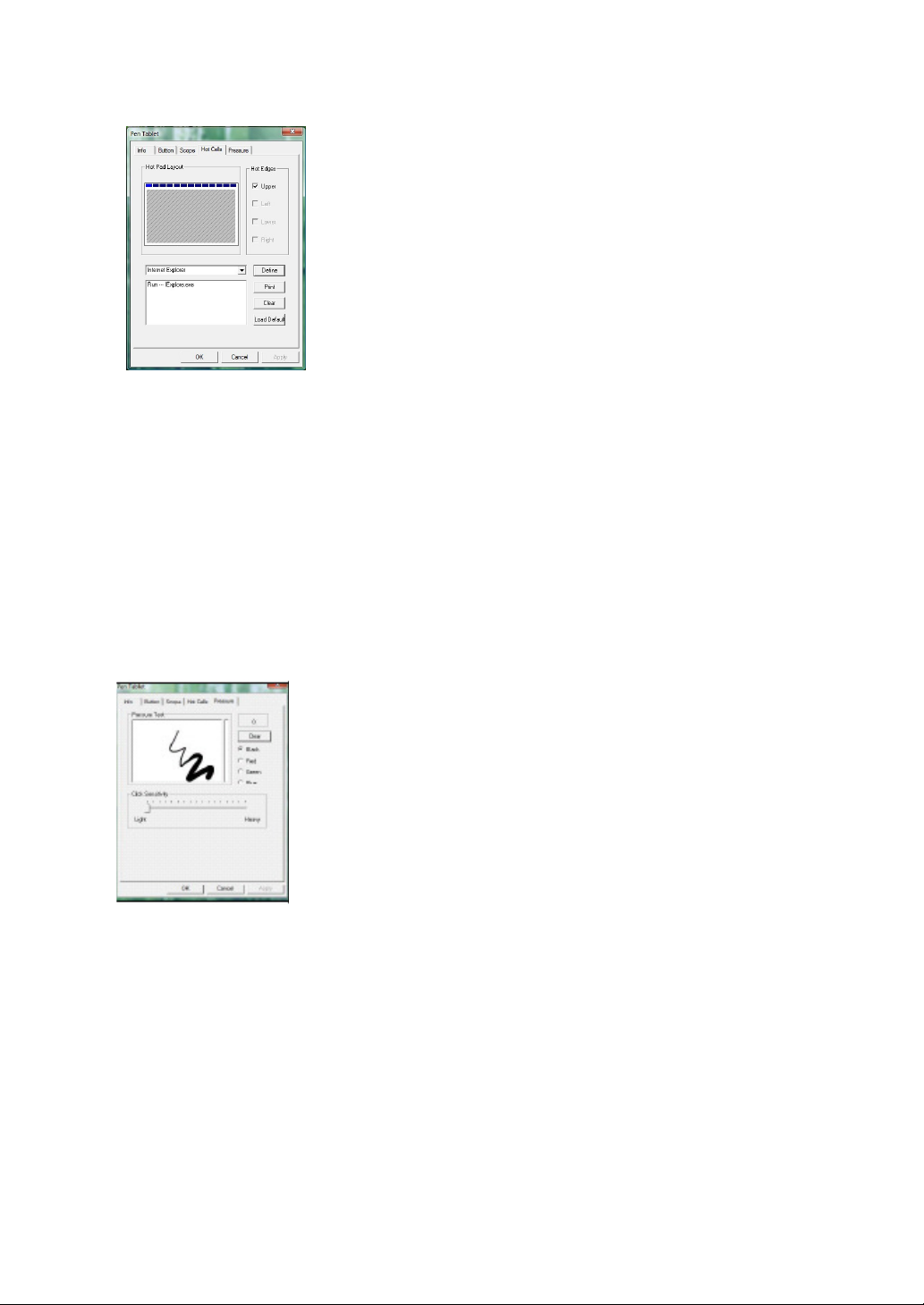
4. Hot Cell Tab
a. Hot Edges
Hot edges show the possibilities of allocating hot cells. The
hot cells of HyperPen 10000U are allocated only in the
upper side of the tablet.
b. Hot Pad Layout
You can change the default setting of hot cells by selecting
any of 16 hot cells.
If you want to redefine the hot cells, click ‘Define’. Then key
in the program or function, route of where the program is
saved, and parameters if necessary. The string typed will
be passed to the program as parameters. Click ‘OK’ to
confirm the reset.
If you want to get an overview of all hot cells, click ‘Print’.
Notice: There’s no Print Key in Mac System.
If you want to clear the initial setting, click ‘Clear’
5. Pressure Tab
The pen pressure can be adjusted the indicator between
‘Light’ and ‘Heavy’. Draw on the ‘Pressure Test’ area to see
the thickness of handwriting under the selected pressure.
Step 4: Verifying installation for hardware and driver functions
Use the tips here to verify the tablet function:
1. As soon as the pen tablet itself activates, the LED begins to flash.
2. Tap on any surface with the pen tip to “wake it up” if it has gone into standby
mode. When the pen is not used for some time, a built-in power saving function
makes the pen or mouse enter into standby mode.
3. Press a button on the pen barrel. The LED will light up.
4. Hover or move the pen in the working area, the cursor on the screen should move
accordingly.

9
Product Specification
Specifications
I. Tablet
Size 30.7 cm (12'') in diagonal
Working Area 25.4x15.8 cm (10’’ x 6.25’’)
Aspect Ratio 16:10
Dimensions 35.4 x 27.7 x 1.5 cm (13.9” x 10.9” x 0.6”)
Resolution Up to 4000 lpi
Detection Distance Max. 10 mm for reading. Max. 5mm for writing
Report ration 200 rps (report per second)
Function Keys 16 macro keys
LED Indicator 1 green LED
Power Consumption Max. 0.35W, from USB
Interface USB 2.0 (Full Speed)
Weight 820g
II. Digital Pen
Model Code P23 Black
Pen Pressure 1024 levels
Pen Accuracy +/- 0.3mm
Button 3
Weight 25g
III. Package Content
Software Bundle
Adobe Photoshop Element 6.0, PenNotice, Annotate for
Word , PenCommander, PenMail, PenSigner
Accessory
Pen x1, Pen Refill x3, Pen holder x1, Alkaline Battery
(1.5V) AAAx1, Quick Start Guide, Driver CD x1, Adobe
Photoshop Element 6.0 CDx1
Article No. 100055
Tabla de contenidos
Idiomas:
Otros manuales de Tableta gráfica de AIPTEK


