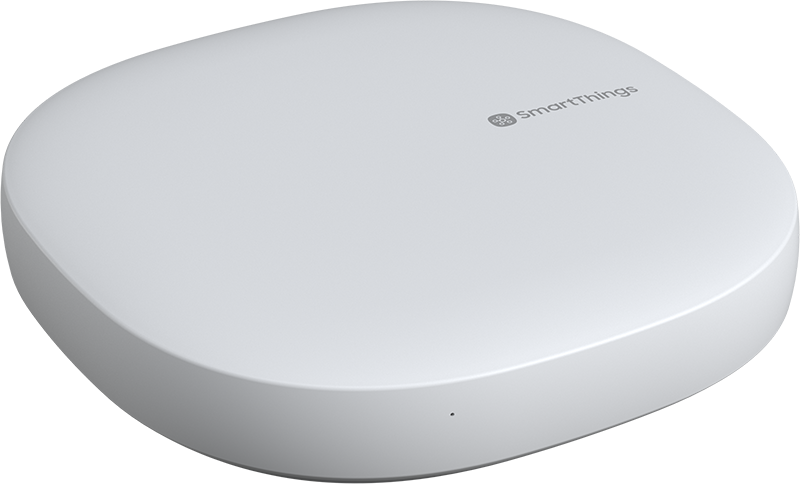
Aeotec SmartThings Manual de usuario

2021. 05. 04.
Table of Contents - Smart Home Hub : Aeotec Help Desk
https://help.aeotec.com/support/solutions/articles/6000240160-table-of-contents-smart-home-hub
1/3
Table of Contents - Smart Home Hub
Modified on: Mon, 3 May, 2021 at 6:39 PM
This solution lists all of the available articles and their linked pages to gain easy access to any of Smart Home Hub
(https://aeotec.com/smartthings/) functions and step by step use case.
Click on any of the links below to access their solution pages
1. Setup - Smart Home Hub (https://aeotec.freshdesk.com/a/solutions/articles/6000240326)
a. Setup checklist
b. Download Smart Home Hub Connect app
c. Create an account
d. Power up Smart Home Hub
e. Finalize Smart Home Hub setup
f. Can't connect and need assistance?
2. Migrate your old hub to Smart Home Hub (https://help.aeotec.com/support/solutions/articles/6000247809-migrate-your-old-
hub-to-smart-home-hub)
a. Change Zigbee channel for older Zigbee devices
b. Migrate from SmartThings V1, ADT, Link, or other Z-Wave or Zigbee hubs
c. Migrate from SmartThings V2 or V3 hubs
3. Room management (https://aeotec.freshdesk.com/a/solutions/articles/6000240425)
a. Create a new room
b. Assign device to a room
c. Edit a room
d. Delete a room
4. Installing & removing devices
(https://aeotec.freshdesk.com/a/solutions/articles/6000240427)
a. Connecting devices
a. Z-Wave
b. Zigbee or WiFi
b. Removing devices
a. Z-Wave
b. Zigbee or WiFi
c. Force removing devices
5. Control devices (https://help.aeotec.com/support/solutions/articles/6000247430-device-control-smart-home-hub)
a. Control connected devices
6. Custom automation (https://aeotec.freshdesk.com/a/solutions/articles/6000240462)
a. Add a new custom automation
b. Example automation
c. Edit a custom automation
d. Delete a custom automation
7. Scenes (https://aeotec.freshdesk.com/a/solutions/articles/6000240598)
a. Add a new Scene
b. Trigger a Scene manually
c. Add a Scene to an Automation
d. Edit a Scene
8. SmartApp (https://aeotec.freshdesk.com/a/solutions/articles/6000240599)
a. What is a SmartApp
b. Available SmartApp(s)
c. Custom SmartApp(s)
9. SmartThings Home Monitor (https://aeotec.freshdesk.com/a/solutions/articles/6000240463)

2021. 05. 04.
Table of Contents - Smart Home Hub : Aeotec Help Desk
https://help.aeotec.com/support/solutions/articles/6000240160-table-of-contents-smart-home-hub
2/3
a. Setup SmartThings Home Monitor
1. Security
2. Smoke
3. Leaks
b. View an incident
c. Dismiss an incident
d. Incident history
10. Voice control (https://aeotec.freshdesk.com/a/solutions/articles/6000240465)
a. Amazon Alexa
1. Connect Amazon Alexa with Smart Home Hub
2. Discover devices with Amazon Alexa
3. Voice commands to Amazon Alexa
4. Disconnect Smart Home Hub from Amazon Alexa
b. Google Assistant
1. Connect Google Assistant with Smart Home Hub
2. Assign your devices to rooms using Google Home app
3. Voice commands to Google Assistant
4. Disconnect Smart Home Hub from
(https://aeotec.freshdesk.com/a/solutions/articles/6000240464)
11. Manage members (https://aeotec.freshdesk.com/a/solutions/articles/6000240464)
a. Add a new Member
1. Invite with Email
2. Invite with QR Code
b. Remove Member(s)
c. Leaving a location as a Member
12. Smart Home Hub settings (https://aeotec.freshdesk.com/a/solutions/articles/6000240597)
a. Samsung account
b. Advanced features
c. Personal data
13. Smart Home Hub compatible devices (https://aeotec.freshdesk.com/a/solutions/articles/6000241329)
a. Smart Home Hub native
b. Aeotec works with Smart Home Hub
c. SmartThings list of compatible devices
14. Aeotec Smart Home Hub troubleshoot (https://aeotec.freshdesk.com/support/solutions/articles/6000245641-aeotec-
smart-home-hub-troubleshoot)
a. What do the LEDs on Aeotec Smart Home Hub mean?
b. How can I reboot my Aeotec Smart Home Hub?
c. How to reset Aeotec Smart Home Hub to factory default
d. Firmware / Download process in app is stuck
e. Hub not found
f. Connection failed / hub offline during setup
g. Your hub is offline (Solid or Blinking blue LED)
h. Error 33-504
i. Solid or Blinking red LED
j. Registration failed
k. Invalid serial number
l. How to perform a full hub reset if already setup.
m. Older Zigbee sensors can't connect.
n. Cannot connect Z-Wave or Zigbee devices.
15. Aeotec Smart Home Hub support (https://aeotec.freshdesk.com/support/solutions/articles/6000245239-aeotec-
smart-home-hub-support/preview)
a. Contact Aeotec support
b. Contact SmartThings support
16. Smart Home Hub V3 technical specifications (https://aeotec.freshdesk.com/a/solutions/articles/6000240466)

2021. 05. 04.
Table of Contents - Smart Home Hub : Aeotec Help Desk
https://help.aeotec.com/support/solutions/articles/6000240160-table-of-contents-smart-home-hub
3/3

2021. 05. 04.
Setup - Smart Home Hub : Aeotec Help Desk
https://aeotec.freshdesk.com/support/solutions/articles/6000240326
1/7
Setup - Smart Home Hub
Modified on: Mon, 3 May, 2021 at 6:42 PM
This guide will lead you through the initial setup of (https://aeotec.com/autopilot/)Aeotec Smart Home Hub
(https://aeotec.com/smartthings/) and get you started. It forms part of a broader guide on managing and using Smart Home
Hub which can be found here (https://aeotec.freshdesk.com/a/solutions/articles/6000240160).
a.
Setup checklist
There are a number of things to ensure that you have set in order to setup your hub properly. Typically you won't need
to do any of the recommended settings, but these settings will ensure that setup is a breeze.
For best results.
Keep your hub away from heavy metal objects (HVAC equipment, refrigerators, stoves, or other sources of
interferences).
Consider setting up your hub using Ethernet connection first. Once finished, you can connect your Smart Home
Hub to Wi-Fi afterwards. (Main Menu -> Settings -> Change device Wi-Fi network).
Aeotec Smart Home Hub works best when placed in a central location in your home.
If installing your Smart Home Hub using Wi-Fi.
Keep your hub, router, and phone temporarily close together just for the setup process. Once setup is done, you
can re-arrange your Smart Home Hub however you'd like within the range of the router it is connected to.
If using a WiFi mesh system, verify the hub is closest to the nearest Access Point (AP) to its physical location.
If you have a Router with both 2.4GHz and 5Ghz Wi-Fi networks, ensure that they both have unique SSID
names (ie. WiFi2.4GHz and WiFi5GHz).
Verify that your Router connection has sufficient bandwidth in the installation location.
Run a speed test with your phone in that location using something like speedtest.net, then ensure that
at least 2Mbps on both upload/download speeds.
Check if your Router has the following ports open:

2021. 05. 04.
Setup - Smart Home Hub : Aeotec Help Desk
https://aeotec.freshdesk.com/support/solutions/articles/6000240326
2/7
11111
9443
443
39500
37
Check your Router to see if there are any new firmware updates and apply it. Access the internal access
point of your router which should be printed directly on the router somewhere (typically this is 192.168.0.1).
If your hub has trouble connecting to Wi-Fi at the location you wish to install/setup your Smart Home Hub,
you may add a Wi-Fi extender half-way between your hub and your Wi-Fi router to help bridge that gap.
b.
Download SmartThings app
Smart Home Hub primarily will be controlled by app use through a android or iOS smartphone.
Android
1. Open Play Store app.
2. In the search bar, enter "smartthings" and search.
3. Tap on SmartThings app.
4. Select Install.
iOS
1. Open App Store app.
2. In the search bar, enter "Smartthings" and search
3. Tap SmartThings app.
4. Tap the Get button to install.
5. You may need to sign in with your Apple ID to start the download and installation.
6. Ensure that your SmartThings app Local Network is enabled
1. Go to your iOS "Settings" page
2. Tap Privacy
3. Tap Local Network
4. Look for SmartThings, ensure that it is toggled ON (ie. image below)

2021. 05. 04.
Setup - Smart Home Hub : Aeotec Help Desk
https://aeotec.freshdesk.com/support/solutions/articles/6000240326
3/7
c.
Create an account
Creating an account is essential for the use of Smart Home Hub, this will be used to login anywhere in the world to
control your connected home devices.
Steps
1. Open the SmartThings app.
2. Touch Sign In.
3. Touch Create account.
4. Touch Agree for the Samsung Terms and Conditions, Terms of Services, and Samsung Privacy Policy.
5. Now Fill in the information for your account:
Email address.
Password (at least eight characters containing at least one number and one letter).
Confirmation password (same as above).
First and last name.
ZIP code
Date of birth.
6. Touch Next.
7. Touch Done.
8. Select your Country.
9. Touch Continue.
d.
Power up Smart Home Hub
Before you move onto creating your account and fully setting up Smart Home Hub, you must first power Smart Home
Hub.
It is recommended that you place your Smart Home Hub is the central most location in your home to have the best
wireless reach around it.

2021. 05. 04.
Setup - Smart Home Hub : Aeotec Help Desk
https://aeotec.freshdesk.com/support/solutions/articles/6000240326
4/7
Power Smart Home Hub
1. Select the location that your Smart Home Hub will remain for most of its use.
2. Connect the plug adapter to your Smart Home Hub.
3. Connect the plug adapter to your power outlet.
4. (Optional) If you wish to use a direct LAN connection, plug in an Ethernet cable to your wireless router and
Smart Home Hub now.
5. Once the LED flashes red/green, you will have 30 minutes to complete the setup in section d.
e.
Finalize Smart Home Hub setup in SmartThings app
This final section will tie your SmartThings account to your Smart Home Hub, once this is finished, you'll be able to log
in using your SmartThings app.
1. From the Home screen, touch the Plus (+) icon
2. Select Device.
3. Search "By Brand"
4. You can connect Smart Home Hub using either SmartThings or Aeotec, it doesn't matter, either will work with
Smart Home Hub.
Using Aeotec Brand
1. Select "Aeotec"
2. Select "WiFi/Hub"
3. Select "Smart Home Hub (IM6001-V3P)"
Using SmartThings Brand
1. Select "SmartThings"
2. Select "WiFi/Hub"

2021. 05. 04.
Setup - Smart Home Hub : Aeotec Help Desk
https://aeotec.freshdesk.com/support/solutions/articles/6000240326
5/7
3. Select "SmartThings Hub (IM6001-V3P)"
5. Select "Start"
6. Set where your Aeotec Smart Home Hub location is, and what room it will be in.
7. Then select "Next"
8. Select how you'd like to connect your Hub by touching Wi-Fi or Ethernet/Wired. (depends on your choices in
section c. Power up smart home hub)
9. SmartThings will ask you to power your hub if you have not done so already. Tap on Next.
10. If your hub isn't ready yet, your app will scan for your hub to be ready. Once its automatically detected, it will
move onto the next step.
11. Using your mobile device's camera, scan the QR code located on the back of the Hub:
If necessary, tap OK to give Smart Home Hub access to your smartphone camera.
If your having trouble scanning the QR code, tap "Add device by serial number" and enter the code
manually.
12. It will ask you to join a SmartThings WiFi network ("st-hubv3-858") or some other similar name, make sure you
press Connect. This is necessary to setup, if you tap cancel, your setup will fail and may require you to factory
reset your hub before you start again.
13. (Skip if you are using direct Ethernet connection) If you are setting up the Hub via Wi-Fi:
Select your Wi-Fi network.
Enter your Wi-Fi network's password, then tap Connect.
14. Wait a few moments while your Hub is connecting. (During this time, the LED of your Smart Home Hub will by
cycling red/green during the setup).
1. It will register your hub first which will take about 2 minutes to finish.
2. Once registration is finished, it will begin downloading any updates necessary for your hub. This will take
upwards of 30 minutes depending on how good you internet speed it.
3. Once downloading is done, your hub will install the downloaded update, this should take up to 5 - 10
minutes. (At this time the LED of your hub should be blinking blue).
Note - in the middle of the installation, you may notice that the LED of your hub has become solid
Green. This is a good indication that your hub is setup, but the interface is still getting other
settings ready, but I would recommend waiting until the screen automatically finishes.
You can close down your Smartthings app, and re-open, and your hub should appear
properly in your SmartThings app the next time you open it if you did choose to.
4. When the setup is complete, it should automatically ask you to setup its geolocation.
15. Touch Tap here to set a location to set a geolocation for your Hub
Drag the pin to your location, or enter your address manually.
Pinch and zoom the circle to set the size of your geolocation.
Tap Done.
16. When the Hub is successfully added, name it however you like, then touch Done.
f.
Can't connect and need assistance?
Before you start troubleshooting.
If your SmartThings app freezes during the firmware update process. Wait up to 10 minutes before you
follow the steps below:
1. Force close SmartThings app.
2. Open up SmartThings app.

2021. 05. 04.
Setup - Smart Home Hub : Aeotec Help Desk
https://aeotec.freshdesk.com/support/solutions/articles/6000240326
6/7
3. Check to see if your hub is present in your SmartThings Dashboard and SmartThings IDE. If so,
unplug your hub, connect it to Ethernet directly to your router, then plug your hub back into power.
If the LED status is blinking blue, solid blue, or is still flashing red/green.
1. If it doesn't change to solid blue or solid green, try:
Plugging your hub into Ethernet connection, and then unplug your Smart Home Hub, and then
plug it back in to power it back up.
2. Give it a few more minutes.
If it should be blinking blue,upon initial bootup.
If your firmware update didn't complete, it may change to flashingyelloworpurple, then
eventually return toblinking blue.
After a few minutes the LED should change to solid green.
Check the LED status of your hub before you move onto troubleshooting. If the LED of your hub is solid green,
this may be a good indication it is setup, but you'll need to just move it to a room for it to appear in your
interface.
If your hub does not appear in SmartThings app, check SmartThings IDE which you can verify if your hub
exists in your account:
1. Open an additional browser.
2. Login to Smartthings IDE: https://account.smartthings.com/ (https://account.smartthings.com/)
3. Click on "My Locations" -> then the locationyour hub is in.
4. Click on "My Hubs", if you only have a single hub, it should direct you to that hubs page. If you
have multiple, select the new hub in the list of hubs.
5. This should be able to tell you if your hub exists in SmartThings.
Finding your hub in your Smartthings app if you do not see it on the dashboard.
1. Open SmartThings app.
2. Click on Main Menu (top left corner).
3. Select "Devices".
4. Smart Home Hub if not renamed should be listed as "Hub", tap on Hub.
5. Tap More Options (3 dot icon).
6. Tap Edit.
7. Tap Room.
8. Select a Roomfor Hub to be located in. (ie. Living Room).
9. Tap Save.
If you your hub LED is solid green, and the hub shows up in both SmartThings IDE and SmartThings app,
your hub should be good to go. You can start connecting your smart home devices.
Troubleshoot your hub.
First troubleshoot your Smart Home Hub (https://help.aeotec.com/a/solutions/articles/6000245641), which you
can do by following that link. If you are still having issues, make sure you go down the checklist
Checklist before contacting Aeotec support.
To gain the best help, you'll need to send these items to SmartThings support who will be able to best support you
here in connecting your hub. It is fine if there is missing details, we will ask you if any further information from you
is necessary.
SN Code (located under your hub).
Error Code generated during the setup process (if any).
LED status on your Smart Home Hub after a few minutes of it being powered (ie. Solid blue, blinking purple,
solid green)
Leave your Smart Home Hub on Ethernet connection and powered so that SmartThings team may be able to
investigate your hub remotely.
List any troubleshooting you've tried
If possible, send them logswhich may be helpful in the analysis of your issue. You'll need an empty flash
driveto gather logs.
1. Power down Hub.

2021. 05. 04.
Setup - Smart Home Hub : Aeotec Help Desk
https://aeotec.freshdesk.com/support/solutions/articles/6000240326
7/7
2. Connect empty USB drive to Hub.
3. Power on Hub.
4. Wait about 10 minutes.
5. Press Reset button once.
6. Magenta light should flash briefly.
7. Logs dumped onto USB drive.
Where to contact Aeotec?
You can contact Aeotec support directly at one of these 2 locations:
1. Direct email to our support system: suppor[email protected].
2. Create a support ticket from: www.aeotec.com/support and then scroll to the very bottom of that page to
fill in our contact form.
Make sure you receive an automated response to your email, this will ensure that we have received your ticket.
We will typically respond within 24 hours of your question (between business hours of Monday - Friday).
Back to - Table of contents (https://aeotec.freshdesk.com/a/solutions/articles/6000240160)
Next page - Migrate your old hub to Smart Home Hub (https://help.aeotec.com/support/solutions/articles/6000247809-
migrate-your-old-hub-to-smart-home-hub)
Tabla de contenidos
Otros manuales de Automatización del hogar de Aeotec

Aeotec
Aeotec ZWA042 Manual de usuario

Aeotec
Aeotec NanoMote Quad Manual de usuario

Aeotec
Aeotec TriSensor AEOEZWA005 Manual de usuario

Aeotec
Aeotec Outlet Manual de usuario

Aeotec
Aeotec Button Manual de usuario

Aeotec
Aeotec NanoMote One Manual de usuario

Aeotec
Aeotec AEOEZWA001 Manual de usuario

Aeotec
Aeotec MultiSensor 7 Manual de usuario