
Adman Technologies DH-1 Manual de usuario

Adman Technologies Pvt. Ltd.
Face-Entry
Face - Entry
User Manual
Face Recognition based Access Control
System Model DH -1(Stand Alone system)

Adman Technologies Pvt. Ltd.
Face-Entry
User Manual
Adman Technologies Pvt. Ltd.
A-53, DDA Shed, Okhla Phase – II
New Delhi – 20
Phone: 011-43119696 * Fax: 011-43119634
E-Mail [email protected]
Catalog no. CTE0011
28-May-2009

Table of Contents
Introduction ........................................................................................................4
Safety instructions..............................................................................................5
Face-Entry operation modes..............................................................................6
System Activation...............................................................................................7
Enroll process ....................................................................................................9
Show personal data .........................................................................................16
Update personal data.......................................................................................17
Delete employee..............................................................................................18
Reports.............................................................................................................19
Administrator Login..........................................................................................24
Logout Administrator........................................................................................25
Remote support................................................................................................26
Face-Entry User Manual V1.1 3

Face-Entry User Manual V1.1 4
Introduction
ime Watch would like to thank you for purchasing Face-Entry face recognition system.
We in TimeWatch are using all our resources and energy to supply you with an advanced state
of the art face recognition system.
T
This manual will instruct you via simple operation guidelines for short and successful assimilation of
the system in your organization.
Face recognition concept is fairly new and people might need some specific instruction how to pose
in front of the system.
Please study the guidelines and help them get verified in the system in the first few times.
Please contact us on any issue you may need assistance.

Safety instructions
1. The system has a permanent connection to power line.
Hence, for security reasons it should have an external
standard power circuit breaker for 110/220Vac,
10A current trip, located near the system.
2. Readily accessible disconnect device (two pole circuit breaker) should be incorporated external
to the equipment
3. Appropriate short-circuit backup protection should be provided in the building installation.
Protective devices shall have adequate breaking (rupturing) capacity to interrupt the maximum
fault current (including short circuit current) which can flow
4. There is a danger of explosion in case the lithium battery, embedded in Face-Entry system, is
incorrectly replaced or handled. When the battery is replaced, the same type or an equivalent
type, recommended by the manufacturer, must be used.
Used batteries must be disposed of according to the manufacturer's instructions.
5. System operating temperature range 0˚C to +35˚C
System storage temperature range -20˚C to +50˚C
6. System package gross weight is 8 Kg
System net weight is 5.5 Kg
5

Face-Entry operation modes
Face-Entry system operates in three modes:
1. Match mode – This is the normal daily mode, which allows users/employees face recognition
based authentication.
2. Administrator mode - This mode enables enrolling new users/employees, updating the database
and producing reports.
3. Service mode – Reserved mode for TimeWatch's Technical Support team.
6

System Activation
Face-Entry activation process designed to be as simple as possible, however since we have to secure
the biometric information only authorized person may activate the system.
Please perform the following steps to activate the system:
1. Using included wireless keyboard press the Escape button to exit Face-Entry main application.
2. In the main menu select > Face Recognition
3. In the dropdown menu select > Administrator
4. Login using the default username and password:
User: TIMEWATCH
Password: TIMEWATCH
NOTE! Username and Password are key sensitive.
5. You are now able to enroll new users to the system for authentication as described in page
number 9.
7

6. After system activation you can change default username and password by selecting
Administrator dropdown menu > Change Username and Password
7. Important! Logout Administrator every time you finish using it.
8
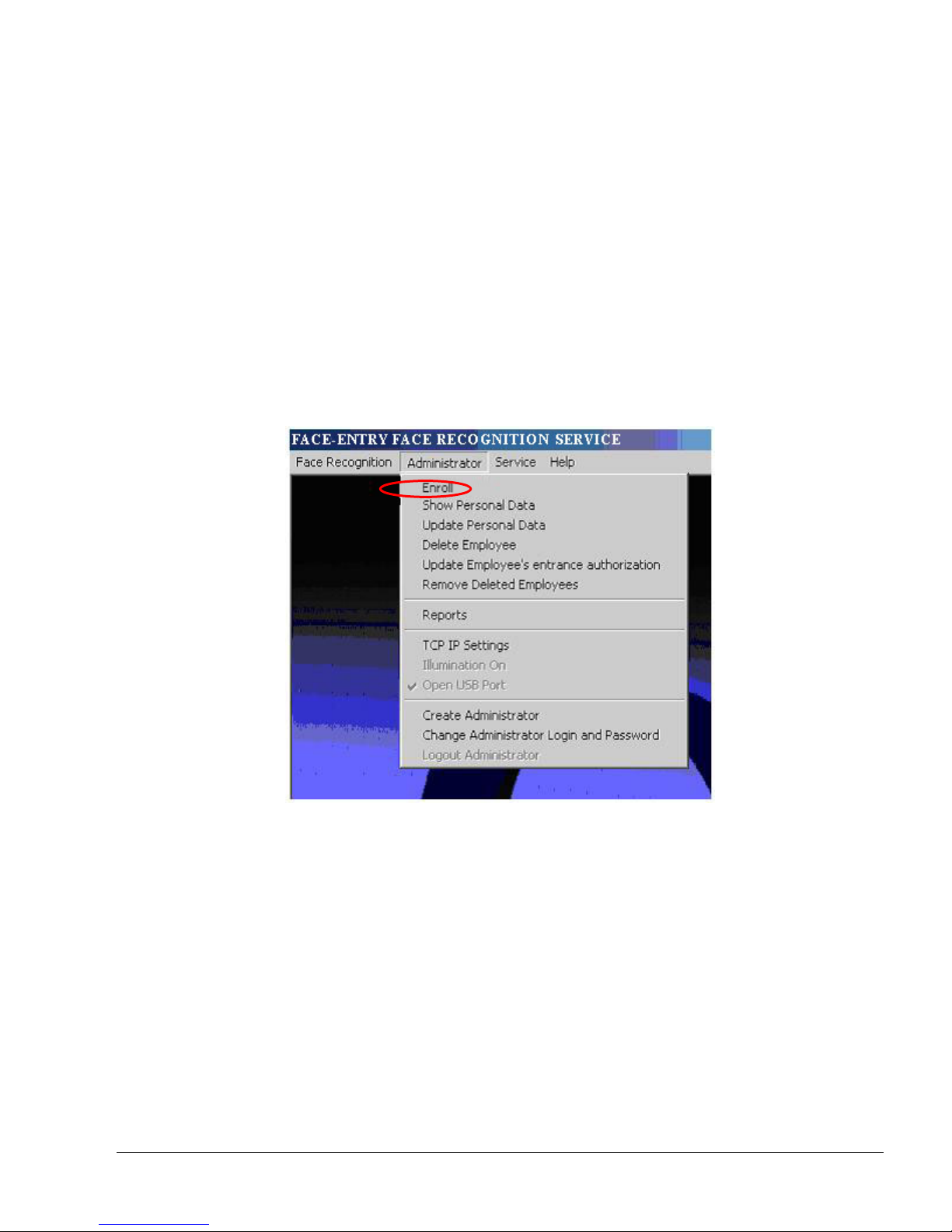
Enroll process
NOTE! Only Administrator has the privilege to Enroll.
The unique identifier of each user can be one of the following:
1. RFID card - A new card should be allocated to the new employee and his/her name printed on
the card. Please make sure the RFID card you are using is compatible to the system RFID reader
as described in system specifications.
2. 4 digits employee ID entered using the touch screen keypad.
3. Please perform the following 5 steps:
4. Select “Enroll” from Administrator dropdown menu
9

5. Present the new employee RFID card as shown in the picture below
or type the 4 digits employee's number and press “Enter” using the
touch screen key pad.
6. If the RFID card or the 4 digits employee number is already in use following question will appear:
7. Press “Yes” if you would like to reassign the specified ID and “No” if you wouldn’t
8. The system is waiting for the enrollee to look at the camera for capturing the
face for future authentication.
The user should stand steady in front of the camera (~60 cm) and look straight to the camera
when the face is fully exposed without tilting the face.
Face-Entry instructs the user interactively how to pose in front of the camera and uses a smart
interactive interface, which helps the enrollee to get enrolled quickly.
A red square around the face symbolizes that the system detected a face in front of it but needs
more information for the process completion.
Once the red square turns into green information is sufficient and the enrollment could be
performed. A successful capture is performed within 1 second ended with a message "Capture
succeeded".
10
Tabla de contenidos
Manuales populares de Puerta de otras marcas

LST
LST M500RFE-AS Manual de usuario

Kinnex
Kinnex Media Gateway Manual de usuario

2N Telekomunikace
2N Telekomunikace 2N StarGate Manual de usuario

Mitsubishi Heavy Industries
Mitsubishi Heavy Industries Superlink SC-WBGW256 Manual de usuario

ZyXEL Communications
ZyXEL Communications ZYWALL2 ET 2WE Manual de usuario

Telsey
Telsey CPVA 500 - SIP Manual de usuario


