
Addtron Technology AWS-110 Manual de usuario

Addtron AWS-110
Wireless Access Point
User Manual
FederalCommunicationsCommission(FCC)ComplianceNotice:Radio
Frequency Notice
This device complies with part 15 of the FCC Rules. Operation is subject to the
following two conditions:
1. This device may not cause harmful interference.
2. This device must accept any interference received, including interference that
may cause undesired operation.
Note:ThisequipmenthasbeentestedandfoundtocomplywiththelimitsforaClass
B digital device, pursuant to part 15 of the FCC Rules. These limits are designed to
providereasonableprotectionagainstharmfulinterference in aresidentialinstallation.
This equipment generates, uses, and can radiate radio frequency energy and, if not
installedandusedin accordance with the instructions, may cause harmful interference
to radio communications. However, there is no guarantee that interference will not
occurin a particular installation. Ifthisequipment does cause harmfulinterferenceto
radio or television reception,whichcanbedeterminedbyturningtheequipmentoff
andon, the userisencouraged to tryto correct theinterferenceby one ormoreof the
followingmeasures: (1) Reorient orrelocatethe receiving antenna, (2)Increasethe
separation between the equipment and receiver, (3) Connect the equipment into an
outletonacircuitdifferentfromthattowhichthereceiverisconnected,(4)Consult
the dealer or an experienced radio/TV technician for help.
FederalCommunicationsCommission(FCC)RadiationExposureStatement
This equipment complies with FCC radiation exposure limits set forth for an
uncontrolledenvironment. In order to avoidthepossibility of exceeding theFCCradio
frequencyexposure limits, humanproximityto the antennashallnot belessthan20cm
(8 inches) during normal operation.

Wireless Access Point
iii
TABLE OF CONTENT
TABLE OF CONTENT...........................................................iii
Introduction...........................................................................1
Connect the Wireless Access Point to Your Network ......................2
HARDWARE INSTALLATION.....................................................2
Driver Installation...................................................................3
INSTALLDRIVER UNDERWINDOWS98.....................................3
INSTALLDRIVER UNDERWINDOWSME....................................6
INSTALLDRIVER UNDERWINDOWS2000 ..................................9
Configuration Utility.............................................................13
INSTALL THECONFIGURATIONUTILITY...................................13
USB CONFIGURATION UTILITY .............................................16
SNMP MANAGER CONFIGURATIONUTILITY............................18
FIRMWAREUPGRADEUTILITY...............................................27
Wireless Access Point
1
Introduction
The IEEE 802.11b Wireless Access Point allows you to put your
Wireless LAN into the infrastructure mode. In the infrastructure
mode, the Wireless Access Point converts airwave data into wired
Ethernet data, acting as a bridge between the wired LAN and wireless
clients. Connecting multiple Access Points via a wired Ethernet
backbone can further extend the wireless network coverage. As a
mobile computing device moves out of the range of one access point,
it moves into the range of another. As a result, wireless clients can
freely roam from one access point domain to another and still
maintain seamless connection to the network.
Features
§Complies with the IEEE 802.11b Direct Sequence Spread
Specification
§Complies with IEEE 802.3
§Supports 11, 5.5, 2 and 1 Mbps Data Rates on the wireless
interface
§Supports 10 Mbps Data Rate on the Ethernet interface
§WEP 64-bit data encryption for security
§Roaming capability
§Provides SNMPv1 management
§Remote management via SNMP protocol
§Local management via console port
§Firmware upgrade via console interface
§Requires 5V@800mA power supply
§FCC Certified under Part 15 to Operate in 2.4GHz ISM Band
§Driver Support Microsoft Windows®98,2000,andMillennium

Wireless Access Point
2
Connect the Wireless Access Point to
Your Network
Hardware Installation
§Power on your desktop PC.
§Connectthe USBport ofthe AccessPoint toyour desktopPC.
§Connect the Ethernet port of the Access Point to a hub or
switch.
§Insert the driver CD into your CD-ROM.
§The Hardware Installation is complete.
Wireless Access Point
3
Driver Installation
Install Driver Under Windows 98
1. Windows 98 automatically recognizes a new USB Device. Click
the Next button to proceed.
2. Make sure that Search for the best driver for your device is
selected and click the Next button to continue.

Wireless Access Point
4
3. Make sure that Specify a location is selected and click the
Browse button. At this point, Windows will ask you to browse
for the folder. Simply select the folder in which the driver is
located and click the Next button.
4. Windows is now ready to install the driver. Click the Nextbutton
to continue.
Wireless Access Point
5
5. After Windows copies the files from your CD, you will be
notified that installation has been completed. Click the Finish
button to continue.
6. Right click the mouse on the My computer icon and select
Properties. Click the Device Manager. You will find the
AddtronWireless802.11b AccessPoint,if it has been installed
successfully. The Access Point driver installation is complete.
You may continue on to Utility Installation.

Wireless Access Point
6
Install Driver Under Windows ME
1. Windows ME automatically recognizes a new USB Device
added. Select Specify the location of the driver and click the
Next button to proceed.
2. At this point, Windows will ask you for new drivers.Make sure
that Search for the best driver for your device and Specify a
locationare selected. Click the Browse button, simply select the
folder in which the driver is located and click the Next button to
proceed.
Wireless Access Point
7
3. Windows is now ready to install the driver. Click the Nextbutton
to continue.
4. Windows will indicate that installation is complete. Click the
Finishbutton to continue.

Wireless Access Point
8
5. To verify the driver installation, move the cursor on the My
computer icon and right click your mouse. Select Properties.
The System Properties window appears. Addtron Wireless
802.11b Access Point will be listed if the driver installation was
successful.
Wireless Access Point
9
Install Driver Under Windows 2000
1. Windows 2000 automatically recognizes the Wireless Access
Point when it is connected to the PC. Click the Next button to
proceed.
2. Select Search for a suitable driver for my device and click the
Next button.

Wireless Access Point
10
3. Select Specify a location and click the Next button.
4. On the following screen, click the Browsebutton. Simply select
the folder in which the driver is located. Click the OKbutton.
Wireless Access Point
11
5. Windows will now search for the driver. Click theNext button.
6. Windows has finished installing the driver. Click the Finish
button to complete.

Wireless Access Point
12
7. Right click My computer and select Properties. Select
Hardware and select Device Manager and click on Network
adapters. You will find the Addtron Wireless 802.11b Access
Point, if it has been installed successfully. The Access Point
driver installation is complete.
Wireless Access Point
13
Configuration Utility
The Wireless Access Point can be configured through the USB
Configuration Utility or the SNMP Manager Configuration Utility.
Install the Configuration Utility
1. Execute the Setup.exe file on your CD-ROM. Windows will
bring you to the InstallShield Wizard screen. Click the Next
button to proceed.

Wireless Access Point
14
2. At this point, Windows will ask for the destination folder. Click
the Next button to continue.
3. Windows will ask for the program folder. Click the Next button
to proceed.
Wireless Access Point
15
4. Windows will indicate that installation has been completed.
Click the Finishbutton to continue.
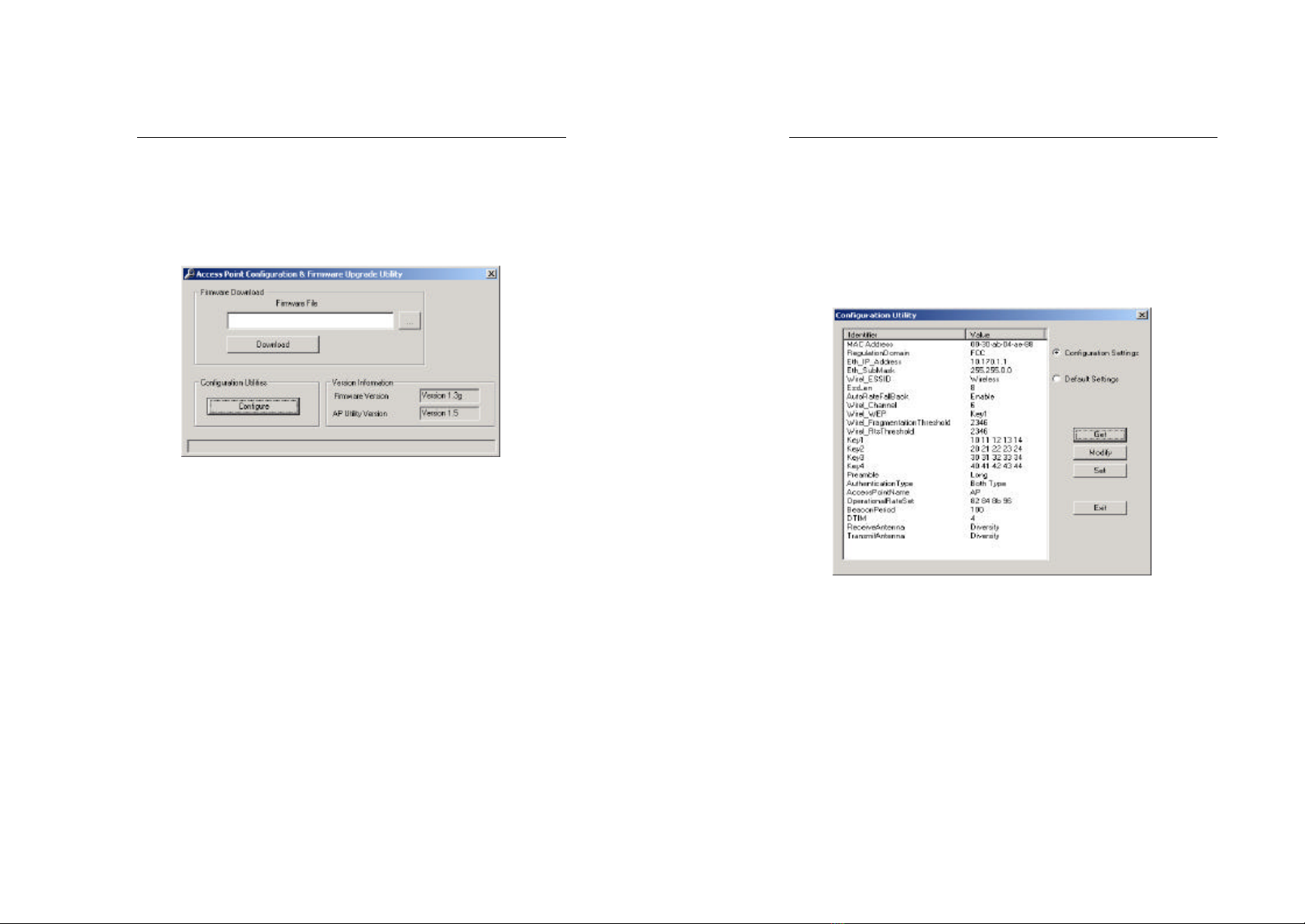
5. After installing the Utility, installation is complete. From the
Start menu, select Addtron Wireless 802.11b Access Point
Utility and then click USB Configuration Utility. Windows
will bring you to the Access Point Configuration &
Firmware Upgrade Utilityscreen.
Wireless Access Point
16
USB Configuration Utility
The USB Configuration Utility is divided into 3 parts: Firmware
Download, Configuration Utilities, and Version Information.
Firmware Download
The Firmware Download is for upgrading the firmware. Click the
Browse button and select the Firmware File. Click the Download
button.
Wireless Access Point
17
Configuration Utilities
Click the Configure button. The Configuration Utility screen
appears. Click the Get button. The Identifier and Value fields should
be listed. Select the Identifier you want to modify and click the
Modify button. You may change the Value. Click the Setbutton to
set the Configuration.
Version Information
The Version Information field shows the release informationforthe
USB Configuration Utility.
Otros manuales para AWS-110
1
Tabla de contenidos
Otros manuales de Punto de acceso inalámbrico de Addtron Technology


