5G HUB QCOM tool Manual de usuario

2
QCOM Tool v1.6 Copyright © 5GHUB.US
Purpose of the Document
The purpose of this document is to explain the QCOM tool and how to use it with
different wireless modules such as BG96, B95, BG77, EG91, EG95, or Raspberry PI HAT.
Document History
Version
Author
Date
Description
A
5G HUB
10.05.2020
Initial Document

3
QCOM Tool v1.6 Copyright © 5GHUB.US
Table of Contents
Purpose of the Document .................................................................................................................... 2
Document History ................................................................................................................................ 2
1 Introduction ............................................................................................................................. 4
2 Install LTE&GNSS Windows Driver ........................................................................................... 5
3 Use QCOM tool with BG96/BG95/EG91/EG95 ........................................................................ 6
4 How to Use the QCOM Tool..................................................................................................... 8
4.1 COM Port Configuration........................................................................................................... 8
4.2 Open and Close COM Port ....................................................................................................... 9
4.3 Send Data ............................................................................................................................... 10
4.4 Send Data Continuously .........................................................................................................11

4
QCOM Tool v1.6 Copyright © 5GHUB.US
1Introduction
This document describes how to use “QCOM” tool. The tool can run without installation. And it
supports the following OS:
•Window 10/Windows 95/Windows 98/Windows 2000/Windows ME/Windows XP
This document is applicable to all GSM, UMTS LTE, and GNSS modules. Install the following tools
from the GitHub repository:
LTE & GNSS driver:
5G-NB-IoT/Driver at master · 5ghub/5G-NB-IoT (github.com)
QCOM Tool:
5G-NB-IoT/Tools at master · 5ghub/5G-NB-IoT (github.com)

5
QCOM Tool v1.6 Copyright © 5GHUB.US
2Install LTE&GNSS Windows Driver
On Windows Operating System (OS), install the following Windows driver for LTE&GNSS modem:
5G-NB-IoT/Driver at master · 5ghub/5G-NB-IoT (github.com)
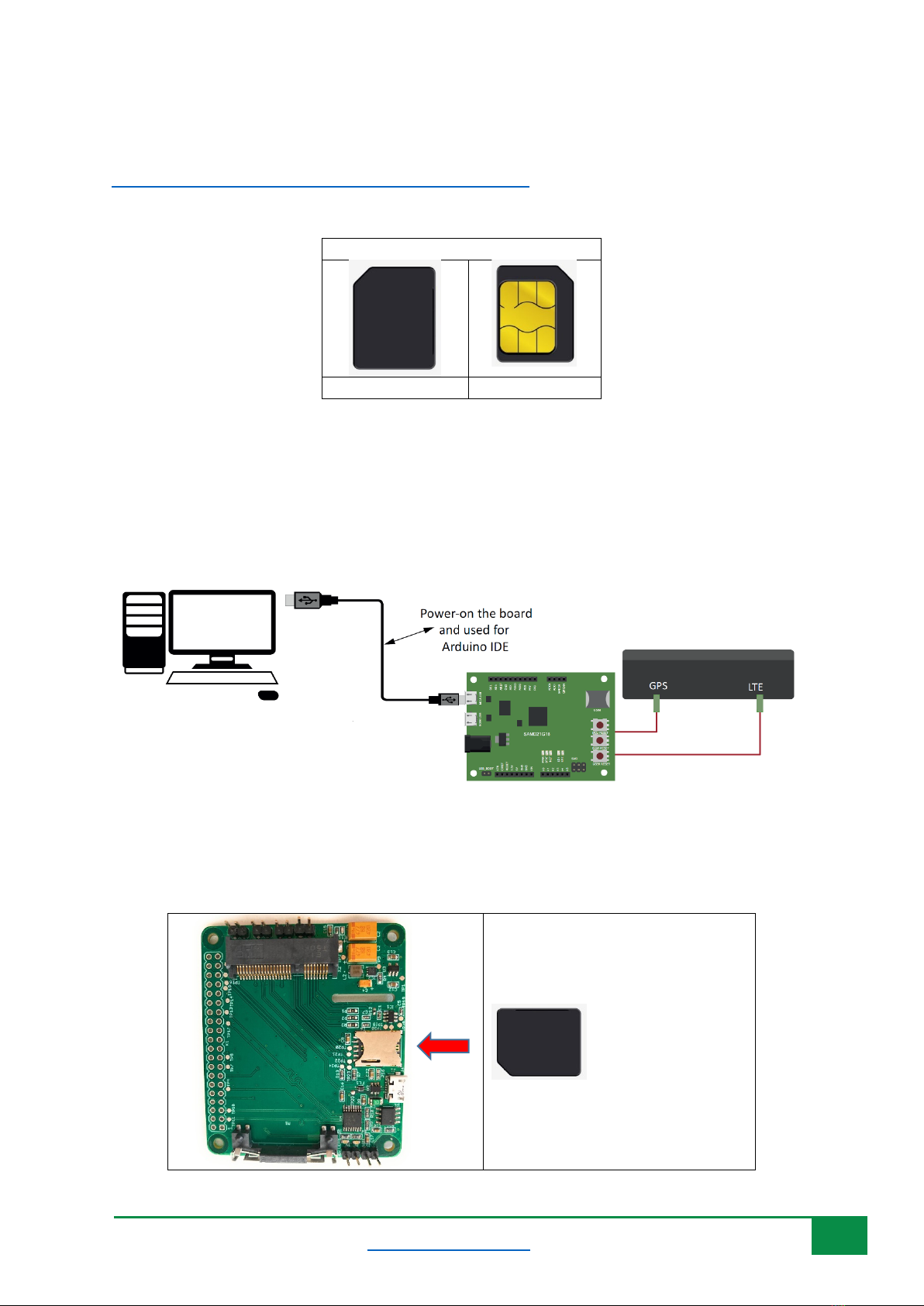
Have the Nano SIM ready:
Nano SIM
Top View
Bottom View
Follow the following steps:
1- Insert a USIM card into the USIM card slot on the hardware board.
2- Connect a USB cable between the hardware board and the computer as in the following
diagram (Note: the hardware board is an example and other USB dongle or Raspberry PI HAT
can be used. You can also use different antennas if needed)
If you are using the HAT board with any of the BG96/BG95/EG95/EG91 miniPCIe module, make sure
to insert the SIM card as shown below:

6
QCOM Tool v1.6 Copyright © 5GHUB.US
3- Connect the board to a USB cable to PC, then you shall see the ports and modem in the
Windows device manager as in this screenshot:
3Use QCOM tool with BG96/BG95/EG91/EG95
Install the QCOM tool from this location:
5G-NB-IoT/Tools at master · 5ghub/5G-NB-IoT (github.com)
To use the QCOM tool with LTE&GNSS modem, connect the computer USB port to the USB port on
the hardware board and make sure all modem serial ports are enumerated in the Windows device
manager as in figure below.
The serial ports below can be used for the following purposes:
•USB Modem: The USB modem interface is used for AT commands, data transmission, GNSS
data and NMEA sentences output.
•USB AT Port: It is used for AT commands and data transmission.
•USB NMEA Port: It is used for GNSS data and NMEA sentences output.

7
QCOM Tool v1.6 Copyright © 5GHUB.US
Figure 3: Windows device manager enumerated all serial ports of the modem.
Each serial port, as in Figure 3, shows the serial port number uses as in format COMXX.If the USB
Modem port is used, you can find its COM port number, by right-click on it, select Properties, then
select Modem. You will find the port number displayed for this USB modem. It shows up as COM47
in the figure below. You can use this port number in QCOM tool.
Figure 4: Port number for the USB modem.

8
QCOM Tool v1.6 Copyright © 5GHUB.US
4How to Use the QCOM Tool
The tool is used to send and receive data with serial port. You can use it to send/receive AT
commands, data transmission and reception, or GNSS control and NMEA sentences
Figure 5 shows the tool when is launched and different controls in the tool.
Figure 5: QCOM tool graphical user interface (GUI).
•Red area displays the received data.
•Blue area displays status information.
•Purple area is used to send data or files.
•Green area is used to send data continuously.
4.1 COM Port Configuration
According to the connection between PC and the hardware board, select the right serial port as shown
Figure 6. Select the COM port number corresponds to either the USB AT Port or USB Modem as
appears in the Windows device manager and as explained in the previous Sections.

9
QCOM Tool v1.6 Copyright © 5GHUB.US
Figure 6: Selecting COM port.
Choose an appropriate baud rate. Please refer to Figure 7.
Figure 7: Selecting Baud rate.
Choose appropriate Stop Bits, Parity, Byte Size, and Flow Control, shown as Figure 8.
Figure 8: Selecting Other parameters for the COM port.
4.2 Open and Close COM Port
Click Open Port to open the selected COM port. Please refer to Figure 9.

10
QCOM Tool v1.6 Copyright © 5GHUB.US
Figure 9: Clicking “Open Port” button.
Click “Close Port” to close the selected COM port. Please refer to Figure 10.
Figure 10: Clicking “Close Port” button.
4.3 Send Data
To send data from the QCOM tool, follow the following steps:
1) Red area is used to input data which would be sent.
2) Green area is used to choose file needed and send a whole file.
3) Blue area is used to save received data as a file.
4) DTR: Enable the DTR pin of COM port.
5) RTS: Enable the RTS pin of COM port.
6) View File: Show the data of the file which has been sent.
7) Show Time: Show the time of each received data.
8) HEX String: The input string is HEX string.
9) Show in HEX: The received data is shown in HEX.
10) Send with Enter: Send data with “Enter”.
11) Clear Information: Clear all received data and status information.
12) Send Command: Start to send the data which you input.
13) Select File: Select the file which would be sent.
14) Send File: Start to send the file that you have selected.
15) Save Log: Select the file of which the Log data was saved.
Tabla de contenidos
Otros manuales de Hardware de computadora de 5G HUB
Manuales populares de Hardware de computadora de otras marcas

EMC2
EMC2 VNX Series Manual del propietario

Panasonic
Panasonic DV0PM20105 Manual de usuario

Mitsubishi Electric
Mitsubishi Electric Q81BD-J61BT11 Manual de usuario

Gigabyte
Gigabyte B660M DS3H AX DDR4 Manual de usuario

Raidon
Raidon iT2300 Manual de usuario

National Instruments
National Instruments PXI-8186 Manual de usuario