
Zoom Q4n Manual de usuario

User Guide
Safety and Operation
Precautions must be read
before using this unit.
© 2015 ZOOM CORPORATION
Copying or reproduction of this User
Guide in part or in whole without per-
mission is prohibited.

2
Contents
Parts and their functions ........................... 3
Left side ............................................... 3
Top ........................................................ 3
Bottom ................................................. 3
Front .................................................... 4
Back ..................................................... 4
Right side ............................................ 4
Mic overview .............................................. 5
Mic features ........................................ 5
Using the X/Y mic technique ............. 6
Using the A/B mic technique ............. 7
Operation of parts ...................................... 8
Attaching the battery .......................... 8
Loading an SD card ............................ 8
Opening, closing and rotating the LCD
screen .................................................. 9
Display overview ...................................... 10
Main screen ....................................... 10
Playback screen ................................. 11
Menu screen ...................................... 12
Charging the battery ................................. 13
Turning the power on and off .................. 14
Turning the power on ........................ 14
Turning the power off ........................ 14
Setting the date and time ......................... 15
Formatting SD cards ................................. 16
Adjusting recording levels ....................... 17
Adjusting recording levels manually
... 17
Adjusting the angle of view ..................... 18
Recording .................................................. 19
Audio monitoring settings ...................... 20
Playing recordings ................................... 21
Playing a file ..................................... 21
Changing the playback position ...... 21
Playing a different file ...................... 22
Setting the sound ..................................... 23
Reducing noise (Lo Cut) ................... 23
Auto Gain .......................................... 24
Recording mode settings ........................ 25
Setting the mode .............................. 25
Mode explanations ........................... 25
Camera settings ....................................... 27
Scene settings ................................... 27
Self timer ........................................... 28
Upside Down .................................... 29
File list ....................................................... 30
Opening the file list .......................... 30
Playing files from the list ................. 30
Checking file information ........................ 31
Deleting recordings ................................. 32
Connections to the external input jack
.... 33
Using microphones that require
plug-in power ................................... 33
Headphones/line output and HDMI
output ....................................................... 34
Headphones/line output .................. 34
HDMI output ..................................... 34
USB connections ..................................... 35
Using USB connection functions .... 35
Using as a card reader
(computer/iPad) ................................ 36
Using as a USB mic
(computer/iPad) ................................ 36
Using as a web camera (computer)
... 37
Locking the LCD rotation ......................... 38
System settings ........................................ 39
Updating the firmware ............................ 40
Troubleshooting ....................................... 41
Specifications ........................................... 42
Safety Precautions ................................... 43
Usage Precautions ................................... 44
Warnings and requests regarding safe
battery use ................................................ 45

3
Parts and their functions
Left side
LCD panel
AB/XY mic
Top
REC button Input volume
control
AB/XY micPOWER buttonREC LED
Bottom
SERIAL NO.
Tripod mounting threads
SD card slot cover
Strap
attachment
hole

4
Front
Lens
REC LED
Back
Mic slider
USB port
Headphones
jack
External
input jack
HDMI port
Charging LED
Right side
Battery cover
Parts and their functions (continued)
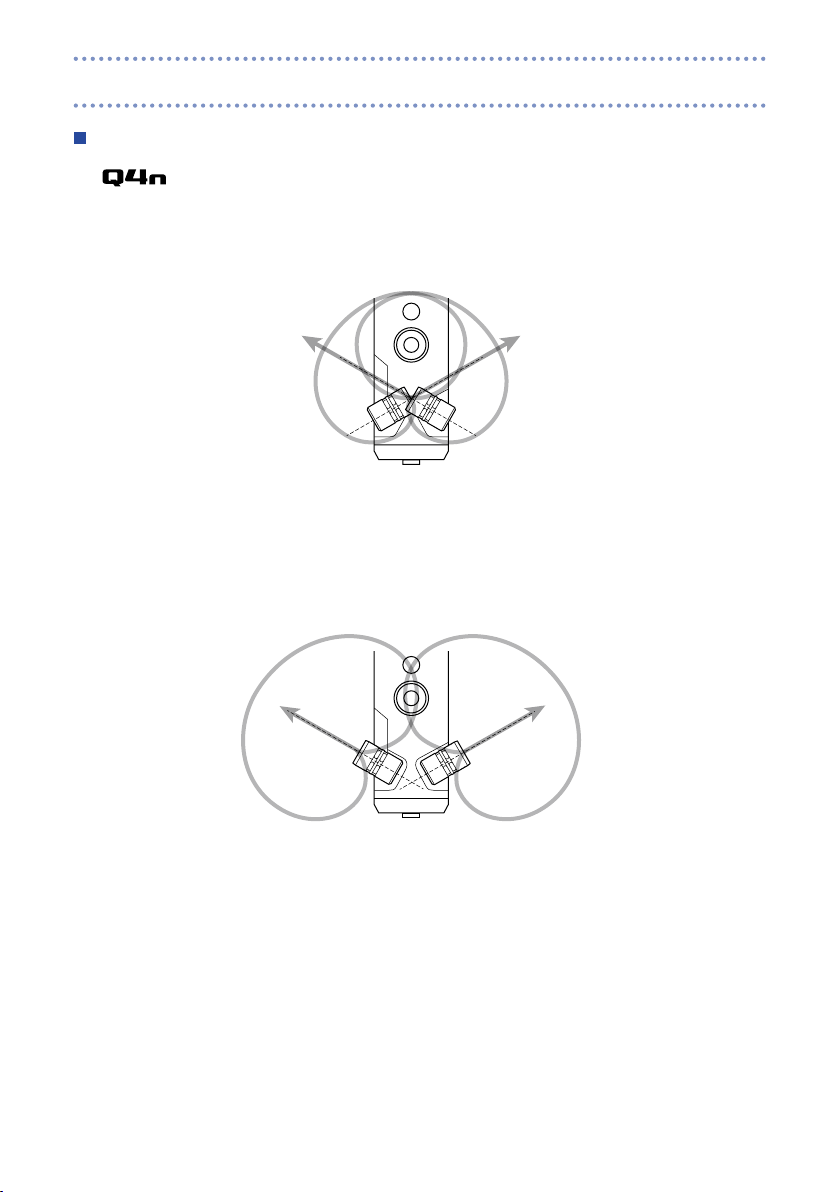
5
Mic features
The mic orientation can be changed, allowing the use of two stereo recording techniques with
different characteristics.
X/Y technique
This technique uses two crossing directional mics.
Features:
Providing a three-dimensional sound with natural depth and width, this is ideal when you
want to capture a specific sound source that is nearby or at a medium distance, for ex-
ample, solo performances, chamber music, live rehearsals and field recordings.
A/B technique
This technique uses two spread-apart directional mics.
Features:
Providing a wide sense of stereo, in addition to recording the specific sound source, this
technique is ideal for also capturing the sound of the surrounding environment.
This is useful when you also want to record the reverb of a hall, as well as for meetings or
similar situations where you want to capture the sound of people talking in different areas
of the room.
Mic overview

6
Using the X/Y mic technique
1. Slide the mic slider on the back up until it locks.
This raises the mics.
2. Rotate the left or right mic inward until it locks.
The mic locks when it clicks into place.
3. Rotate the other mic inward in the same way until it is
fixed in place.
The X/Y technique will become active and the mic indicator on
the LCD will change to XY.
If the mics are not recognized as being in the X/Y position, they will be used as an A/B pair.
•
When putting the mics away, rotate both outward before sliding the slider down.
•
NOTE
Always use the mic slider to raise the mics. Moreover, do not use too much force when rotating the mics.
Excessive force could damage the mics.
CAUTION
Mic overview (continued)

7
Using the A/B mic technique
1. Slide the mic slider on the back up until it locks.
This raises the mics.
Mic overview (continued)

8
Attaching the battery
1. Slide the battery cover down to remove it.
2. Install the battery in the direction of the arrow and re-
attach the battery cover.
Loading an SD card
1. Open the SD card slot cover on the bottom of the
.
2. Insert the SD card into the SD card slot.
To remove the card, push it further into the slot and then pull
it out.
Do not remove the SD card during recording. Doing so could damage the data.
CAUTION
When inserting an SD card, be sure to insert the correct end with the top side up as shown.
•
If an SD card is not loaded, recording and playback are not possible.
•
To format an SD card, see P. 16.
•
NOTE
Operation of parts

9
Opening, closing and rotating the LCD screen
Opening and closing the LCD
1. As shown in the illustration, open the LCD on the left side
of the .
2. When not using the , close the LCD for storage.
Rotating the LCD
You can rotate the screen so you can check what is being recorded when filming yourself.
1. Rotate the screen in the direction of the arrow.
2. Rotate the screen in the opposite direction to return it to
its original position.
Do not apply force in the direction opposite the rotation shown in the illustration. Doing so could damage
the .
CAUTION
Recording is possible even when the LCD is closed.
NOTE
Operation of parts (continued)

10
Main screen
Level meters
Scene setting
Lo Cut setting
Mic status/
external input
connection status
Auto Gain setting
REC icon
(during recording)
Remaining
battery charge
LCD Lock setting
Upside down setting
Open Menu screen
Open input settings
Open Playback Screen
Open
output volume
adjustment
When recording : recording time
In recording standby: shows available recording time
Audio quality
setting
Video resolution
setting
Zoom in/out
The buttons will disappear if no operation occurs for some time. Touch the LCD to show the buttons again.
NOTE
Display overview
Tabla de contenidos
Otros manuales de Videocámara de Zoom


Manuales populares de Videocámara de otras marcas


Panasonic
Panasonic AG-HMC152EN Manual de usuario

Insignia
Insignia NS-DCC5HB09 - Camcorder - 720p Manual de usuario

MYDLINK
MYDLINK DCS-6100LH Manual de usuario

Sony
Sony video Hi8 Handycam CCD-TR555 Manual de usuario

SECURECOM
SECURECOM V-5014B Manual de usuario

Panasonic
Panasonic HDC-SD100 Manual de usuario


