Zinglife ZL101 Manual de usuario

10” zinglife e-tab User Guide to Android™
MODEL ZL101
USER MANUAL

zinglife
Thank you for purchasing the zinglife e-tab !!
Before using the unit, please read this manual thoroughly and retain it
for future reference. This manual will help you get the best out of your
e-tab, as well as what to do in case you experience any issues.
Technical Support
To help you get the best out of your product we provide you with a
Support Helpdesk (terms and conditions apply).
customercare@zinglife.in
www.zinglife.in/support
It‟s well worth checking our website at www.zinglife.in for the latest
firmware updates that become available over time.
Package Contents
When you open your box, please check your package is complete and
all items are in good order. Your box should contain:
•10” Zinglife e-tab
•AC Power Adapter
•Broadband Connector
•User Manual
If you have anything missing or any items are damaged please contact
your place of purchase.

10” zinglife e-tab User Guide to Android™
About your zinglife e-tab
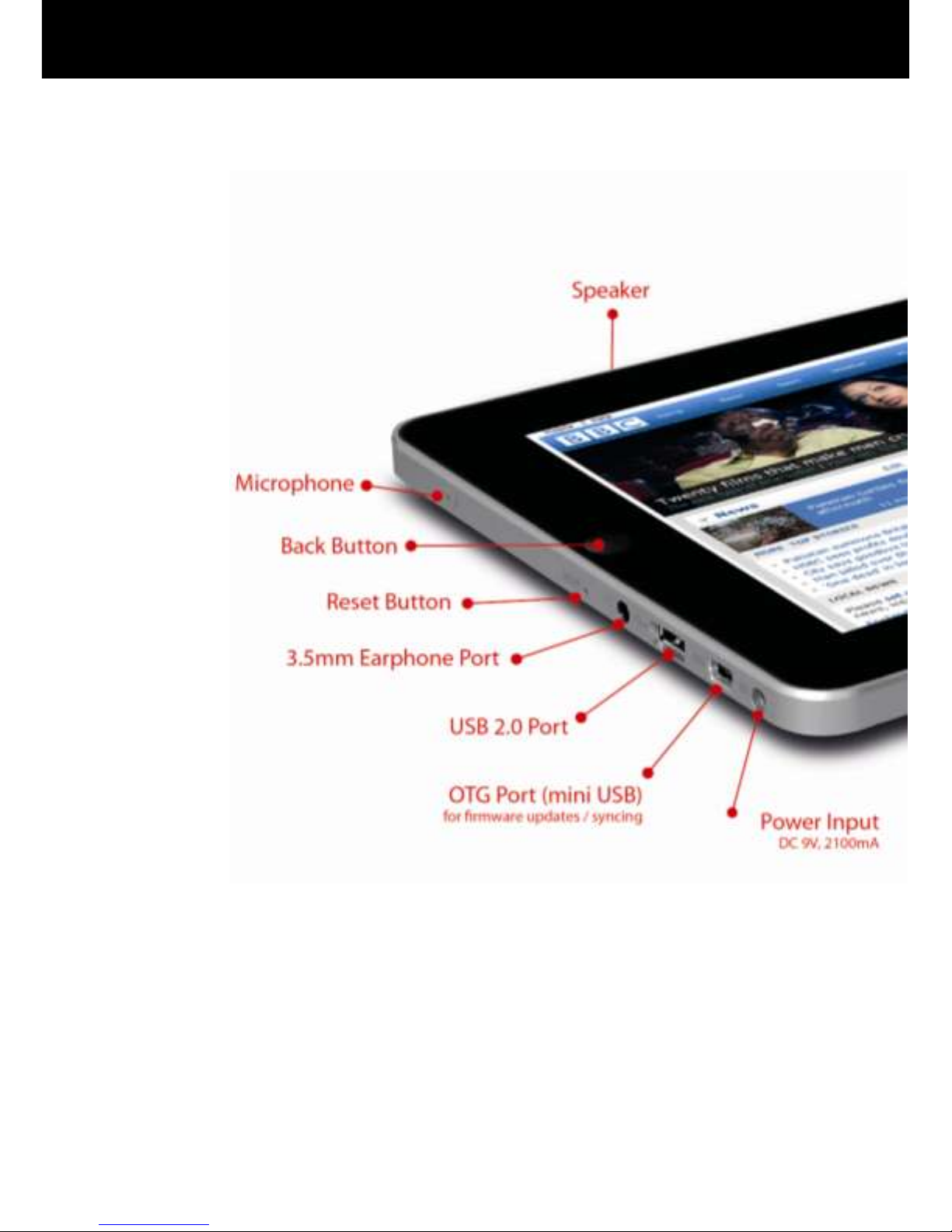
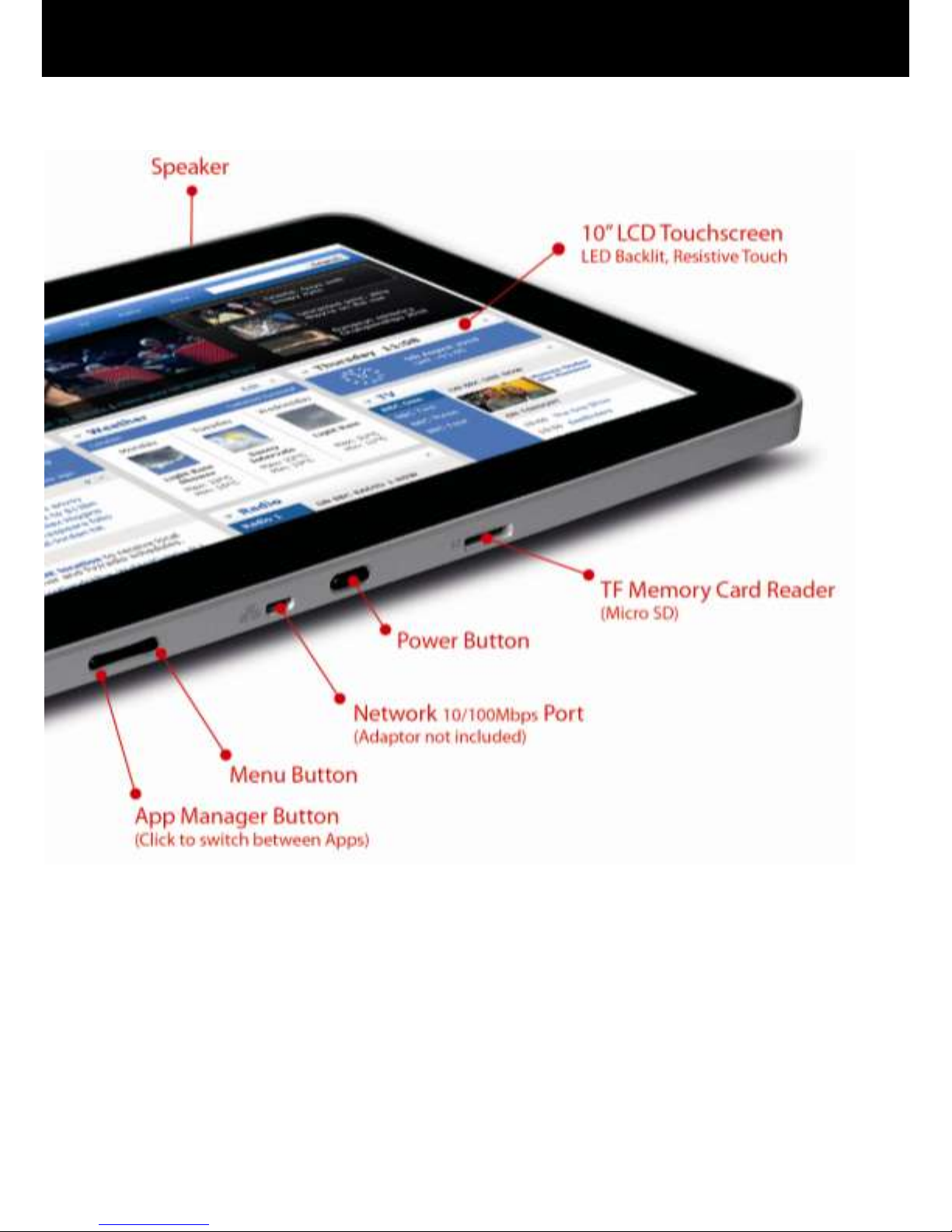
Power Button Press and hold for 1 second to turn ON or OFF.
Back Button Click to „Go Back‟ to the previous screen.
Menu Button Click the Menu Button at any time to bring up a menu of
options relevant to the App you have opened.

zinglife
Network Port For Broadband Connection (Adaptor included).
USB 2.0 Port Supports Pen-Drive and 3G Data Dongles.
App Manager Button Click to bring up a list of Apps you currently have
open, then tap an App to switch between apps (multi-tasking).

10” zinglife e-tab User Guide to Android™
Setting up your e-tab
Open the package and carefully remove the packaging. It‟s
recommended that you retain the package for the duration of the
warranty period.
Your Zinglife e-tab has a screen protector (a thin film to protect the
screen during transit). Please slowly and carefully remove this from the
screen as it will reduce the quality of the screen image. Wipe the
screen with a clean damp cloth.
Battery Charging
Your Zinglife e-tab has a built-in rechargeable lithium battery. We
recommend that you charge the battery for at least 8 Hours for its first
charge, to achieve the best battery life.
To maximise your battery life it‟s recommended that you always fully
charge the battery and then use the Zinglife e-tab unplugged until the
battery power is low, at which point you can recharge the battery.
Using full charging and draining cycles is much better than charging
the battery bit by bit.
To charge the battery, simply connect the power adaptor to your mains
wall socket and the DC Power Input and switch it on.
The LED Battery Indicator (at the top right of the e-tab) will
illuminate red.
Once the battery is fully charged the LED will turn off.
You can see the battery charge status in the menu bar at the
top of your e-tab‟s screen.
NOTE: The LED will illuminate ‘Blue’when the eTouch is powered
ON (even when in standby mode). It will show Blue and Red
when powered ON and charging.
Battery Icon The Battery icon shows in the menu bar at the
top of your screen. It shows the amount of charge in your
battery. Only use the authorised Zinglife power adaptor as
supplied in your package.

zinglife
Turning your e-tab ON
Once you‟ve charged the battery (or connected the
power adaptor) you can turn the e-tab ON by pressing
the power button and the Android™ operating system
will load.
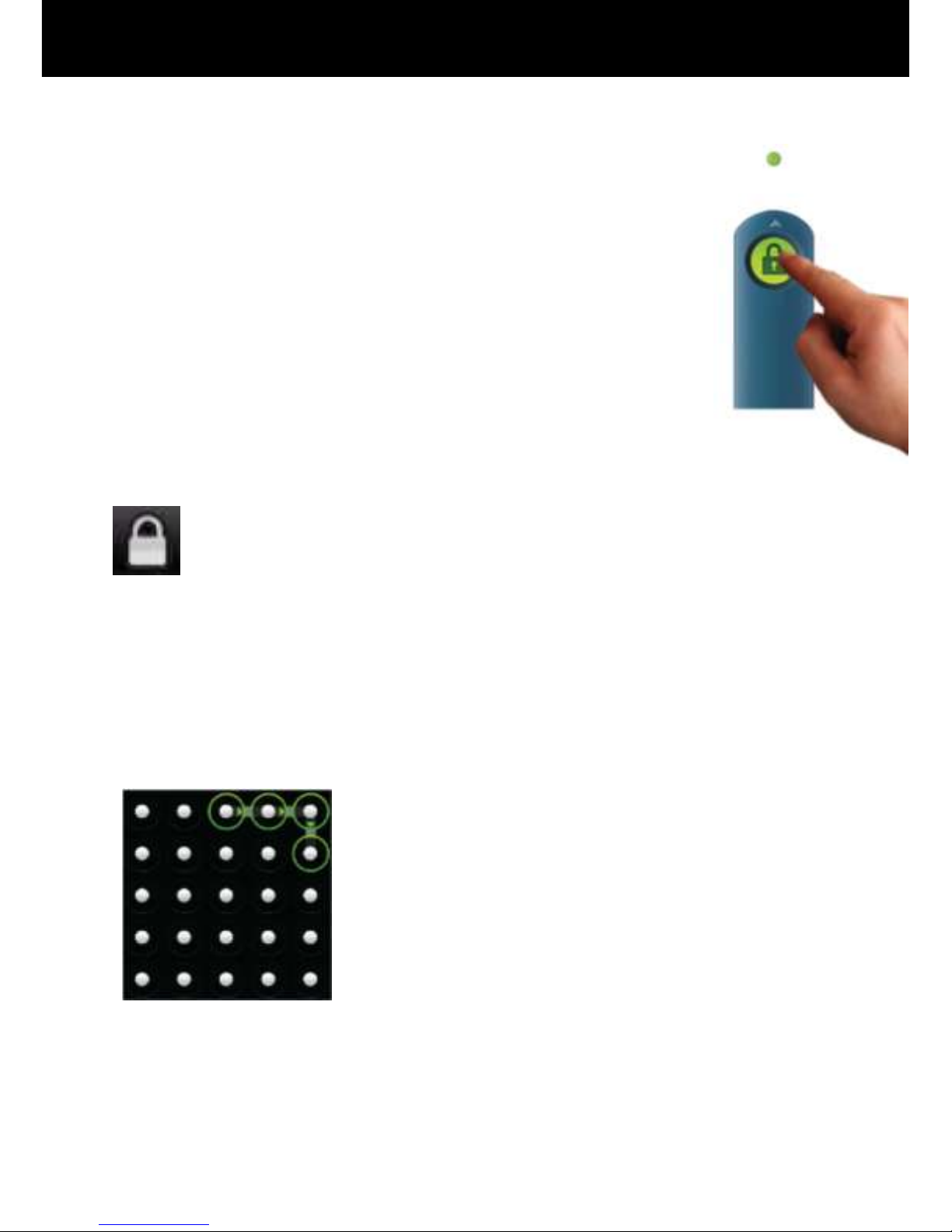
To unlock the screen (it‟s locked to avoid accidentally
pressing buttons when not being used) slide the padlock
icon until it covers the green dot.
The e-tab will then load your home screen for you to start
navigating to your chosen App.
The screen will automatically lock after a period of non-use
(you can change the length of this time period in the Settings
menu, or you can lock it at any point by pressing the Padlock
icon in the menu bar)
Security
You can increase the security settings to protect your e-tab by using a
unique unlock pattern.
From your home screen tap Settings > Location
and Security > Set Unlock Pattern and follow the
on-screen instructions.
Please Note that your unlock pattern should use
at least 4 dots and the e-tab will be more
secure with a greater number of dots included
in the pattern.
To turn your eTouch OFF simply press and hold the Power button for
about 1 second and tap Power off then OK.

10” zinglife e-tab User Guide to Android™
About your Home Screens
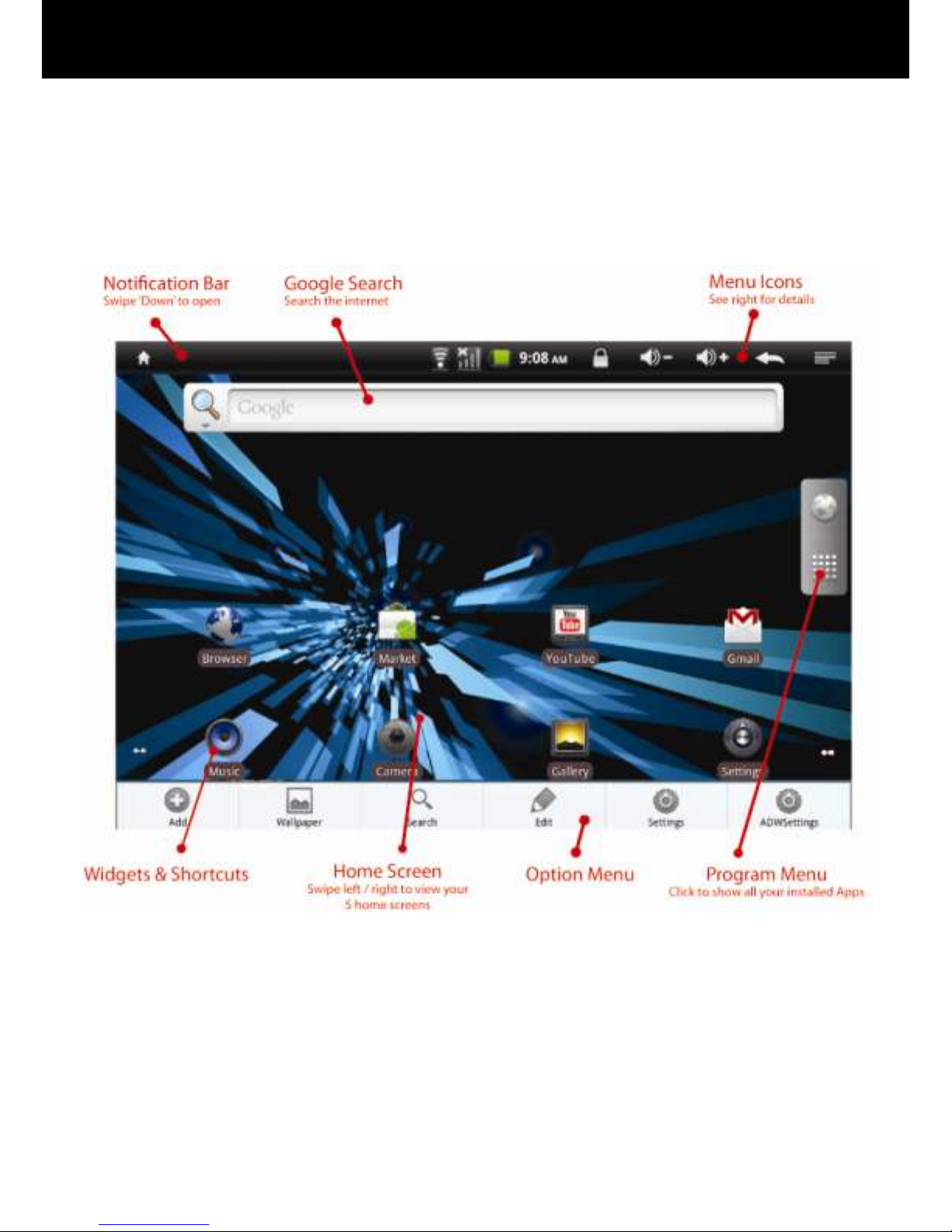
The e-tab has 5 home screens where you can add shortcuts to places
and Apps as well as adding widgets (apps that reside on your home
screen such as a clock/calendar).
Your e-tab has 5 home screens to let you personalise your working
environment to suit your lifestyle. For example you can set up one
screen with your favourite apps on it, another screen with widgets to
your favourite social networking sites and another page with shortcuts
to your work files.

zinglife
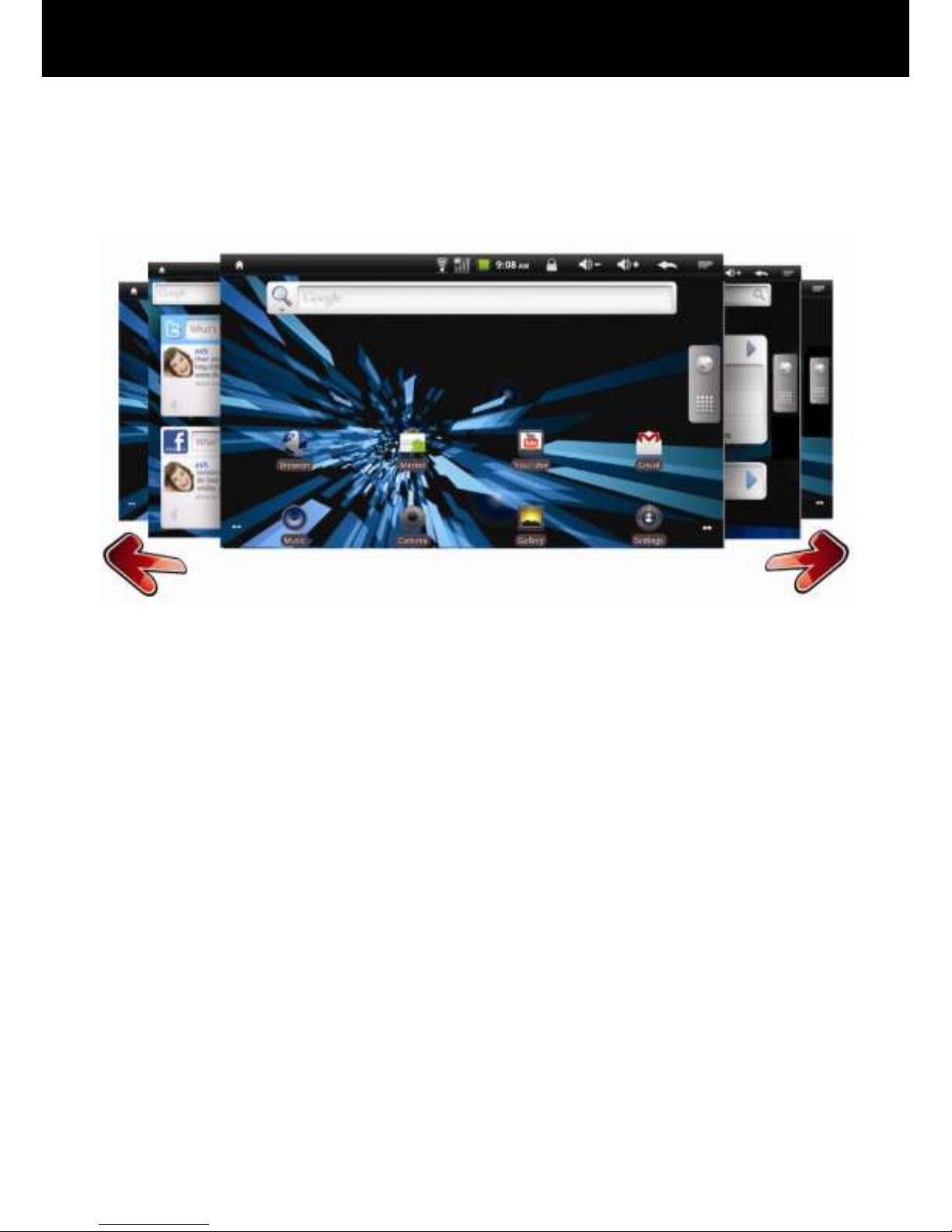
To access your other home screens you can simply touch the screen
and swipe it left or right.
Customising your Home Screens
To add a widget or shortcut to your home screen
tap the Menu icon (or right tap) and tap Add.
(or just tap & hold an empty location on the Home screen).
Please Note: If there are no empty positions on the Home screen
or the ‘Add’button is dimmed you must delete or move an item
before you can add another, OR switch to another Home
screen with more free space.
In the menu that pops up, tap the type of item you wish to add.
You can then add the following types of items to the Home
screen:
Shortcuts
Add shortcuts to applications, a bookmarked webpage, a File
location, a Gmail label or a particular setting and many other items.
The shortcuts available depend on the applications you have
installed.

10” zinglife e-tab User Guide to Android™
Widgets
Widgets are miniature applications that stay on your Home screen
and feed information to you in an accessible manner. For example
you can have a widget that shows the latest eMails you‟ve
received, social networking updates or the current weather
conditions.
You can also download widgets from the Android Market. Most
Widgets use different sized spaces on your home screen so you
might have to move some icons around to create some space.
Folders
Add a folder where you can organize Home screen items. For
example if you want to group a set of Internet Bookmarks, or a set
off similar Apps you can create a folder on your Home screen and
drag and drop items into the folder. Your folders contents are
automatically kept up to date.
Moving and Deleting Home Screen Items
To Move a widget or shortcut simply tap and hold the item until it
enlarges slightly. Then you can move the item to some free space of
your choice.
You can move an item from one home screen to another by tapping
and holding the item and dragging it to the left or right side of the
screen. The screen will slide to the next home screen where you can
drop the item into some free space.
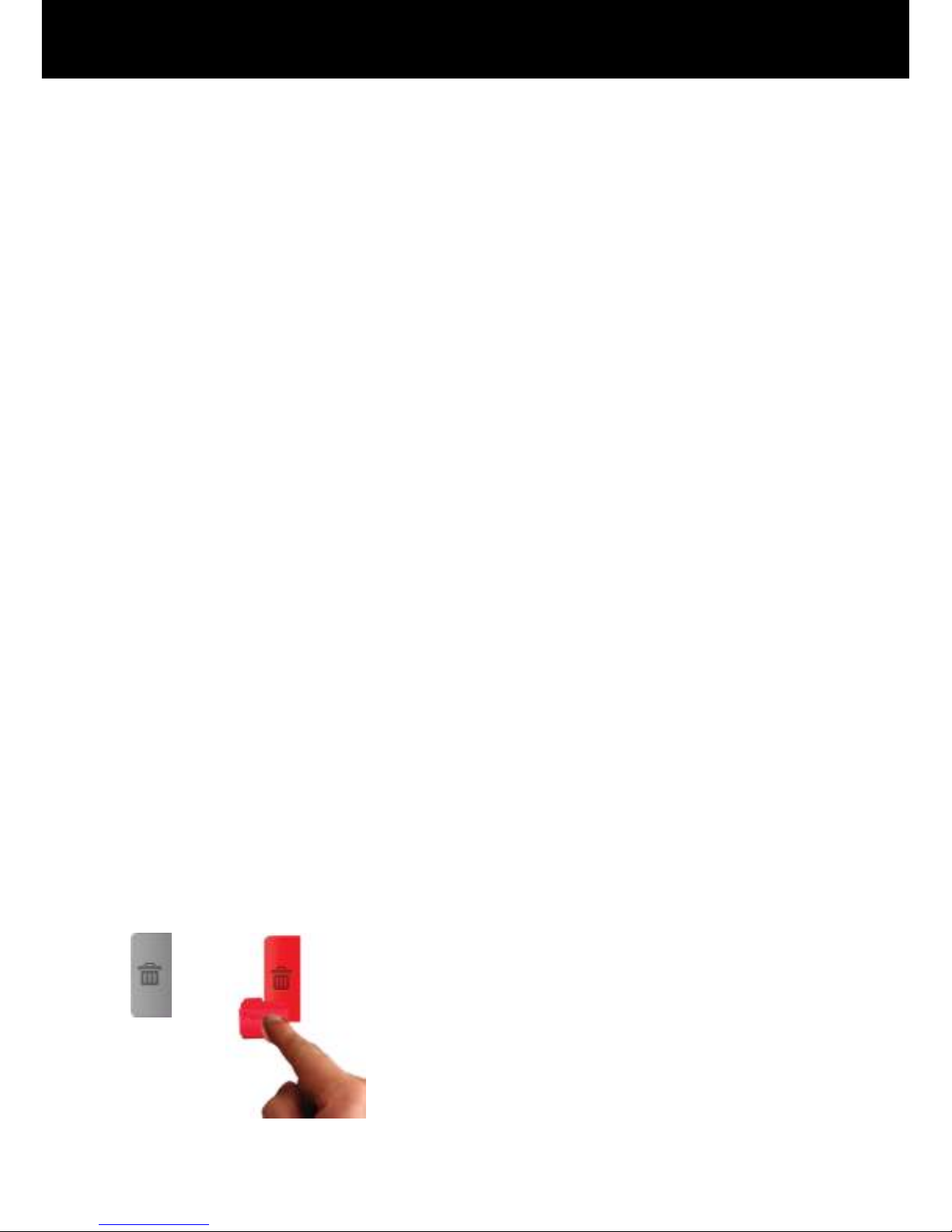
To Delete a widget or shortcut, tap and hold the item, then drag it to
the recycle bin. The recycle bin icon replaces your program menu on
the left hand side of the screen.

zinglife
Menus
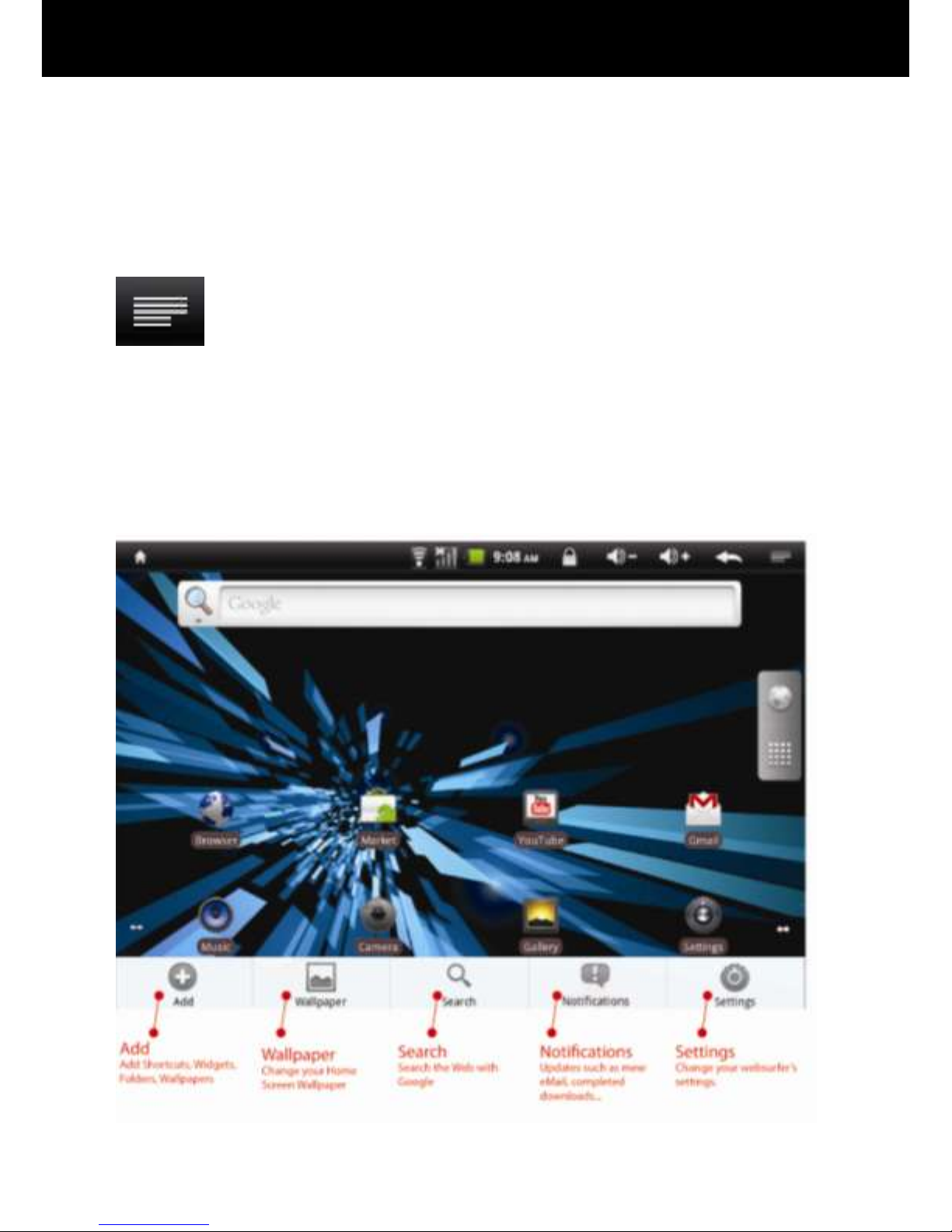
Your home screen and most apps have a menu that you can bring up
by pressing the Menu Icon at the top of the screen or by taping the
right mouse button.
Menu Icon Tap the Menu Icon at any time to bring up a
menu of options relevant to the screen you have open. For
example on the home screen, tapping the menu icon
brings up ways to change your Home Screen, and if you
have the eMail app open the menu icon brings up options
to do with your eMail.
You can see an example (overleaf) of the menu that opens when you
tap the Menu Icon.
Tabla de contenidos
Otros manuales de Tableta de Zinglife